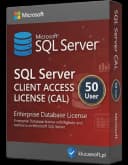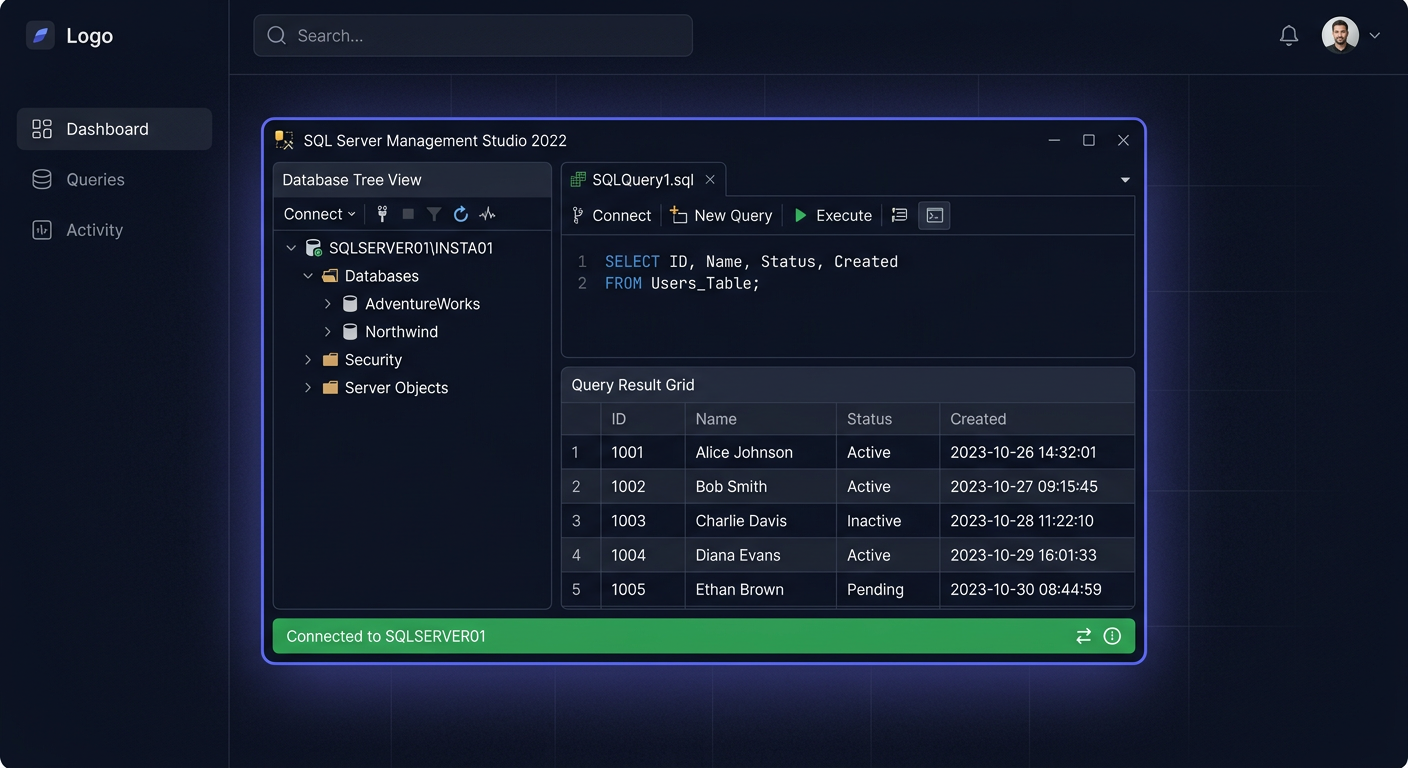
Aktywacja SQL Server 2017 Standard 50 Device CAL — kompletny poradnik dla firm w 2026 roku
Aktywacja SQL Server 2017 Standard 50 Device CAL polega na poprawnym wdrożeniu licencji serwerowej oraz zapewnieniu zgodności dostępu dla urządzeń, które łączą się z usługą SQL Server. W praktyce oznacza to, że jedna licencja serwera obejmuje instalację samego środowiska SQL Server 2017 Standard, a model Device CAL pozwala legalnie korzystać z niego z określonej liczby urządzeń, niezależnie od liczby użytkowników obsługujących dane stanowisko.
Wariant 50 Device CAL jest wybierany najczęściej tam, gdzie z jednego komputera, terminala lub urządzenia korzysta kilka osób, na przykład w magazynie, recepcji, produkcji, punktach sprzedaży albo w środowisku zmianowym. Taki model bywa korzystniejszy niż User CAL, jeśli liczba urządzeń jest łatwa do policzenia i nie zmienia się często.
Warto pamiętać, że w przypadku SQL Server 2017 CAL nie aktywuje się zwykle każdej licencji CAL osobnym kluczem w systemie. Klucz produktu dotyczy najczęściej samej instalacji serwera, natomiast uprawnienia CAL trzeba posiadać, udokumentować i przypisać zgodnie z zasadami licencjonowania. Dlatego poprawna aktywacja to nie tylko wpisanie klucza, ale również upewnienie się, że wdrożenie odpowiada zakupionemu modelowi licencyjnemu.
W 2026 roku temat jest nadal aktualny, ponieważ wiele polskich firm korzysta z aplikacji ERP, WMS, CRM, systemów sprzedażowych, programów księgowych, narzędzi produkcyjnych i lokalnych baz danych opartych na SQL Server 2017. Jednocześnie infrastruktura kliencka zmienia się szybciej niż serwery: pojawiają się komputery z Windows 11 24H2 i Windows 11 25H2, pakiety Office 2024, środowiska Microsoft 365, funkcje M365 Copilot, a w organizacjach z pocztą lokalną także plany migracyjne związane z Exchange SE. To wszystko nie zmienia podstawowej zasady licencjonowania SQL Server, ale wymaga lepszej kontroli nad tym, które urządzenia faktycznie korzystają z bazy danych.
Jeżeli chcesz sprawdzić dostępność produktu, możesz przejść do oferty SQL Server 2017 Standard 50 Device CAL w KluczeSoft: kluczesoft.pl/sql-server-cals/sql-server-2017-standard-50-device-cal.
Co oznacza SQL Server 2017 Standard 50 Device CAL
Licencjonowanie SQL Server w modelu Server + CAL składa się z dwóch warstw. Pierwsza to licencja serwerowa, czyli prawo do uruchomienia konkretnej edycji SQL Server na serwerze. Druga to licencje dostępowe CAL, czyli prawo dostępu do tego serwera przez użytkowników albo urządzenia.
W przypadku SQL Server 2017 Standard 50 Device CAL kluczowe są trzy elementy:
- SQL Server 2017 Standard Server — edycja serwerowa, którą instalujesz lub już posiadasz,
- Device CAL — licencje dostępowe przypisane do urządzeń,
- 50 Device CAL — pakiet lub liczba licencji umożliwiająca dostęp maksymalnie 50 urządzeniom.
Model Device CAL nie oznacza, że w systemie SQL Server pojawi się lista 50 aktywowanych komputerów. Nie działa to tak jak aktywacja systemu Windows czy pakietu Office. CAL jest uprawnieniem licencyjnym, które trzeba posiadać, przypisać i udokumentować. SQL Server zwykle nie blokuje technicznie 51. urządzenia, ale w takim przypadku środowisko może przestać być zgodne licencyjnie.
To ważna różnica: aktywacja techniczna dotyczy instalacji serwera i ewentualnego klucza produktu, natomiast zgodność licencyjna dotyczy liczby i rodzaju dostępów. Firma musi więc zadbać zarówno o poprawnie działającą instancję SQL Server 2017 Standard, jak i o dokumenty potwierdzające prawo dostępu dla urządzeń.
| Element | Co oznacza w praktyce | Czy wpisuje się osobny klucz? |
|---|---|---|
| SQL Server 2017 Standard Server | Prawo do instalacji i uruchomienia edycji Standard | Zwykle tak, dla instalacji serwera lub nośnika licencyjnego |
| Device CAL | Prawo dostępu dla konkretnego urządzenia | Zwykle nie |
| 50 Device CAL | Pokrycie licencyjne dla 50 urządzeń | Zwykle nie dla każdej CAL osobno |
| Dokument zakupu | Potwierdzenie legalnego nabycia licencji | Nie, ale trzeba go przechowywać |
| Przypisanie licencji | Wewnętrzna ewidencja urządzeń korzystających z SQL Server | Nie, to obowiązek organizacyjny |
W praktyce oznacza to, że administrator może poprawnie zainstalować SQL Server 2017 Standard, ale firma nadal musi sprawdzić, czy wszystkie stanowiska, terminale, komputery kasowe, urządzenia produkcyjne i inne punkty dostępu są objęte licencjami CAL.
Kiedy wybrać Device CAL zamiast User CAL
Wybór między Device CAL a User CAL zależy od tego, co łatwiej i korzystniej policzyć: urządzenia czy osoby. Device CAL sprawdza się tam, gdzie wiele osób korzysta z tych samych komputerów, a liczba stanowisk jest stabilna. User CAL jest zwykle lepszy, gdy jedna osoba korzysta z wielu urządzeń, na przykład laptopa, komputera stacjonarnego, tabletu i połączenia zdalnego.
Wariant 50 Device CAL jest szczególnie praktyczny w firmach, które mają wyraźnie określoną liczbę urządzeń podłączonych do aplikacji bazodanowej. Może to być 20 terminali magazynowych, 12 komputerów produkcyjnych, 8 stanowisk sprzedażowych, 5 komputerów w biurze obsługi i kilka dodatkowych urządzeń administracyjnych. Jeśli łączna liczba urządzeń nie przekracza 50, pakiet 50 Device CAL może być logicznym wyborem.
| Scenariusz | Lepszy model | Dlaczego |
|---|---|---|
| Magazyn pracuje na 3 zmiany, 30 osób korzysta z 10 terminali | Device CAL | Licencjonujesz 10 urządzeń, nie 30 osób |
| Biuro handlowe: 15 osób ma laptopy, telefony i dostęp zdalny | User CAL | Licencjonujesz użytkowników, nie każde urządzenie |
| Sklep ma 6 kas, z których korzysta rotacyjnie 20 pracowników | Device CAL | Dostęp odbywa się przez stałe stanowiska |
| Zespół księgowy używa komputerów stacjonarnych i laptopów służbowych | Zależnie od liczby | Trzeba porównać liczbę osób i urządzeń |
| Produkcja ma panele operatorskie podłączone do aplikacji SQL | Device CAL | Urządzenia są stałe i łatwe do ewidencji |
Device CAL nie jest licencją „na firmę” ani „na lokalizację”. Jeżeli urządzenie łączy się z SQL Server bezpośrednio lub pośrednio przez aplikację, powinno być uwzględnione. Dotyczy to także sytuacji, gdy użytkownik nie otwiera SQL Server Management Studio, ale korzysta z programu, który zapisuje dane w bazie SQL Server.
Przykład: pracownik magazynu skanuje kod kreskowy na terminalu, terminal wysyła dane do aplikacji WMS, a aplikacja zapisuje operację w bazie SQL Server. Nawet jeśli pracownik nie widzi SQL Server, urządzenie korzysta z usługi pośrednio. W modelu Device CAL taki terminal powinien być objęty licencją.
Przygotowanie środowiska w 2026 roku
Przed aktywacją lub weryfikacją SQL Server 2017 Standard 50 Device CAL warto przygotować krótką inwentaryzację środowiska. W 2026 roku organizacje często mają mieszane infrastruktury: starszy serwer bazodanowy, nowe komputery z Windows 11, aplikacje lokalne, usługi Microsoft 365 i hybrydowe scenariusze pracy.
Najpierw sprawdź, gdzie działa SQL Server. Może to być fizyczny serwer w firmie, maszyna wirtualna, środowisko hostowane albo lokalny serwer aplikacji. Następnie ustal, która edycja jest zainstalowana. Dla omawianego modelu istotne jest, aby środowisko działało na SQL Server 2017 Standard, a nie na edycji Express, Enterprise lub Evaluation. Edycje te mają inne przeznaczenie i inne konsekwencje licencyjne.
Kolejny krok to lista urządzeń. W polskich firmach często są to:
- komputery biurowe z aplikacją ERP lub CRM,
- stanowiska kasowe i POS,
- terminale magazynowe,
- panele produkcyjne,
- komputery recepcji,
- stacje robocze działu księgowości,
- urządzenia serwisowe,
- komputery z dostępem zdalnym do aplikacji,
- serwery aplikacyjne pośredniczące w dostępie do bazy.
Nowe systemy klienckie, takie jak Windows 11 24H2 i Windows 11 25H2, nie zmieniają samego modelu CAL, ale mogą zwiększyć liczbę urządzeń mających dostęp do aplikacji. Podobnie Office 2024 czy środowisko Microsoft 365 mogą korzystać z dodatków, integracji lub raportów, które pobierają dane z SQL Server. Jeżeli dane z SQL Server trafiają do narzędzi analitycznych, raportowych albo automatyzacji, warto sprawdzić, przez jakie urządzenia i konta odbywa się dostęp.
W kontekście M365 Copilot szczególnie ważne jest rozróżnienie między danymi w usługach Microsoft 365 a danymi w lokalnych systemach biznesowych. Copilot nie zastępuje licencji SQL Server CAL. Jeżeli firma nadal używa lokalnej aplikacji, która łączy się z SQL Server, dostęp do tej bazy musi być licencjonowany zgodnie z modelem SQL Server.
W przypadku organizacji planujących Exchange SE warto potraktować przegląd licencji jako część szerszego audytu infrastruktury Microsoft. Migracje poczty, aktualizacje systemów Windows i porządkowanie licencji serwerowych często odbywają się w tym samym okresie budżetowym. Dobrze jest wtedy zebrać w jednym miejscu faktury, potwierdzenia licencyjne i ewidencję urządzeń.
W Polsce znaczenie ma również dokumentacja księgowa. Zakup licencji powinien być potwierdzony dokumentem sprzedaży, najczęściej Fakturą VAT 23%, wystawioną w PLN. W perspektywie obowiązków związanych z KSeF warto zadbać, aby dane nabywcy, nazwa produktu i wartość zakupu były spójne z wewnętrzną ewidencją licencji.
Aktywacja SQL Server 2017 Standard 50 Device CAL krok po kroku
Poprawna aktywacja i wdrożenie obejmują zarówno czynności techniczne, jak i licencyjne. Poniższy proces można zastosować przy nowej instalacji, odtworzeniu środowiska albo audycie istniejącego serwera.
-
Upewnij się, że posiadasz właściwy produkt licencyjny.
Dla scenariusza SQL Server 2017 Standard 50 Device CAL potrzebujesz licencji SQL Server 2017 Standard Server, pakietu lub odpowiedniej liczby licencji Device CAL oraz dokumentu zakupu lub potwierdzenia licencyjnego. Bez licencji serwerowej same CAL-e nie wystarczą, ponieważ CAL daje prawo dostępu, ale nie zastępuje prawa do uruchomienia serwera. -
Sprawdź edycję zainstalowanego SQL Server.
Środowisko powinno działać na wersji SQL Server 2017 Standard. Nie należy zakładać, że każda instalacja SQL Server 2017 jest edycją Standard. W praktyce spotyka się także Express, Enterprise i Evaluation. Edycja Evaluation może działać czasowo, ale nie jest docelowym rozwiązaniem produkcyjnym. -
Przygotuj serwer do instalacji lub weryfikacji.
Sprawdź system operacyjny, dostępność aktualizacji, miejsce na dyskach, konta usług, konfigurację kopii zapasowych i politykę bezpieczeństwa. SQL Server jest często kluczowym elementem firmy, więc aktywacja nie powinna być wykonywana w oderwaniu od planu utrzymania. -
Uruchom instalator lub konfigurator SQL Server 2017.
Jeśli instalacja jest nowa, podczas wdrażania wybierz właściwą edycję produktu i wprowadź klucz, jeżeli instalator tego wymaga. W części przypadków instalacja może odbywać się na nośniku lub obrazie przypisanym do konkretnego kanału licencjonowania. Jeżeli serwer już działa, sprawdź właściwości instancji i dokumentację wdrożenia. -
Skonfiguruj instancję i usługi.
Ustaw nazwę instancji, konta usług, lokalizacje danych, lokalizacje logów, katalog kopii zapasowych oraz tryb uwierzytelniania zgodnie z potrzebami środowiska. Sama konfiguracja techniczna nie zastępuje licencji CAL, ale musi być zgodna z docelowym sposobem użycia serwera. -
Zweryfikuj dostęp aplikacji.
Sprawdź, które systemy łączą się z bazą: ERP, WMS, CRM, POS, aplikacje księgowe, narzędzia raportowe, integracje, skrypty i usługi pośredniczące. Jeżeli urządzenia korzystają z SQL Server pośrednio, nadal trzeba je uwzględnić w analizie licencyjnej. -
Policz urządzenia w modelu Device CAL.
W modelu Device CAL licencjonowane są urządzenia, które łączą się z SQL Server bezpośrednio lub pośrednio. Jeżeli z serwera korzysta 50 konkretnych urządzeń, środowisko powinno być pokryte przez 50 Device CAL. Jeśli urządzeń jest więcej, trzeba rozszerzyć licencjonowanie. -
Zachowaj dokumentację licencyjną.
Dla zgodności audytowej przechowuj potwierdzenie zakupu, dane produktu, liczbę zakupionych CAL, przypisanie licencji do środowiska oraz informacje o serwerze i urządzeniach korzystających z systemu. -
Oznacz i opisz wdrożenie wewnętrznie.
Dobrą praktyką jest przygotowanie krótkiej notatki administracyjnej: jaki serwer obsługuje SQL Server 2017, ile urządzeń ma dostęp i na jakiej podstawie licencyjnej działa środowisko. Ułatwia to późniejsze kontrole, rozbudowę infrastruktury i rozmowy z księgowością. -
Wprowadź procedurę aktualizacji ewidencji.
Każde nowe stanowisko, kasa, terminal lub komputer produkcyjny powinny być ocenione pod kątem dostępu do SQL Server. Jeżeli liczba urządzeń zbliża się do 50, administrator powinien zgłosić potrzebę rozszerzenia licencji przed uruchomieniem kolejnych stanowisk.
Sprawdzenie poprawności technicznej i licencyjnej
Po aktywacji i wdrożeniu warto sprawdzić dwa obszary: techniczny oraz licencyjny. Oba są równie ważne. Serwer może działać poprawnie technicznie, ale być źle opisany licencyjnie. Możliwa jest też sytuacja odwrotna: firma ma właściwe licencje, ale instalacja działa na niewłaściwej edycji albo na środowisku testowym.
Od strony technicznej upewnij się, że:
- usługa SQL Server działa poprawnie,
- instancja uruchamia się bez błędów,
- aplikacje klienckie łączą się z bazą,
- nie została zainstalowana wersja testowa lub niewłaściwa edycja,
- kopie zapasowe wykonują się zgodnie z harmonogramem,
- konta usług mają właściwe uprawnienia,
- połączenia z aplikacji działają po aktualizacjach Windows 11 24H2 lub 25H2 na komputerach klienckich.
Od strony licencyjnej sprawdź, czy:
- używana jest edycja SQL Server 2017 Standard,
- posiadasz ważny dowód zakupu,
- liczba urządzeń mających dostęp nie przekracza 50,
- model Device CAL odpowiada rzeczywistemu sposobowi korzystania z systemu,
- dokumentacja zawiera przypisanie licencji do środowiska,
- faktura lub potwierdzenie zakupu jest możliwe do odnalezienia w księgowości,
- ceny zakupu są ujęte w PLN, a dokument sprzedaży uwzględnia właściwą stawkę, na przykład VAT 23%, jeśli ma zastosowanie.
| Obszar kontroli | Co sprawdzić | Dlaczego to ważne |
|---|---|---|
| Edycja SQL Server | Czy działa SQL Server 2017 Standard | CAL-e muszą odpowiadać właściwej edycji |
| Licencja serwerowa | Czy firma ma prawo do instalacji serwera | Same CAL-e nie wystarczają |
| Liczba urządzeń | Czy dostęp ma maksymalnie 50 urządzeń | Przekroczenie wymaga dodatkowych licencji |
| Dowód zakupu | Faktura, potwierdzenie, dane produktu | Niezbędne przy audycie i księgowości |
| Przypisanie | Lista urządzeń lub grup stanowisk | Ułatwia kontrolę i rozbudowę |
| Aktualizacje środowiska | Windows 11, Office 2024, integracje | Nowe urządzenia mogą zwiększyć zakres dostępu |
Jeżeli środowisko rozwija się dynamicznie, dobrze jest okresowo przeliczać urządzenia z dostępem do serwera. Najprostsza praktyka to kwartalny przegląd: administrator porównuje listę urządzeń w Active Directory, systemie MDM, dokumentacji IT i aplikacji biznesowej. Przy wdrożeniu KSeF, wymianie komputerów lub uruchomieniu nowych stanowisk sprzedaży taki przegląd warto wykonać dodatkowo.
Najczęstsze problemy i błędy przy aktywacji
Najczęstszy problem polega na myleniu aktywacji klucza produktu z aktywacją licencji CAL. W przypadku SQL Server 2017 CAL samo wpisanie klucza do instalatora nie oznacza jeszcze pełnej zgodności licencyjnej. CAL-e są uprawnieniem dostępowym i muszą odpowiadać rzeczywistej liczbie urządzeń.
Drugim częstym błędem jest zastosowanie niewłaściwego modelu. Jeśli z jednego urządzenia pracuje wiele osób, Device CAL zwykle ma sens. Jeśli jednak wielu użytkowników korzysta z różnych komputerów, laptopów i urządzeń mobilnych, lepszy może być model User CAL.
Problemem bywa też brak dokumentacji. Nawet poprawnie wdrożony SQL Server może sprawiać trudność przy weryfikacji, jeśli firma nie ma faktury, potwierdzenia zakupu, ewidencji urządzeń ani informacji, do którego środowiska przypisano licencje. W polskich realiach warto pilnować, aby dokumenty księgowe były łatwe do odnalezienia, szczególnie gdy zakup był realizowany online, a faktura trafia do systemu obiegu dokumentów lub KSeF.
Kolejny błąd to nieuwzględnianie dostępu pośredniego. Firma może uznać, że z SQL Server korzysta tylko jeden serwer aplikacyjny, ponieważ tylko on bezpośrednio łączy się z bazą. Jeżeli jednak ten serwer obsługuje 50 komputerów klienckich, terminali albo kas, trzeba przeanalizować rzeczywisty dostęp użytkowników i urządzeń do danych.
Częste są również pomyłki związane z rozwojem infrastruktury. Na początku firma ma 42 urządzenia i mieści się w pakiecie 50 Device CAL. Po kilku miesiącach dochodzi 6 nowych komputerów, 4 terminale magazynowe i 2 stanowiska w recepcji. Technicznie wszystko nadal działa, ale liczba urządzeń przekracza 50. Taka sytuacja wymaga rozszerzenia licencjonowania.
Warto uważać także na środowiska testowe. Jeżeli baza testowa jest kopią produkcji, a dostęp do niej mają dodatkowe urządzenia lub zespoły, trzeba ocenić, czy obowiązujące licencje obejmują ten scenariusz. Szczególnie w firmach z zewnętrznymi integratorami i dostawcami ERP należy jasno ustalić, kto i z jakich urządzeń ma dostęp do serwera.
Przy problemach technicznych administratorzy czasem szukają kodów błędów aktywacji podobnych do tych znanych z Windows lub Office. W przypadku SQL Server 2017 Standard 50 Device CAL istotne jest jednak rozdzielenie dwóch tematów: błąd instalacji lub klucza produktu dotyczy serwera, natomiast brak zgodności CAL nie musi generować żadnego komunikatu w aplikacji. Brak komunikatu nie oznacza automatycznie poprawnego licencjonowania.
Przykłady użycia w polskich firmach
Przykład 1: magazyn z pracą zmianową
Firma logistyczna z Poznania korzysta z aplikacji WMS opartej na SQL Server 2017 Standard. W magazynie pracuje łącznie 72 pracowników, ale używają oni 28 terminali i 6 komputerów biurowych. Liczba osób jest wysoka, natomiast liczba urządzeń z dostępem do systemu jest stabilna. W takim przypadku SQL Server 2017 Standard 50 Device CAL pasuje do modelu pracy, ponieważ licencjonowane są urządzenia, a nie każdy pracownik osobno.
Przykład 2: sieć sklepów z kasami POS
Firma handlowa ma 12 kas, 4 komputery kierowników sklepów, 3 stanowiska w centrali i 2 urządzenia serwisowe. Wszystkie korzystają z aplikacji sprzedażowej połączonej z bazą SQL Server. Łącznie daje to 21 urządzeń. Pakiet 50 Device CAL zapewnia zapas na nowe stanowiska, sezonowe punkty sprzedaży i rozbudowę centrali, bez konieczności licencjonowania każdego kasjera.
Przykład 3: biuro rachunkowe z wieloma laptopami
Biuro rachunkowe ma 18 pracowników, ale każdy korzysta z laptopa, czasem z komputera stacjonarnego i okresowo z dostępu zdalnego. Liczba urządzeń jest większa niż liczba użytkowników. W takim przypadku warto porównać model Device CAL z User CAL, ponieważ licencjonowanie urządzeń może okazać się mniej korzystne. Jeśli jednak dostęp do SQL Server odbywa się wyłącznie z 20 stałych komputerów w biurze, Device CAL nadal może mieć sens.
Przykład 4: firma produkcyjna i KSeF
Zakład produkcyjny używa lokalnego systemu ERP na SQL Server 2017 Standard. W 2026 roku przygotowuje integrację dokumentów sprzedaży i zakupów z KSeF. Do systemu dochodzi kilka stanowisk księgowych oraz komputer do obsługi integracji. Administrator powinien sprawdzić, czy nowe urządzenia mają dostęp do bazy SQL Server i czy łączna liczba urządzeń nadal mieści się w limicie 50 Device CAL.
Przykład 5: modernizacja komputerów do Windows 11 25H2
Firma wymienia 35 komputerów z Windows 10 na nowe urządzenia z Windows 11 25H2. Sama wymiana sprzętu nie zwiększa automatycznie liczby CAL, jeśli stare urządzenia są wycofywane i zastępowane nowymi. Trzeba jednak zaktualizować ewidencję: wskazać, które urządzenia przestały korzystać z SQL Server, a które przejęły ich rolę.
Przykład 6: raporty w Office 2024 i Microsoft 365
Dział controllingu przygotowuje raporty w Excelu z pakietu Office 2024, a część plików trafia do środowiska Microsoft 365. Jeżeli raporty pobierają dane bezpośrednio z SQL Server z konkretnych komputerów, te urządzenia powinny być uwzględnione w modelu Device CAL. Jeśli dane są eksportowane przez centralną aplikację, trzeba przeanalizować faktyczny mechanizm dostępu.
Dokumentacja, faktura VAT i kontrola zgodności
Dobra dokumentacja licencyjna powinna być prosta, ale kompletna. Nie musi to być rozbudowany system, choć w większych firmach warto używać narzędzi SAM, CMDB lub systemu zarządzania zasobami IT. W małej organizacji wystarczy arkusz lub wpis w dokumentacji administratora, o ile jest aktualny i dostępny dla osób odpowiedzialnych za IT oraz księgowość.
Minimalny zestaw danych powinien obejmować:
- nazwę produktu: SQL Server 2017 Standard 50 Device CAL,
- informację o licencji serwerowej SQL Server 2017 Standard Server,
- liczbę zakupionych licencji Device CAL,
- datę zakupu,
- numer dokumentu sprzedaży,
- dane sprzedawcy,
- wartość w PLN,
- informację o Fakturze VAT 23%, jeśli dotyczy,
- nazwę serwera i instancji SQL,
- listę lub kategorię urządzeń korzystających z bazy,
- osobę odpowiedzialną za utrzymanie ewidencji.
W kontekście KSeF istotne jest, aby dokumenty zakupowe były poprawnie opisane i możliwe do powiązania z zakupioną licencją. Księgowość może potrzebować nazwy produktu, kwoty netto, VAT i kwoty brutto w PLN. IT potrzebuje natomiast informacji, jaką licencję kupiono i do którego środowiska została przypisana. Dobrą praktyką jest połączenie tych dwóch perspektyw jednym numerem wewnętrznym, na przykład numerem zasobu IT albo numerem zamówienia.
Warto też przygotować procedurę zmiany przypisania urządzeń. Jeżeli firma wymienia sprzęt, likwiduje stanowisko lub przenosi terminal do innego działu, dokumentacja powinna zostać zaktualizowana. W modelu Device CAL najważniejsze jest to, aby w danym momencie liczba urządzeń z dostępem do SQL Server nie przekraczała posiadanych uprawnień.
Jeśli firma planuje audyt, migrację, wdrożenie nowego ERP, aktualizację Windows 11 24H2/25H2, wymianę Office 2024 albo projekt związany z Microsoft 365, warto przy tej okazji przeprowadzić przegląd SQL Server. Często okazuje się, że baza danych działa od lat bez problemów, ale dokumentacja nie nadążyła za zmianami w firmie.
Częste pytania
Czy SQL Server 2017 Standard 50 Device CAL aktywuje się jednym kluczem?
Zwykle klucz dotyczy instalacji samego SQL Server 2017 Standard, a nie każdej licencji CAL osobno. Licencje Device CAL są uprawnieniami dostępowymi, które trzeba posiadać i udokumentować. Dlatego aktywacja techniczna serwera i zgodność licencyjna urządzeń to dwa osobne obszary.
Czy 50 Device CAL oznacza 50 użytkowników?
Nie. Device CAL oznacza licencjonowanie urządzeń, a nie osób. Jeżeli z jednego komputera korzysta pięciu pracowników na zmianach, w modelu Device CAL liczy się jedno urządzenie, o ile dostęp do SQL Server odbywa się z tego stanowiska.
Czy potrzebuję licencji SQL Server 2017 Standard Server oprócz CAL?
Tak. Dla modelu Server + CAL potrzebna jest licencja serwerowa SQL Server 2017 Standard Server oraz odpowiednia liczba licencji CAL. Same CAL-e nie dają prawa do uruchomienia serwera, tylko do dostępu do niego.
Czy komputery z Windows 11 24H2 lub 25H2 wymagają nowych CAL?
Sam system Windows 11 24H2 lub 25H2 nie zmienia zasad licencjonowania SQL Server. Jeżeli jednak nowe komputery mają dostęp do aplikacji korzystającej z SQL Server, trzeba uwzględnić je w liczbie urządzeń objętych Device CAL. Przy wymianie sprzętu warto zaktualizować ewidencję.
Czy Office 2024 albo Microsoft 365 Copilot zastępuują licencje SQL Server CAL?
Nie. Office 2024, Microsoft 365 i M365 Copilot mają własne modele licencjonowania i nie zastępują uprawnień dostępowych SQL Server. Jeśli urządzenie lub aplikacja nadal korzysta z lokalnej bazy SQL Server, dostęp musi być pokryty odpowiednim modelem CAL.
Co zrobić, jeśli liczba urządzeń przekroczy 50?
Należy rozszerzyć licencjonowanie przed dopuszczeniem kolejnych urządzeń do środowiska produkcyjnego. SQL Server może nie zablokować technicznie dodatkowego dostępu, ale firma odpowiada za zgodność licencyjną. Dobrym rozwiązaniem jest regularny przegląd liczby urządzeń.
Czy terminal magazynowy albo kasa POS liczy się jako urządzenie?
Tak, jeśli terminal, kasa POS lub panel operatorski korzysta bezpośrednio albo pośrednio z aplikacji połączonej z SQL Server. W modelu Device CAL liczy się urządzenie mające dostęp do danych, nawet jeśli użytkownik nie pracuje bezpośrednio w SQL Server Management Studio.
Czy faktura VAT jest potrzebna przy kontroli licencji?
Faktura lub inny dokument zakupu jest jednym z najważniejszych dowodów legalnego nabycia licencji. W Polsce najczęściej będzie to Faktura VAT 23% wystawiona w PLN, o ile taka stawka ma zastosowanie do transakcji. Dokument warto przechowywać razem z ewidencją przypisania licencji.
Czy SQL Server 2017 Standard 50 Device CAL pasuje do firmy korzystającej z Exchange SE?
Exchange SE nie zmienia zasad licencjonowania SQL Server 2017. Jeżeli firma przy okazji modernizacji poczty porządkuje infrastrukturę Microsoft, warto równolegle sprawdzić licencje SQL Server, CAL-e, dokumenty zakupu i faktyczną liczbę urządzeń korzystających z baz danych.
<!-- IL-V1 -->Powiązane artykuły
- Aktywacja SQL Server 2014 Standard 50 Device CAL — Jak aktywowac SQL Server 2014 Standard 50 Device CAL.
- Aktywacja SQL Server 2016 Standard 50 Device CAL — Jak aktywowac SQL Server 2016 Standard 50 Device CAL.
- Aktywacja SQL Server 2017 Standard 50 User CAL — Jak aktywowac SQL Server 2017 Standard 50 User CAL.
- Aktywacja SQL Server 2019 Standard 50 Device CAL — Jak aktywowac SQL Server 2019 Standard 50 Device CAL.
- Aktywacja SQL Server 2022 Standard 50 Device CAL — Jak aktywowac SQL Server 2022 Standard 50 Device CAL.
Powiązane produkty
- Microsoft SQL Server 2017 Standard klucz licencyjny — sprawdź dostępność i cenę w naszym sklepie
- Zobacz wszystkie microsoft sql server 2017 — pełna oferta w kategorii