
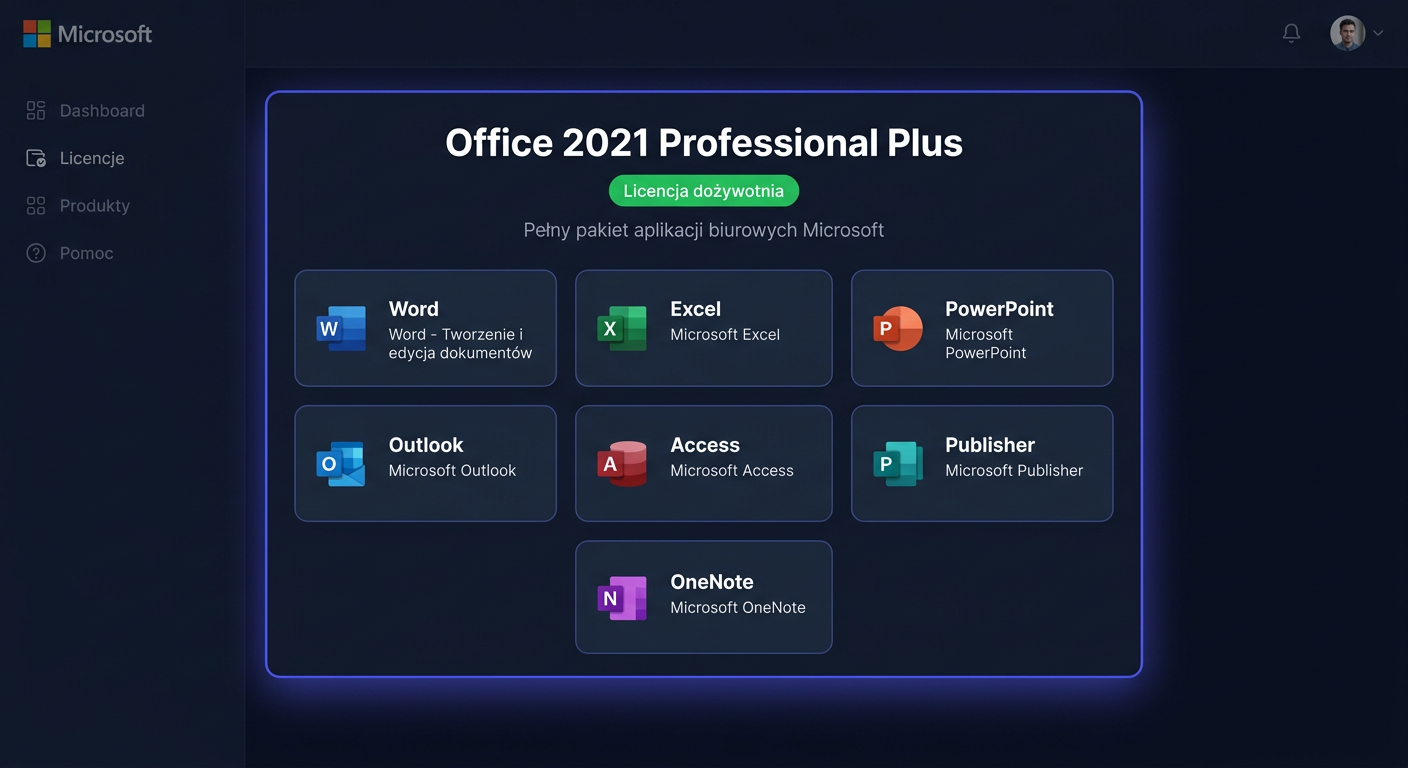
Activating Microsoft Office 2016 Home and Business
Microsoft Office 2016 Home and Business is activated by entering a valid product key and connecting the suite to Microsoft's licensing servers. This guide is exclusively about activation, i.e., launching a legal license on an already installed Office. It does not describe the installation of the suite.
When Activation is Required
Activation is most often required in one of the following situations:
- after the first launch of Office 2016,
- after reinstalling the system or Office suite,
- after transferring the license to another computer, if the license type allows it,
- after significant hardware changes,
- when Office reports that the product is not licensed or is operating in limited functionality mode.
Activating with a Product Key in the Office Interface
This is the simplest method for most users.
- Launch any program in the suite, such as Word or Excel.
- If the activation wizard appears, select the option to activate over the internet.
- Enter the 25-character product key in the format
XXXXX-XXXXX-XXXXX-XXXXX-XXXXX. - Log in to your Microsoft account if the program prompts you to do so.
- Wait for the activation confirmation.
If Office is already running but not activated, go to:
File > Account
This is where you usually find information about the license status and the option to change the product key.
Activating Office 2016 from the Command Line
This method is useful when the graphical interface is not working properly or when you need to force activation manually.
First, run the Command Prompt as Administrator and navigate to the Office 2016 directory. This is usually one of the following locations:
cd /d "%ProgramFiles%\Microsoft Office\Office16"
or on a 64-bit system with 32-bit Office:
cd /d "%ProgramFiles(x86)%\Microsoft Office\Office16"
Then, enter the product key:
cscript ospp.vbs /inpkey:XXXXX-XXXXX-XXXXX-XXXXX-XXXXX
After correctly saving the key, run the activation:
cscript ospp.vbs /act
If the activation is successful, Office will save the license status locally and associate it with the device configuration.
Telephone Activation
When online activation does not work, you can use telephone activation. In Poland, the frequently used number is:
00 800 121 1654
The typical process looks like this:
- Launch the Office application and select telephone activation if this option appears.
- Prepare the installation ID displayed by the wizard.
- Call the number
00 800 121 1654. - Follow the instructions of the automated system or consultant.
- Enter the confirmation ID you received.
- Complete the wizard and check the license status.
This method is particularly helpful after changing computers, with internet connection issues, or when the server rejects automatic activation despite a valid key.
Verifying Activation
The most accurate method to check the status of Office 2016 is the ospp.vbs /dstatus command.
After navigating to the Office16 directory, run:
cscript ospp.vbs /dstatus
This command shows, among other things:
- the license status,
- the last 5 characters of the installed key,
- the type of licensing channel,
- any activation error code.
If the status indicates an active license, the suite is properly activated.
For any further assistance or questions, please contact kontakt@kluczesoft.pl or call 00 800 121 1654.
Troubleshooting Activation Issues
Below are common activation errors that frequently occur in Office 2016.
Error 0xC004F074
Most often indicates a problem with contacting the activation service. Frequently occurs in corporate environments or with an incorrect key type.
What to do:
- check if you are using the correct key for the Home and Business edition,
- run the command
cscript ospp.vbs /actagain, - check your internet connection,
- if it's a retail license, do not use a key intended for volume licensing.
Error 0xC004C008
This code usually means that the key has been activated too many times.
What to do:
- try phone activation by calling
00 800 121 1654, - prepare your proof of purchase,
- explain that the package was transferred or the system was reinstalled.
Error 0xC004C060
Most often indicates that the key has been blocked or invalidated.
What to do:
- verify the source of purchase,
- ensure that the key did not come from an unauthorized reseller,
- if the purchase was legitimate, contact the seller and Microsoft.
Error 0xC004E016
Usually occurs when there is a mismatch between the key and the product version.
What to do:
- check if you are activating exactly Office 2016 Home and Business,
- do not use a key from a different edition, such as Professional Plus or Home and Student,
- if necessary, uninstall another version of Office and try again.
Error 0xC004F050
Most often indicates an incorrect product key.
What to do:
- re-enter the key, paying attention to similar characters,
- ensure that it is a full 25-character key,
- check if the key is not for a Microsoft 365 subscription instead of Office 2016.
Error 0x80070005
This is usually a permissions issue.
What to do:
- run the Command Prompt as an administrator,
- repeat the following:
cscript ospp.vbs /inpkey:XXXXX-XXXXX-XXXXX-XXXXX-XXXXX
cscript ospp.vbs /act
- check if your antivirus program or system policies are blocking the script.
What to Do When the Key Does Not Work
If the key is not accepted, do not enter it multiple times without checking the reason. First, perform the following steps:
- compare the product edition with the purchased license,
- ensure that the key has not been assigned to another account or device beyond the limit,
- check the status with the command
cscript ospp.vbs /dstatus, - try phone activation by calling
00 800 121 1654, - contact the seller if the key was provided electronically,
- prepare the invoice, order number, and the full error message text.
If the key comes from a suspiciously cheap offer or an unauthorized marketplace, the problem may be due to a permanent license block.
Reactivation After Hardware Changes
After replacing the motherboard, disk, or after significant computer reconfiguration, Office may require reactivation. In such a case:
- Run Office and check if online activation passes automatically.
- If not, re-enter the key with the command:
cscript ospp.vbs /inpkey:XXXXX-XXXXX-XXXXX-XXXXX-XXXXX
- Then run:
cscript ospp.vbs /act
- If the server rejects activation, use phone activation by calling
00 800 121 1654.
For transferable licenses, reactivation is usually possible, provided that the package is not being used in violation of the license terms on another device. If you need further assistance, please contact kontakt@kluczesoft.pl or call 00 800 121 1654.
Summary
Activating Microsoft Office 2016 Home and Business boils down to three key actions: entering the correct key, running the activation, and checking the licence status. The most important commands are:
cscript ospp.vbs /inpkey:XXXXX-XXXXX-XXXXX-XXXXX-XXXXX
cscript ospp.vbs /act
cscript ospp.vbs /dstatus
If online activation fails, it is worth using phone activation by calling 00 800 121 1654. This is the safest route in case of problems with the activation limit, hardware changes, or the Microsoft licensing system rejecting a valid key.
Where to buy the original key
Need a legal key? Check the offers at kluczesoft.pl:
All keys are brand new, delivered electronically with a VAT invoice.