
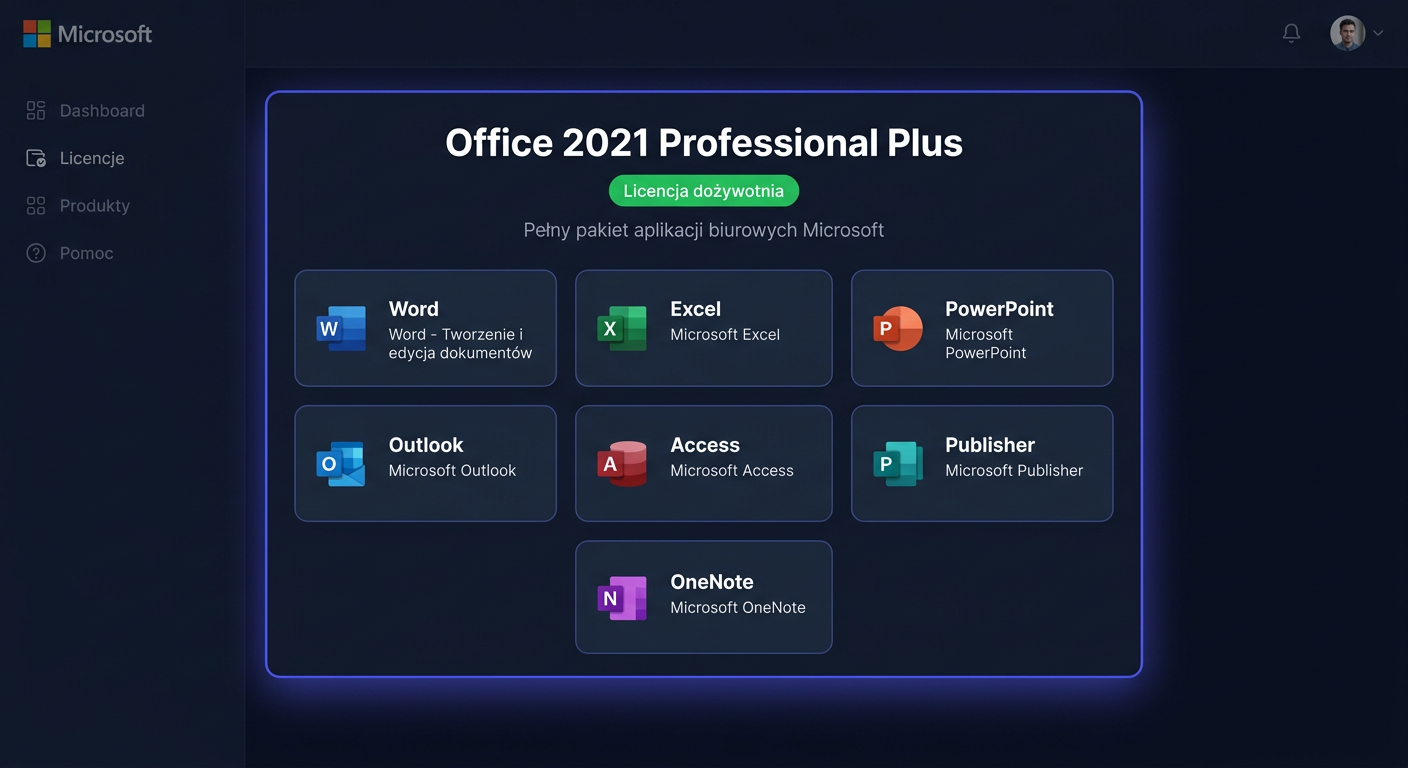
Activating Microsoft Office 2016 Professional
This guide is exclusively about activating the Microsoft Office 2016 Professional package after a correct installation. It does not describe the installation, download, or configuration of the application. Below, you will find all practical methods of activation: through the program interface, in the command line, and by phone at 00 800 121 1654.
Activating with a Product Key
Method 1: Activation through the Program Interface
This is the simplest way if Office has already been installed and is running correctly.
- Open any Office 2016 program, such as Word or Excel.
- Go to
File>Account. - If the package is not activated, you will see a message about the need to activate or a button to enter the key.
- Select the option to enter the product key.
- Enter the 25-character key in the format
XXXXX-XXXXX-XXXXX-XXXXX-XXXXX. - Confirm the activation and wait for online verification.
If the system asks you to log in to your Microsoft account, do this only if it is required by the type of license. In the case of a classic product key, the most important thing is to correctly assign it to the installed Office 2016 Professional edition.
Method 2: Activation via Command Line
This method is particularly useful when activation from the program level does not work or when you need to precisely check the license status.
Run the Command Prompt as an administrator and go to the Office directory. Most often, it will be one of the following paths:
cd /d "C:\Program Files\Microsoft Office\Office16"
or in a 64-bit system with 32-bit Office:
cd /d "C:\Program Files (x86)\Microsoft Office\Office16"
Then, enter the product key:
cscript ospp.vbs /inpkey:XXXXX-XXXXX-XXXXX-XXXXX-XXXXX
After accepting the key, run the activation:
cscript ospp.vbs /act
If everything goes correctly, the script will return a message confirming the product activation. This method is also recommended when you need to activate Office remotely, in a corporate environment, or after reinstallation.
Method 3: Telephone Activation
If online activation ends with an error, you can use telephone activation. In Poland, the Microsoft hotline number is:
00 800 121 1654
Before the call, prepare:
- the product key,
- information that it is about Microsoft Office 2016 Professional,
- the installation ID, if it is displayed in the activation wizard.
During the contact, the consultant or automated system may ask you to confirm the type of license and the number of activations. After verification, you will receive a confirmation ID, which you should enter in the appropriate activation window.
Verifying Activation
After activation, it's worth confirming the actual license status using a precise diagnostic command.
Go to the Office16 directory and type:
cscript ospp.vbs /dstatus
This command shows:
- the license status,
- the last 5 characters of the installed key,
- the type of licensing channel,
- any error activation information.
If Office is activated correctly, in the results, you will see the license status indicating an active product. This is the basic and most important control command for Office 2016.
For any further assistance or issues, please contact kontakt@kluczesoft.pl or call 00 800 121 1654.
Resolving Activation Issues
Below are the most common real activation errors for Office 2016 Professional, along with practical implications.
Error 0xC004F050
This code usually means that the entered product key is invalid or does not match this edition of the Office package. It often appears when attempting to activate the wrong version, for example, when the key is not intended for Office 2016 Professional.
Error 0xC004C060
Most often, it indicates that the key has been blocked or invalidated by Microsoft. In such a case, simply retrying the activation usually won't help. You should verify the source of purchase and prepare proof of purchase.
Error 0xC004C008
This message indicates that the activation limit for the given key has been exceeded. This happens after reinstalling the system, replacing hardware, or previous activation on another device. In such cases, telephone activation often helps by calling 00 800 121 1654.
Error 0x80072F8F
This is a typical issue with date, time, time zone, or encrypted connection. Check the correctness of the system clock, certificate settings, and internet access. Even small time discrepancies can block activation.
Error 0x80070005
This code indicates a problem with permissions. It most often appears when commands are run without administrator rights or system security blocks the writing of license settings. Run cmd as an administrator and repeat:
cscript ospp.vbs /act
Error 0xC004E016
It usually means incompatibility between the key and the installed product. The problem can be visible when remnants of another Office edition or trial version remain in the system. It's worth removing old components and then retrying the activation.
What to Do When the Key Does Not Work
If the product key does not work, follow the sequence of actions below:
- Check if you are entering the key exactly for Office 2016 Professional, not for another edition.
- Ensure that you have not mixed up characters, for example,
Bwith8orGwith6. - Verify that another version of Office is not installed in the system, causing an activation conflict.
- Run diagnostics:
cscript ospp.vbs /dstatus - Try to add the key again and activate the package:
cscript ospp.vbs /inpkey:XXXXX-XXXXX-XXXXX-XXXXX-XXXXX cscript ospp.vbs /act - If the problem still occurs, contact Microsoft support at 00 800 121 1654.
- If the key comes from a store or a seller, prepare proof of purchase and ask for a key exchange or confirmation of license legality.
If Microsoft confirms that the key is invalid, blocked, or used inconsistently with license terms, it may be necessary to obtain a new, correct key. For further assistance, you can also contact KluczeSoft at kontakt@kluczesoft.pl.
Reactivation after hardware change
After a significant hardware change, especially after replacing the motherboard, Office may consider the computer as a new device and require reactivation.
In such a situation:
- first, try standard online activation,
- if a message about exceeding the activation limit appears, use phone activation,
- when contacting Microsoft, explain that a hardware change has occurred and reactivation of the same license is required.
To reactivate, it is usually sufficient to reuse the current key:
cscript ospp.vbs /inpkey:XXXXX-XXXXX-XXXXX-XXXXX-XXXXX
cscript ospp.vbs /act
cscript ospp.vbs /dstatus
If the license qualifies for further use, a consultant can help complete the process over the phone at 00 800 121 1654.
Summary
Activating Microsoft Office 2016 Professional boils down to three practical paths: through the program interface, using ospp.vbs in the command line, and by phone. The most important commands are:
cscript ospp.vbs /inpkey:XXXXX-XXXXX-XXXXX-XXXXX-XXXXX
cscript ospp.vbs /act
cscript ospp.vbs /dstatus
If activation fails, first check the key's compatibility with the Office edition, then analyse the error code, and only at the end escalate the issue to support. In case of problems with the activation limit, hardware change, or rejected key, the safest route remains contacting Microsoft at 00 800 121 1654. For other issues, you can also contact KluczeSoft at kontakt@kluczesoft.pl.
Where to buy the original key
Need a legal key? Check the offers at kluczesoft.pl:
All keys are brand new, delivered electronically with a VAT invoice.