
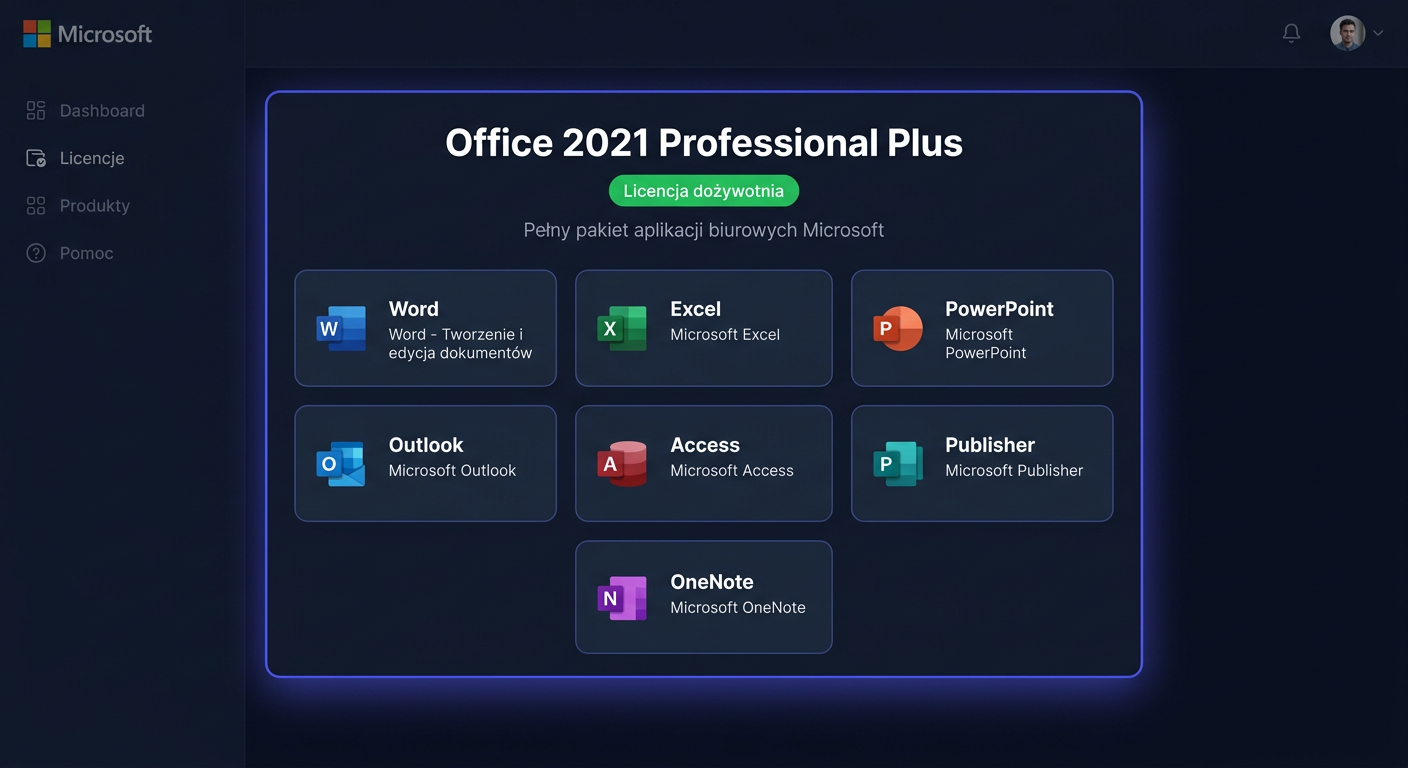
Microsoft Office 2019 Professional Activation Guide
Microsoft Office 2019 Professional requires activation after installation to ensure all applications function correctly and remain licence-compliant. This guide covers activation and verification of activation status only and does not describe the installation of the package.
Activation with a Product Key
Office 2019 Professional can be activated in several ways: through the graphical interface, command line, and by phone.
1. Activation within the Office Application
This is the simplest method if the package is already installed.
- Launch any program in the package, such as Word or Excel.
- Go to
File > Account. - Select the activation or change product key option.
- Enter the 25-character product key.
- Confirm and wait for the activation process to complete.
If Office was previously associated with a different Microsoft account or activated with a different licence type, the system may prompt you to log in or remove the previous licence entry.
2. Activation via CMD using ospp.vbs
This method is particularly useful when activation through the interface does not work or you want to control the process precisely.
First, run the Command Prompt as Administrator, then navigate to the Office directory. This is usually one of the following locations:
cd /d "%ProgramFiles%\Microsoft Office\Office16"
or on a 64-bit system with 32-bit Office:
cd /d "%ProgramFiles(x86)%\Microsoft Office\Office16"
Next, enter the key:
cscript ospp.vbs /inpkey:XXXXX-XXXXX-XXXXX-XXXXX-XXXXX
After correctly saving the key, start the activation:
cscript ospp.vbs /act
These are the basic and correct activation commands for Office 2019:
ospp.vbs /inpkeyospp.vbs /act
3. Telephone Activation
If online activation fails, you can use telephone activation through Microsoft's hotline:
00 800 121 1654
Prepare:
- the product key,
- the installation ID displayed by the system, if provided,
- information on how many devices the product was previously activated on.
During the call, the consultant or automated system may ask you to confirm the product type and provide activation details. After verification, you will receive further instructions or a confirmation code, if the licensing channel allows it.
Verification of Activation
After activation, it's a good idea to check if the licence has been correctly saved.
In the Office directory, run:
cscript ospp.vbs /dstatus
This is the exact verification command for Microsoft Office 2019. The result will show, among other things:
- licence status,
- the last 5 characters of the key,
- the type of licensing channel,
- whether the product is activated.
If the status indicates LICENSE STATUS: ---LICENSED---, the activation has been completed successfully.
For any further assistance or questions, please contact kontakt@kluczesoft.pl or call 00 800 121 1654.
Troubleshooting Activation Issues
Below are real activation errors that frequently occur in Office 2019 Professional.
Error 0xC004F050
Most often indicates an incorrect product key or a key that does not match this edition of Office. Example: a key for a different version, licensing channel, or product.
What to do:
- check if the key is intended exactly for Office 2019 Professional,
- re-enter the key without typos,
- remove any previous conflicting licenses if they exist.
Error 0xC004C060
Indicates that the key has been blocked by Microsoft. This usually happens with rejected, revoked, or keys from unauthorized sources.
What to do:
- contact the seller,
- prepare proof of purchase,
- if necessary, confirm the key status by phone at
00 800 121 1654.
Error 0xC004FC03
Error connecting to the activation server. Often results from a firewall, proxy, DNS issues, or temporary unavailability of Microsoft services.
What to do:
- check your internet connection,
- temporarily disable VPN or restrictive proxy,
- restart activation with the command
cscript ospp.vbs /act.
Error 0x80070005
This is a permissions error, usually related to not running CMD as an administrator or being blocked by security software.
What to do:
- run Command Prompt as an administrator,
- check if antivirus software is blocking the
ospp.vbsscript, - repeat the activation commands.
Error 0xC004E016
The system detects an inconsistency between the key and the installed product version. Often appears when mixing Retail, Volume editions, or incorrect package editions.
What to do:
- ensure you are activating exactly Office 2019 Professional,
- check if there are any remnants of another Office version in the system,
- use the correct key again.
Error 0xC004F074
Mostly concerns collective licensing environments and issues with contact to the KMS server. In standard activation with a MAK or Retail key, this should not occur.
What to do:
- check the license type,
- if this is not a corporate KMS environment, verify that the correct Office variant is installed,
- if necessary, consult the issue with Microsoft support.
What to Do When the Key Does Not Work
If the product key does not work:
- check if it is exactly for
Microsoft Office 2019 Professional, - ensure it has not been used beyond the license limit,
- verify the key is not assigned to a different region or sales channel,
- run activation from CMD with the commands
ospp.vbs /inpkeyandospp.vbs /act, - perform a check with
cscript ospp.vbs /dstatus, - in case of further problems, use phone activation: 00 800 121 1654,
- if the key is from a seller, prepare your order and ask for an exchange or verification.
For any further assistance, please contact
kontakt@kluczesoft.plor visit the KluczeSoft website for more information on Microsoft products, including Windows and Office.
Reactivation after hardware change
After a significant hardware change, especially after replacing the motherboard, Office may require reactivation. This is because the license is often tied to the device configuration.
The best course of action:
- Run Office and check if the activation has been preserved.
- If not, use again:
cscript ospp.vbs /inpkey:XXXXX-XXXXX-XXXXX-XXXXX-XXXXX cscript ospp.vbs /act - Verify the status:
cscript ospp.vbs /dstatus - If online activation is rejected, choose phone activation by calling 00 800 121 1654.
In the case of one-time licenses, it is also important to check if the license allows transfer to the same or another device according to the manufacturer's terms.
Summary
Activating Microsoft Office 2019 Professional should be based on three steps: entering the key, running the activation, and checking the license status. The most important commands are:
cscript ospp.vbs /inpkey:XXXXX-XXXXX-XXXXX-XXXXX-XXXXX
cscript ospp.vbs /act
cscript ospp.vbs /dstatus
If online activation does not work, the safest method remains a phone call to Microsoft at:
00 800 121 1654
This is the proper channel when the key requires manual verification, activation errors occur, or reactivation is needed after a hardware change. For any other issues, please contact KluczeSoft at kontakt@kluczesoft.pl.
Where to buy the original key
Need a legal key? Check the offers at kluczesoft.pl:
All keys are brand new, delivered electronically with a VAT invoice.