
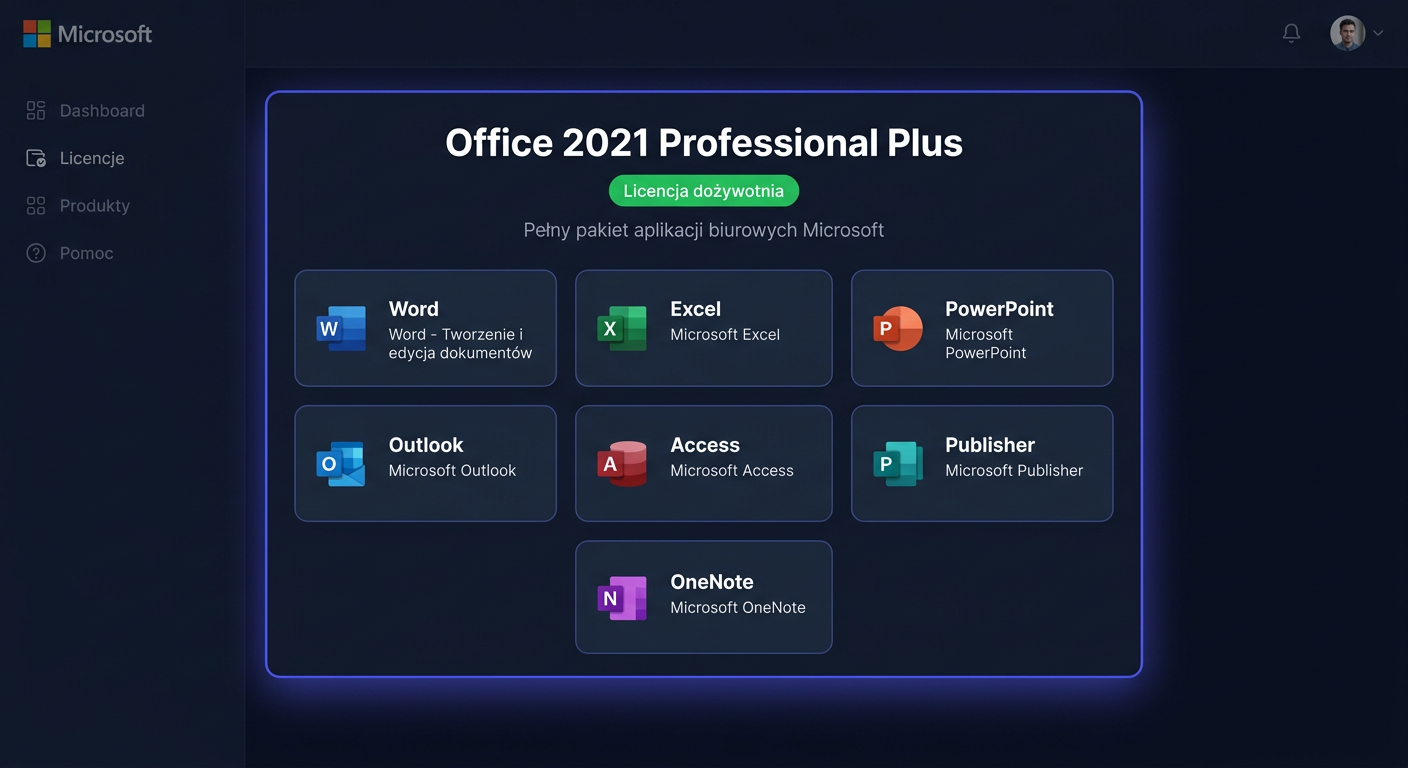
Activating Microsoft Office 2021 Standard Mac
This guide only concerns the activation of the Microsoft Office 2021 Standard Mac package. It does not describe the installation process.
Important: on macOS,ospp.vbs /inpkey,ospp.vbs /act, andospp.vbs /dstatusare not used. These are tools for the Windows system. For the Office 2021 Standard Mac release, activation is done through a Microsoft account or through VL Serializer in a volume license.
1. Activating with a product key in the graphical interface
The most common scenario looks like this:
- Open Word, Excel, or PowerPoint.
- Select Start or Sign in to activate Office.
- Log in to the Microsoft account associated with the purchase.
- If the key has not been assigned to the account yet, go to the Microsoft key implementation page and assign the code to the account.
- After the license is properly recognized, the application will complete the activation itself.
In practice, the product key for Mac is usually not entered directly into the program window, but first assigned to the Microsoft account. Then, activation occurs after logging in.
2. Activation from the Terminal / administrative mode
For Office 2021 Standard Mac, there is no native equivalent of activation like:
cscript ospp.vbs /inpkey:XXXXX-XXXXX-XXXXX-XXXXX-XXXXX
cscript ospp.vbs /act
Such commands apply to Office releases on Windows. On Mac, activation looks different:
Variant A: retail license associated with an account
On macOS, retail activation takes place after logging in to the relevant Microsoft account. The Terminal can be used to check for the presence of license files or to prepare for reactivation, but not to enter a key in the style of ospp.vbs.
Variant B: volume license Office LTSC Standard for Mac 2021
In corporate environments, activation is performed by VL Serializer. This is the correct method for the Standard Mac edition from the volume licensing channel. After launching the serializer package, it creates a local license file.
Useful control commands:
ls -l /Library/Preferences/com.microsoft.office.licensingV2.plist
plutil -p /Library/Preferences/com.microsoft.office.licensingV2.plist
ls -l /Library/PrivilegedHelperTools/com.microsoft.office.licensingV2.helper
If the com.microsoft.office.licensingV2.plist file exists and Office runs without an activation prompt, the local license has been saved.
3. Telephone activation
If online activation fails, it's worth contacting the Microsoft activation center at the number:
00 800 121 1654
Prepare the following over the phone:
- product key or order number,
- Microsoft account email address,
- product name: Microsoft Office 2021 Standard Mac,
- error message description,
- information on whether the license has been activated before.
Important: for some new Mac licenses, the consultant does not perform classic activation with an installation code as in older products, but rather helps with assigning the license to the account, verifying the right to the product, or unlocking reactivation.
If you need further assistance, please contact us at kontakt@kluczesoft.pl.
4. Activation Verification
The simplest verification in the GUI:
- Open Word.
- Click Word > About Word.
- Check if the product is not running in restricted mode and if no activation prompt appears.
Detailed commands in the Terminal:
ls -l /Library/Preferences/com.microsoft.office.licensingV2.plist
plutil -p /Library/Preferences/com.microsoft.office.licensingV2.plist
defaults read /Library/Preferences/com.microsoft.office.licensingV2 2>/dev/null
ls -l /Library/PrivilegedHelperTools/com.microsoft.office.licensingV2.helper
These commands do not work like the Windows /dstatus command, but they are a practical method to check if the local Office licensing infrastructure on Mac exists.
5. Activation Troubleshooting
Below are real activation errors encountered in Office for Mac:
0xD000000C
Login error to the correct account or problem with saving authentication data.
What to do:
- check your internet connection,
- close all Office applications,
- remove old Office entries from Keychain,
- restart the application and log in again.
0x8A010101
Most often means an invalid key or a key not intended for this product version.
What to do:
- make sure the key is for Office 2021 for Mac,
- check if it's not an MSDN key, previously used or from an untrusted source,
- assign the key to the correct Microsoft account.
0xD0001043
Error on the Microsoft activation service side.
What to do:
- restart your Mac,
- try activation later,
- remove the license and activate again,
- if necessary, call 00 800 121 1654.
0xD000001c
The Mac name contains invalid characters.
What to do:
- change the computer name to a simple one without special characters,
- restart the system,
- retry activation.
1001, 1002, 1003, 1005
Errors related to purchasing through the App Store and a problem with purchase verification.
What to do:
- restore the purchase,
- log in to the correct Apple and Microsoft accounts,
- if the problem persists, contact Microsoft support.
“No license found”
The Microsoft account does not have the correct license assigned.
What to do:
- check all used email addresses,
- log in to the Microsoft account panel and confirm the presence of the license,
- if the key was redeemed on a different account, activation on the current account will not work.
6. What to Do When the Key Does Not Work
If the key is not accepted:
- Check if you are entering the exact 25 characters without mistakes.
- Make sure the key is for Mac, not Windows.
- Verify that it's the correct edition: Office 2021 Standard, not another.
- Check if the key has not been already assigned to another Microsoft account.
- Log in to all your Microsoft accounts and check the service history.
- If the purchase is from an external seller, ask for:
- proof of legitimate origin,
- confirmation that the key has not been used before,
- key exchange or refund.
- If the purchase is legitimate and activation still fails, contact Microsoft: 00 800 121 1654 or KluczeSoft at kontakt@kluczesoft.pl for assistance.
7. Reactivation after hardware change
After replacing your Mac or boot disk, Office may lose its activation status. This particularly applies to locally stored licenses.
The recommended procedure is:
- On the old device, log out of Office if possible.
- On the new Mac, log in to the same Microsoft account.
- If you are using a volume license, reapply the VL Serializer.
- If Office still shows that it is not activated, remove the old license data and reactivate.
- If the system claims that the activation limit has been reached, contact Microsoft at 00 800 121 1654.
Summary
Activating Microsoft Office 2021 Standard Mac does not work the same way as in Windows. On a Mac, the key usually needs to be assigned to a Microsoft account first, and in a corporate environment, the proper method for the Standard edition is VL Serializer. To verify, use the About Word window and Terminal commands that check the com.microsoft.office.licensingV2.plist file. If the key does not work, errors 0xD000000C, 0x8A010101, 0xD0001043, 0xD000001c appear, or the problem returns after a hardware change, the fastest escalation path remains contacting Microsoft at 00 800 121 1654.
Where to buy the original key
Need a legal key? Check the offers at kluczesoft.pl:
All keys are brand new, delivered electronically with a VAT invoice.