
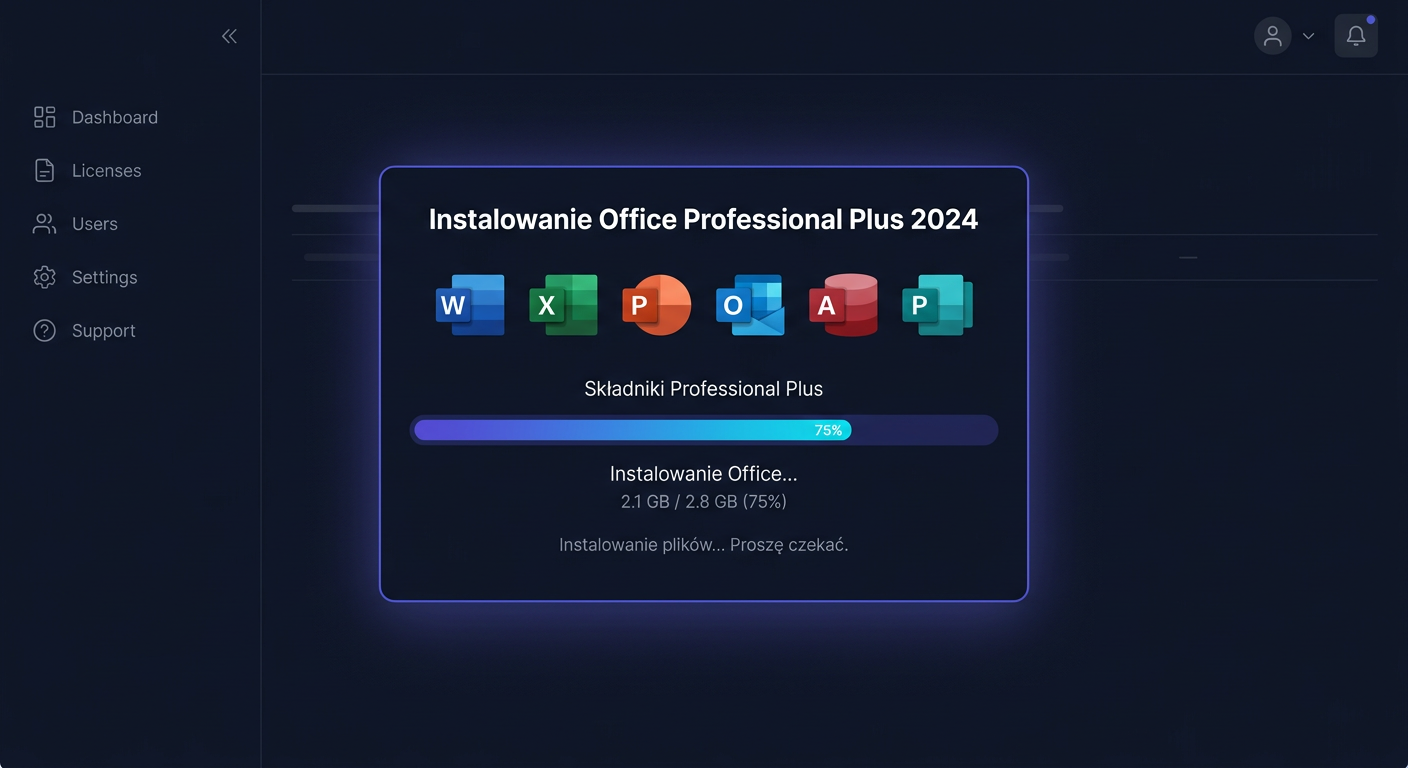
Activation of [Microsoft Office 2024 Standard](https://kluczesoft.pl/klucz-office-2024/microsoft-office-2024-standard)
Microsoft Office 2024 Standard requires activation after installation, which involves assigning a valid product key to a specific copy of the suite. Below, you will find procedures related to activation: entering the key, running activation, checking the status, resolving common errors, and reactivating after hardware changes.
Activating with a Product Key
Office 2024 Standard can be activated in several ways. The most commonly used method is the graphical method in the Office application, but in some cases, using commands in CMD or phone activation may be more effective.
Method 1: Activation in the Program Interface
- Launch any application in the suite, such as Word or Excel.
- Go to
File > Account. - Select the option
Change product keyorActivate product. - Enter the 25-character product key.
- Confirm and wait for the activation to complete.
This method works best when Office is properly installed, the system has internet access, and the key matches the Office 2024 Standard edition exactly.
Method 2: Activation from the Command Line CMD
If the graphical interface does not accept the key or activation ends with an error, use the ospp.vbs tool.
First, run the Command Prompt as an administrator and navigate to the Office directory. Most commonly, this will be one of the following locations:
cd /d "C:\Program Files\Microsoft Office\Office16"
or, in a 64-bit system with a 32-bit suite:
cd /d "C:\Program Files (x86)\Microsoft Office\Office16"
Then, enter the product key:
cscript ospp.vbs /inpkey:XXXXX-XXXXX-XXXXX-XXXXX-XXXXX
After correctly saving the key, run the activation:
cscript ospp.vbs /act
If the activation is successful, you will see a confirmation message. This method is particularly useful for interface errors, licensing conflicts, or after changing the key to another one.
Method 3: Phone Activation
When online activation does not work, you can use Microsoft's phone activation. The number for Poland is:
00 800 121 1654
Before the call, prepare:
- the product key,
- information that you are activating Microsoft Office 2024 Standard,
- the installation ID, if displayed by the activation wizard.
During the process, follow the consultant's or automated instructions. After verification, you will receive the necessary data to complete the activation. This path is especially helpful when the key is correct, but the online server rejects activation due to technical reasons or the limit of reactivations.
Verifying Activation
After completing the activation, it's worth checking the license status directly in the system. The ospp.vbs /dstatus command is used for this purpose.
First, navigate to the appropriate Office directory:
cd /d "C:\Program Files\Microsoft Office\Office16"
or:
cd /d "C:\Program Files (x86)\Microsoft Office\Office16"
Then, run:
cscript ospp.vbs /dstatus
This is the basic and detailed verification command for Office. In the response, check primarily:
LICENSE STATUS: ---LICENSED---– the product is activated,- the last 5 characters of the installed key,
- the type of license,
- any error code if the activation failed.
If the status does not show LICENSED, the activation was not completed correctly, or the system still sees a licensing conflict.
For any further assistance or issues with the activation of your Microsoft Office 2024 Standard, please contact KluczeSoft at kontakt@kluczesoft.pl or call 00 800 121 1654.
Troubleshooting Activation Issues
Below are the most common real activation errors for Office, along with their meaning and practical solution.
Error 0xC004F050
Usually means that the provided product key is incorrect or does not match this edition of Office.
What to do:
- check if the key is intended exactly for Office 2024 Standard,
- re-enter the key, preferably through:
cscript ospp.vbs /inpkey:XXXXX-XXXXX-XXXXX-XXXXX-XXXXX
- ensure you are not using a key from a different version, such as LTSC, Home, Professional Plus, or an older edition.
Error 0xC004C060
Most often means that the key has been blocked or invalidated.
What to do:
- verify the source of purchase,
- contact the seller and ask for a key replacement,
- if the key is legitimate, contact Microsoft at
00 800 121 1654.
Error 0xC004F074
Usually occurs with a problem with the KMS activation service or incorrect license type configuration.
What to do:
- check if the installed edition matches the key type,
- remove any incorrect previous license configurations,
- try to reactivate through:
cscript ospp.vbs /act
- if this is a company computer, verify the license configuration with the administrator.
Error 0x80070005
This is most often a problem with permissions.
What to do:
- run
CMDas an administrator, - temporarily disable policies blocking administrative scripts,
- repeat:
cscript ospp.vbs /inpkey:XXXXX-XXXXX-XXXXX-XXXXX-XXXXX
cscript ospp.vbs /act
Error 0xC004E016
Indicates a key mismatch with the installed product.
What to do:
- check if you are activating exactly the same edition for which the key was issued,
- if a different version of Office was previously installed, remove the remnants of the old license,
- after correction, re-enter the key and run the activation.
Error 0xC004FC03
Most often indicates a problem with the network connection or firewall.
What to do:
- check internet access,
- temporarily disable the firewall or proxy blocking activation,
- try again online,
- if the problem persists, use phone activation at
00 800 121 1654.
What to Do When the Key Does Not Work
If the key does not work despite being entered correctly:
- check if it is intended exactly for
Microsoft Office 2024 Standard, - ensure it has not been used beyond the allowed limit,
- verify that the key was not purchased for a different licensing channel,
- attempt activation through
CMD, not just the interface, - check the status with the command:
cscript ospp.vbs /dstatus
- if the key is still being rejected, contact the seller first, then Microsoft at
00 800 121 1654.
In practice, the most common causes are the wrong edition, incorrectly copied code, key blockage, or sale of a license inconsistent with the declaration.
Reactivation after hardware change
After a significant hardware change, especially after replacing the motherboard, Office may consider the computer a new device and require reactivation.
In such a situation:
- run the activation standardly through
File > Account, - if this does not work, re-enter the key:
cscript ospp.vbs /inpkey:XXXXX-XXXXX-XXXXX-XXXXX-XXXXX
- run:
cscript ospp.vbs /act
- verify the status:
cscript ospp.vbs /dstatus
If the server refuses to reactivate despite a legitimate key, phone activation usually helps, available at 00 800 121 1654. It is worth preparing information that the reactivation is a result of a hardware change, not an installation on an additional computer.
Summary
Activating Microsoft Office 2024 Standard boils down to three key actions: entering the key, running the activation, and checking the license status. The most reliable technical path is:
cscript ospp.vbs /inpkey:XXXXX-XXXXX-XXXXX-XXXXX-XXXXX
cscript ospp.vbs /act
cscript ospp.vbs /dstatus
If online activation does not work, the most effective alternative remains Microsoft's phone activation at 00 800 121 1654. This allows you to resolve issues with activation limits, hardware changes, rejection of a correct key, or errors on the part of the activation service. For further assistance, please contact KluczeSoft at kontakt@kluczesoft.pl.
Where to buy the original key
Need a legal key? Check the offers at kluczesoft.pl:
All keys are brand new, delivered electronically with a VAT invoice.