
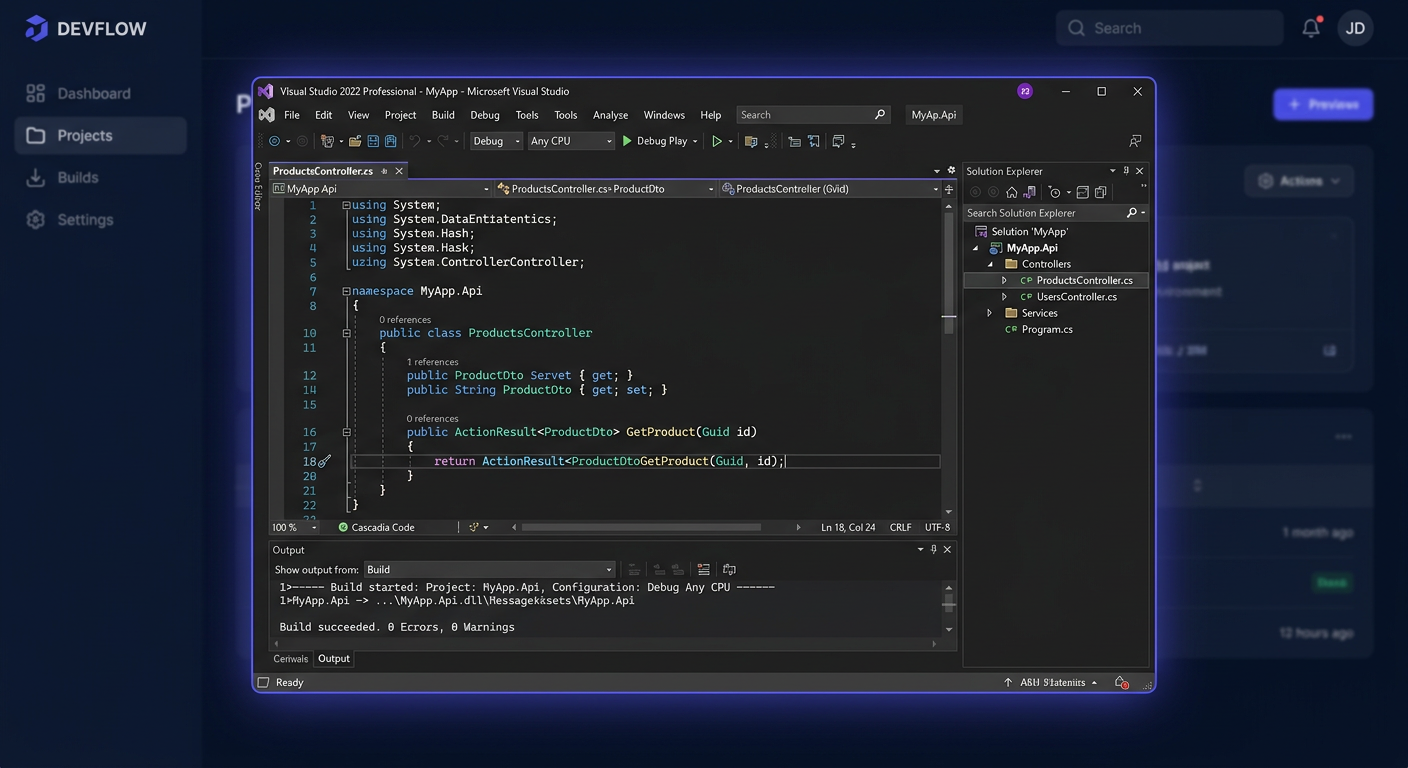
Guide to Activating Microsoft Visual Studio 2019 Professional
This guide is exclusively about activating the Microsoft Visual Studio 2019 Professional program after installation is complete. It does not cover downloading, deploying, or configuring components. The goal is to correctly assign a legal product key, check the license status, and resolve the most common activation issues.
Activating with a Product Key in the Program Interface
The simplest method is to activate directly within Visual Studio itself.
-
Run Visual Studio 2019 Professional.
-
Go to:
Help > Register ProductIn some builds, the option may appear as:
File > Account Settings -
Select Unlock with a Product Key.
-
Enter the product key in the format
XXXXX-XXXXX-XXXXX-XXXXX-XXXXX. -
Confirm the operation and restart the program.
This method is recommended for most individual and corporate users. If the Unlock with a Product Key button is not visible, it usually means one of three situations: the wrong edition is being used, a preview version is running, or the IDE account/license is in a transitional state and the program needs to be run as an administrator.
Activating from the Command Line
In administrative environments or offline, activation using the StorePID.exe tool is more convenient. For Visual Studio 2019 Professional, the MPC code 09262 must be used.
Run the Command Prompt as Administrator, and then execute:
"%ProgramFiles(x86)%\Microsoft Visual Studio\2019\Professional\Common7\IDE\StorePID.exe" XXXXX-XXXXX-XXXXX-XXXXX-XXXXX 09262
If Visual Studio is installed in a different location, use the actual path to the StorePID.exe file.
After executing the command, immediately check the return code:
echo %ERRORLEVEL%
Interpretation:
0means the key was applied correctly.- A code other than
0indicates an activation error or a problem with the edition, environment, or the key itself.
Telephone Activation
If online activation fails and the key is legal, you can contact the Microsoft activation center at:
00 800 121 1654
Before the call, prepare:
- the full product key,
- information that it's about Visual Studio 2019 Professional,
- account or subscription details if the key comes from a Visual Studio Subscription,
- a description of the error or the code returned by
StorePID.exe.
Telephone activation is particularly useful after hardware changes, for offline work, or after exhausting standard client-side activation attempts.
Verifying Activation
For Visual Studio 2019, commands like slmgr.vbs known from Windows or Office are not used for verification. For this application, practical verification is done in two ways.
Verification after Activation with CMD
First, perform the activation:
"%ProgramFiles(x86)%\Microsoft Visual Studio\2019\Professional\Common7\IDE\StorePID.exe" XXXXX-XXXXX-XXXXX-XXXXX-XXXXX 09262
Then, check the result:
echo %ERRORLEVEL%
A value of 0 indicates that the key was accepted correctly.
Verification within the Program
Run the IDE and go to:
File > Account Settings
or:
Help > Register Product
The program should display an active license status for the Professional edition instead of a trial version message or a prompt to unlock the product.
For any further assistance or issues, please contact KluczeSoft at kontakt@kluczesoft.pl or visit our website for more information on Microsoft products and activation processes.
Troubleshooting Activation
Below are the most common, real errors related to activation via StorePID.exe.
-
PID_ACTION_NOTINSTALLED (1)
Visual Studio is not installed in the specified path or the wrong edition is indicated, e.g.Enterpriseinstead ofProfessional. -
PID_ACTION_INVALID (2)
The key is invalid, a typo was entered in the code, or the key does not apply to Visual Studio 2019 Professional. -
PID_ACTION_EXPIRED (3)
The key or subscription entitlement has expired. This often applies to keys associated with an old subscription or test environments. -
PID_ACTION_INUSE (4)
The key is already in use in a way that blocks further activation. In practice, this occurs after hardware migration or multiple reinstallation. -
PID_ACTION_FAILURE (5)
General activation error. The cause may be a damaged licensing state, lack of administrator privileges, or conflict of local license data. -
PID_ACTION_NOUPGRADE (6)
The entered key does not match the installed edition and cannot be used as an upgrade path for this instance.
Additionally, in practice, users often encounter messages without a numerical code:
- Invalid Product Key
Most often, a key from another product or another edition of Visual Studio was entered. - No option to Unlock with Product Key
Usually, the problem concerns a preview version, incorrect edition, or the need to run the program as an administrator.
What to Do When the Key Does Not Work
If the key is not accepted:
- Check if it is indeed a key for Visual Studio 2019 Professional, and not for another version, subscription, or Microsoft product.
- Verify that you are entering the key with hyphens.
- Ensure that you are activating the Professional edition, not
CommunityorEnterprise. - Run Visual Studio and the Command Prompt as an administrator.
- If the key comes from a subscription portal, download it again and compare it character by character.
- If the error persists, contact Microsoft at
00 800 121 1654.
It's worth remembering that a legitimate key, but assigned to a different licensing channel, may be rejected despite the correct format.
Reactivation After Hardware Change
After replacing the motherboard, system disk, or migrating to a new computer, activation may require reapplying the key. The safest procedure looks like this:
-
Install Visual Studio 2019 Professional.
-
Reactivate through:
Help > Register Product > Unlock with Product Keyor through
StorePID.exe. -
If the
PID_ACTION_INUSE (4)error appears, contact Microsoft at00 800 121 1654. -
Prepare information that this is a reactivation after hardware change, not a new additional installation.
In corporate environments, it's a good idea to keep purchase documentation or subscription data, as this speeds up the verification of the right to reactivation.
Summary
Activation of Microsoft Visual Studio 2019 Professional can be performed from the program interface or using StorePID.exe. For the Professional edition, the MPC code is 09262, and the basic verification command after activation is:
echo %ERRORLEVEL%
If the key does not work, there is a conflict after hardware change, or online activation fails, the shortest path to solving the problem is to contact the Microsoft activation center:
00 800 121 1654 or send an email to kontakt@kluczesoft.pl for KluczeSoft related issues.
Where to buy the original key
Need a legal key? Check the offers at kluczesoft.pl:
All keys are brand new, delivered electronically with a VAT invoice.