
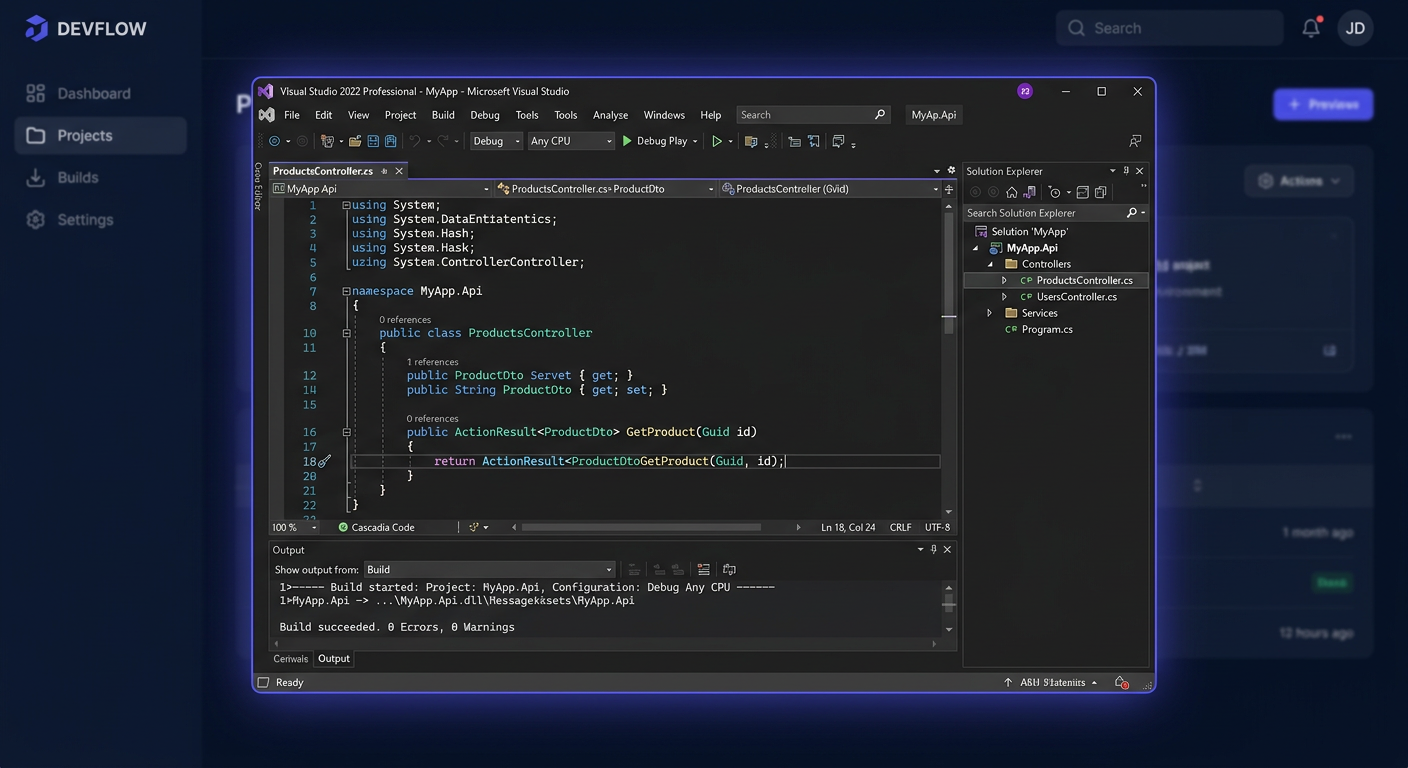
Activating Microsoft Visual Studio 2022 Enterprise
This guide is exclusively about activating Microsoft Visual Studio 2022 Enterprise after the program has been installed. It does not cover installation, components, or environment configuration.
Activating with a Product Key in the Program Interface
The simplest method is to activate directly within the IDE:
- Run Visual Studio 2022 Enterprise.
- Open Help > Register Product or, in the newer account view, File > Account Settings.
- Select Unlock with Product Key or License with a Product Key.
- Enter the 25-character product key.
- Confirm and restart the program if Visual Studio requests it.
This method is recommended when working locally on a single computer and you have a valid key assigned to the Enterprise edition.
Activating from the Command Line
In corporate environments or offline, activation can be performed using the StorePID.exe command. For Visual Studio 2022 Enterprise, the default path is:
"C:\Program Files\Microsoft Visual Studio\2022\Enterprise\Common7\IDE\StorePID.exe"
Command syntax:
"C:\Program Files\Microsoft Visual Studio\2022\Enterprise\Common7\IDE\StorePID.exe" XXXXX-XXXXX-XXXXX-XXXXX-XXXXX 09660
Important:
- for Visual Studio 2022 Enterprise, the MPC code is
09660, - in
StorePID.exe, the key is entered with dashes, - run the command in Command Prompt as administrator.
If you are activating as part of automation, follow this method precisely. Do not mix it with the installer parameter --productKey, as it is a separate mechanism.
Telephone Activation
If online activation fails, the number of activations may have been exhausted, or the system rejects the key despite its correctness, prepare:
- the full product key,
- information that it concerns Microsoft Visual Studio 2022 Enterprise,
- account or order details if the key comes from a subscription.
Then, contact Microsoft's activation hotline at:
00 800 121 1654
Telephone activation is particularly useful after hardware replacement, when there are problems with key validation, or when GUI and StorePID.exe activation is not successful.
Verifying Activation
Verifying in the GUI
Open:
File > Account Settings
On the right side, you should see the active license status. If you still see a trial version, an expiration message, or a request to unlock the product, activation was not properly saved.
Verifying from the Command Line
After running StorePID.exe, check the exit code:
echo %ERRORLEVEL%
Interpretation:
0indicates successful activation,- a value other than
0indicates an error that needs to be diagnosed.
If you are using PowerShell, you can also check the result like this:
$LASTEXITCODE
Practical example:
"C:\Program Files\Microsoft Visual Studio\2022\Enterprise\Common7\IDE\StorePID.exe" XXXXX-XXXXX-XXXXX-XXXXX-XXXXX 09660
echo %ERRORLEVEL%
If you need further assistance, please contact kontakt@kluczesoft.pl for more information.
Troubleshooting Activation
The most common real activation errors of StorePID.exe:
1 - PID_ACTION_NOTINSTALLED
Visual Studio Enterprise is not installed in this location or the specified path is incorrect. Check if you are using the 2022\Enterprise\Common7\IDE directory.
2 - PID_ACTION_INVALID
The key is invalid, entered with a typo, or does not match this edition. A common problem is using a key from Professional instead of Enterprise.
3 - PID_ACTION_EXPIRED
The key or entitlement has expired. This applies especially to old, test, or outdated subscription entitlements.
4 - PID_ACTION_INUSE
The key is already in use and the activation limit has been reached. In practice, it often appears after moving to a new computer or after many re-installations.
5 - PID_ACTION_FAILURE
General activation failure. Most often, it is caused by a lack of administrator privileges, a problem with the user profile, blocking by company policy, or a damaged license state.
6 - PID_ACTION_NOUPGRADE
The key cannot be applied to this product instance. Usually, it means edition incompatibility or a scenario that cannot be resolved by simply overwriting the license.
An additional common case: the key looks correct but is still rejected. Then, verify that:
- it is indeed a key for Visual Studio 2022 Enterprise,
- the key comes from a legitimate source, e.g.,
my.visualstudio.com/productkeys, - the subscription has not been disabled by the organization's administrator,
- you are not using a prerelease version that does not support product keys in the same way.
What to Do When the Key Does Not Work
Perform these steps in order:
- Check the program edition. A key for Professional will not activate Enterprise.
- Enter the key again, preferably by copying it without manual rewriting.
- Run Visual Studio or
cmd.exeas an administrator. - Try activation in the GUI, and then through
StorePID.exe. - If the error is
4or the problem appeared after changing the computer, contact Microsoft: 00 800 121 1654. - If the key comes from a subscription, check its status in
my.visualstudio.com/productkeys.
Reactivation After Hardware Change
After replacing the motherboard, disk, migrating to a new machine, or performing a full system reinstallation, activation may require re-confirmation. In such a case:
- Try to reactivate the product through the GUI again.
- If it does not help, use
StorePID.exe. - When you see the
PID_ACTION_INUSEerror or the system still rejects the key, prepare the key number and call 00 800 121 1654.
This is a normal scenario. A hardware change is sometimes treated as a new device, so manual reactivation is sometimes necessary.
Summary
You can activate Microsoft Visual Studio 2022 Enterprise in three practical ways: through Help > Register Product / File > Account Settings, through StorePID.exe with the MPC code 09660, or by phone when standard validation fails. The most important control command is:
echo %ERRORLEVEL%
If the key does not work, do not guess the reason. First, check the edition compatibility, subscription status, and error code, and if necessary, contact Microsoft at 00 800 121 1654 or send an email to kontakt@kluczesoft.pl for further assistance.
Sources
- Microsoft Learn: Extend a Trial Version or Update a License
- Microsoft Learn: Automatically apply product keys when deploying Visual Studio
- Microsoft Learn: The license key is invalid when installing Visual Studio
- Microsoft Learn: Find and claim product keys in subscriptions
Where to buy the original key
Need a legal key? Check the offers at kluczesoft.pl:
All keys are brand new, delivered electronically with a VAT invoice.