
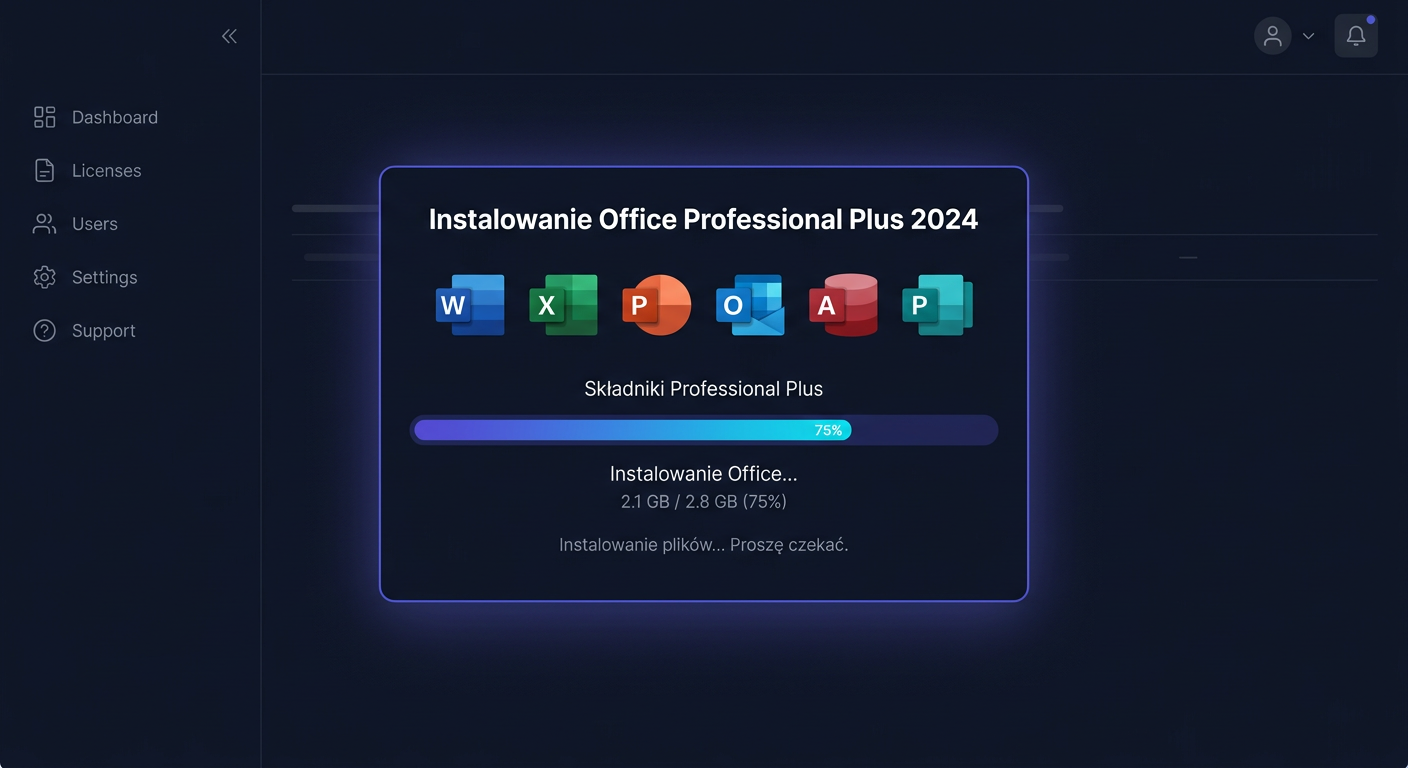
Methods of Activating Office 2024
After installing the Office 2024 Professional Plus package, you must activate it with a product key from KluczeSoft. Below are 3 methods — from the easiest.
Method 1: Through the Office Interface (Recommended)
- Launch any application — e.g., Microsoft Word
- If a welcome screen appears — click Blank Document
- Go to File → Account (bottom left corner)
- In the Product Information section, click Change Product Key
- Enter the 25-character key from KluczeSoft (XXXXX-XXXXX-XXXXX-XXXXX-XXXXX)
- Click Activate Office
- If prompted — select Activate by Internet
After successful activation, you will see: Product activated — Microsoft Office LTSC Professional Plus 2024.
Tip: Don't see the "Change Key" button? Close all Office applications, run Word as an administrator, and try again.
Method 2: Through the Command Line (ospp.vbs)
Office 2024 uses the ospp.vbs tool to manage licenses.
- Open CMD as administrator
- Go to the Office directory:
cd "C:\Program Files\Microsoft Office\Office16"
For 32-bit:
cd "C:\Program Files (x86)\Microsoft Office\Office16"
- Install the key:
cscript ospp.vbs /inpkey:XXXXX-XXXXX-XXXXX-XXXXX-XXXXX
- Activate:
cscript ospp.vbs /act
- Check the status:
cscript ospp.vbs /dstatus
ospp.vbs Command Table
| Command | What it does |
|---|---|
cscript ospp.vbs /dstatus | License status, edition, partial key |
cscript ospp.vbs /dstatusall | All installed licenses |
cscript ospp.vbs /act | Online activation |
cscript ospp.vbs /inpkey:KEY | Install key |
cscript ospp.vbs /unpkey:XXXXX | Uninstall key (last 5 characters) |
cscript ospp.vbs /dinstid | Installation ID for phone activation |
cscript ospp.vbs /actcid:CID | Activate with confirmation code |
Method 3: Phone Activation
When online activation doesn't work — e.g., activation limit after hardware change or reinstallation:
- CMD as administrator, from the Office16 directory:
cscript ospp.vbs /dinstid
- Save the Installation ID (Installation ID) — a string of numbers
- Call Microsoft Poland:
- 00 800 121 1654 (free)
- +48 801 802 000
- +48 22 594 19 99
- Provide the installation ID to the automated system or consultant
- Receive the Confirmation ID (Confirmation ID)
- In CMD:
cscript ospp.vbs /actcid:CONFIRMATION-CODE
Tip: The automated system may suggest a website. Press 0 or remain silent — the system will switch to providing the installation ID.
If you need help, please contact us at kontakt@kluczesoft.pl or call 00 800 121 1654.
Troubleshooting
Error 0xC004C008 — "Activation limit exceeded"
Cause: The key was used on another device.
- Phone activation (Method 3) — the consultant can unlock
- Or write to kontakt@kluczesoft.pl — we will exchange the key for free
"Unlicensed Product" / "Unlicensed Product"
- Check the internet
- CMD as administrator:
cscript ospp.vbs /act
- If it doesn't help:
cscript ospp.vbs /unpkey:XXXXX
cscript ospp.vbs /inpkey:XXXXX-XXXXX-XXXXX-XXXXX-XXXXX
cscript ospp.vbs /act
"Product key is not valid"
- Check the key from the order email (not from another source)
- Enter manually (copying may add spaces)
- Do not confuse 0 with O, 1 with I, 5 with S
"Activation required" — message after installation
This is normal. Perform Method 1 or 2 — the key will activate permanently.
Two Office licenses on one computer
If dstatusall shows an old license (e.g. 2021):
cscript ospp.vbs /unpkey:OLD-5-CHAR
cscript ospp.vbs /act
Remove the old license to avoid conflicts.
Check activation status
Through the application
Word → File → Account → Product Information section:
- "Product activated" + Office LTSC Professional Plus 2024 = OK
- "Activation required" = use one of the methods above
Through CMD
cscript ospp.vbs /dstatus
It will show: edition, license status, partial key, license channel.
What does Office 2024 Professional Plus include?
| Application | Notes |
|---|---|
| Word | ✓ |
| Excel | ✓ — 14 new functions, IMAGE, dynamic tables |
| PowerPoint | ✓ — Cameo (camera in slides), recording |
| Outlook | ✓ — Focus View, improved search |
| Access | ✓ — databases (only Windows) |
| OneNote | ✓ |
| Publisher | ✗ — withdrawn from all 2024 editions |
License: Lifetime, one device. Support until 9 October 2029.
Frequently Asked Questions
Is activation one-time? Yes. After activation, the license is linked to the computer hardware. Re-activation is only required after replacing the motherboard or re-installing the system.
Can I transfer the key to another computer? Yes — uninstall on the old one, install on the new one, activate. With activation limit — phone or key exchange.
Does the Office 2021 key work on Office 2024? No — keys are assigned to a specific version. You need an Office 2024 key.
Is Publisher included in Office 2024? No. Microsoft has withdrawn Publisher from all 2024 editions. If you need Publisher — Office 2021 includes it.
How long is the license valid? Lifetime. Security updates until 9 October 2029. After this date, Office works, but without new patches.
Need help?
- E-mail: kontakt@kluczesoft.pl — we respond within a few hours
- Help Center: pomoc.kluczesoft.pl
- Microsoft Phone: 00 800 121 1654 (free)
Where to buy the original key
Need a legal key? Check the offers at kluczesoft.pl:
All keys are brand new, delivered electronically with a VAT invoice.