
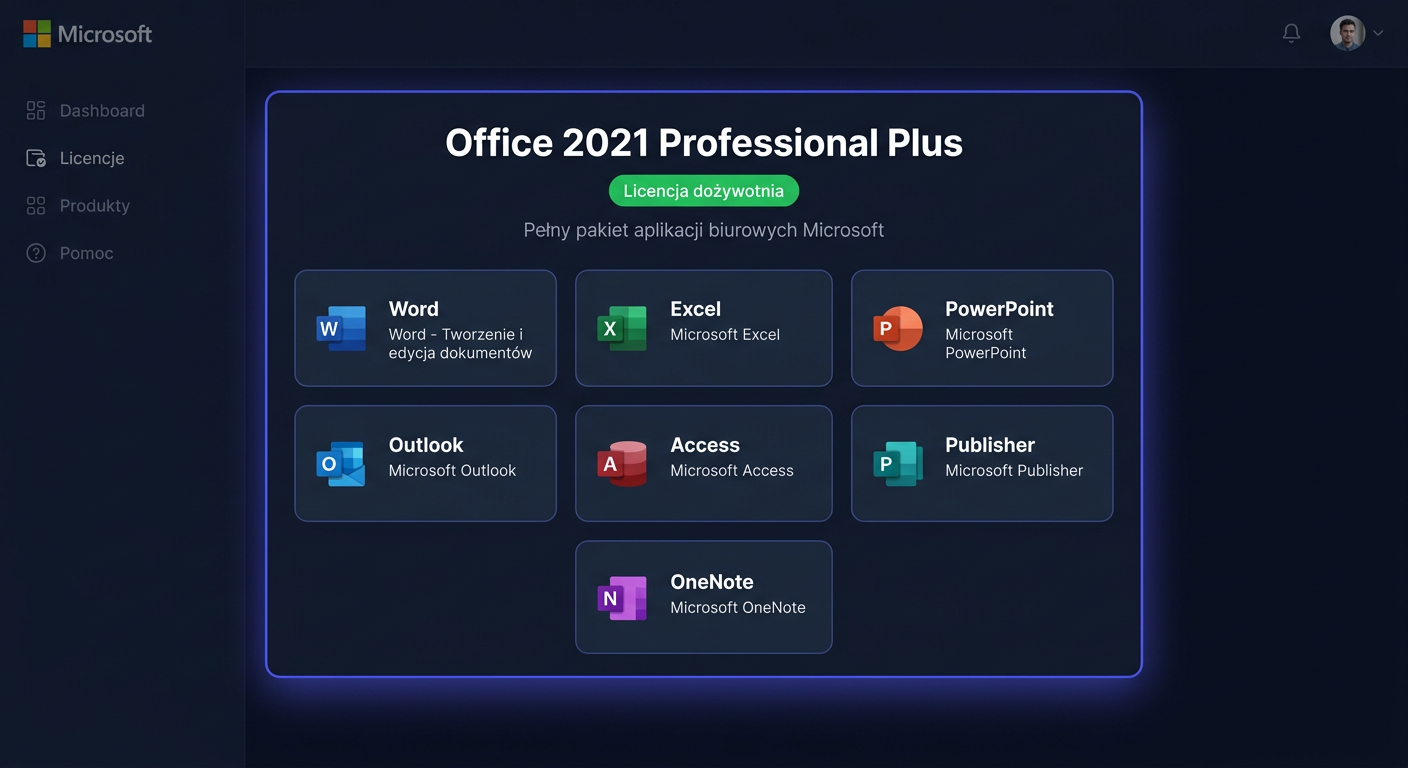
Activation Guide: Microsoft Office 2016 Professional Plus
Microsoft Office 2016 Professional Plus must be activated using a valid, legitimate product key. Below, you will find complete activation methods: via the graphical interface, command line, and by phone. This guide applies to the installation of the Office 2016 package on the Windows system.
This guide describes only official activation methods. Do not use unauthorized activators, license modifications, or security bypass tools.
Before You Start
Prepare:
- A 25-character product key for Microsoft Office 2016 Professional Plus
- Administrator privileges in the Windows system
- An internet connection for online activation
- The phone activation number: 00 800 121 1654
The most common locations of the ospp.vbs file:
C:\Program Files\Microsoft Office\Office16
or
C:\Program Files\root\Office16
If you have a 64-bit system with 32-bit Office, also check:
C:\Program Files (x86)\Microsoft Office\Office16
C:\Program Files (x86)\root\Office16
Method 1: Activation via Graphical Interface
This is the simplest method for most users.
- Run any Office package program, such as Word 2016 or Excel 2016.
- Click File.
- Go to the Account section.
- If the package is not activated, select Activate Product or Change Product Key.
- Enter your 25-character key.
- Confirm and wait for the activation to complete.
After successful activation, in the File > Account section, you should see a message like:
- Product activated
- Microsoft Office Professional Plus 2016
- Licensed product
Method 2: Activation via CMD using ospp.vbs
This method is useful when activation via GUI does not work or you want to check the license status more thoroughly.
Open Command Prompt as Administrator, then navigate to the Office 2016 directory.
Variant 1: Classic Path
cd /d "C:\Program Files\Microsoft Office\Office16"
Variant 2: root Path
cd /d "C:\Program Files\root\Office16"
Then, enter the product key:
cscript ospp.vbs /inpkey:XXXXX-XXXXX-XXXXX-XXXXX-XXXXX
After saving the key, run the activation:
cscript ospp.vbs /act
If the command is successful, you will see a message about successful activation.
Verification Commands
After activation, check the license status:
cscript ospp.vbs /dstatus
More detailed information about installed licenses:
cscript ospp.vbs /dstatusall
Check the last 5 characters of the installed product key:
cscript ospp.vbs /dstatus
In practice, pay attention to the fields:
LICENSE NAMELICENSE STATUSLast 5 characters of installed product key
The correct result should contain a status similar to:
LICENSE STATUS: ---LICENSED---
For any further assistance or issues, please contact kontakt@kluczesoft.pl or call 00 800 121 1654.
Method 3: Telephone Activation
Telephone activation is useful when online activation ends with an error, the computer does not have internet access, or the key requires manual confirmation.
How to Start Telephone Activation
- Press
Win + R. - Enter:
slui 4
- Select your country or region.
- Call the number:
00 800 121 1654
- Prepare the Installation ID displayed on the screen.
- Follow the instructions of the automated system or consultant.
- Enter the received Confirmation ID in the corresponding fields.
- Confirm the activation.
If the slui 4 window does not open the Office activation wizard, run Word or Excel and go to activation from the program level, then select the telephone activation option if available.
Most Common Errors and Solutions
Below, you will find real errors encountered during the activation of Office 2016 Professional Plus.
0xC004F074
Problem with connecting to the activation service. Most often occurs in licensing environments or with incorrect system time configuration.
Solution:
- Check the date, time, and time zone
- Restart the computer
- Try telephone activation
- Re-run:
cscript ospp.vbs /act
0xC004C060
The product key is blocked or invalidated.
Solution:
- Ensure the key comes from a legitimate source
- Check if the key is intended for Office 2016 Professional Plus
- Contact the seller or Microsoft
0xC004C008
The key has been used too many times.
Solution:
- Choose telephone activation
- Prepare the installation ID
- Contact Microsoft at 00 800 121 1654
0x80070005
Lack of appropriate permissions.
Solution:
- Run CMD as administrator
- Close all Office programs
- Re-run the
ospp.vbscommands
0x8004FC12
Problem with network connection or firewall.
Solution:
- Check the internet connection
- Temporarily disable the firewall or antivirus program
- Run the activation again
0xC004E016
The entered key does not match the installed Office edition.
Solution:
- Check if you have exactly Microsoft Office 2016 Professional Plus installed
- Uninstall any other Office edition if present
- Enter the correct key
Good Practices After Activation
After completing the activation, it's a good idea to:
- Restart the computer
- Open Word or Excel and check the File > Account section
- Run:
cscript ospp.vbs /dstatus
- Keep the product key and purchase confirmation
Quick Summary
The shortest correct activation sequence in CMD looks like this:
cd /d "C:\Program Files\Microsoft Office\Office16"
cscript ospp.vbs /inpkey:XXXXX-XXXXX-XXXXX-XXXXX-XXXXX
cscript ospp.vbs /act
cscript ospp.vbs /dstatus
If this path does not exist, use:
cd /d "C:\Program Files\root\Office16"
cscript ospp.vbs /inpkey:XXXXX-XXXXX-XXXXX-XXXXX-XXXXX
cscript ospp.vbs /act
cscript ospp.vbs /dstatusall
A correctly activated Office 2016 Professional Plus package should display the LICENSED status and information about an active, licensed product. If you need further assistance, please contact us at kontakt@kluczesoft.pl or call 00 800 121 1654.
Where to buy the original key
Need a legal key? Check the offers at kluczesoft.pl:
All keys are brand new, delivered electronically with a VAT invoice.