
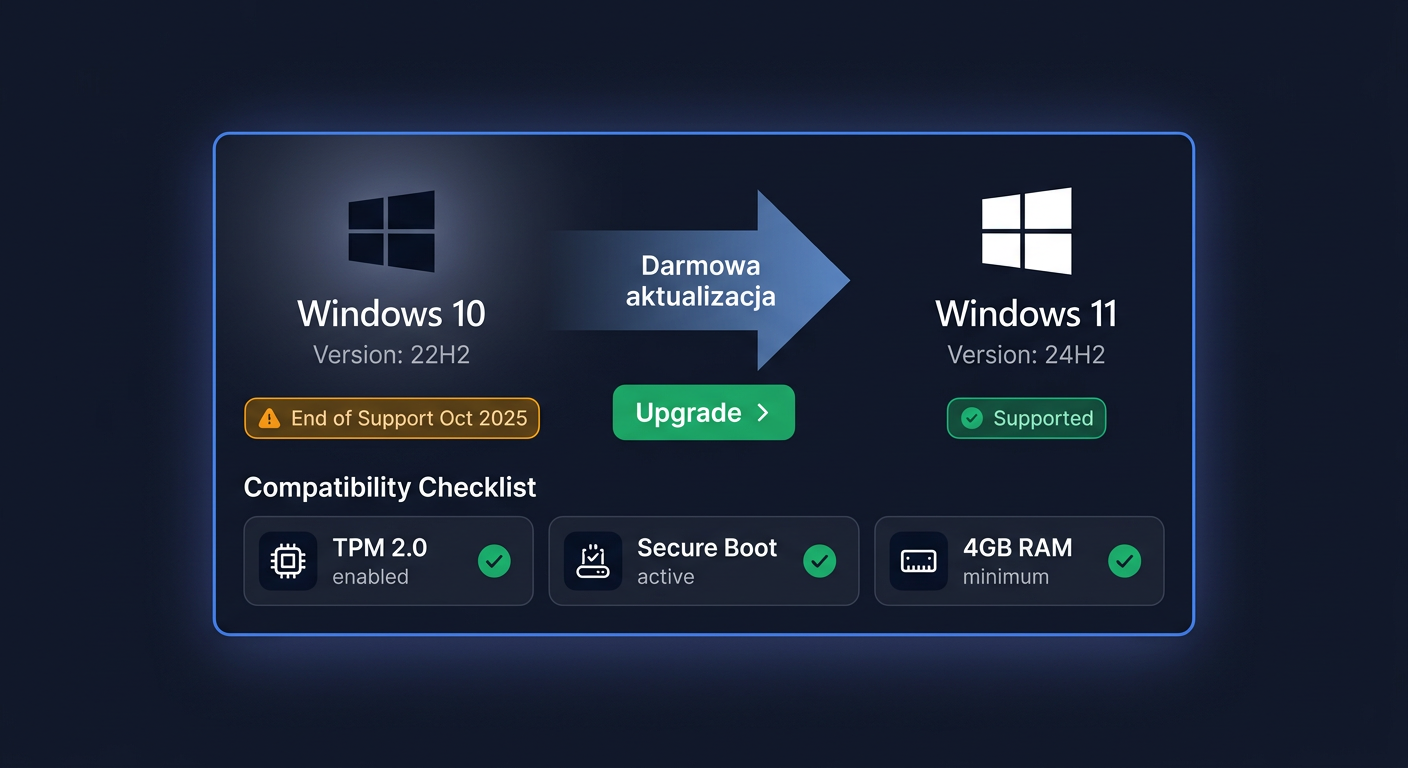
Activating Microsoft Windows 10 Professional
Activating the Microsoft Windows 10 Professional system confirms that the used copy of the system is original and properly linked to a valid license. Below, you will find a practical guide covering all the most commonly used activation methods: through the graphical interface, command line, and by phone. The instructions have been prepared in a secure and compliant form, typical for end-users and administrators.
This guide only concerns legal activation using a valid product key or authorized digital license.
Before You Begin
Prepare:
- a valid product key for Windows 10 Professional,
- an internet connection for online activation,
- administrator privileges,
- information on whether the system is installed in the Professional edition, not Home or Enterprise.
If the computer was previously activated and the license was linked to a Microsoft account or hardware, the system may activate automatically after connecting to the internet.
Method 1: Activation via the Graphical Interface
This is the simplest method for most users.
- Open Start.
- Go to Settings.
- Proceed to Update and Security.
- Open the Activation section.
- Choose Change product key.
- Enter the 25-character product key for Windows 10 Professional.
- Click Next, then Activate.
If the key is correct and the computer has internet access, the system should complete the process in a moment. After successful activation, you will see a message informing you that the Windows system has been activated.
Method 2: Activation via CMD
This method is particularly useful for administrators, in corporate environments, or when the settings panel does not work properly. The Command Prompt must be run as an administrator.
Step 1: Run the Command Prompt as Administrator
- Click Start.
- Type
cmd. - Right-click Command Prompt.
- Select Run as administrator.
Step 2: Install the Product Key
Enter the command:
slmgr.vbs /ipk XXXXX-XXXXX-XXXXX-XXXXX-XXXXX
Replace XXXXX-XXXXX-XXXXX-XXXXX-XXXXX with your correct product key.
After a moment, a window should appear confirming that the key has been installed.
Step 3: Run Online Activation
Then, enter:
slmgr.vbs /ato
The command sends an activation request to Microsoft's servers. If everything goes correctly, the system will return a message about successful activation.
Method 3: Phone Activation
Phone activation is useful when online activation ends with an error, the computer does not have internet access, or the license requires manual confirmation.
How to Start Phone Activation
- Press
Win + R. - Enter:
slui 4
- Click OK.
- Select your country or region.
- Call the number:
00 800 121 1654
- Prepare the Installation ID displayed on the screen.
- Provide the data according to the instructions of the automated system or consultant.
- Enter the received Confirmation ID in the appropriate fields.
- Confirm the activation.
If the ID is accepted correctly, the system will complete the activation locally, without the need to use the internet.
For any further assistance, please contact kontakt@kluczesoft.pl or call 00 800 121 1654.
Activation Verification
After completing the process, it's worth checking if the system has been activated correctly.
Checking in Settings
Go to:
Settings → Update and Security → Activation
Look for a message similar to:
- Windows is activated
- Windows is activated with a digital license
Checking in CMD
Run CMD as an administrator and use:
slmgr.vbs /xpr
This command displays information on whether the system is permanently activated.
You can also use:
slmgr.vbs /dli
to see brief license status information, or:
slmgr.vbs /dlv
to obtain more detailed diagnostic data.
Most Common Errors and Solutions
1. Product Key Does Not Work
The cause may be a typo, using a key for a different system edition, or a key already used in violation of license terms. Check the entry carefully and make sure you are activating Windows 10 Professional, not another edition.
2. Activation Error After Hardware Change
After replacing the motherboard or making significant computer upgrades, the computer may be recognized as a new device. In such a situation, try activating through your Microsoft account, the troubleshooting tool in the activation section, or the phone method.
3. Lack of Administrator Privileges
The slmgr.vbs /ipk and slmgr.vbs /ato commands require running the Command Prompt as an administrator. Without this, key installation or activation may fail.
4. No Internet Connection
Online activation will not work without a stable internet connection. Check your network, temporarily disable any restrictive firewall, or try phone activation.
5. Incorrect System Edition Installed
A key for Windows 10 Professional does not activate the Home edition. First, you need to have a compatible system edition, then you can use the key and activate.
6. Activation Servers Are Temporarily Unavailable
This happens rarely but can cause temporary failures. Wait a few minutes and retry with the command:
slmgr.vbs /ato
7. Message About a Blocked or Incorrect Key
In such a situation, verify the source of the license. If the key comes from a legitimate purchase, it's best to contact the seller or use phone activation to confirm the license status.
Summary
Microsoft Windows 10 Professional activation can be performed in three main ways: through Settings, through CMD using slmgr.vbs /ipk and slmgr.vbs /ato, and by phone at 00 800 121 1654. After completion, it's always a good idea to perform verification, preferably in Settings and with the slmgr.vbs /xpr command, to confirm that the system is working fully legally and correctly. If you need assistance, please contact kontakt@kluczesoft.pl or call 00 800 121 1654 for support.
Where to buy the original key
Need a legal key? Check the offers at kluczesoft.pl:
All keys are brand new, delivered electronically with a VAT invoice.