
Microsoft [Windows 11 Home](https://kluczesoft.pl/klucz-windows-11/microsoft-windows-11-home) Activation Guide
Activating the Microsoft Windows 11 Home system confirms the legitimacy of the license and unlocks the full functionality of the system. Below, you will find complete activation instructions using three methods: through the graphical interface, command line, and by phone. At the end, we have also added a way to verify activation and a list of the most common errors.
This guide applies exclusively to Windows 11 Home. A valid, unused, or properly assigned product key is required for activation.
Before You Begin
Before activating, ensure that:
- your computer is connected to the internet,
- the date, time, and time zone are set correctly,
- the installed edition of the system is Windows 11 Home,
- you have a product key for the same edition,
- the user account has administrator privileges.
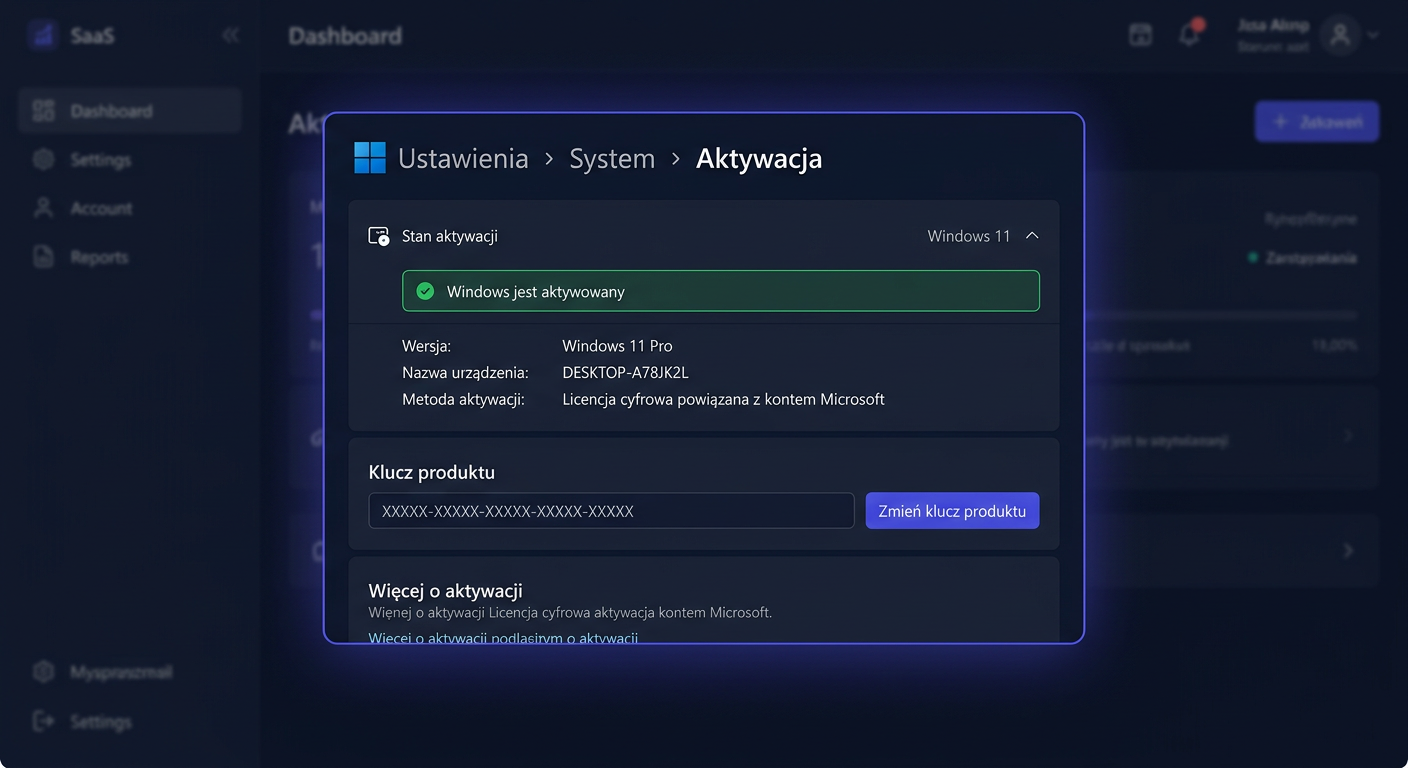
Method 1: Activation through GUI Settings
This is the simplest method for most users.
Steps
- Click Start and open Settings.
- Go to System.
- Select Activation.
- Next to Activation status, click Change product key.
- Enter the 25-character product key in the format:
XXXXX-XXXXX-XXXXX-XXXXX-XXXXX - Click Next.
- Select Activate and wait for the process to complete.
What Should Appear
After successful activation, the system usually displays a message stating that Windows has been activated. In the Settings > System > Activation section, the active license status should be visible.
Method 2: Activation through CMD
This method is recommended when activation through the graphical interface does not work or you want to perform the process manually.
Running the Command Prompt as Administrator
- Click Start.
- Type
cmd. - Right-click Command Prompt.
- Select Run as administrator.
Activation Commands
Enter the commands exactly in this order:
slmgr.vbs /ipk XXXXX-XXXXX-XXXXX-XXXXX-XXXXX
slmgr.vbs /ato
Command Meaning
slmgr.vbs /ipkinstalls the product key in the system.slmgr.vbs /atoinitiates online activation on Microsoft servers.
Important
First, use:
slmgr.vbs /ipk
and then:
slmgr.vbs /ato
If you enter the commands in reverse order, activation will not succeed.
Method 3: Phone Activation
Phone activation is useful when online activation is not available, the server does not respond, or the key requires manual confirmation.
Phone Number
Call:
00 800 121 1654
How to Initiate Phone Activation
- Press the
Win + Rshortcut. - Type:
slui 4
- Press Enter.
- Select your country or region.
- Call the displayed number or use the number: 00 800 121 1654
- Provide the installation ID displayed on the screen.
- Enter the confirmation ID received in the corresponding fields.
- Confirm activation.
When to Choose This Method
Phone activation is particularly useful when:
- the computer does not have internet access,
- the key was previously used and requires re-verification,
- online activation errors occur,
- the system requires re-assignment of the license after hardware changes.
If you encounter any issues during the activation process, please contact us at kontakt@kluczesoft.pl for assistance.
How to Check if Windows 11 Home is Activated
After completing the activation, it's worth confirming its status.
Method 1: Settings
Go to:
Settings > System > Activation
Check if you see a message like:
- Windows is activated
- Windows is activated with a digital license
Method 2: CMD
Run Command Prompt as an administrator and type:
slmgr.vbs /xpr
If the activation is correct, a message will appear stating that the system is permanently activated or properly licensed.
You can also use:
slmgr.vbs /dlv
This command displays more detailed information about the license status.
Most Common Errors and Solutions
1. Invalid Product Key Error
Cause: The entered key contains a typo or does not match the Windows 11 Home edition.
Solution: Check all characters carefully and ensure the key is intended for the Home version.
2. Activation Error After Hardware Change
Cause: A significant change in the computer's configuration, such as replacing the motherboard, can cause the license to be lost.
Solution: Use phone activation or log in to your Microsoft account if the license was digitally linked.
3. No Connection to the Activation Server
Cause: No internet, DNS issue, network firewall, or temporary Microsoft service unavailability.
Solution: Check your network connection, restart your computer, and try again after a few minutes.
4. Incorrect System Edition Installed
Cause: You have a different system variant installed, such as Pro, and are trying to activate it with a Home key.
Solution: Verify the edition in Settings > System > About and use the correct key for that version.
5. Lack of Administrator Privileges
Cause: Activation commands were run without administrator rights.
Solution: Run CMD or PowerShell as an administrator and repeat the commands.
6. Key Already Used on Another Device
Cause: The license may be assigned to another computer or the activation limit has been exceeded.
Solution: Use phone activation or verify the license terms with the seller.
7. System Did Not Update Activation Status
Cause: Windows sometimes needs a moment to synchronize license information.
Solution:
Restart your computer and check the result again with the slmgr.vbs /xpr command.
Summary
Windows 11 Home can be activated in three effective ways:
- through Settings,
- through CMD using
slmgr.vbs /ipkandslmgr.vbs /ato, - by phone at 00 800 121 1654.
After completion, always check the activation status in system settings or with the slmgr.vbs /xpr command. This will confirm that the system is working correctly and the license has been accepted. If you need further assistance, please contact us at kontakt@kluczesoft.pl.
Where to buy the original key
Need a legal key? Check the offers at kluczesoft.pl:
All keys are brand new, delivered electronically with a VAT invoice.