
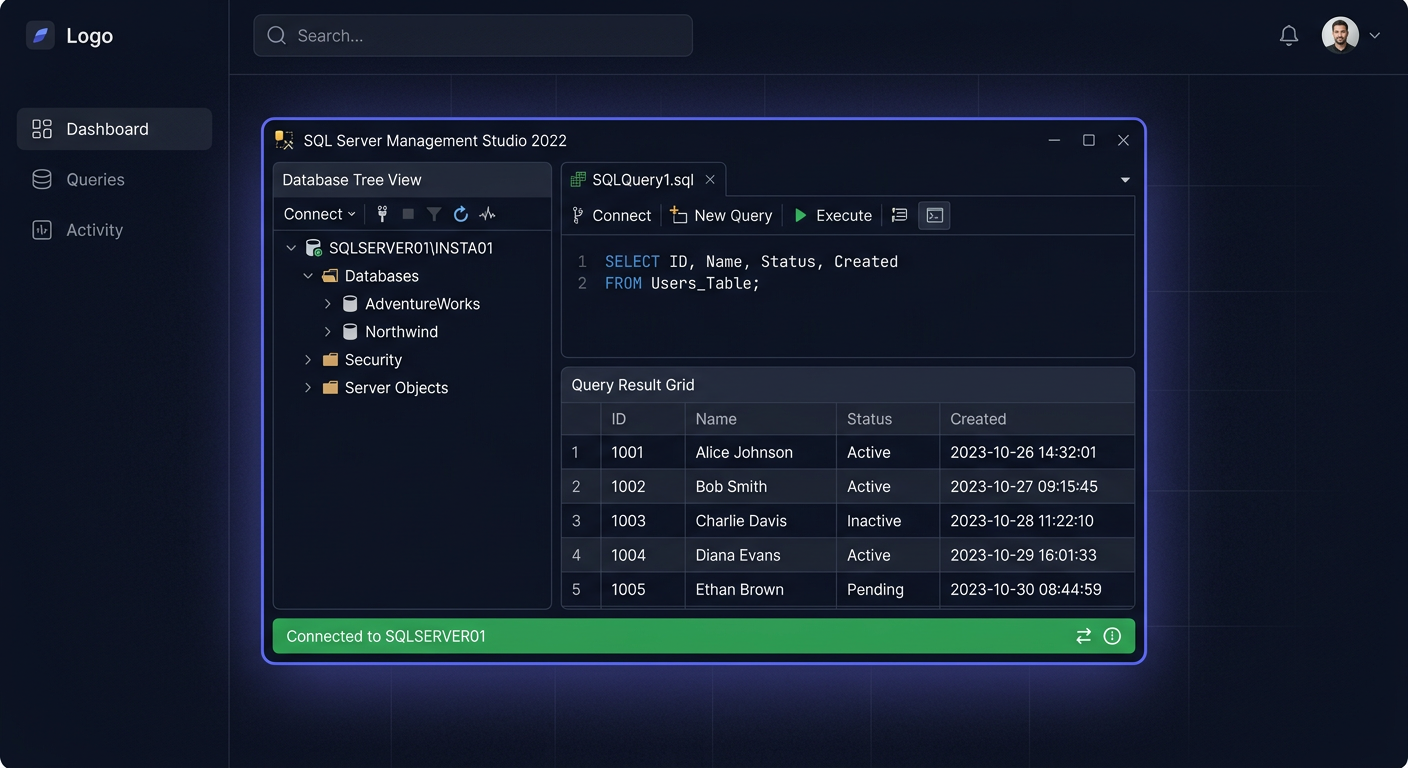
Activating SQL Server 2019 Standard 50 User CAL
To activate SQL Server 2019 Standard 50 User CAL, follow these steps:
- Ensure you have a valid licence key for
SQL Server 2019 Standard 50 User CAL. - Download and install
SQL Server 2019 Standardfrom the official Microsoft website. - Run the installation package and follow the prompts to install
SQL Server 2019 Standard.
Note: You may need to restart your computer during the installation process.
Activation
To activate your SQL Server 2019 Standard 50 User CAL, use the following command:
# Example command
cscript.exe "C:\Program Files\Microsoft SQL Server\110\Tools\Binn\sqlicm.exe" -k <licence_key>
Replace <licence_key> with your actual licence key.
Troubleshooting
If you encounter any issues during activation, check the event log for error codes and contact KluczeSoft support at kontakt@kluczesoft.pl or call 00 800 121 1654 for assistance.
System Requirements
Ensure your system meets the minimum requirements for SQL Server 2019 Standard:
- Windows 10 or later
- Office 2019 or later (for certain features)
- At least 4 GB of RAM
- At least 6 GB of available disk space
Additional Resources
For more information on SQL Server 2019 Standard 50 User CAL, visit the official Microsoft website or contact KluczeSoft support.
Activating SQL Server 2019 Standard 50 User CAL
Licensing SQL Server 2019 Standard 50 User CAL means that the organisation uses the SQL Server 2019 Standard server and has access for a maximum of 50 designated users in the User CAL model. This variant is often chosen in companies where employees log in to systems from different devices, but access to the database should be assigned to specific individuals, not computers.
In practice, activation does not involve entering a separate key for each CAL licence in the SQL Server itself. The most important thing is the correct deployment of the server, activation of the product where required, and proper documentation and assignment of 50 User CAL licences to users. This ensures that the environment remains compliant with Microsoft's licensing rules and is ready for any potential audit or control.
Step by Step
-
Verify the licence you have
Ensure that your company has a SQL Server 2019 Standard Server + 50 User CAL licence or an equivalent set of purchase documents. Keep the invoice, order confirmation, licence certificate, and any messages with purchase information.
-
Check the server version and edition
On the server, check if the correct edition, i.e., SQL Server 2019 Standard, is installed. In the SQL Server environment, this can be confirmed in the instance properties or by querying the product version. This is important because CAL licences refer to a specific server licensing model.
-
Install and configure SQL Server 2019 Standard
If the server has not been deployed yet, perform the installation according to the environment requirements. During installation, select the appropriate edition and configure the instance, service accounts, authentication, and data locations. The 50 User CAL pool usually does not require separate technical activation in the SQL Server installation wizard, but it must be organisationally assigned to users.
-
Assign licences to users
The User CAL model means that each licence applies to a specific user. Prepare a list of individuals authorised to use SQL Server 2019 Standard. Good practice is to maintain a record containing:
- user's first and last name,
- department or role,
- date of access grant,
- system or application using SQL Server,
- information that the user is covered by a CAL licence.
-
Ensure consistency with Active Directory or access system
If users log in through a domain, it's worth linking the licence list to accounts in Active Directory or another identity management system. This facilitates control over who actually uses the server resources and whether the number of users exceeds the purchased 50 CAL.
-
Archive licence documentation
Store documents confirming the purchase and internal assignment records in one place. In the event of personnel changes, update the user list. If one person leaves the company, the licence can be assigned to another person, but it's a good idea to keep a history of such changes.
-
Verify environment compliance
Check if the server is used only by users covered by licences. If more than 50 people use the database, it may be necessary to purchase additional CAL or change the licensing model.
For any questions or concerns regarding the licensing process, please contact kontakt@kluczesoft.pl or call 00 800 121 1654 for assistance.
Verification
After implementation, it's worth performing a brief check:
- confirm that SQL Server 2019 Standard is working,
- check if applications are connecting to the correct instance,
- compare the number of real users with the 50 User CAL limit,
- ensure that purchase documents are available,
- check if the list of assigned users is up-to-date.
It's worth remembering that CAL is not usually "visible" as an activated item in the SQL Server interface, as is the case with other Microsoft server products. The key aspect is licence compliance and proper assignment of access rights to users.
Problems
The most common problem is assuming that User CAL is technically activated in SQL Server itself with a separate key. In most cases, this is not how it works. SQL Server operates based on a correctly implemented server edition, and CAL licences are an element that authorises users to access.
Another common mistake is the lack of up-to-date user records. A company buys SQL Server 2019 CAL 50, but after a few months, the number of people with access increases and no one monitors it. This can lead to licence non-compliance.
Confusing User CAL with Device CAL is also a problem. If multiple employees use the system from one workstation, the Device CAL model is sometimes better. If, on the other hand, one person uses multiple devices, User CAL is usually more beneficial.
If you are unsure whether the environment has been properly prepared, it's worth organising the documentation and verifying the way the server is used before further expanding the infrastructure.
FAQ
Does SQL Server 2019 CAL 50 require entering 50 separate keys?
No. In the Server + CAL model, the most important thing is to have the correct server licence and the correct number of CAL access licences. CAL licences are assigned to users organisationally and documentarily.
Can I transfer a User CAL licence to another employee?
Yes, in practice, you can assign a licence to another person if the previous user has stopped using the system. However, it's worth keeping proper documentation of such changes.
What to do if more than 50 users are using SQL Server?
In such a situation, you should purchase additional CAL licences or consider changing the licensing model if the current variant is no longer cost-effective or compliant with the actual usage.
In case of doubts regarding licence selection, activation, or environment compliance, you can contact us: kontakt@kluczesoft.pl or call 00 800 121 1654.
Where to buy the original key
Need a legal key? Check the offers at kluczesoft.pl:
All keys are brand new, delivered electronically with a VAT invoice.