
Activating SQL Server 2022 Standard 50 Device CAL
To activate SQL Server 2022 Standard 50 Device CAL, follow these steps:
- Ensure you have a valid licence key for SQL Server 2022 Standard 50 Device CAL.
- Install SQL Server 2022 on your server. You can download it from the official Microsoft website.
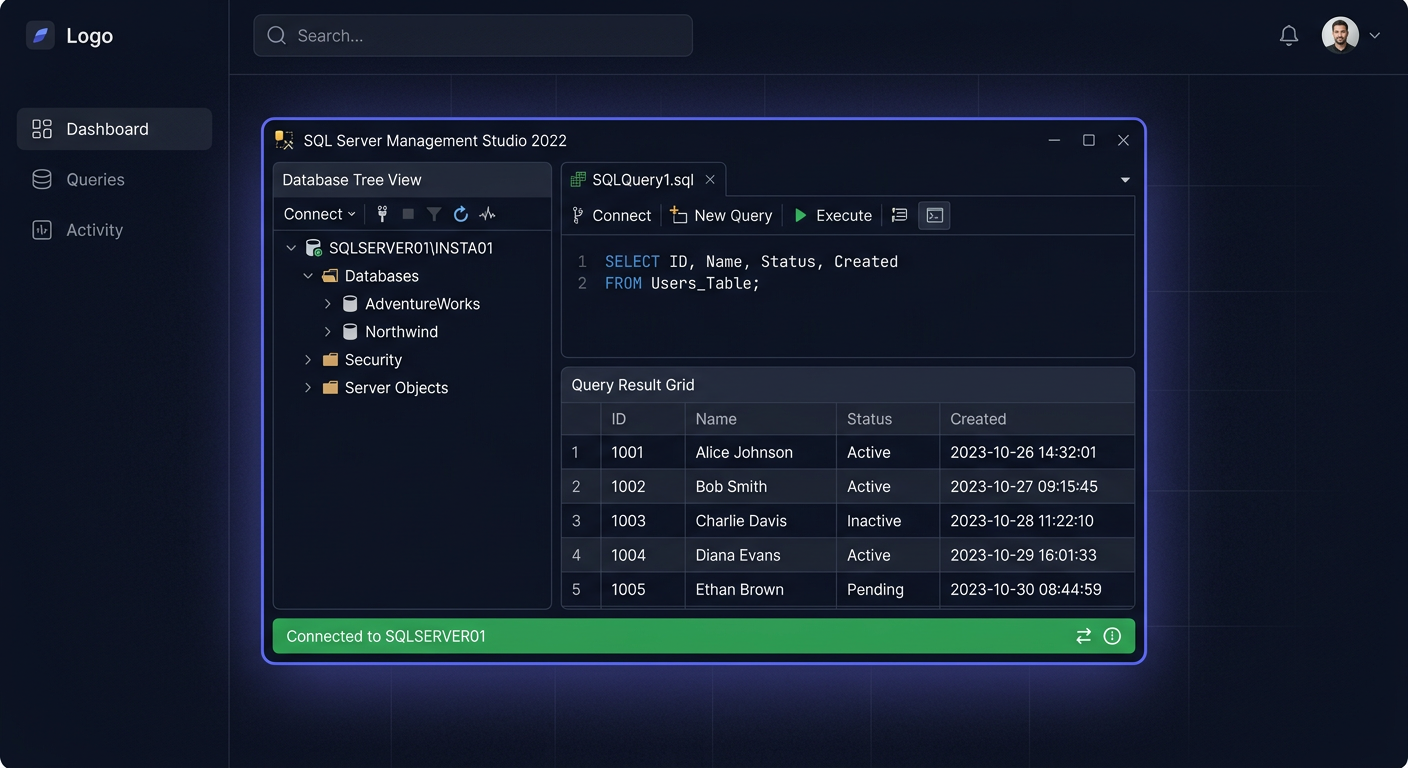
- Once the installation is complete, open the SQL Server Management Studio and connect to your server.
Note: You can find detailed instructions on how to install and connect to SQL Server in the official Microsoft documentation.
Activation Process
To activate your SQL Server 2022 Standard 50 Device CAL, you will need to enter your licence key. You can do this by running the following command in the Command Prompt:
cscript.exe "C:\Program Files\Microsoft SQL Server\120\Tools\Binn\sqllspl.dll"
Replace C:\Program Files\Microsoft SQL Server\120\Tools\Binn\sqllspl.dll with the actual path to the sqllspl.dll file on your system.
Troubleshooting
If you encounter any issues during the activation process, you can contact KluczeSoft for assistance:
- Email:
kontakt@kluczesoft.pl - Phone:
00 800 121 1654
Additional Information
For more information on SQL Server 2022 Standard 50 Device CAL, including system requirements and installation instructions, visit the official Microsoft website.
Activating SQL Server 2022 Standard 50 Device CAL
Activating SQL Server 2022 Standard 50 Device CAL requires distinguishing between two licensing elements: the server itself and the CAL access licenses. In practice, this means that you first need to correctly install and activate the SQL Server 2022 Standard environment, and then ensure that the number of devices using the system complies with the purchased Device CAL pool. In the 50 Device CAL model, the license covers a maximum of 50 specific devices from which users can connect to the SQL server.
It's worth remembering that CAL does not activate separately in the SQL Server itself in the same way that a product key is activated in an operating system or some applications. CAL licenses are an element of access rights and should be properly assigned organisationally and documented. For this reason, correct "activation" in practical terms means: deploying the server, introducing the appropriate key where required, and confirming that the number and type of devices match the license held.
Step by Step
-
Ensure you have the correct edition of the product, i.e., SQL Server 2022 Standard, and the purchased 50 Device CAL package. Check the purchase document, product name, and number of licenses.
-
Install SQL Server 2022 Standard on the target server. During installation, select the appropriate features, set the instance, and configure services according to the environment's requirements.
-
If the deployment requires entering a product key for the server edition, enter it during installation or during a later edition change, depending on the media source and deployment model. This applies to the SQL server itself, not the CAL licenses.
-
After completing the installation, configure access to the database: network connections, login accounts, roles, and permissions. At this stage, determine which devices will use the server.
-
Assign the 50 Device CAL pool to company devices that are to access the SQL Server. In the Device CAL model, the device is licensed, not the user. If multiple people use one computer, it still counts as one device.
-
Prepare an internal license inventory. It should include at least: product name, number of CALs, purchase date, order details, and a list of devices covered by the license.
-
Keep the proof of purchase, license details, and commercial correspondence. In the event of a control or audit, this documentation confirms the legality of using CAL.
-
Test the connection to the server from selected devices. If the devices can connect correctly and their number is within the held pool, the environment is ready to work.
Verification
After implementation, it is worth verifying several points. Firstly, check in SQL Server Management Studio if the instance is working correctly and accepting connections. Secondly, confirm that the correct edition is being used, i.e., SQL Server 2022 Standard. Thirdly, compare the number of devices with access to the server with the number of Device CAL licenses you have.
The most important thing is to understand that SQL Server itself does not display a counter of used CALs in the sense of a full accounting tool for the Microsoft licensing model. The responsibility for licensing compliance lies with the organisation. Therefore, proper verification is not only a technical test but also a review of documentation and a list of devices.
It is good practice to perform periodic checks:
- whether new devices have not gained access to the server,
- whether the number of actively used stations has not exceeded 50,
- whether the purchase documentation and license assignment are up-to-date.
Problems
The most common problem is confusing Device CAL with User CAL. If licenses were purchased for devices, they cannot be treated as licenses assigned to specific individuals. This is particularly important in changing environments, offices, and terminals.
The second common mistake is assuming that CAL needs to be "entered" into SQL Server as a separate activation key. In most cases, CAL is a licensing entitlement, not a separate technical operation performed on the server console. Technically, you activate or deploy the server, while CAL must be possessed and properly documented.
Another problem is the growth of the environment. A company buys 50 Device CAL, but over time, the number of computers, terminals, or other devices with access to the database grows. Then, additional licenses need to be purchased, and it should not be assumed that technical access automatically means licensing compliance.
Doubts also arise when it comes to indirect connections, e.g., when an application communicates with SQL Server on behalf of multiple workstations. In such cases, the actual access model needs to be analysed. If there is any uncertainty, it is best to check the licensing conditions before deployment or contact the licensing manager.
If you need support in selecting or verifying licenses, please write to: kontakt@kluczesoft.pl or call 00 800 121 1654.
FAQ
Does SQL Server 2022 CAL activate with a separate key?
Not always. Usually, SQL Server 2022 Standard itself is deployed and activated separately, while CAL is an access license that needs to be possessed and correctly assigned to devices or users, depending on the type.
What does 50 Device CAL mean?
It means the right to access the SQL server for a maximum of 50 devices. It does not matter how many people use one computer, as long as it is still one licensed device.
How to check if a company is using CAL correctly?
You need to compare the number of devices with access to the server with the number of purchased licenses and maintain documentation of the purchase and assignment. A mere technical connection test does not confirm licensing compliance yet.
Where to buy the original key
Need a legal key? Check the offers at kluczesoft.pl:
All keys are brand new, delivered electronically with a VAT invoice.