
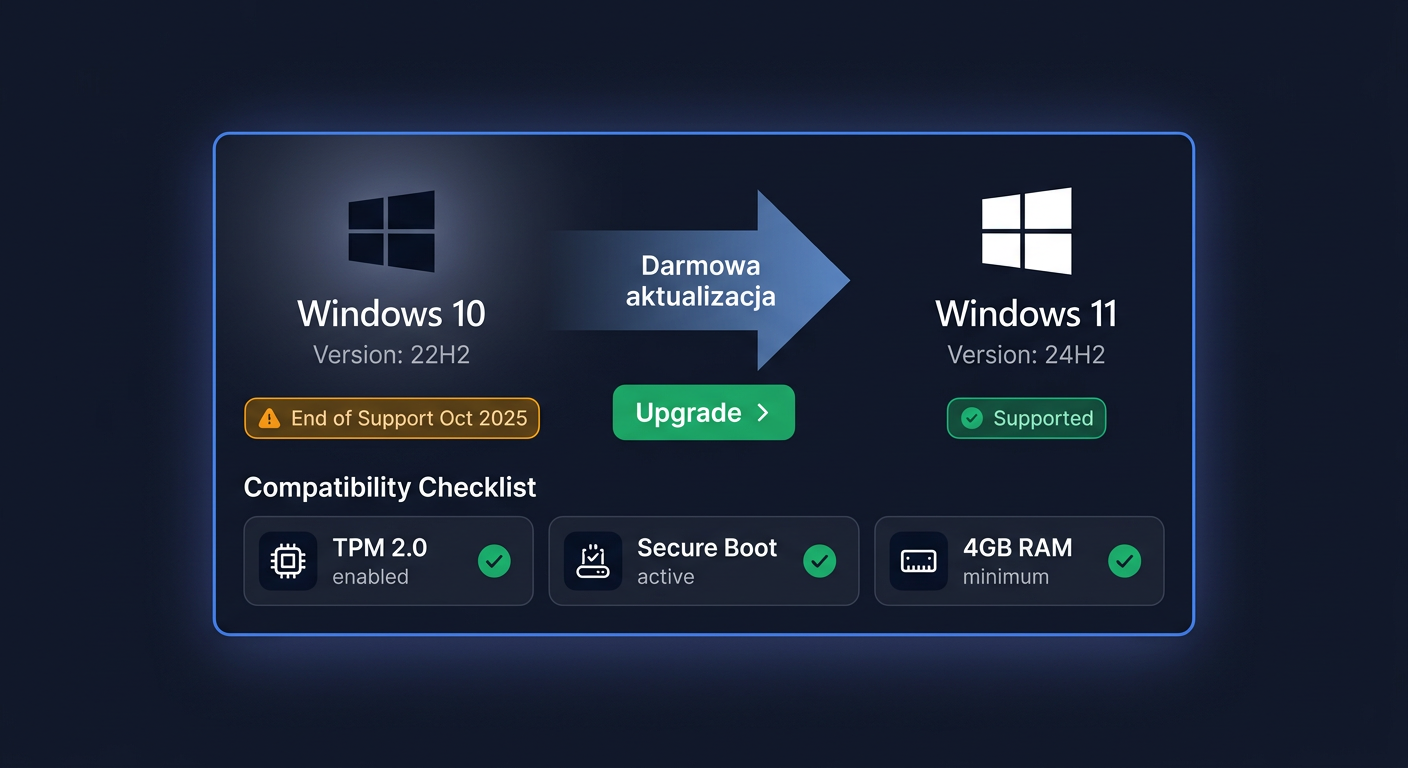
Activation of Windows 10 ESU Year 1
To activate Windows 10 ESU, follow these steps:
- Ensure your system meets the requirements for Windows 10 ESU.
- Purchase a licence key from KluczeSoft or another authorised reseller.
- Go to
Settings>Update & Security>Activation, and click onChange product key. - Enter the licence key you purchased, then click
Nextto activate Windows 10.
If you encounter any issues during activation, contact our support team at
kontakt@kluczesoft.plor call us on00 800 121 1654for assistance.
Important: Activation of Windows 10 ESU requires a valid licence key. KluczeSoft is not affiliated with Microsoft, but our licence keys are compatible with Windows 10 and Office products.
# Example command to activate Windows 10 ESU using the command line
slmgr /ipk <licence_key>
Replace <licence_key> with your actual licence key.
For more information on Windows 10 ESU and its system requirements, visit the Microsoft website.
Activation of Windows 10 ESU Year 1
The Windows 10 ESU Year 1 program allows you to extend the receipt of critical security updates after the standard system support has ended. ESU stands for Extended Security Updates, which means extended security updates. In practice, this means the possibility of further, legal use of Windows 10 in a corporate or specialized environment where migration to a newer system cannot be performed immediately.
Activation of Windows 10 ESU Year 1 usually takes place using the slmgr /ipk and slmgr /ato commands. In many cases, an addon key is also required, which is an additional key intended for activating the ESU entitlement. Below is a simple guide that shows how to perform this process step by step.
Step by Step
Before starting, make sure that:
- the system is a supported edition of Windows 10,
- the computer has the required updates installed to prepare the system for ESU,
- you have the correct ESU Year 1 / addon key,
- you have access to an account with administrator privileges,
- the computer has an internet connection if the activation will be performed online.
1. Run the Command Prompt as Administrator
Click the Start menu, type cmd, and then select Run as administrator. This is important because without administrative privileges, the activation commands may end with an error.
2. Install the ESU Key
In the Command Prompt window, type:
slmgr /ipk YOUR-ESU-KEY
Replace YOUR-ESU-KEY with the received addon key for Windows 10 ESU Year 1.
After a moment, the system should display a message confirming the correct installation of the key. If an error message appears, check if the key was entered without typos and if it matches the correct system version.
3. Perform Online Activation
After adding the key, run the activation:
slmgr /ato
The slmgr /ato command sends an activation request to Microsoft's servers and attempts to assign a license to the system. If everything is properly prepared, a message about successful activation will appear.
4. Restart the Computer
After activation, it's a good idea to restart the system. This is not always absolutely necessary, but it helps refresh the license status and prepare the system to download ESU updates.
5. Check Windows Update
After restarting, go to Settings > Update & Security > Windows Update and run the update search. If the activation was successful, the system should be able to download security updates covered by the ESU program.
Verification
After completing the activation, it's a good idea to make sure that the key has been accepted and the system sees the license correctly.
The simplest method is to use the command:
slmgr /dlv
This command opens a detailed window with information about the license status. Pay attention to:
- the licensing status,
- activation information,
- identification of the installed key.
You can also use:
slmgr /xpr
The command shows whether the system is activated and what the license validity status is. If the ESU activation was performed correctly, the system should report a correct activation status.
Additional verification is the ability to download current security updates through Windows Update. This is a practical signal that the environment has been prepared correctly.
If you encounter any issues during the activation process, please contact us at kontakt@kluczesoft.pl or call 00 800 121 1654 for assistance.
Problems
The most common problems with activating Windows 10 ESU Year 1 do not result from the key itself, but from missing prerequisites.
The key does not want to install
If slmgr /ipk returns an error, check:
- whether the correct addon key has been entered,
- whether the system is compatible with the purchased license,
- whether previous components or updates required for ESU are installed,
- whether the command was run as an administrator.
Activation slmgr /ato ends in failure
In such a situation, first check your internet connection. Then, make sure that:
- the system has the correct date and time set,
- the firewall or proxy server does not block the connection,
- the key was previously installed correctly,
- the computer does not have problems with the basic Windows activation.
Updates still do not appear
If the activation looks correct, but Windows Update does not download ESU updates, the reason may be:
- lack of required service updates,
- delay in refreshing the license status,
- need to restart the system,
- problem with the Windows Update service itself.
In such cases, it's worth restarting, re-checking slmgr /dlv, and then re-running the update search.
If the activation still does not work correctly, contact us: kontakt@kluczesoft.pl.
FAQ
Is Windows 10 ESU Year 1 the same as regular system activation?
No. ESU does not replace the standard Windows 10 activation. It is an additional entitlement to receive extended security updates after the end of basic support. First, the system should be properly activated, and then the ESU key should be activated.
What is an addon key?
An addon key is an additional activation key assigned to the Extended Security Updates program. It is not used to install the Windows system itself, but to enable the right to ESU updates for a given period, here: Year 1.
Is the internet required for ESU activation?
In most cases, yes, because the slmgr /ato command performs online activation. If the environment has limited network access or operates in a special infrastructure, additional administrative steps may be required. In case of doubts, write to kontakt@kluczesoft.pl or call 00 800 121 1654.
Where to buy the original key
Need a legal key? Check the offers at kluczesoft.pl:
All keys are brand new, delivered electronically with a VAT invoice.