
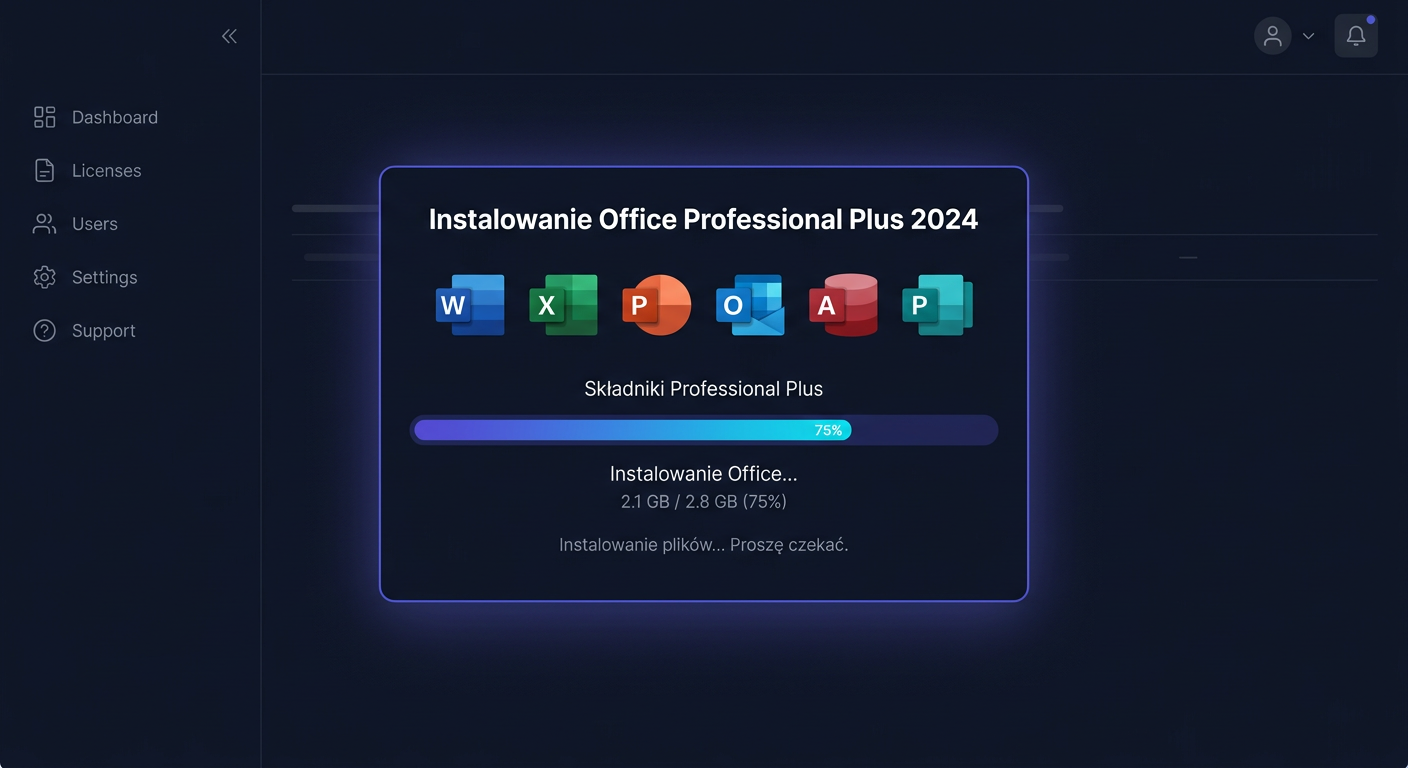
Activation of Office 2024 Professional Plus + Visio 2024 Professional
To activate your Office 2024 Professional Plus + Visio 2024 Professional software, follow these steps:
- Ensure you have a valid licence key for the software.
- Install the software on your computer, then proceed to activate it using the provided licence key.
- If you encounter any issues during activation, please contact our support team at
kontakt@kluczesoft.plfor assistance.
System Requirements
Before activating your software, verify that your system meets the minimum requirements for Office 2024 Professional Plus and Visio 2024 Professional. This includes:
- A 64-bit version of Windows
- A minimum of 4 GB RAM
- At least 4 GB of available disk space
Activation Steps
- Install Office 2024 Professional Plus + Visio 2024 Professional on your computer.
- Launch the software and click on the
Activatebutton when prompted. - Enter your licence key carefully, ensuring all characters are correct.
- Follow the on-screen instructions to complete the activation process.
Troubleshooting
If you encounter any errors during activation, such as 0xC004F074, please refer to the Microsoft support website for troubleshooting guides or contact our support team for further assistance.
Contact Us
For any questions or issues related to the activation of Office 2024 Professional Plus + Visio 2024 Professional, please do not hesitate to contact us:
- Email:
kontakt@kluczesoft.pl - Phone:
00 800 121 1654
We are here to help you with any problems you may encounter during the activation process.
Activating Office 2024 Professional Plus + Visio 2024 Professional Bundle
Purchasing the Office 2024 Professional Plus + Visio 2024 Professional bundle means you receive two separate product keys: one for the Office package and another for Visio. This is crucial because both components are activated separately, even if they were purchased together as a bundle. In this guide, we will show you the entire process step by step, using the ospp.vbs tool, separately for Office 2024 Professional Plus and separately for Visio 2024 Professional.
The instructions have been prepared for users of the pomoc.kluczesoft.pl service. If you have any questions or error messages during activation, please contact us: kontakt@kluczesoft.pl.
What you should know before starting
Before activating, make sure that:
- the Office 2024 Professional Plus package is already installed on your computer,
- the Visio 2024 Professional program is also installed,
- you have two separate product keys,
- you have a computer running the Windows system,
- you are executing commands in the Command Prompt as an administrator.
The keys in the bundle do not replace each other. The Office key only activates Office, and the Visio key only activates Visio. This is the most common point of confusion, which is why it's worth separating the two stages from the start.
Why activation is done separately
Although the products are sold as a bundle, they are technically two independent components:
- Office 2024 Professional Plus,
- Visio 2024 Professional.
Each of them has its own license entry and may require a separate key assignment. In practice, this means that for each product, you need to:
- go to the corresponding directory,
- enter the correct key using the
inpkeycommand, - perform activation using the
actcommand.
It's most convenient to do this using the ospp.vbs script.
How to run the Command Prompt as an administrator
- Click the Start button.
- Type:
cmd - On the Command Prompt result, right-click with your mouse.
- Select Run as administrator.
- If a User Account Control question appears, click Yes.
Enter the following commands exactly as shown in the instructions. You can also contact us by phone: 00 800 121 1654.
Activating Office 2024 Professional Plus Step by Step
Below is a separate activation procedure for the Office package.
Step 1. Go to the Office package folder
In most Office installations, it can be found in one of the following locations:
For 64-bit system and 64-bit Office:
cd /d "C:\Program Files\Microsoft Office\Office16"
For 64-bit system and 32-bit Office:
cd /d "C:\Program Files (x86)\Microsoft Office\Office16"
If an error appears after entering the first command, use the second variant.
Step 2. Enter the product key for Office
Enter the command:
cscript ospp.vbs /inpkey:XXXXX-XXXXX-XXXXX-XXXXX-XXXXX
Instead of the string XXXXX-XXXXX-XXXXX-XXXXX-XXXXX, paste your Office 2024 Professional Plus product key.
Example:
cscript ospp.vbs /inpkey:AAAAA-BBBBB-CCCCC-DDDDD-EEEEE
After correctly executing the command, a message confirming the installation of the key should appear.
Step 3. Activate Office
Next, enter:
cscript ospp.vbs /act
The system will attempt to activate the Office package. If everything goes correctly, you will see a message about successful activation.
Step 4. Check the Office license status
To confirm the activation status, you can use the command:
cscript ospp.vbs /dstatus
As a result, you should see information about the Office license. Pay attention to the activation status. If the product was activated correctly, the license information will indicate an active state.
Activating Visio 2024 Professional Step by Step
After activating Office, proceed to the separate activation of the Visio program. Even if Visio was installed together with the Office package, its key must be added independently.
Step 1. Open the appropriate directory for Visio
In many cases, Visio uses the same ospp.vbs mechanism, so go back to the Office folder:
For 64-bit system and 64-bit installation:
cd /d "C:\Program Files\Microsoft Office\Office16"
For 32-bit installation:
cd /d "C:\Program Files (x86)\Microsoft Office\Office16"
If Visio is part of the same Microsoft Office installation family, activation will also be performed from this level.
Step 2. Enter the product key for Visio
Now enter the command:
cscript ospp.vbs /inpkey:XXXXX-XXXXX-XXXXX-XXXXX-XXXXX
This time, use the key exclusively for Visio 2024 Professional.
Example:
cscript ospp.vbs /inpkey:FFFFF-GGGGG-HHHHH-IIIII-JJJJJ
Do not enter the Office key again at this point. Each product requires its own key.
Step 3. Activate Visio
After adding the key, activate it with the command:
cscript ospp.vbs /act
After a moment, a message confirming the activation of the Visio program should appear.
Step 4. Verify the Visio license status
Finally, you can check the activation details:
cscript ospp.vbs /dstatus
If both Office and Visio are installed on the computer, the command may display several license entries. This is normal. Make sure to check if there is an active entry for Visio 2024 Professional.
Most Common Activation Issues
Incorrect Key Entered
The most common problem is using an Office key for Visio or a Visio key for Office. Since the bundle includes two separate codes, it is essential to ensure that each code is assigned to the correct product.
Command Line Not Run as Administrator
If commands do not work correctly or the system refuses to perform the operation, close the window and run the Command Line as Administrator.
Incorrect Office Folder Path
If the cd /d command does not work, the package was likely installed in a different architecture variant. In this case, check both directories:
C:\Program Files\Microsoft Office\Office16
and
C:\Program Files (x86)\Microsoft Office\Office16
Product Still Shows Activation Error
If after running the cscript ospp.vbs /act command, activation is not completed correctly, it is worth:
- checking if the key was entered without typos,
- ensuring that the correct product is being activated,
- re-running
cscript ospp.vbs /dstatus, - contacting technical support.
Recommended Activation Order
In practice, it is best to perform activation in the following order:
- First, activate Office 2024 Professional Plus.
- Then, activate Visio 2024 Professional.
- Finally, check the license status with the
cscript ospp.vbs /dstatuscommand.
This order helps avoid mistakes and makes it easier to control which key has already been added.
Summary
Activating the Office 2024 Professional Plus + Visio 2024 Professional bundle requires performing two separate procedures. The key information is that despite being purchased as a bundle, Office and Visio are activated independently, using two different keys. In both cases, the ospp.vbs script is used, but each product must be treated separately: first, add the correct key, and then run the activation.
If you want to go through the process smoothly, pay particular attention to selecting the correct key for the product, the correct folder path, and running the Command Line as Administrator. These three elements most often decide the success of the activation.
If you have problems or questions, please contact us at: kontakt@kluczesoft.pl. You can also find more instructions on our website pomoc.kluczesoft.pl or call us at 00 800 121 1654.
Where to buy the original key
Need a legal key? Check the offers at kluczesoft.pl:
- Zestaw Office 2024 Professional Plus + Visio 2024 Professional
- Microsoft Office 2024 Keys
- Microsoft Visio
All keys are brand new, delivered electronically with a VAT invoice.