
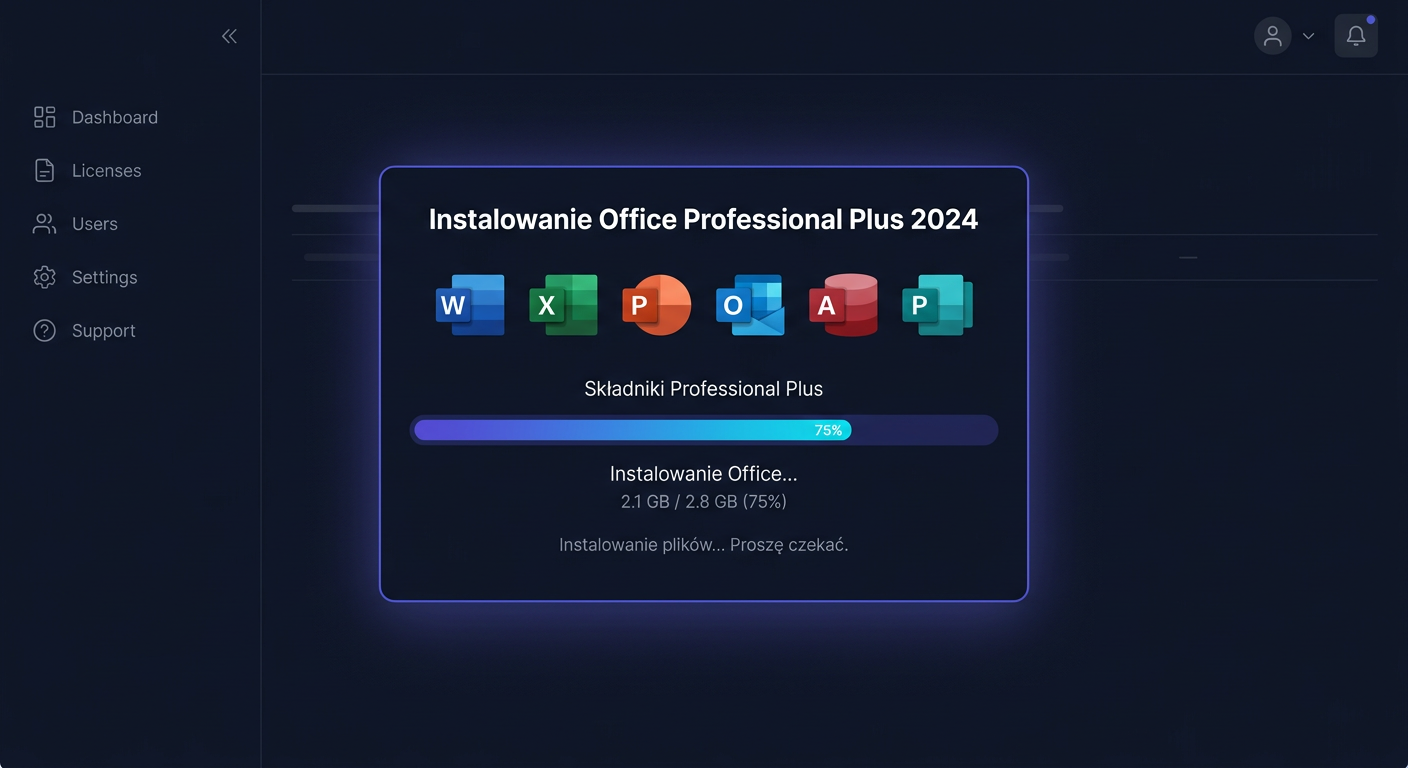
Activation of [Windows 10 Pro](https://kluczesoft.pl/klucz-windows-10/microsoft-windows-10-professional) + Office 2024 Professional Plus Bundle
To activate your Windows 10 Pro + Office 2024 Professional Plus bundle, follow these steps:
- Ensure you have a valid product key for the bundle.
- Install Windows 10 Pro and Office 2024 Professional Plus on your computer.
- Activate Windows 10 Pro by going to
Settings>Update & Security>Activation, then click onChange product keyand enter your product key. - For Office 2024 Professional Plus, open any Office application (e.g., Word, Excel), click on
File>Account, then selectActivate Productand enter your product key.
If you encounter any issues during activation, you can contact KluczeSoft support for assistance:
You can reach us via email at
kontakt@kluczesoft.plor by phone at00 800 121 1654.
Troubleshooting Activation Issues
If your activation fails, check the following:
- Ensure your internet connection is stable.
- Verify that your product key is correct and not used on another device.
- Run the command
slmgr /atoin the Command Prompt (as administrator) to force activation.
slmgr /ato
Additional Resources
For more detailed instructions and troubleshooting guides, visit the Microsoft support website or contact KluczeSoft directly for personalized assistance.
Activating Windows 10 Pro + Office 2024 Professional Plus Bundle
Purchasing the Windows 10 Pro + Office 2024 Professional Plus bundle means you receive two separate activation keys: one for Windows 10 Pro and another for Office 2024 Professional Plus. Each product is activated separately and requires individual steps. This guide describes the entire process in a simple and organised manner.
The instructions have been prepared for users of the pomoc.kluczesoft.pl service. If you have questions or encounter error messages during activation, you can contact us at: kontakt@kluczesoft.pl.
Important Information Before You Begin
The bundle contains separate keys for each product, so:
- the key for Windows 10 Pro is activated in the system using the
slmgrcommand, - the key for Office 2024 Professional Plus is activated through the
setup.office.comwebsite.
Do not enter the Windows key on the Office activation page or use the Office key in the Windows system settings. Each code only works with the product it is assigned to.
Before you begin, ensure that:
- you have a stable internet connection,
- you have both received keys,
- you are installing the exact versions of the products included in the bundle,
- you are working on an account with administrator privileges if you are activating the Windows system.
Activating Windows 10 Pro Step by Step
Activating the Windows 10 Pro system in this set is done using the slmgr command. This is a built-in system tool used to manage the Windows license.
Step 1. Check if you have Windows 10 Pro installed
First, make sure that the Windows 10 Pro edition is installed on your computer. To check this:
- Click Start.
- Go to Settings.
- Open the System section.
- Scroll down and select About.
- Look for the item related to the system edition.
If you see a different version, for example, Home, the Pro key may not activate the system without first changing the edition. In such a situation, it's worth making sure that the correct version is installed.
Step 2. Run the Command Prompt as an administrator
To enter the key, you need to run the system tool with administrator privileges.
- Click the Start menu.
- Type
cmd. - On the Command Prompt result, right-click.
- Select Run as administrator.
If a User Account Control message appears, confirm it with the Yes button.
Step 3. Enter the Windows 10 Pro product key
In the open window, type the command:
slmgr /ipk YOUR-WINDOWS-10-PRO-KEY
Replace YOUR-WINDOWS-10-PRO-KEY with the received key for the Windows 10 Pro system.
Example:
slmgr /ipk XXXXX-XXXXX-XXXXX-XXXXX-XXXXX
Then press Enter.
After a while, a window with a confirmation message should appear, stating that the key has been installed. If the system reports an error, check carefully:
- if the correct key was entered,
- if letters and numbers were not mixed up,
- if the key is intended for Windows 10 Pro.
Step 4. Run online activation
After correctly installing the key, execute the next command:
slmgr /ato
This command starts online activation. The system will connect to the activation server and try to confirm the license.
If everything goes smoothly, you should see a message about successful activation.
Step 5. Check the activation status
To ensure that Windows 10 Pro has been activated, you can run an additional command:
slmgr /xpr
After confirmation, a window with information that the system is activated should appear. You can also check this in the system settings:
- Open Settings.
- Go to Update & Security.
- Select Activation.
In this place, a message should be visible stating that the Windows system is activated.
Most Common Issues with Activating Windows 10 Pro
During activation, various messages may appear. Most often, the cause is:
- entering the key with an error,
- lack of internet connection,
- incompatible system version,
- previous incorrect activation attempts,
- running the Command Prompt without administrator privileges.
If an error message appears after entering slmgr /ipk or slmgr /ato, it's worth going through the entire procedure again, very carefully checking the entered code. If the problem persists, prepare a screenshot or the exact error text and write to kontakt@kluczesoft.pl.
You can also contact us by phone: 00 800 121 1654.
Activating Office 2024 Professional Plus Step by Step
The Office 2024 Professional Plus package in this set is activated separately through the setup.office.com website. You will need a key specifically intended for Office 2024 Professional Plus for this process.
Step 1. Prepare Your Microsoft Account
Before starting the activation, ensure you have access to a Microsoft account. This account will be necessary for assigning the product and downloading the Office package.
If you don't have an account yet, you can create one during the activation process. It's a good idea to remember your login details, as they may be needed later for re-installing the package.
Step 2. Visit setup.office.com
Open your internet browser and go to the address:
setup.office.com
On the website, log in to your Microsoft account. Make sure you're logging in to the correct account, as the Office license will be assigned to it.
Step 3. Enter Your Office 2024 Professional Plus Key
After logging in, find the option to enter your product key. Then:
- Type or paste the key you received for Office 2024 Professional Plus.
- Confirm the form.
- Follow the on-screen instructions.
At this stage, the license will be assigned to your Microsoft account. This is a crucial moment, as any future downloads and installations of the package will be associated with this account.
Step 4. Download the Office Installer
After accepting the key, the website should allow you to download the Office package installer. Download the installation file and run it on your computer.
During installation:
- do not close the installer before it finishes,
- do not turn off your computer,
- ensure your internet connection is active.
The process may take a few minutes, depending on your internet speed and computer performance.
Step 5. Launch Any Office Program
After the installation is complete, launch one of the programs, for example:
- Word,
- Excel,
- PowerPoint,
- Outlook.
When you start the package for the first time, it may ask you to log in to your Microsoft account. You should use the same account to which the key was assigned earlier on the setup.office.com website.
After logging in, Office should automatically recognize the license and complete the activation.
Step 6. Check if Office is Activated
To confirm activation:
- Open any Office program.
- Click File.
- Go to the Account section.
- Check the product information.
You should see a message indicating that the product has been activated. Depending on the interface version, you may also see the license name or information about the logged-in account.
If you encounter any issues during the activation process, please contact us at kontakt@kluczesoft.pl or call 00 800 121 1654 for assistance.
Most Common Issues with Activating Office 2024 Professional Plus
If the Office activation is not successful immediately, it is most often due to one of the following reasons:
- an incorrect key was used,
- a typo occurred when entering the code,
- a different Microsoft account was logged in than the one used to assign the license,
- the Office installation was not completed correctly,
- there is a temporary problem with the internet connection.
In case of difficulties, it is best to check the entire process again:
- Whether the key was entered on
setup.office.com. - Whether the package was downloaded and installed after assigning the license.
- Whether the same Microsoft account was logged in to the Office application.
If the package still does not activate despite this, please contact us at kontakt@kluczesoft.pl and describe the problem as accurately as possible.
Summary
Activating the Windows 10 Pro + Office 2024 Professional Plus bundle requires performing two separate processes, as the bundle contains separate keys for each product.
You activate Windows 10 Pro locally in the system using the slmgr /ipk and slmgr /ato commands. On the other hand, you activate Office 2024 Professional Plus through the setup.office.com website, assigning the key to a Microsoft account, and then installing the package and logging in to the application.
The most important rules are simple:
- use the correct key for the correct product,
- activate Windows and Office separately,
- carefully check the entered code,
- use the same Microsoft account when activating Office.
If you need help, the KluczeSoft support service is available at: kontakt@kluczesoft.pl or by phone 00 800 121 1654.
Where to buy the original key
Need a legal key? Check the offers at kluczesoft.pl:
All keys are brand new, delivered electronically with a VAT invoice.