
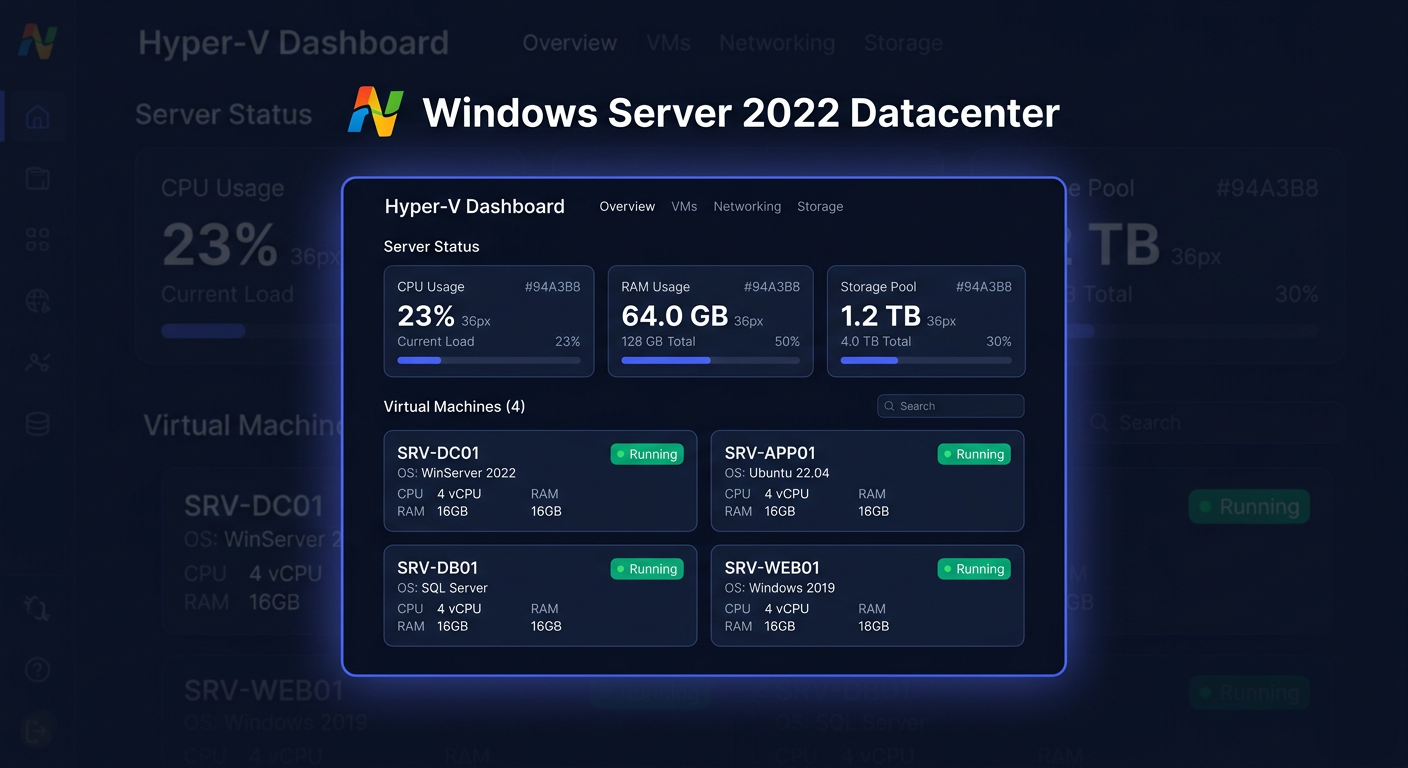
Before You Begin
Microsoft Windows Server 2019 is an advanced operating system designed for managing servers in enterprises. This version offers numerous features that simplify IT infrastructure management, including container support, improved security, and cloud integration. KluczeSoft offers Device CAL licenses, which allow access to the server from a specific device, beneficial in environments where multiple people use one device.
Support Table
| Phase | Start Date | End Date |
|---|---|---|
| Main Support | 13 November 2018 | 9 January 2024 |
| Extended Support | 10 January 2024 | 9 January 2029 |
KluczeSoft provides Device CAL licenses for Windows Server 2019, which are an ideal solution for companies requiring flexible access to the server from various devices. Our licenses are fully compliant with Microsoft's licensing policy and offer technical support throughout the usage period.
System Requirements
To install Windows Server 2019, you must meet the following system requirements:
| Component | Minimum Requirements |
|---|---|
| Processor | 1.4 GHz 64-bit processor compatible with x64 architecture |
| RAM | Minimum: 512 MB (2 GB for Server with Desktop Experience option) |
| Hard Disk | Minimum: 32 GB |
| Network Card | Ethernet with a minimum bandwidth of 1 Gbps |
| Graphics | VGA-compatible graphics device |
Step 1: Step-by-Step Installation
Pre-Installation Preparation
- Download the Windows Server 2019 ISO image from Microsoft's official website or from the media provided by KluczeSoft.
- Create a bootable USB drive or burn the image to a DVD.
- Start the computer from the installation media. Ensure the BIOS/UEFI is configured to boot from the correct device.
Installation Process
- After starting the installer, select the language, time format, and currency, and keyboard layout. Click "Next".
- Click "Install Now".
- Enter the product key if required, or select the "I don't have a product key" option.
- Choose the Windows Server 2019 edition you want to install (Standard or Datacenter) and click "Next".
- Accept the license terms and click "Next".
- Select the installation type: "Custom: Install Windows only (Advanced)".
- Choose the partition where you want to install the system and click "Next".
- The installer will start copying files and installing the system. After completion, the computer will restart.
Product Key Activation
GUI Method
- Open "Settings" and go to "Update & Security".
- Select "Activation" from the left menu.
- Click "Change product key" and enter the license key.
- Click "Next" and follow the on-screen instructions.
Command Line Method
- Open Command Prompt as an administrator.
- Enter the following command to enter the product key:
slmgr.vbs /ipk XXXXX-XXXXX-XXXXX-XXXXX-XXXXX - Then, activate the system using the command:
slmgr.vbs /ato
Activation Verification
To check the activation status, use the command:
slmgr.vbs /xpr
If you need assistance or have questions, please contact us at kontakt@kluczesoft.pl or call 00 800 121 1654.
Configuration after installation
- Network configuration: Ensure that the server is properly connected to the network and has a static IP address assigned.
- System updates: Install all available system updates using Windows Update.
- Security: Configure the network firewall and install anti-virus software.
- Roles and features: Add the required server roles, such as Active Directory, DNS, DHCP, etc.
Troubleshooting
- Activation issue: If you encounter activation issues, ensure that the product key is correct and that you have an internet connection.
- Network errors: Check the network configuration and ensure that all devices are properly configured.
- Update issues: If updates are not installing, run the Windows Update troubleshooting tool.
- Role installation errors: Ensure that all required components are installed before adding new roles.
- Performance issues: Check system resource usage and optimise the server configuration.
Version and price comparison at KluczeSoft
| Version | Price | End of support date |
|---|---|---|
| Windows Server 2016 50 Device CAL | 899 zł | 11 January 2027 |
| Windows Server 2019 50 Device CAL | 1149 zł | 9 January 2029 |
| Windows Server 2022 50 Device CAL | 1399 zł | 14 October 2031 |
Summary
Windows Server 2019 with Device CAL licenses is an excellent solution for companies that require flexible and secure access to the server. With technical support from KluczeSoft and competitive prices, you can be sure that your IT infrastructure is in good hands. If you have any questions or issues, please contact our technical support department at 00 800 121 1654 or email us at kontakt@kluczesoft.pl.
Where to buy the original key
Need a legal key? Check the offers at kluczesoft.pl:
All keys are brand new, delivered electronically with a VAT invoice.