
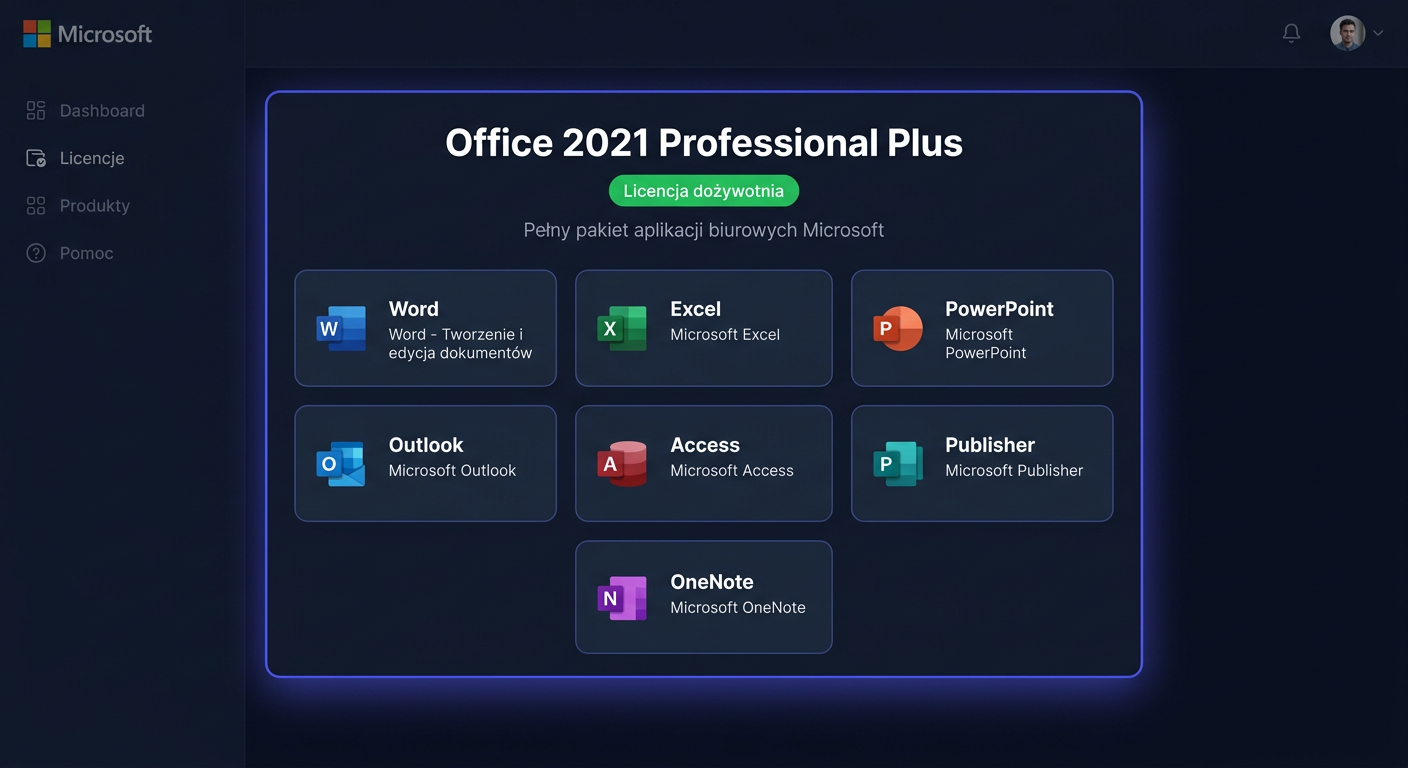
Microsoft Office 2019 Standard Mac — office package for macOS
Before you start
Microsoft Office 2019 Standard Mac is a perpetual office package for Apple computers with macOS. In this edition, you receive classic desktop applications: Word, Excel, PowerPoint, Outlook, and OneNote. This is a solution for individuals and companies that prefer a one-time purchase instead of a Microsoft 365 subscription.
Important information about support: Office 2019 for Mac was released on 24 September 2018, and its technical support by Microsoft ended on 10 October 2023. This means that the package can still work, but it no longer receives new security patches or further feature updates. Additionally, after October 2023, connecting Office 2019 for Mac with Microsoft 365 services, such as Exchange Online or SharePoint Online, is no longer supported.
When purchasing a licence from KluczeSoft.pl, you receive standard fast email delivery, a key/licence in electronic form, installation instructions, and a sales document. In practice, this means that after paying for your order, you can immediately proceed to download the installer and activate the package.
For whom is this version
Office 2019 Standard Mac is suitable when you need a locally installed Office package on macOS, without monthly fees and without the need to work exclusively in the cloud. This is a good option for documents, spreadsheets, presentations, and company email, but you should remember that it is an older product and its support by the manufacturer has already ended.
System requirements
| Element | Requirement |
|---|---|
| Operating system | macOS; practically, the latest final version 16.78, macOS Monterey 12 or later is recommended |
| Architecture | 64-bit |
| Processor | Intel or Apple Silicon |
| RAM | minimum 4 GB, 8 GB recommended |
| Disk space | minimum 10 GB of free space |
| Screen | minimum 1280 × 800 |
| Internet | required for downloading the installer and activation |
| Account | a Microsoft account may be required for GUI activation |
Compatibility note
The final branch compatible with the Office 2019 for Mac licence is version 16.78.x. Newer Office for Mac releases may no longer accept this licence. If you are installing the package from scratch, it is best to use the proper installer indicated in the instructions from KluczeSoft or the Microsoft package corresponding to version 16.78.3.
Downloading the installer
Office 2019 for Mac should be downloaded directly from Microsoft servers, not from the Mac App Store. Applications from the Mac App Store are primarily intended for Microsoft 365 and do not work correctly with one-time and volume licences for Office 2019.
The safest path looks like this:
Option 1: link from the KluczeSoft message
After purchasing, you receive ready-to-use instructions and a proper link to download the installer.
Option 2: Microsoft 16.78.3 installer
For Office 2019 Mac, the most commonly used final version compatible with this licence is Microsoft_365_and_Office_16.78.23102801_Installer.pkg.
If you are using a volume licence for Standard Mac, the following package may also be required for activation:
Microsoft_Office_2019_VL_Serializer.pkg
If you have any questions or need help, please contact us at kontakt@kluczesoft.pl or call 00 800 121 1654.
Installation step by step
1. Remove old or conflicting versions of Office
If a version of Microsoft 365 or Office was previously installed on your Mac from the Mac App Store, close all Office applications and uninstall the old components. This allows you to avoid problems with license type recognition.
2. Run the package installer
Open the downloaded .pkg file, select Continue, accept the license, specify the system disk, and complete the installation. After a few minutes, the applications will appear in the Applications folder.
3. Do not update to the latest version immediately
After the first launch, disable automatic package updates for Office. Office 2019 for Mac should not be upgraded beyond the branch compatible with the 2019 license, as this may cause activation loss or limited functionality.
Activation
GUI Activation
The simplest method is to launch Word or Excel and go through the activation wizard.
- Open any Office application.
- Click
Get StartedorSign in. - Log in to your Microsoft account if your license requires it to be linked to an account.
- If you received a separate activation package for the Standard Mac version, install it before launching the application for the first time.
If online activation fails, you can use Microsoft's phone activation by calling 00 800 121 1654.
CMD Activation in Terminal
For Office 2019 Standard Mac, it is usually not necessary to enter the key using a command like in Windows. On macOS, volume license activation is typically done by installing the VL Serializer package.
Open Terminal and execute the following commands exactly:
sudo installer -pkg ~/Downloads/Microsoft_365_and_Office_16.78.23102801_Installer.pkg -target /
sudo installer -pkg ~/Downloads/Microsoft_Office_2019_VL_Serializer.pkg -target /
If the files are in a different directory, replace the path after -pkg.
After installing the activator, restart Word or Excel. If the package still prompts you to log in or activate, contact Microsoft support at 00 800 121 1654.
Activation Verification
Graphical Method
Open Word and select Word > About Word. In the information window, you should see a license type of Volume License or the status of an active product.
Terminal Method
You can check if the system sees the license file:
ls -l /Library/Preferences/com.microsoft.office.licensingV2.plist
plutil -p /Library/Preferences/com.microsoft.office.licensingV2.plist
If the file exists and the applications open documents without an activation prompt, the package has usually been activated correctly. If you need further assistance, please contact us at kontakt@kluczesoft.pl or call 00 800 121 1654.
Troubleshooting
“Action Required: We've detected a one-time purchase license”
Most common cause: Office was installed from the Mac App Store. Solution: uninstall this version and download the classic Microsoft installer in a .pkg file.
“No license found” or Outlook won't activate
The problem usually stems from an incorrect Microsoft account or remnants of an older license. Log out of Office, remove old entries from Keychain, and restart the application.
Error 0x8A010101
Most often indicates a problem with the account, license type, or incorrect package version. Ensure you're installing Office 2019 for Mac, not a newer Microsoft 365 branch.
Office constantly asks for login
This is a common effect of a conflict between old Microsoft 365 and Office 2019 license. Help comes from fully removing old login data and reinstalling the correct package.
“Unsupported operating system” or “System requirements not met”
The system is either too old or too new for the chosen package. For the final version 16.78, a practical starting point is macOS Monterey.
The .pkg installer won't run or gets stuck on “Verifying”
Most often caused by Gatekeeper blocks, damaged download, or security software. Download the file again, run it from Finder, and check macOS security settings.
The package only works in read-only mode
A classic symptom of lack of activation or using an incompatible installer version. Install the correct VL Serializer or go through full GUI activation.
Version Comparison
| Version | Applications | License Type | Support Status | Price at KluczeSoft |
|---|---|---|---|---|
| Office 2019 Standard Mac | Word, Excel, PowerPoint, Outlook, OneNote | perpetual | support ended 10.10.2023 | 179,94 zł |
| Office 2019 Home & Business for Mac | Word, Excel, PowerPoint, Outlook, OneNote | perpetual | support ended 10.10.2023 | 359,94 zł |
| Office 2021 Standard Mac | Word, Excel, PowerPoint, Outlook, OneNote | perpetual | support until 13.10.2026 | 233,94 zł |
| [Office 2024 Standard](https://kluczesoft.pl/klucz-office-2024/microsoft-office-2024-standard) Mac | Word, Excel, PowerPoint, Outlook, OneNote | perpetual | support until 09.10.2029 | 419,94 zł |
Summary
Microsoft Office 2019 Standard Mac can still be a cost-effective choice if you prefer a one-time purchase and local work in classic Office applications on macOS. However, it's worth noting that as of April 13, 2026, this is a product after the end of Microsoft support, so before purchasing, it's worth considering newer versions 2021 or 2024 as well.
If you have a problem with choosing a version, installation, or activation, you can also get help by phone at 00 800 121 1654 or by contacting us at kontakt@kluczesoft.pl.
Where to buy the original key
Need a legal key? Check the offers at kluczesoft.pl:
All keys are brand new, delivered electronically with a VAT invoice.