
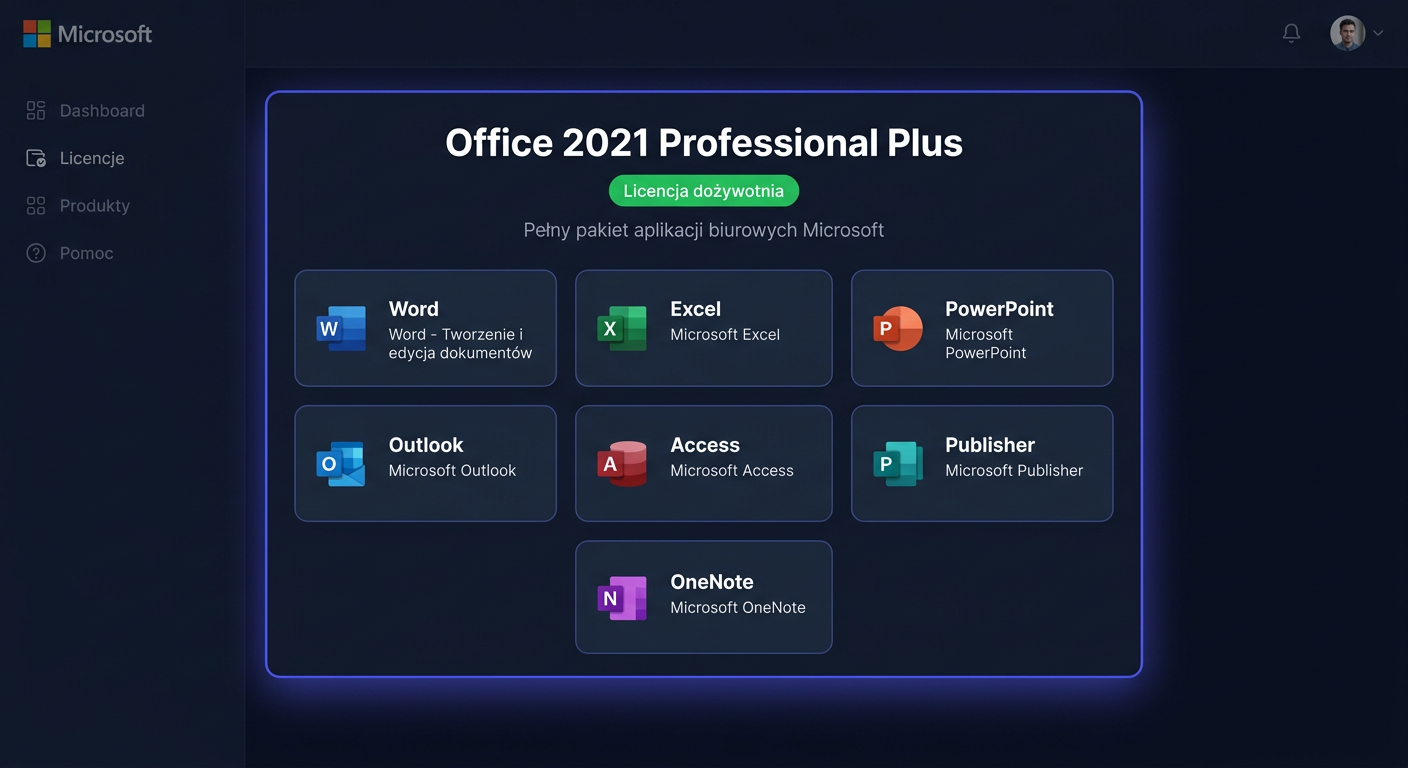
Microsoft Office 2016 Standard - office package with a perpetual licence
Microsoft Office 2016 Standard is a classic office package for home users, businesses, and institutions that want to use a one-time paid licence without a subscription. In this edition, you receive the most important applications for daily work: Word, Excel, PowerPoint, Outlook, OneNote, and Publisher. This is a good option wherever stability, a familiar interface, and no monthly fees are important.
Before you start
Office 2016 works on a perpetual licence model, meaning that after activation, you can use the programme without a time limit on the assigned device. However, it's worth remembering that Microsoft's support cycle for Office 2016 has already ended: basic support expired on 13 October 2020, and extended support will expire on 14 October 2025. This means no new security updates and fixes from Microsoft, although the package may still work correctly on compatible systems.
When purchasing from KluczeSoft, you usually receive electronic delivery: a product key, installation instructions, and a link to download the installation file. Delivery is made via email, without waiting for a physical shipment.
System requirements
| Component | Minimum requirements |
|---|---|
| Operating system | Windows 7 SP1, Windows 8, Windows 8.1, Windows 10, Windows 11 |
| Processor | 1 GHz or faster, x86 or x64 |
| RAM | 2 GB for 32-bit version, 4 GB recommended for 64-bit |
| Disk space | At least 4 GB of free space |
| Screen | Minimum resolution of 1280 × 800 |
| Internet | Required for downloading the installer and activation |
| Additional | Administrator account |
Downloading the installer
It's safest to download the installer from the link provided by KluczeSoft after purchase. In practice, you usually receive a ready-to-use installation file or a link to Microsoft's official files. Before starting the installation, check if there's another version of Office on the computer, especially Microsoft 365, Office 2019, or Office 2021, as parallel installations often cause activation conflicts.
If you have an older Office version, uninstall it completely, restart the computer, and only then start the installation of Office 2016 Standard.
Step-by-step installation
1. Preparing the system
Close all Office programs and applications running in the background. Also, make sure the system has the latest Windows Installer components and .NET Framework, if required by the environment.
2. Running the installer
Open the downloaded installation file and run Setup.exe as an administrator. If the installer asks about architecture, choose 64-bit only if you're using a 64-bit system and don't have add-ons that require a 32-bit version. In other cases, the 32-bit version is a safer choice.
3. Selecting components
In a standard installation, the package installs Word, Excel, PowerPoint, Outlook, OneNote, and Publisher. After confirming the settings, wait for the file copying to finish.
4. First launch
After installation, run Word or Excel, for example, to check if the package opens correctly and goes to the activation screen.
If you need help, please contact us at kontakt@kluczesoft.pl or call 00 800 121 1654.
Activation
Activation from the interface
Run any program from the Office package, go to File > Account > Activate product, and then enter the received product key. After connecting to the activation server, the package should change its status to activated.
Activation from the command line
For Office products, we use ospp.vbs, not slmgr.vbs. Open the Command Prompt as an administrator and go to the appropriate directory:
cd /d "C:\Program Files\Microsoft Office\Office16"
If you have a 32-bit version on a 64-bit system, use:
cd /d "C:\Program Files (x86)\Microsoft Office\Office16"
Then, enter the key and run the activation:
cscript ospp.vbs /inpkey:XXXXX-XXXXX-XXXXX-XXXXX-XXXXX
cscript ospp.vbs /act
Telephone activation
If online activation fails, run the telephone activation wizard and follow the consultant's or automated instructions. The Microsoft phone number for telephone activation in Poland is 00 800 121 1654.
Activation verification
To check the license status, run the Command Prompt as an administrator and enter:
cscript ospp.vbs /dstatus
A successful activation usually shows the status LICENSE STATUS: ---LICENSED---. It's also worth opening Word and going to File > Account, where a message about the activated product should appear.
Troubleshooting
Error 0xC004F050
Most often, this indicates an incorrect key or a key not intended for this edition. Check if you are activating exactly Office 2016 Standard, not another version.
Error 0xC004C060
This message usually indicates that the key has been blocked or has lost its activation channel validity. In such a case, contact the seller.
Error 0x80070005
This is a permissions error. Run the Command Prompt or installer as an administrator and ensure that the antivirus software is not blocking the ospp.vbs script.
Error 0xC004F074
This usually appears when an incorrect variant of the package is installed, or the system is trying to activate through KMS. A solution is to completely uninstall the conflicting version of Office and reinstall the correct edition.
Message "We can't verify the license for this product"
The most common cause is a lack of internet access, incorrect system date, or a damaged Office Software Protection Platform service.
Message "Another version of Office is already installed"
Remove previous Office versions, especially Microsoft 365 or Office Click-to-Run, then restart the computer and install Office 2016 from scratch.
Version comparison
| Version | License type | Microsoft support | Price at KluczeSoft |
|---|---|---|---|
| Office 2016 Standard | Perpetual | until 14.10.2025 | 119,94 zł |
| Office 2019 Standard | Perpetual | until 14.10.2025 | 233,94 zł |
| Office 2021 Standard | Perpetual | until 13.10.2026 | 221,94 zł |
Prices apply to the offer visible in the KluczeSoft store and may change. If you're looking for the lowest purchase cost, Office 2016 Standard is still an attractive option, but in terms of support and future compatibility, Office 2021 Standard is more beneficial. If you have any questions or need help, please contact us at kontakt@kluczesoft.pl or call 00 800 121 1654.
Summary
Microsoft Office 2016 Standard is a proven office suite for those who need classic Office applications in a one-time purchase model. However, it must be honestly noted that this is a solution after the end of Microsoft support, so it will work best where compatibility with an older environment and low entry cost matter.
If problems occur during installation or activation, first check the edition compatibility, remove older versions of Office, and verify the status with the command cscript ospp.vbs /dstatus. In case of phone activation, use the number 00 800 121 1654.
Where to buy the original key
Need a legal key? Check the offers at kluczesoft.pl:
All keys are brand new, delivered electronically with a VAT invoice.