
Important: Microsoft support for Office 2019 ends on 14 October 2025. After this date, Office 2019 will still work, but it will no longer receive security updates. Consider upgrading to Office 2024 or Microsoft 365.
What does Office 2019 Professional Plus include?
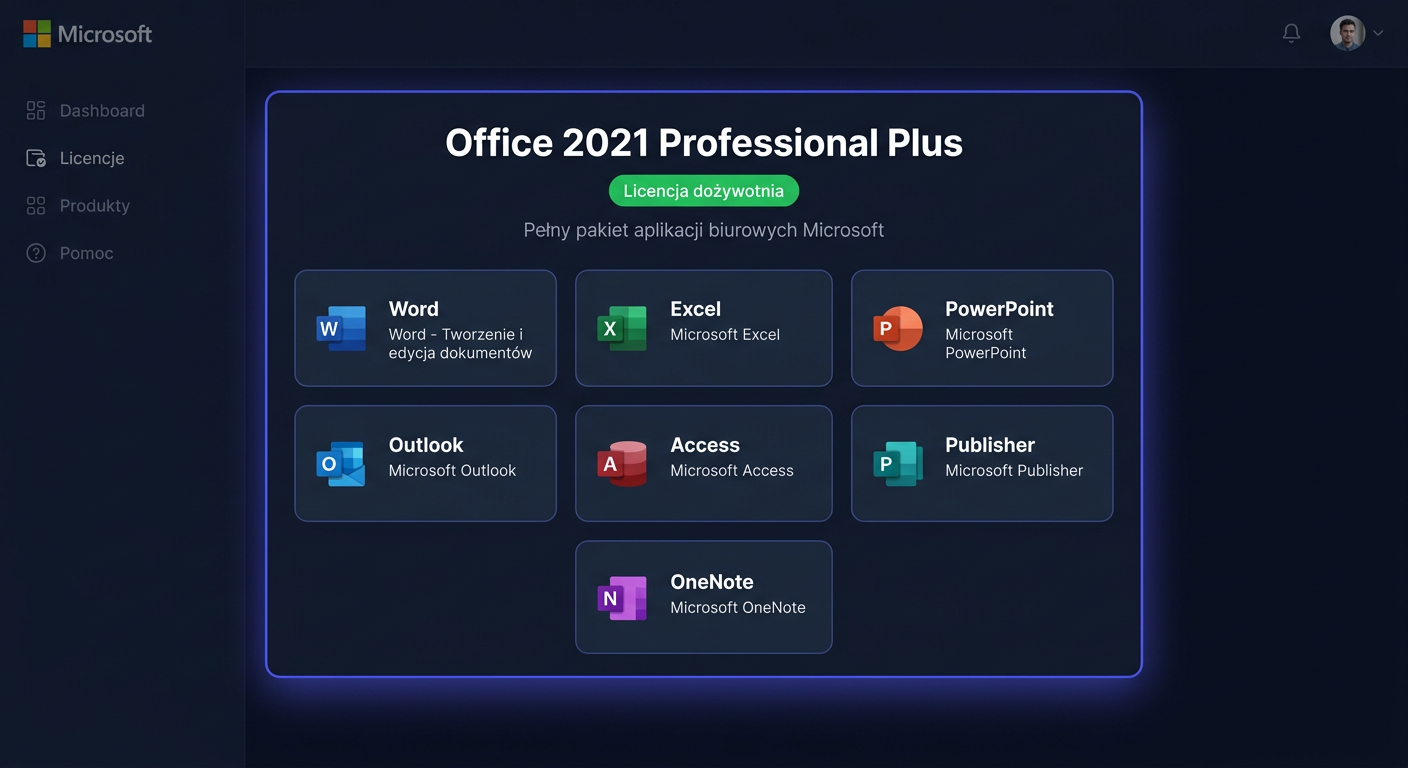
Office 2019 Professional Plus is a one-time purchase with 7 applications + Skype for Business:
| Application | Use |
|---|---|
| Microsoft Word | Text editor — documents, reports, letters |
| Microsoft Excel | Spreadsheets, data analysis, charts |
| Microsoft PowerPoint | Multimedia presentations |
| Microsoft Outlook | Email client, calendar, contacts |
| Microsoft Access | Databases — creation and management |
| Microsoft Publisher | DTP layout — flyers, brochures, business cards |
| Microsoft OneNote | Digital notebook |
| Skype for Business | Communicator (replaced by Teams in newer versions) |
System requirements
| Component | Minimum |
|---|---|
| Processor | 1.6 GHz, 2 cores |
| RAM | 4 GB (64-bit) / 2 GB (32-bit) |
| Disk space | 4 GB free |
| System | Windows 10 (does not support Windows 7 or 8.1) |
| Screen | 1280 × 768 |
| Graphics | DirectX 9, WDDM 2.0 |
| Internet | Required for activation |
Note: Office 2019 officially requires Windows 10. It works on Windows 11, but Microsoft does not guarantee full compatibility.
Support and lifecycle
- Start of support: 24 September 2018
- End of support: 14 October 2025
- Important: After this date, no security updates — the system may be vulnerable to threats
- After the end of support, Office 2019 will still work, but we recommend upgrading
Step 1: Uninstall the previous version of Office
Before installing Office 2019, uninstall older versions (Office 2013, 2016, or Microsoft 365).
- Settings (Win + I) → Apps → Installed apps
- Search for "Microsoft Office" → ⋯ → Uninstall
- Restart your computer
If the standard method does not work — use SaRA from aka.ms/SaRA-officeUninstall.
Step 2: Download and mount the ISO file
- Open the email with the order confirmation from KluczeSoft
- Click the link to download the ISO file (approx. 3–4 GB)
- After downloading: right-click on the
.isofile → Mount - Windows will open the file as a virtual DVD drive
Step 3: Run the installation
- Open the virtual drive in File Explorer
- Double-click Setup.cmd (or Setup.exe)
- When prompted by UAC, click Yes
SmartScreen blocks it? Click More info → Run anyway.
The installation takes 5–15 minutes. Do not close the window.
Step 4: Activate Office with a product key
Method 1: Through the application (recommended)
- Launch Microsoft Word
- File → Account → Change product key
- Enter the 25-character key from KluczeSoft
- Click Activate
Method 2: Through CMD (ospp.vbs)
- Open CMD as administrator
cd "C:\Program Files\Microsoft Office\Office16"- Install the key:
cscript ospp.vbs /inpkey:XXXXX-XXXXX-XXXXX-XXXXX-XXXXX
- Activate:
cscript ospp.vbs /act
- Check:
cscript ospp.vbs /dstatus
Method 3: Telephone activation
When online activation does not work:
cscript ospp.vbs /dinstid— save the installation ID- Call:
- 00 800 121 1654 (toll-free)
- +48 801 802 000
- +48 22 594 19 99
- Provide the ID → receive a confirmation code
cscript ospp.vbs /actcid:CONFIRMATION-CODE
Step 5: Install updates
After activation, immediately install all available security updates:
- Word → File → Account → Update options → Update now
- Wait for the download and installation
- Repeat until there are no new updates
Critical: Office 2019 loses support in October 2025 — installing updates is particularly important.
Dismount ISO
Explorer → This PC → right-click on the virtual drive → Eject
Key features of Office 2019
Office 2019 introduced compared to Office 2016:
Excel 2019
- Funnel charts and maps — new visualization types
- CONCAT and TEXTJOIN functions — text merging
- Pivot tables — improved formatting
Word 2019
- Focus mode — hides the interface for writing
- Learning tools — immersive reader, text spacing
- Translation — built-in translator
PowerPoint 2019
- Morph — smooth animation transitions between slides
- Zoom — interactive navigation in the presentation
- Inserting 3D models and SVG icons
Outlook 2019
- Focused inbox — automatic sorting of important emails
- @mentions — tagging people in messages
- Contact cards — quick preview of person information
Office 2019 vs newer versions
| Feature | 2019 PP | 2021 PP | 2024 PP |
|---|---|---|---|
| Word, Excel, PPT, Outlook | ✓ | ✓ | ✓ |
| Access | ✓ | ✓ | ✓ |
| Publisher | ✓ | ✓ | ✗ (discontinued) |
| Skype for Business | ✓ | ✗ (Teams) | ✗ |
| XLOOKUP (Excel) | ✗ | ✓ | ✓ |
| Dynamic arrays | ✗ | ✓ | ✓ |
| Cameo (PowerPoint) | ✗ | ✗ | ✓ |
| End of support | X 2025 | X 2026 | X 2029 |
| Windows 11 (officially) | Unofficially | ✓ | ✓ |
Recommendation: If possible, consider upgrading to Office 2024 (support until 2029) or Microsoft 365 (continuous updates). Office 2019 loses support in a few months. For assistance, please contact us at kontakt@kluczesoft.pl or call 00 800 121 1654.
Troubleshooting
"Activation limit exceeded" (0xC004C008)
- Use phone activation (Method 3)
- Or write to kontakt@kluczesoft.pl — we will exchange the key
"Unlicensed product"
cscript ospp.vbs /unpkey:XXXXX
cscript ospp.vbs /inpkey:XXXXX-XXXXX-XXXXX-XXXXX-XXXXX
cscript ospp.vbs /act
Installation does not start
- Restart your computer
- Temporarily disable antivirus software
- Run Setup.cmd as administrator
Office 2019 on Windows 11
Office 2019 is not officially supported on Windows 11, but it usually works without issues. If you encounter problems:
- Install all Office updates
- Run the repair: Settings → Apps → Office → Modify → Quick Repair
Download link does not work
Write to kontakt@kluczesoft.pl — a new link will be provided within a few hours.
Frequently Asked Questions
Will Office 2019 still work after support ends? Yes — the applications will work normally. However, you will no longer receive security updates, which may pose a security risk.
Is it worth buying Office 2019 in 2025? Only if you need a cheaper option and understand that support ends in October 2025. For long-term use, we recommend Office 2024 (support until 2029).
Does Office 2019 work on Windows 11? Yes — unofficially, but it works. Microsoft officially supports Office 2019 on Windows 10.
Can I upgrade from Office 2019 to 2024? Yes — uninstall 2019, install 2024 with a new key. Your documents will not be deleted.
What is the difference between Office 2019 and 2021? Office 2021 adds XLOOKUP, dynamic arrays, dark mode in Word, presentation recording, and Teams. Support for 2021 lasts until 2026 (one year longer than 2019).
Can I transfer the key to a new computer? Yes — uninstall on the old one, install on the new one, activate. In case of a limit — phone activation or key exchange.
Need help?
- E-mail: kontakt@kluczesoft.pl
- Help center: pomoc.kluczesoft.pl
- Provide your order number and error message text
- Phone: 00 800 121 1654
Where to buy the original key
Need a legal key? Check the offers at kluczesoft.pl:
All keys are brand new, delivered electronically with a VAT invoice.