
Before You Begin
Microsoft Windows 10 Home is an edition of the operating system primarily designed for home users. It performs well in everyday use: for internet, office work, learning, multimedia, and games. It offers a familiar interface, wide compatibility with older software, and simple operation.
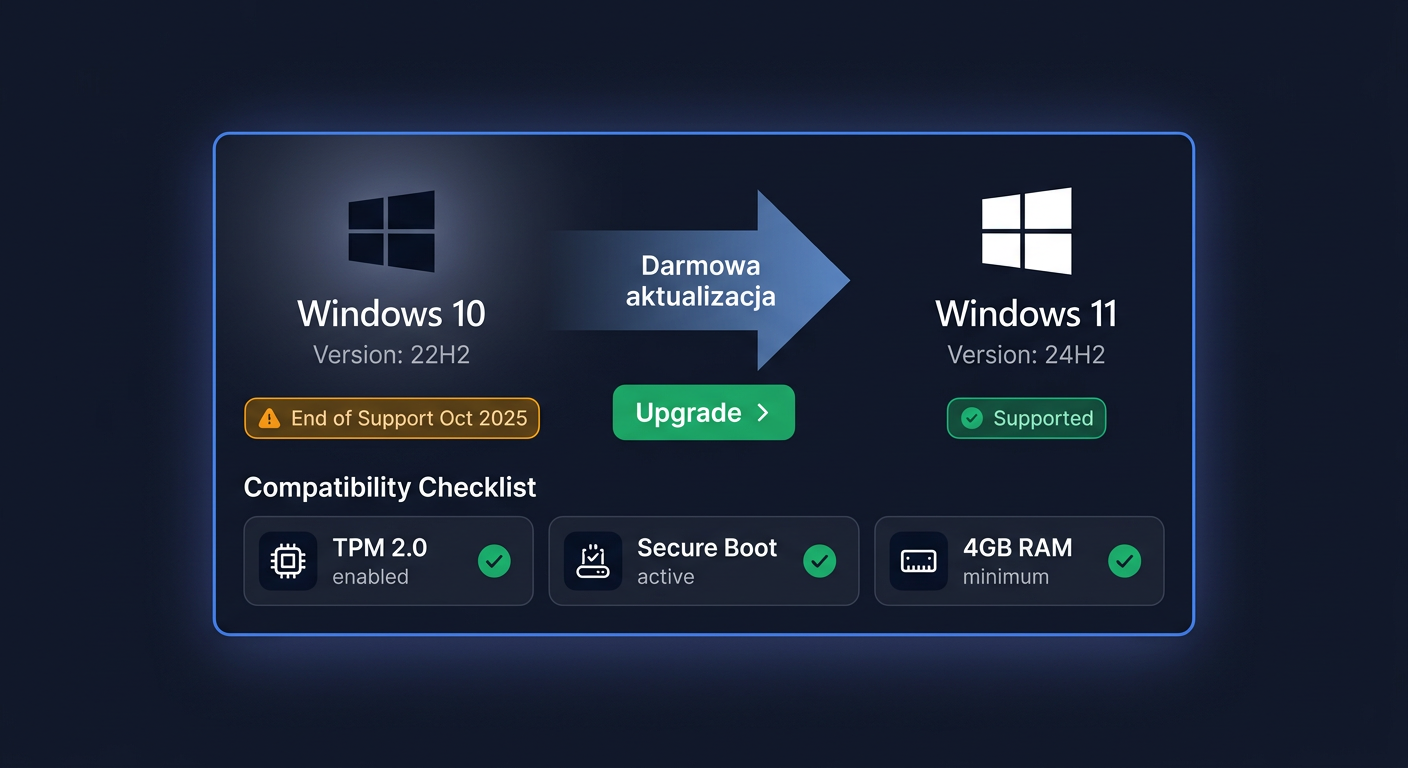
Important information: Windows 10 was released on 29 July 2015, and Microsoft support for the Home edition ended on 14 October 2025. This means no standard security updates and official technical support. The system may still work properly, but for online work, it's worth being aware of the growing security risk.
By purchasing a licence at KluczeSoft.pl, you receive the product key in digital form, usually with immediate email delivery. This is a convenient solution if you want to quickly install the system, activate it, and start working without waiting for a physical shipment.
System Requirements
| Component | Minimum Requirements |
|---|---|
| Processor | 1 GHz or faster, compatible processor or SoC |
| RAM | 2 GB for 64-bit version |
| Disk | 32 GB of free space |
| Graphics Card | Compatible with DirectX 9 or later, WDDM 1.0 driver |
| Screen | 800 x 600 |
| Internet Connection | Recommended for updates, downloading the installer, and activation |
| Firmware | BIOS or UEFI |
For Comfortable Work
In practice, it's worth having at least 4 GB of RAM, an SSD disk, and a stable internet connection. On older hardware, Windows 10 Home usually works better than Windows 11, which is still an important argument when modernising a computer.
Downloading the Installer
The safest way to download the installer is directly from the Microsoft website. The most convenient method is the Media Creation Tool, which allows you to:
- update your current computer,
- create a bootable USB drive,
- download an ISO image for later installation.
Before downloading, prepare a USB drive with a minimum capacity of 8 GB if you plan to install from scratch. It's also a good idea to back up important files, as a clean installation may delete data from the system disk.
Installation Step by Step
Installation on the Current System
- Download the Microsoft installation tool.
- Run the file as an administrator.
- Accept the licence terms.
- Choose to create an installation media or update this computer.
- If creating a USB drive, select the language, edition, and 64-bit architecture.
- Wait for the files to download and the installer to prepare.
Clean Installation from a USB Drive
- Connect the prepared USB drive to the computer.
- Restart the computer and enter the BIOS/UEFI.
- Set the boot from USB.
- After the installer starts, select the language, time format, and keyboard.
- Click
Install now. - When the installer asks for the product key, you can enter it immediately or choose
I don't have a product keyand activate the system later. - Select the
Windows 10 Homeedition. - Accept the licence terms.
- Choose the installation type
Custom: Install Windows only. - Select the target partition and start the installation.
- After restarting, configure your account, network, privacy settings, and updates.
If you need help or have questions, please contact us at kontakt@kluczesoft.pl or call 00 800 121 1654.
Activation
Activation in the graphical interface
- Open
Start > Settings > Update and Security > Activation. - Click
Change product key. - Enter the 25-character key received from KluczeSoft.pl.
- Confirm and wait for the successful activation message.
Activation via CMD
Run Command Prompt as an administrator and enter exactly:
slmgr.vbs /ipk XXXXX-XXXXX-XXXXX-XXXXX-XXXXX
slmgr.vbs /ato
The first command installs the product key, and the second starts online activation on Microsoft servers.
Telephone activation
If internet activation fails, you can use telephone activation. Press Win + R, enter slui 4, select your country, and follow the instructions. If necessary, use the Microsoft number: 00 800 121 1654.
Activation verification
To check if the system has been activated correctly:
- go to
Settings > Update and Security > Activation, - check if the message
Windows is activatedappears.
You can also use the command:
slmgr.vbs /xpr
If you see information about permanent activation, the license has been assigned correctly.
Troubleshooting
Error 0xC004F050
Most often indicates an incorrect key or an attempt to use a key for a different system edition. Check if you are installing exactly Windows 10 Home, not Pro.
Error 0x803FA067
Usually appears when the system does not match the edition assigned to the key or activation has been changed before. Reinstalling the correct edition and reactivating from scratch may help.
Error 0xC004C003
This message suggests that the activation server rejected the key. The cause may be a typo, a temporary problem on Microsoft's side, or a conflict with a previous activation. Try again after a few minutes or use telephone activation.
Error 0x80072F8F
Most often related to incorrect date, time, or SSL certificate settings. Set the correct system time, time zone, and try again.
Error 0xC004FC03
Usually indicates a problem with the network connection or firewall. Temporarily disable VPN, check your internet, and try to activate again.
Message This product key does not work
Most often means a typo when entering the key or a mismatch between the license channel and installation. Enter the key again, preferably by copying it without spaces from the email.
System activated, but after update, it asks for the key again
This may happen after significant hardware changes or activation service errors. In such a case, restart the system, use slmgr.vbs /ato, and if that doesn't work, proceed with telephone activation.
Version comparison
| Product | For whom | Key differences | Price at KluczeSoft |
|---|---|---|---|
| Windows 10 Home | Home, education, multimedia | Basic system features | 119,94 zł |
| Windows 10 Pro | Business, work, advanced users | BitLocker, Remote Desktop, Hyper-V, domain | 149,00 zł |
| Windows 11 Home | New home computers | New interface, TPM 2.0 requirements | 239,90 zł |
| Windows 11 Pro | Business and professional users | Pro features + modern Windows 11 platform | 239,90 zł |
Which version to choose?
If you have an older computer and care about compatibility and low cost, Windows 10 Home may still be a reasonable choice. However, if you're buying a system for new hardware and want a longer product life cycle, consider Windows 11. For any questions or concerns, please contact us at kontakt@kluczesoft.pl or call 00 800 121 1654.
Summary
Microsoft Windows 10 Home is a proven system for home users, which remains simple to install and convenient for everyday use. However, it is essential to remember that standard Microsoft support ended on 14 October 2025, so before purchasing, it is worth assessing whether your computer does not already qualify for Windows 11.
If you need a legitimate key with fast delivery, KluczeSoft.pl offers a convenient online purchase form with email shipping. In case of activation problems, you can use the methods described above or phone activation by calling 00 800 121 1654. Alternatively, you can also contact us at kontakt@kluczesoft.pl for assistance.
Where to buy the original key
Need a legal key? Check the offers at kluczesoft.pl:
All keys are brand new, delivered electronically with a VAT invoice.