
Before You Begin
Before proceeding with the installation, ensure that your computer meets the Windows 11 system requirements. Microsoft requires that all of the following conditions be met — failure to meet any of them will prevent installation.
Windows 11 System Requirements
| Component | Minimum | Recommended |
|---|---|---|
| Processor | 1 GHz, 2 cores, 64-bit | Intel 8th gen+ / AMD Ryzen 2000+ |
| RAM | 4 GB | 8 GB or 16 GB |
| Hard Drive | 64 GB | 256 GB SSD |
| Firmware | UEFI with Secure Boot support | — |
| TPM | version 2.0 (required) | — |
| Graphics Card | DirectX 12, WDDM 2.0 driver | — |
| Display | 720p, diagonal > 9 inches | 1080p |
Note on Processors: Officially supported processors include Intel 8th generation (Coffee Lake) and later, as well as AMD Ryzen 2000 and later. Older processors will not pass the compatibility check. In version 24H2, the requirement for POPCNT/SSE4.2 instructions was added — very old processors (pre-2008) will not run the system.
Check Your Computer's Compatibility
Method 1: PC Health Check (easiest)
- Download the PC Health Check app from microsoft.com
- Run it and click Check now
- The app will inform you whether your computer is compatible
Method 2: Manual TPM Check
- Press Win + R, type
tpm.mscand press Enter - If you see "TPM is ready for use" and version 2.0 — everything is OK
- If you see a message indicating no TPM — check your BIOS settings (see: Troubleshooting)
Method 3: Secure Boot Check
- Press Win + R, type
msinfo32and press Enter - Find the Secure Boot State row — it should indicate On
- The BIOS Mode row should indicate UEFI (not "Legacy")
Step 1: Download the Windows 11 ISO Image
Option A: From the Order Email (recommended)
After purchasing a key from KluczeSoft, you will receive an email with a download link for the ISO file. This is the fastest method.
Option B: From the Microsoft Website
- Go to microsoft.com/software-download/windows11
- In the Download Windows 11 Disk Image (ISO) section, select Windows 11 (multi-edition ISO)
- Click Download now
- Select the language: Polish
- Click Download 64-bit — the file weighs around 5-6 GB
Option C: Media Creation Tool
- On the same Microsoft page, download the Media Creation Tool
- Run it and accept the license terms
- Select Create installation media — the tool will download the ISO itself
Important: Windows 11 is only available in 64-bit version. There is no 32-bit version.
Step 2: Create an installation media (USB pendrive)
You will need a USB pendrive with a minimum capacity of 8 GB. All data on the pendrive will be deleted.
Method A: Rufus (recommended)
- Download Rufus from the rufus.ie website — it's a free tool that doesn't require installation
- Connect the USB pendrive to your computer
- Run Rufus and configure:
- Device: Your pendrive
- Boot selection: click SELECT and point to the downloaded ISO file
- Partition scheme: GPT
- Target system: UEFI (non CSM)
- File system: NTFS
- Click START
- Rufus will ask about the write mode — choose Image writing mode (recommended)
- If the option to disable TPM/Secure Boot requirements appears — you can check it if your computer doesn't meet the requirements (see: Troubleshooting)
- Wait for the process to complete (5–15 minutes depending on the USB speed)
Method B: Media Creation Tool
- Run the Media Creation Tool downloaded in Step 1
- Select Create installation media (USB drive)
- Select the language, edition, and architecture (64-bit)
- Point to your pendrive and wait for the process to complete
Tip: Rufus is faster and offers more options (e.g., bypassing TPM requirements). Media Creation Tool is an official Microsoft tool — easier to use, but slower.
Step 3: Boot your computer from the pendrive
- Connect the USB pendrive to the target computer
- Restart the computer
- Immediately after turning it on, press the key to access the BIOS/UEFI:
| Laptop/Motherboard Manufacturer | BIOS Key | Boot Menu Key |
|---|---|---|
| Dell | F2 | F12 |
| HP | F10 or ESC | F9 |
| Lenovo | F2 or Fn+F2 | F12 |
| ASUS | Del or F2 | F8 |
| Acer | F2 or Del | F12 |
| MSI | Del | F11 |
| Gigabyte | Del | F12 |
| Samsung | F2 | F10 |
| Toshiba/Dynabook | F2 | F12 |
- Quick method (Boot Menu): Press the Boot Menu key and select the USB pendrive from the list — you don't need to enter the BIOS
- BIOS method: Enter the BIOS → Boot tab → set USB as the first boot device → save (F10) and restart
Important: If the computer doesn't see the pendrive in the Boot Menu, check if Secure Boot is enabled and if the pendrive is formatted in GPT (not MBR).
Step 4: Install Windows 11
After booting from the USB drive, the Windows installer screen will appear.
-
Language and keyboard:
- Installation language: Polski
- Time and currency format: Polski (Polska)
- Keyboard: Polski (programisty)
- Click Dalej → Zainstaluj teraz
-
Product key:
- Click Nie mam klucza produktu — you will activate the system later, after installation
- Select edition: Windows 11 Pro
Important: Make sure you select Pro, not Home. A Pro key will not work on the Home edition and vice versa.
-
License terms: Accept and click Dalej
-
Installation type:
- Uaktualnienie: preserves files and programs (if you already have Windows)
- Niestandardowa: tylko zainstaluj — clean installation (recommended for best performance)
-
Partition selection (for clean installation):
- If you are installing on a new/empty disk — select Nieprzydzielone miejsce and click Dalej
- If you are overwriting an old system — select the old partition, click Usuń, and then Dalej on the unallocated space
Note: Deleting a partition will erase ALL data. Make sure you have a backup!
-
Installation: The system will copy files and restart several times. This takes 15-30 minutes, depending on the disk speed. Do not turn off the computer.
-
Initial setup (OOBE):
- Select country: Polska
- Select keyboard layout: Polski
- Connect to a Wi-Fi network (required)
- Log in with a Microsoft account or create a new one
- Set a PIN
- Configure privacy preferences (you can disable all options)
Pro — local account: Windows 11 Pro allows you to skip the Microsoft account. On the login screen, click Opcje logowania → Dołącz do domeny — the local account option will appear.
Step 5: Activate Windows with a product key
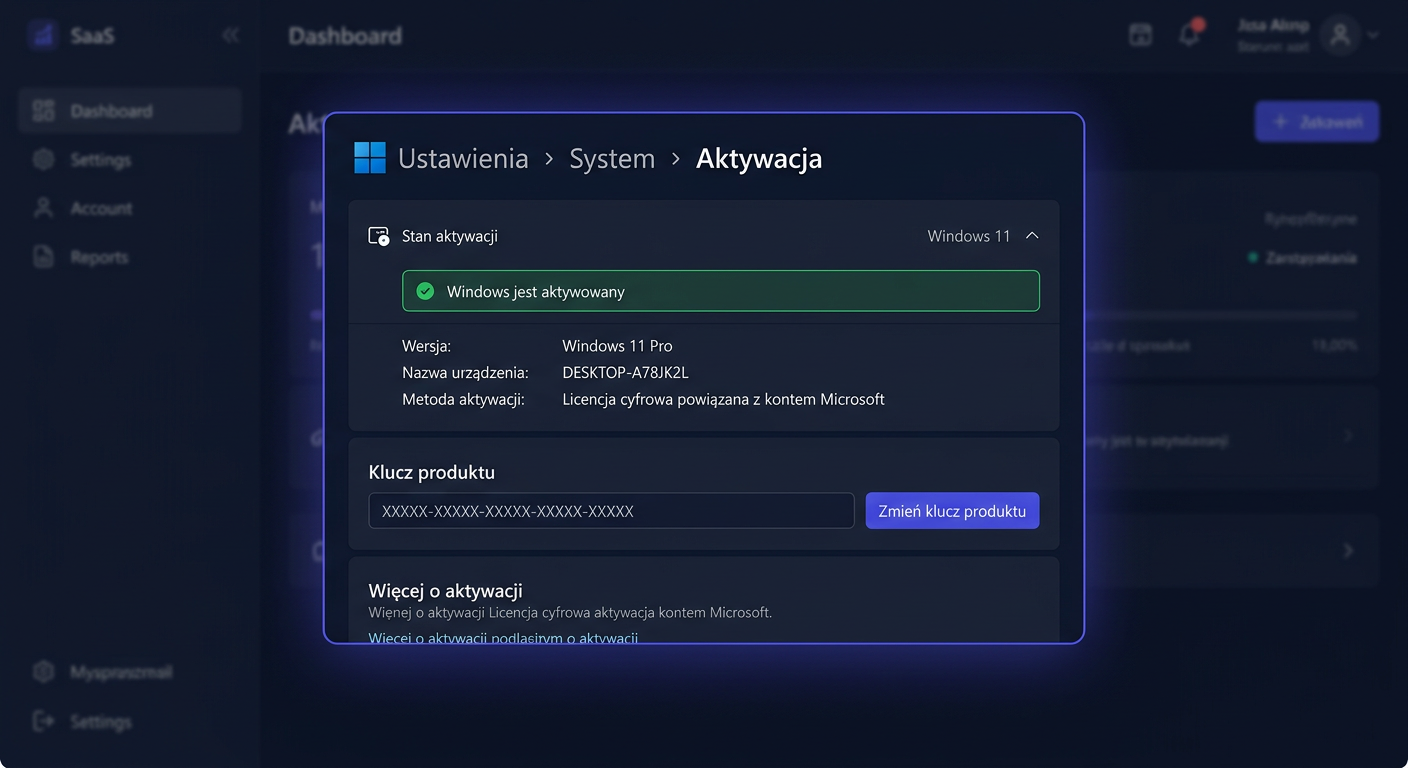
Method 1: Through Settings (recommended)
- Open Settings (shortcut: Win + I)
- Go to System → Activation
- Click Change product key
- Enter the 25-character key from KluczeSoft (format: XXXXX-XXXXX-XXXXX-XXXXX-XXXXX)
- Click Next → Activate
- You should see the message "Windows is activated"
Method 2: Through the command line (CMD)
- Right-click on Start → Terminal (Administrator) or Command Prompt (Administrator)
- Enter the commands in sequence:
slmgr /ipk XXXXX-XXXXX-XXXXX-XXXXX-XXXXX
(replace XXXXX with the key from KluczeSoft)
slmgr /ato
- After a while, a window with activation confirmation will appear
Method 3: Phone activation
If online activation does not work (e.g., activation limit reached), use phone activation:
- Open CMD as administrator
- Enter:
slmgr /dti— a 63-digit installation ID (IID) will appear - Call Microsoft Poland:
- 00 800 121 1654 (free)
- +48 801 802 000
- +48 22 594 19 99
- Provide the installation ID to the automated system or consultant
- You will receive a Confirmation ID (CID)
- Enter in CMD:
slmgr /atp CONFIRMATION-ID
Tip: If the automated system tries to redirect you to a website, say nothing or press 0 — the system will switch to the option to enter the installation ID.
Check activation status
In CMD as administrator:
slmgr /dli— basic license informationslmgr /dlv— detailed information (activation ID, partial key)slmgr /xpr— expiration date (lifetime license will show "permanent activation")
Step 6: After installation — first steps
1. Windows Update
Open Settings → Windows Update → Check for updates. Install all available updates and restart. Repeat until there are no new updates.
2. Drivers
Windows 11 automatically installs most drivers. Check Device Manager (Win + X → Device Manager) — if you see yellow triangles, download drivers from the laptop/motherboard manufacturer's website.
3. Latest version
The current version is Windows 11 24H2 (released October 2024). If you installed an older version, Windows Update will automatically offer an update to 24H2. New features in 24H2:
- Wi-Fi 7 support
- Bluetooth LE Audio (hearing aid support)
- Energy Saver
- Sudo command in the system
- HDR wallpapers
- Wi-Fi sharing via QR code
4. BitLocker backup key
Windows 11 Pro automatically enables disk encryption with BitLocker. Make sure to save the recovery key:
- Open Settings → Privacy and security → Device encryption
- Or in CMD:
manage-bde -protectors -get C: - Save the 48-digit recovery key in a secure location (e.g., Microsoft account, print, USB drive)
Note: Without the recovery key, you will not be able to recover your data after replacing the hard drive or resetting the BIOS!
Windows 11 Pro vs Home — what do you gain?
The key from KluczeSoft is a Windows 11 Pro license — a full edition with professional features:
| Feature | Home | Pro |
|---|---|---|
| BitLocker (disk encryption) | Only Device Encryption | Full BitLocker + BitLocker To Go (USB) |
| Remote Desktop (as host) | No | Yes — connect from any device |
| Hyper-V (virtualization) | No | Yes — run virtual machines |
| Windows Sandbox | No | Yes — safe file testing |
| Group Policy (gpedit.msc) | No | Yes — full system control |
| Domain join / Entra ID | No | Yes — integration with company IT |
| Kiosk mode | No | Yes |
| Max. RAM | 128 GB | 2 TB |
| Local account (without Microsoft) | Difficult | Easy — option during installation |
Lifetime license — one computer, no subscription, no annual fees.
Troubleshooting
"TPM 2.0 not found"
TPM is probably disabled in the BIOS, it's not physically missing.
- Enter the BIOS (key at startup — see the table above)
- Find the option in the Security or Advanced tab:
- Intel: look for Intel PTT (Platform Trust Technology) → Enabled
- AMD: look for AMD fTPM (firmware TPM) → Enabled
- Save (F10) and restart
"Secure Boot required"
- In the BIOS, go to Security or Boot
- Enable Secure Boot → Enabled
- Make sure the boot mode is UEFI (not Legacy/CSM)
- If the Secure Boot option is grayed out — first disable CSM/Legacy Support
Error code 0xC004F074
Problem: Windows cannot connect to the activation server. Solution:
- Check your internet connection
- Disable VPN and proxy
- In CMD as administrator:
slmgr /ato
- If it still doesn't work — use phone activation
Error code 0xC004C003
Problem: The key has been blocked by Microsoft. Solution: The key may have reached its activation limit. Write to us at kontakt@kluczesoft.pl — we will exchange the key for a new one.
Error code 0xC004F050
Problem: The key does not match the installed edition. Solution:
- Check the edition: Settings → System → Info → Windows specifications → Edition
- The Pro key will not work on Home and vice versa
- If you have Home installed and you purchased a Pro key:
- Go to Settings → System → Activation → Change product key
- Enter the Pro key — the system will automatically upgrade the edition from Home to Pro
Key has reached activation limit
The key is associated with one computer. If you changed hardware or reinstalled the system:
- Try phone activation (Method 3 above)
- If that doesn't help — write to us at kontakt@kluczesoft.pl, we will exchange the key
Windows is not activated — what happens?
The system works normally, but with limitations:
- Watermark "Activate Windows" in the bottom right corner
- No ability to change wallpaper, colors, and lock screen
- No access to some personalization options
Activating the key from KluczeSoft immediately removes these limitations.
You can contact us at kontakt@kluczesoft.pl or call us at 00 800 121 1654 for assistance.
Frequently Asked Questions
Can I upgrade from Windows 10 to Windows 11 without losing data? Yes. Download the Windows 11 Installation Assistant from the Microsoft website. The tool will upgrade your system while preserving files, programs, and settings. The key from KluczeSoft will work after the upgrade.
How long will Windows 11 be supported? Each version receives 24 months of support (Home/Pro). The current version 24H2 will be supported until 13 October 2026. After this date, Microsoft will release a new version — simply install the update.
Is the key lifelong? Yes. The Windows 11 Pro key from KluczeSoft is a lifetime licence — it works as long as you use the same computer. There are no annual fees or subscriptions.
Can I transfer the key to another computer?
Retail licences can be transferred. First, deactivate the key on the old computer: slmgr /upk in CMD as administrator. Then, activate it on the new computer.
Is Windows 11 Pro faster than Home? No — performance is identical. Pro offers additional features (BitLocker, Hyper-V, Remote Desktop), but they do not affect system speed.
I have an installation problem — what to do? Write to us: kontakt@kluczesoft.pl — we will help you step by step. We respond within 24 hours.
Need Help?
- E-mail: kontakt@kluczesoft.pl
- Help Centre: pomoc.kluczesoft.pl
- Microsoft Poland Phone: 00 800 121 1654 (free)
Where to buy the original key
Need a legal key? Check the offers at kluczesoft.pl:
All keys are brand new, delivered electronically with a VAT invoice.