
Before You Begin
SQL Server 2016 Standard 50 Device CAL is an advanced database management system designed for medium and large organisations that require a reliable, scalable platform for storing and processing data. The Standard edition offers a wide range of features, including support for replication, high availability, security, and analytical tools. The Server + Device CAL licensing model allows access to the server for 50 devices, which is particularly beneficial in environments where multiple people use the same computers or terminals.
Purchasing the product from KluczeSoft includes:
- The original SQL Server 2016 Standard product key (Server License)
- 50 Device CAL (device access licenses)
- Access to installation files (ISO)
- Detailed installation and activation instructions
- Technical support in Polish
- A VAT invoice
Important: SQL Server 2016 Standard is covered by extended support until 14 July 2026. After this date, regular security updates and technical support from Microsoft will no longer be available. We recommend planning a migration to a newer version or considering the purchase of Extended Security Updates (ESU) if a quick migration is not possible.
Product Support Table
| Product | Release Date | End of Mainstream Support | End of Extended Support |
|---|---|---|---|
| SQL Server 2016 Standard | 01.06.2016 | 13.07.2021 | 14.07.2026 |
Learn more: SQL Server 2016 at KluczeSoft
System Requirements
Before starting the installation, ensure that your server meets the minimum hardware and software requirements in accordance with Microsoft documentation.
Minimum Hardware and Software Requirements
| Component | Minimum Requirement |
|---|---|
| Processor | x64, min. 1.4 GHz (recommended 2.0 GHz or more) |
| RAM | Min. 2 GB (recommended 4 GB or more for production environments) |
| Disk Space | Min. 6 GB for database installation (recommended 40 GB+ for data and logs) |
| Operating System | Windows Server 2012, 2012 R2, 2016, 2019; Windows 8, 8.1, 10 (x64) |
| Network | 1 Gbps network card (recommended) |
| Other | .NET Framework 4.6 or later, DVD-ROM or access to ISO file |
Note: SQL Server 2016 is not available in a 32-bit version. Installation is only possible on 64-bit systems.
Step 1: Preparing the Environment
- Ensure you have administrator privileges on the server.
- Download the SQL Server 2016 Standard installation file (ISO) from KluczeSoft or the official Microsoft website.
- Verify the ISO file's checksum to ensure it has not been damaged.
- Install the latest operating system updates and .NET Framework 4.6 or later.
- Reserve sufficient disk space and back up important data.
Step 2: Mounting the ISO image and running the installer
- Right-click on the downloaded ISO file and select Mount.
- Open the mounted drive in "This PC" and run the
setup.exefile as an administrator. - After running the installer, select the installation language and click OK.
Step 3: Installing SQL Server 2016 Standard step by step
Screen: SQL Server Installation Center
- Select New SQL Server stand-alone installation or add features to an existing installation.
Screen: Product Key
- Enter the SQL Server 2016 Standard product key received from KluczeSoft and click Next.
Screen: License Terms
- Accept the license terms (check "I accept the license terms") and click Next.
Screen: Global Rules
- The installer will check the prerequisites. If any warnings or errors appear, resolve them before proceeding.
Screen: Microsoft Update
- Choose whether to use Microsoft Update to download updates. Recommended: check the option and click Next.
Screen: Install Setup Files
- The installer will download and install the necessary files. After completion, click Next.
Screen: Install Rules
- Check the results of the control. If everything is properly configured, click Next.
Screen: Feature Selection
- Select the features to install (recommended: Database Engine Services, SQL Server Replication, Full-Text and Semantic Extractions for Search). Click Next.
Screen: Instance Configuration
- Select the instance type:
- Default instance (default)
- Named instance (named, e.g. SQL2016) Click Next.
Screen: Server Configuration
- Configure the service accounts and startup mode (recommended: default settings). Click Next.
Screen: Database Engine Configuration
- Select the authentication mode:
- Windows authentication mode (recommended)
- Mixed Mode (SQL Server authentication and Windows authentication) Add server administrators (Add Current User). Click Next.
Screen: Ready to Install
- Verify the installation summary and click Install.
Screen: Complete
- After the installation is complete, click Close.
Step 4: Activating with the product key
SQL Server 2016 Standard requires product key activation and Device CAL registration on devices.
Method 1: Activation via GUI
- Open SQL Server Installation Center.
- Select Maintenance > Edition Upgrade.
- Enter the product key if it was not provided during installation.
- Confirm and complete the process.
Method 2: Activation via command line
- Open Command Prompt as an administrator.
- Go to the SQL Server installation directory, e.g.:
cd "C:\Program Files\Microsoft SQL Server\130\Setup Bootstrap\SQLServer2016" - Enter the activation command:
Replacesetup.exe /q /ACTION=Activate /PID=XXXXX-XXXXX-XXXXX-XXXXX-XXXXXXXXXX-XXXXX-XXXXX-XXXXX-XXXXXwith your product key.
Registering Device CAL
- Device CAL does not require online activation. Keep the licensing documentation and assign licenses to devices according to your company's policy. We recommend keeping a record of devices using SQL Server.
If you need help, please contact us at kontakt@kluczesoft.pl or call 00 800 121 1654.
Step 5: Verification of Activation
After completing the installation and activation, it is worth checking the license status.
Checking SQL Server Status
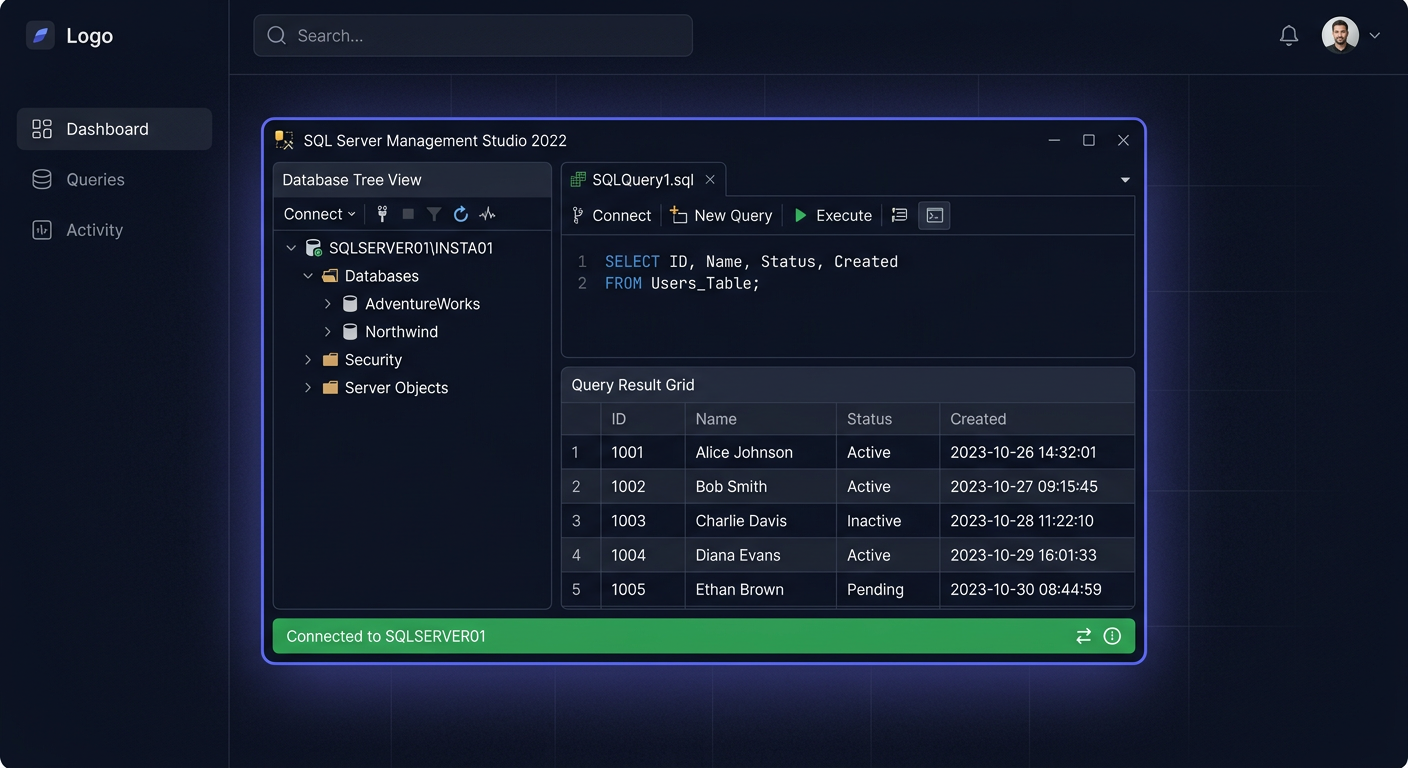
- Open SQL Server Management Studio (SSMS).
- Connect to the server instance.
- Execute the query:
The result should indicate “Standard Edition” and “Server + CAL License”.SELECT SERVERPROPERTY('Edition'), SERVERPROPERTY('ProductVersion'), SERVERPROPERTY('LicenseType');
Checking Device CAL
- Microsoft does not provide a tool to verify CAL activation. Verification involves keeping records in accordance with the licensing policy.
Step 6: Post-Installation Configuration
After installing and activating SQL Server 2016 Standard, we recommend performing the following actions:
- Install the latest SQL Server 2016 updates (Service Packs, Cumulative Updates).
- Configure backups – set schedules for database and transaction log backups.
- Configure user accounts and permissions – restrict access to only necessary roles.
- Enable connection encryption (SSL/TLS) for data transmission security.
- Monitor server performance – use Performance Monitor and SQL Profiler tools.
- Enable alerts and notifications – configure Database Mail and SQL Server Operators.
- Document Device CAL assignment – maintain a register of devices using the server.
Step 7: Troubleshooting
Below, you will find the most common errors and their solutions:
1. Error: “The SQL Server instance failed to start”
- Cause: Lack of permissions or port conflict.
- Solution: Check the SQL Server service account permissions and ensure that port 1433 is not occupied by another application.
2. Error: “Invalid product key”
- Cause: An incorrect product key was entered.
- Solution: Verify the key, ensuring there are no typos. If the problem persists, contact KluczeSoft.
3. Error: “Setup account privileges error”
- Cause: Installation was run without administrator privileges.
- Solution: Run the installer as an administrator.
4. Error: “SQL Server does not support this operating system”
- Cause: Attempt to install on an unsupported system (e.g., Windows 7, 32-bit).
- Solution: Install on a supported 64-bit system (e.g., Windows Server 2012+).
5. Error: “Cannot connect to SQL Server”
- Cause: SQL Server service is not running or blocked by the firewall.
- Solution: Check the service status in “services.msc” and open port 1433 in the Windows firewall.
6. Error: “Insufficient disk space”
- Cause: Lack of space on the installation partition.
- Solution: Free up space on the disk or specify a different location during installation.
7. Error: “CAL compliance audit failed”
- Cause: Exceeded number of assigned Device CALs.
- Solution: Reduce the number of devices using the server or purchase additional CALs. If you need assistance, please contact us at kontakt@kluczesoft.pl or call 00 800 121 1654.
Comparison of versions and prices in KluczeSoft
| Product version | Licensing | Number of CAL | Net price (zł) | Product link |
|---|---|---|---|---|
| SQL Server 2016 Standard 50 Device CAL | Server + Device CAL | 50 | 1399 | /sql-server-2016-standard-50-device-cal |
| SQL Server 2016 Standard 10 User CAL | Server + User CAL | 10 | 799 | /sql-server-2016-standard-10-user-cal |
| SQL Server 2016 Standard Per Core | Per Core | - | 3999 | /sql-server-2016-standard-per-core |
| SQL Server 2019 Standard 50 Device CAL | Server + Device CAL | 50 | 1999 | /sql-server-2019-standard-50-device-cal |
Learn more about other versions: SQL Server 2016 in KluczeSoft
Summary
SQL Server 2016 Standard 50 Device CAL is a proven solution for companies that require a stable and efficient database platform with a flexible licensing model. Thanks to detailed installation and activation instructions, as well as KluczeSoft support, deployment runs smoothly even in more complex IT environments. Remember to perform regular updates, document assigned CALs, and plan migration before the end of support in July 2026.
If you have any questions or problems, please contact our technical support at 00 800 121 1654 or via the contact form on pomoc.kluczesoft.pl. You can also email us at kontakt@kluczesoft.pl.
Where to buy the original key
Need a legal key? Check the offers at kluczesoft.pl:
All keys are brand new, delivered electronically with a VAT invoice.