
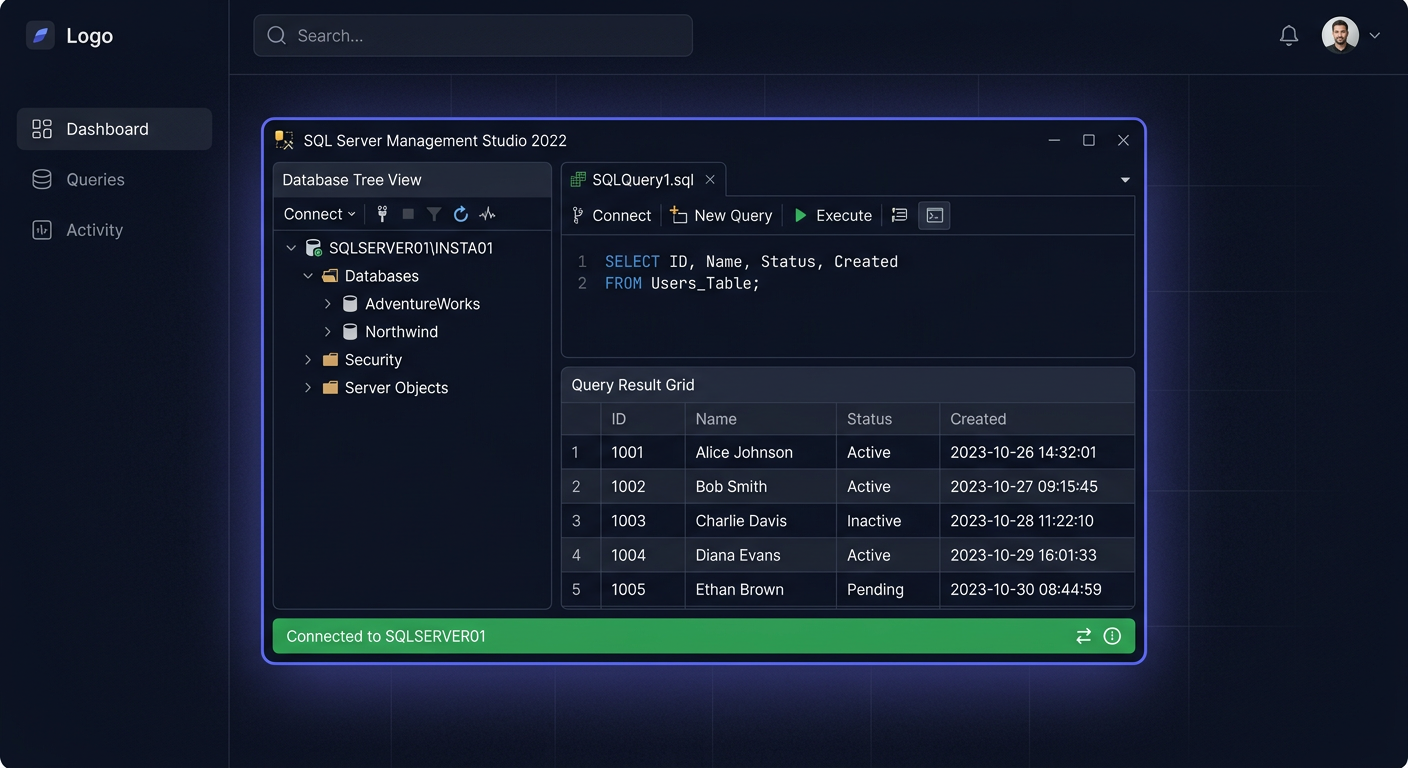
Before You Begin
SQL Server 2017 Standard 50 User CAL is a licensing solution designed for companies that require a stable, efficient, and scalable database platform with access for up to 50 users. The Server + CAL (Client Access License) licensing model requires a server license and separate access licenses for each user accessing SQL Server services, regardless of the number of devices they connect from.
What do you get when buying from KluczeSoft?
- Original SQL Server 2017 Standard license key
- 50 User CAL licenses (for 50 users)
- VAT invoice and technical support
- Access to installation files
- Assistance with activation and configuration
Important: CALs are not installed on the server – they are license rights that must be assigned to users in the company's documentation. Access management is done at the SQL Server level through user accounts.
Product Support Table
| Product | Release Date | End of Mainstream Support | End of Extended Support |
|---|---|---|---|
| SQL Server 2017 Standard | 2 October 2017 | 11 October 2022 | 12 October 2027 |
You can find more information on the product page: /sql-server-2017
System Requirements
To properly install and run SQL Server 2017 Standard, your server must meet specific hardware and software requirements. Below, you will find a detailed table consistent with Microsoft documentation.
| Requirement | Minimum | Recommended |
|---|---|---|
| Processor | x64, 1.4 GHz | x64, 2.0 GHz or faster |
| RAM | 2 GB (Express), 4 GB (Standard) | 8 GB or more |
| Free disk space | 6 GB | 10 GB or more |
| Operating System | Windows Server 2016, 2019, 2022; Windows 10 (64-bit) | Windows Server 2019/2022 |
| File System | NTFS or ReFS | NTFS |
| Network Card | Required | Required |
| Screen Resolution | 800x600 | 1024x768 or higher |
| .NET Framework | 4.6 or later | 4.7.2 or later |
Note: SQL Server 2017 does not support 32-bit systems. It is recommended to install on a dedicated server with the latest Windows Server system.
Step 1: Downloading Installation Files
- Log in to the KluczeSoft panel and download the SQL Server 2017 Standard installer (ISO or EXE file).
- If you have an ISO file, mount it by right-clicking and selecting "Mount".
- Open the mounted disk and run the
setup.exefile as an administrator.
Step 2: Starting the Installation
- After running the installer, the SQL Server Installation Center welcome screen will appear.
- Select the option "New SQL Server stand-alone installation or add features to an existing installation".
- The installer will check the preliminary requirements – wait for it to finish.
Step 3: Entering the Product Key
- In the Product Key section, enter the received SQL Server 2017 Standard license key.
- Click Next.
Step 4: Accepting the License Terms
- Read the license agreement.
- Check the box I accept the license terms.
- Click Next.
Step 5: Installing Server Features
- Select the features to install (recommended: Database Engine Services, SQL Server Replication, Full-Text and Semantic Extractions for Search).
- Click Next.
Step 6: Instance Configuration
- Select the instance type:
- Default instance (default, e.g. MSSQLSERVER)
- Named instance (e.g. SQL2017)
- Click Next.
Step 7: Service Configuration
- Set the service accounts (recommended: default).
- Select the startup mode (Automatic).
- Click Next.
Step 8: Server Configuration
- In the Server Configuration tab, select the authentication mode:
- Windows Authentication Mode (recommended)
- Mixed Mode (Windows + SQL Server Authentication)
- Add administrative users (e.g. yourself).
- Click Next.
Step 9: Data Directory Selection
- If necessary, change the data, log, and backup directory paths.
- Click Next.
Step 10: Installation and Completion
- Review the installation summary.
- Click Install.
- After the installation is complete, click Close.
Product Key Activation
For SQL Server 2017 Standard, activation occurs during installation by entering the product key. User CAL licenses are not activated on the server – these are permissions assigned to users in the company's documentation.
Managing Users in SQL Server
To allow a user to use SQL Server, you must create a login and assign the appropriate permissions. You can do this using SQL Server Management Studio (SSMS) or T-SQL commands.
Method 1: GUI (SSMS)
- Open SQL Server Management Studio.
- Connect to the server instance.
- Expand the Security > Logins folder.
- Right-click on Logins and select New Login....
- Enter the username and password.
- Assign server and database roles.
- Confirm by clicking OK.
Method 2: Command Line (T-SQL)
Open SSMS or the sqlcmd tool and execute the following commands:
CREATE LOGIN [username] WITH PASSWORD = 'YourPassword123!';
USE [database_name];
CREATE USER [username] FOR LOGIN [username];
ALTER ROLE [db_datareader] ADD MEMBER [username];
ALTER ROLE [db_datawriter] ADD MEMBER [username];
Remember: Each user using SQL Server must have a valid User CAL assigned.
Activation Verification
SQL Server does not have a separate tool for verifying activation, like the Windows system. License activity can be confirmed in SQL Server Management Studio:
- Connect to the server in SSMS.
- Right-click on the server instance > Properties.
- In the General tab, check the server version and edition.
- In the License tab (if available), you will see license information.
You can also execute a T-SQL query:
SELECT SERVERPROPERTY('Edition'), SERVERPROPERTY('ProductVersion'), SERVERPROPERTY('LicenseType');
Post-Installation Configuration
After completing the installation and assigning CAL licenses, perform the following steps:
- Install the latest updates – download and install the latest Service Pack and Cumulative Update for SQL Server 2017.
- Configure backups – set up database backup schedules.
- Secure the server – configure the firewall, restrict access to port TCP 1433, and disable unnecessary features.
- Monitor performance – use Performance Monitor and SQL Server Profiler tools.
- Document CAL assignments – keep a record of users with assigned CALs.
If you need help or have questions, please contact us at kontakt@kluczesoft.pl or call 00 800 121 1654.
Troubleshooting
Below, you will find the most common issues related to the installation and licensing of SQL Server 2017 Standard, along with their solutions.
1. Error: "The SQL Server license type is not valid"
Cause: An incorrect product key was entered or the key does not match the installer version. Solution:
- Check if you are using a key for SQL Server 2017 Standard.
- Download the correct installer from KluczeSoft.
- Try entering the key again during installation.
2. Error: "SQL Server setup failed to validate the license"
Cause: The installer cannot verify the license. Solution:
- Ensure you have an internet connection during installation.
- Run the installer as an administrator.
- Check the correctness of the product key.
3. Problem: User cannot connect to the server
Cause: Lack of login or permissions in SQL Server. Solution:
- Create a login and user for that person (see the section above).
- Check if the user has a User CAL assigned.
4. Problem: "Cannot connect to server – error 18456"
Cause: Incorrect login data or incorrect authentication mode. Solution:
- Check if the Mixed Authentication mode is selected if you are using SQL login.
- Reset the user's password.
5. Problem: "Port 1433 is blocked"
Cause: The network firewall is blocking the default SQL Server port. Solution:
- Open port 1433 in the Windows Server firewall.
- Configure SQL Server Configuration Manager.
6. Problem: "Multiplexing – licensing ambiguities"
Cause: Users are connecting through an intermediate application. Solution:
- Each end-user using SQL Server data must have a User CAL assigned, even if connecting indirectly.
- Document CAL assignments in accordance with Microsoft policy.
Comparison of versions and prices at KluczeSoft
| Edition | Licensing model | Number of users | Price (zł) | Link |
|---|---|---|---|---|
| SQL Server 2017 Standard 50 User CAL | Server + 50 User CAL | 50 | 1690 | /sql-server-2017 |
| SQL Server 2017 Standard 5 User CAL | Server + 5 User CAL | 5 | 590 | /sql-server-2017 |
| SQL Server 2017 Standard Device CAL | Server + Device CAL | 1 device | 129 | /sql-server-2017 |
| SQL Server 2019 Standard 50 User CAL | Server + 50 User CAL | 50 | 1990 | /sql-server-2019 |
Tip: User CAL is cost-effective when users use multiple devices. Device CAL is beneficial when multiple people use one computer.
Summary
SQL Server 2017 Standard 50 User CAL is a flexible and scalable solution for companies that want to provide access to databases for up to 50 users. Installation and configuration require meeting specific hardware requirements and assigning a User CAL license to each user. Remember to keep documentation of CAL assignments and perform regular updates and backups.
In case of problems or questions, please contact our technical support department at 00 800 121 1654 or visit our knowledge base: /category/sql-server-2017-standard-50-user-cal. You can also contact us at kontakt@kluczesoft.pl.
Where to buy the original key
Need a legal key? Check the offers at kluczesoft.pl:
All keys are brand new, delivered electronically with a VAT invoice.