
How to update Windows 10 to Windows 11
Will my Windows 10 key work?
Yes! The Windows 10 Pro key from KluczeSoft works on Windows 11 Pro. You don't need a new key.
Before updating
- Check compatibility: Download the PC Health Check and check the requirements (TPM 2.0, Secure Boot)
- Create a backup: Copy important files to an external drive or OneDrive
- Free up space: You need at least 20 GB of free space
- Update drivers: Especially graphics card and chipset
Method 1: Windows Update (easiest)
- Settings → Windows Update → Check for updates
- If the update to Windows 11 is available, click Download and install
- Your computer will restart several times
- The entire process takes 30-60 minutes
Method 2: Installation Assistant
- Download the Windows 11 Installation Assistant
- Run the downloaded file
- Accept the license terms
- Click Install
Method 3: Clean installation from USB
- Download the Media Creation Tool
- Create a bootable USB (at least 8 GB)
- Boot your computer from the USB
- Choose Custom installation (clean) or Upgrade (keep files)
After updating
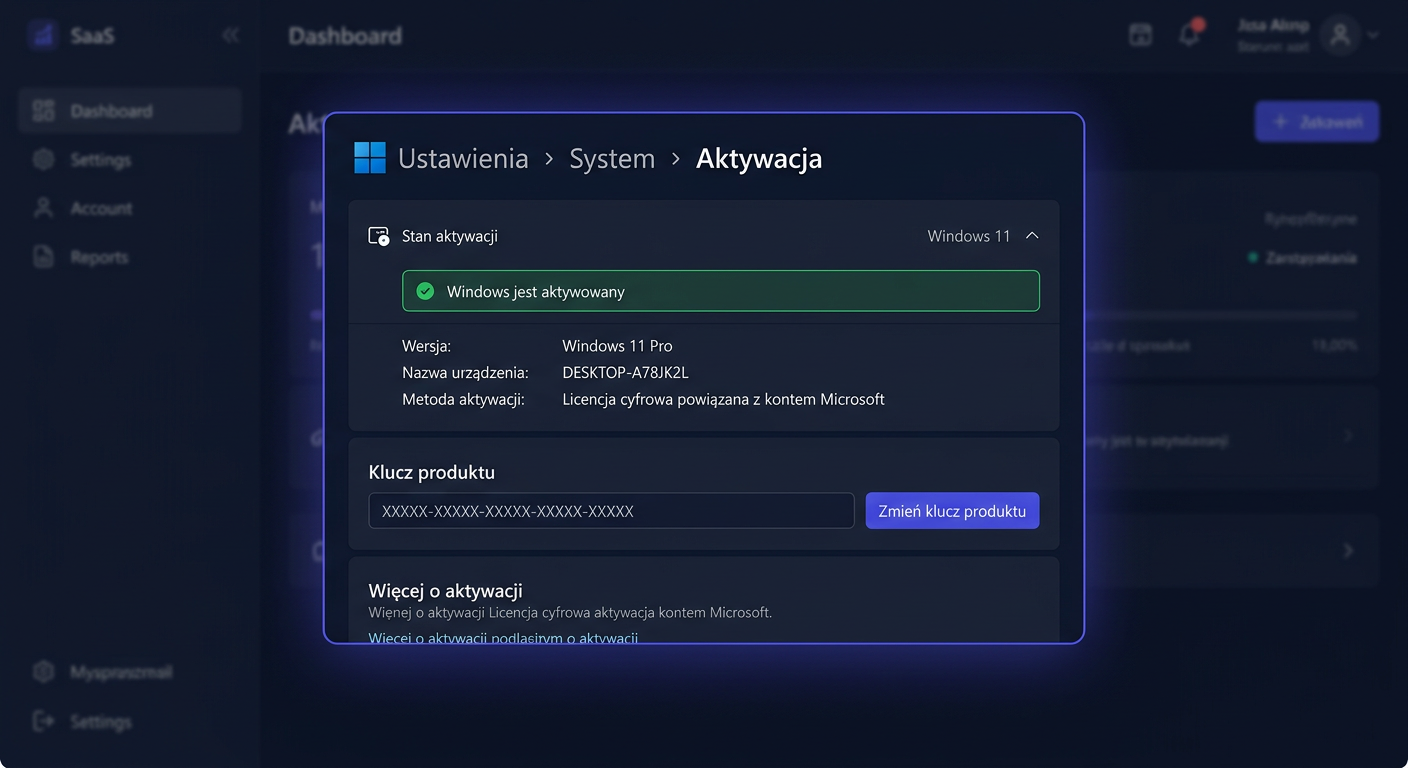
- Check activation: Settings → System → Activation
- Update drivers: Settings → Windows Update → Advanced options → Optional updates
Need help?
- Email: kontakt@kluczesoft.pl
- Phone: 00 800 121 1654
Where to buy the original key
Need a legal key? Check the offers at kluczesoft.pl:
All keys are brand new, delivered electronically with a VAT invoice.