
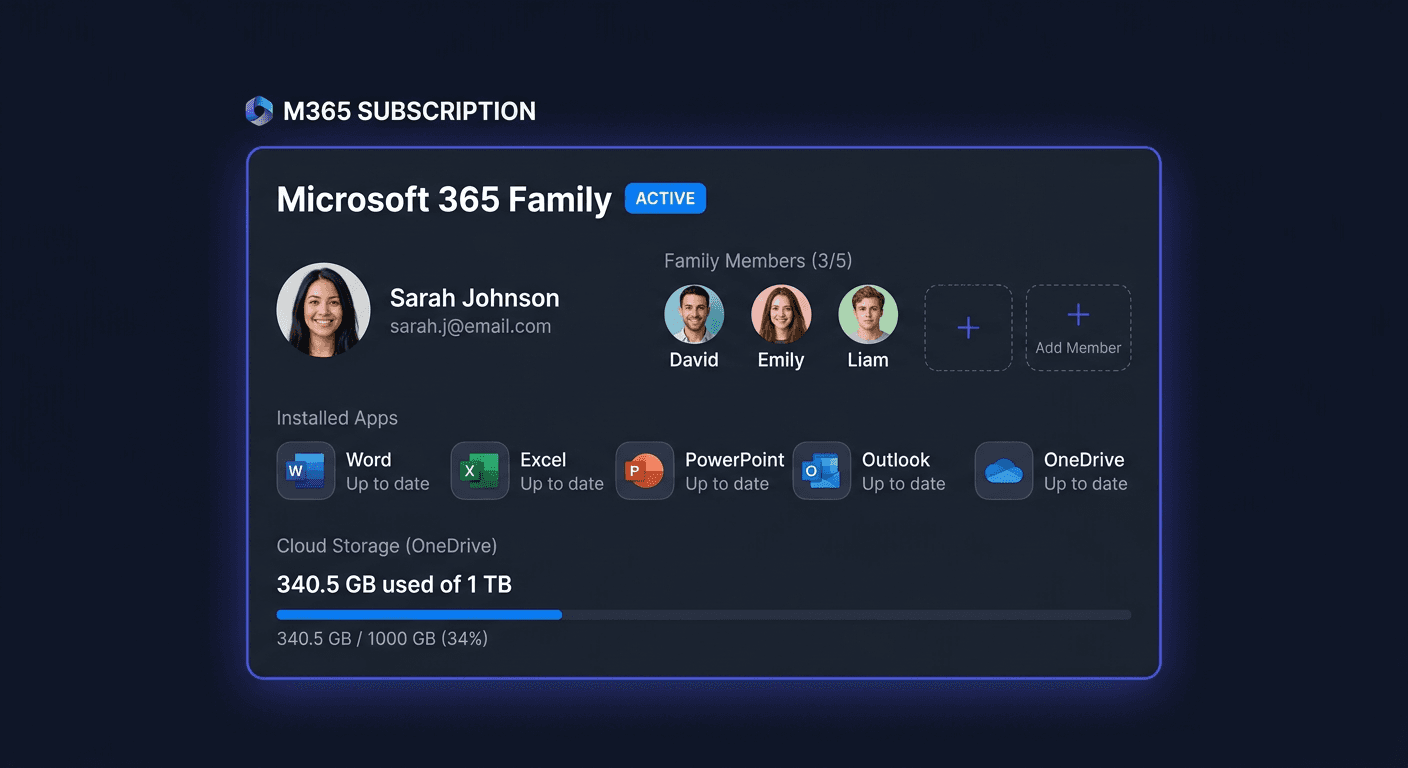
What is Microsoft 365 Family?
Microsoft 365 Family is a subscription for up to 6 people in a household. Each person gets their own account with separate files and settings.
What do you get?
| Feature | Details |
|---|---|
| Users | Up to 6 people (separate Microsoft accounts) |
| OneDrive | 1 TB per person (up to 6 TB total) |
| Devices | Up to 5 devices signed in simultaneously per person (30 total) |
| Apps | Word, Excel, PowerPoint, Outlook, OneNote, Access, Publisher |
| Additional | Teams, Defender, Designer, Clipchamp, Copilot AI |
| Family Safety | Parental control (location, screen time, content filtering) |
| Platforms | Windows, Mac, iOS, Android |
M365 Family vs Personal
| Feature | Personal | Family |
|---|---|---|
| Users | 1 | Up to 6 |
| OneDrive | 1 TB | 1 TB × 6 = 6 TB |
| Devices | 5 | 5 per person (30) |
| Family Safety | ✗ | ✓ |
| Apps | Identical | Identical |
Step 1: Sign in to your Microsoft account
- Go to account.microsoft.com
- Sign in or create a new account
- This will be the main organiser's family account
Step 2: Activate the product key
- Go to microsoft.com/setup
- Sign in to the main organiser's account
- Enter the 25-character key from KluczeSoft
- Click Next → Confirm
- The subscription will be added for 12 months
If you already have an active subscription, the new key will extend it (up to 5 years).
Step 3: Install the apps
On your computer
- Go to office.com → sign in → Install apps
- Run the downloaded file → installation 5–15 minutes
- After installation, sign in with your Microsoft account in any app
On your phone/tablet
App Store / Google Play → Microsoft 365 → install → sign in
Step 4: Invite family members
This is a crucial step — without an invitation, the other 5 people will not have access.
- Go to account.microsoft.com/services
- Find "Microsoft 365 Family" → click Sharing
- Click Invite and enter the person's email address
- The person will receive an email with an invitation — they must accept it
- After acceptance, they can install Office on their devices
- Repeat for each family member (max. 5 people + You = 6)
Each invited person needs their own Microsoft account. Each person's files, OneDrive, and settings are completely separate and private.
Step 5: Configure OneDrive and Family Safety
OneDrive (1 TB per person)
Each family member has their own 1 TB:
- Windows: click the cloud icon in the system tray → sign in
- Choose folders to sync
- Files accessible from any device
Family Safety (optional)
If you have children:
- Download Microsoft Family Safety (App Store / Google Play)
- Add your child's account to the family group
- Set screen time limits, content filtering, activity reports
- Track your child's device location
Troubleshooting
"Key has already been used"
Check account.microsoft.com/services — you may have already activated the key on this or another account. If not — email [email protected].
Family member did not receive the invitation
Check the spam folder. The invitation can be sent again from account.microsoft.com/services → Sharing.
"You do not have an active subscription"
Make sure you are signing in with the correct Microsoft account.
For assistance, you can contact us at [email protected] or call 00 800 121 1654.
Frequently Asked Questions
Does each family member need a separate key? No — one key activates the subscription for all 6 people. The organiser invites the rest.
Can family members see my files? No — each person has their own 1 TB OneDrive. Files are private, unless you choose to share them.
What happens when the subscription expires? The applications will switch to read-only mode for all members. A new key will restore full functionality.
Can I extend it with another key? Yes — up to a maximum of 5 years in advance.
Is Family Safety mandatory? No — it's an optional feature. You can use M365 Family without Family Safety.
What is the difference between Family and Business Standard? Family is for families (max. 6 people, separate accounts). Business Standard is for businesses (custom email domain, SharePoint, admin center).
Need Help?
- E-mail: [email protected]
- Help Centre: pomoc.kluczesoft.pl
- Subscription Management: account.microsoft.com/services
You can also contact us by phone: 00 800 121 1654