
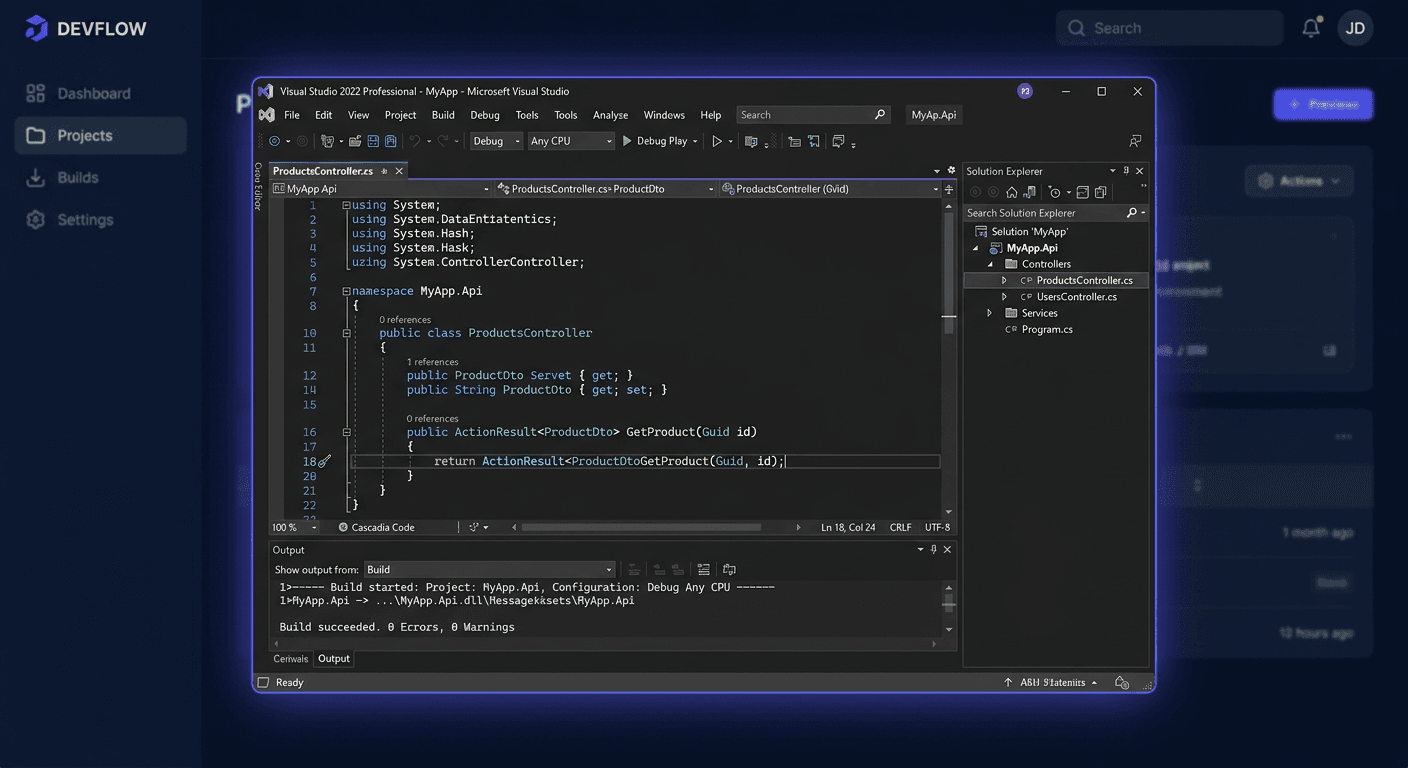
Microsoft Visual Studio 2022 Professional — IDE for developers
Before you start
Microsoft Visual Studio 2022 Professional is a professional, 64-bit IDE environment designed for developers and small teams. It enables the creation, debugging, testing, and publishing of desktop, web, cloud, and mobile applications from a single tool. The Professional edition is particularly suitable where features beyond Community are required, but without the cost and extensive add-ons of the Enterprise version.
According to Microsoft's current policy, Visual Studio 2022 is covered by basic support until 12 January 2027, and extended support until 13 January 2032. In practice, this means that the product remains suitable for long-term use, but it is recommended to use the current update channel to maintain compatibility and security.
When purchasing a licence from KluczeSoft.pl, you typically receive electronic delivery: a product key sent by email, a download file, or download instructions, as well as a VAT invoice and a statement of legality. This is important because activation alone does not replace a proper installation from a legitimate source.
System requirements
| Element | Minimum | Recommended |
|---|---|---|
| Operating system | Windows 10/11 64-bit, Windows Server 2016/2019/2022/2025 | Windows 11 64-bit |
| Processor | x64 or ARM64, 1.8 GHz+ | 4 cores or more |
| RAM | 4 GB | 16 GB |
| Disk space | from approximately 850 MB to up to 210 GB, depending on components | 20-50 GB of free space on an SSD |
| Screen | minimum 1366 × 768 | 1920 × 1080 or higher |
| Additional components | administrator privileges, .NET Framework 4.7.2+ for installation, WebView2 Runtime | up-to-date Windows and drivers |
Downloading the installer
It is safest to download the installer directly from Microsoft's official website or from a link provided after purchasing from KluczeSoft. For the Professional edition, the standard bootstrapper is vs_professional.exe. If you are installing the program on multiple computers or in a corporate environment, it is worth considering an offline installation or preparing a local installation layout.
If you purchased a licence from KluczeSoft, first check the email with your order. You will usually find the product key, instructions, and a link to the correct installation file there.
Step-by-step installation
Installation from the graphical interface
- Download
vs_professional.exe. - Right-click the file and select Run as administrator.
- Accept the download of Visual Studio Installer.
- Select the required workloads, such as
.NET desktop development,ASP.NET and web development,Desktop development with C++, orPython development. - Check the installation location and required disk space.
- Click
Install. - Wait for the download and installation of components.
- After completion, run Visual Studio 2022 Professional.
Installation from the command line
If you want to automate the installation, you can run the bootstrapper with the product key already at the setup stage:
vs_professional.exe --productKey XXXXX-XXXXX-XXXXX-XXXXX-XXXXX
In administrative environments, the silent mode is often used:
vs_professional.exe --quiet --wait --norestart --productKey XXXXX-XXXXX-XXXXX-XXXXX-XXXXX
For any questions or concerns, please contact us at [email protected] or call 00 800 121 1654.
Activation
Activation in GUI
In Visual Studio 2022 Professional, go to Help > Register Product, then select Unlock with Product Key. In some builds, the path may lead through File > Account Settings and the link Unlock with a Product Key. Paste the key received from KluczeSoft, confirm, and restart the program if the IDE requests it.
Activation from CMD
After installing the program, you can also apply the key from the command line as an administrator. For Visual Studio 2022 Professional, use StorePID.exe with the MPC code 09662:
"C:\Program Files\Microsoft Visual Studio\2022\Professional\Common7\IDE\StorePID.exe" XXXXX-XXXXX-XXXXX-XXXXX-XXXXX 09662
If the command is successful, the tool returns code 0. This is the correct method for Visual Studio. Do not use slmgr.vbs or ospp.vbs here, as these scripts apply to Windows/Windows Server and Microsoft Office, respectively.
Telephone Activation
If online activation fails or the environment operates without internet access, contact Microsoft support at 00 800 121 1654. Before the call, prepare the product key, information about the Visual Studio 2022 Professional edition, and any error message.
Activation Verification
After activation, open File > Account Settings or Help > Register Product and check the license status. A correctly activated product should display information about the unlocked Professional edition without a trial version warning. Additionally, you can confirm the result by using StorePID.exe and checking the command completion code.
Troubleshooting
1. Error 0x80072EE7
Most often indicates a problem with DNS, proxy, or access to Microsoft servers. Check your internet connection, firewall settings, hosts file entries, and try again later.
2. Error 0x80070005 Access Denied
The installer does not have the necessary permissions or files are blocked by a security program. Run the installer as an administrator, temporarily disable restrictive protection rules, and ensure the account has administrative rights.
3. Error 0x80070643
Usually indicates a damaged installation cache or incomplete installation source. Help can be found by redownloading the bootstrapper, repairing the installation, or running the installation from a new source.
4. Error 0x800713EC
Indicates that another .NET Framework or system component installation is running in the background. Close other installers, restart the computer, and then retry the Visual Studio installation.
5. Installation Stalls on WebView2
Visual Studio 2022 requires WebView2. In corporate environments, the problem is often caused by a group policy blocking the installation of this component. It's worth checking the administrator settings, updating the system, and running the installer again.
6. PID_ACTION_INVALID after using StorePID.exe
Most often due to an incorrect key being entered, dashes being removed, or the wrong MPC code being used. For Visual Studio 2022 Professional, the correct example is:
"C:\Program Files\Microsoft Visual Studio\2022\Professional\Common7\IDE\StorePID.exe" XXXXX-XXXXX-XXXXX-XXXXX-XXXXX 09662
7. Lack of Unlock with Product Key Option
This problem usually occurs in the Community edition or in prerelease versions. Ensure that the installed edition is indeed Professional, not Community or Preview. If you need assistance, please contact us at [email protected] or call 00 800 121 1654.
Comparison of versions
| Version | For whom | Key features | Price at KluczeSoft |
|---|---|---|---|
| Visual Studio Community 2022 | students, hobbyists, small individual projects | basic IDE features, free licence in accordance with Microsoft terms | 0 zł |
| Visual Studio 2022 Professional | freelancers, software houses, small and medium-sized teams | full IDE, CodeLens, Hot Reload, extensions, team collaboration | 749,40 zł |
| Visual Studio 2022 Enterprise | large teams and organisations | Professional features + advanced testing, diagnostics and architectural tools | 899,40 zł |
Professional is the most reasonable choice for most programming companies. Community may be sufficient for learning, but it does not always meet the conditions for commercial use. Enterprise is worth it mainly where its advanced testing and analytical functions are actually used.
Summary
Microsoft Visual Studio 2022 Professional remains one of the best IDE environments for programmers working on Windows. It offers long-term manufacturer support, a convenient installer, easy activation with a key, and a wide range of loads tailored to different technologies. If you are buying a licence at KluczeSoft.pl, pay attention to the correct source of the installer and activate the programme through Help > Register Product > Unlock with Product Key or the StorePID.exe command.
If you encounter a problem with activation or installation, first check the permissions, network connection, WebView2, and key correctness. If necessary, you can use Microsoft's telephone support at 00 800 121 1654.
Sources
- https://learn.microsoft.com/en-us/lifecycle/products/visual-studio-2022
- https://learn.microsoft.com/en-us/visualstudio/releases/2022/servicing-vs2022
- https://learn.microsoft.com/en-us/visualstudio/install/automatically-apply-product-keys-when-deploying-visual-studio?view=vs-2022
- https://learn.microsoft.com/en-us/visualstudio/ide/how-to-unlock-visual-studio?view=visualstudio
- https://learn.microsoft.com/en-us/troubleshoot/developer/visualstudio/installation/troubleshoot-installation-issues
- https://learn.microsoft.com/en-us/visualstudio/install/create-a-network-installation-of-visual-studio?view=vs-2022
- https://kluczesoft.pl/microsoft-visual-studio/microsoft-visual-studio-2022-professional
- https://kluczesoft.pl/microsoft-visual-studio/microsoft-visual-studio-2022-enterprise You can also contact us at [email protected] for more information.