
Windows 10 ESU Year 2 (2026–2027) — Extended Security Updates
Windows 10 ESU Year 2 is the second annual period of the Extended Security Updates program for systems that, after the end of standard support, still need to operate in a production environment. This solution is designed for companies and organisations that require additional time to migrate, while maintaining access to security patches after the end of the Windows 10 lifecycle.
Note: ESU does not replace migration. It is a bridging solution. If you plan to continue operating older workstations, it is recommended to prepare for a transition to a newer system in parallel.
What the package includes
By purchasing Windows 10 ESU Year 2 (2026–2027), the customer receives:
- a licence/activation key for the second year of the ESU program,
- the possibility of legally downloading and installing qualifying security updates during Year 2,
- continuity with the previous period, as Year 2 is cumulative with respect to Year 1,
- installation and activation instructions,
- informational support regarding activation.
In practice, this means that a device covered by ESU Year 2 can receive security patches planned for this stage of the program, but only if the licensing and technical requirements are met.
Requirements and compatibility
Before purchasing and activating, several conditions should be verified:
- the computer must run Windows 10 in a supported edition that qualifies for the ESU program,
- Year 1 is required for Year 2, as ESU updates are accounted for and provided sequentially,
- the system should have the current required service components and preparatory updates installed,
- the device must have administrative privileges to install the key and activate,
- online activation requires an internet connection; otherwise, phone activation can be used.
If you are buying multiple products in a bundle, remember the important principle:
- each product has a separate key,
- keys can be installed on different computers, in accordance with the intended use of the product,
- bundles usually mean savings compared to individual purchases, as the bundle price is often lower than the sum of individual items.
This is especially important when combining ESU with other Microsoft products or accompanying software.
Installation and activation
Activation can be performed from the graphical interface or command line, run as an administrator.
GUI method
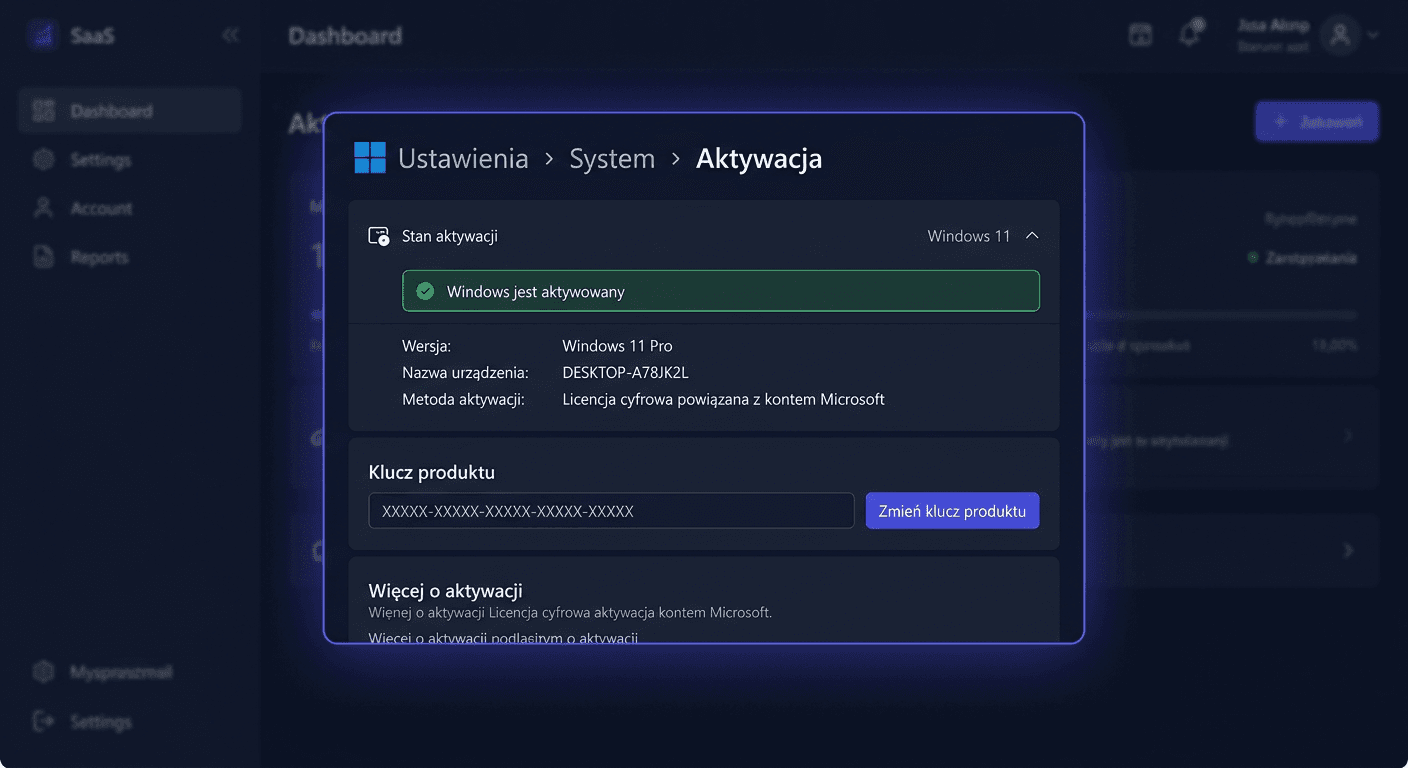
- Open the system activation properties.
- Select the option to change the product key.
- Enter the ESU Year 2 key.
- Confirm and wait for the process to complete.
- If online activation fails, use phone activation.
CMD method
For the Windows system, use slmgr.vbs:
slmgr.vbs /ipk XXXXX-XXXXX-XXXXX-XXXXX-XXXXX
slmgr.vbs /ato
Where:
slmgr.vbs /ipkinstalls the product key,slmgr.vbs /atoinitiates activation.
If phone activation is required, use the number:
00 800 121 1654
In mixed environments, it's also worth remembering other types of products:
- for Office, use:
ospp.vbs /inpkey:XXXXX-XXXXX-XXXXX-XXXXX-XXXXX
ospp.vbs /act
- for antivirus software, activation usually takes place through the manufacturer's website,
- CAL is not an installed program, but a legal document/licence, so it is not activated like Windows or Office.
For any questions or concerns, please contact us at [email protected] or visit the KluczeSoft website for more information.
Activation Verification
After installation, it is worth confirming that the key has been properly accepted and activated.
The most commonly used methods:
slmgr.vbs /dli
slmgr.vbs /dlv
slmgr.vbs /xpr
Interpretation:
slmgr.vbs /dlishows basic license information,slmgr.vbs /dlvdisplays detailed diagnostic data,slmgr.vbs /xprallows you to check the activation expiration status.
Additionally, it is worth checking if the system properly downloads security updates from Windows Update or an internal update management solution.
Troubleshooting
Below are the most common problems encountered during ESU Year 2 activation.
1. Invalid Key Error
Symptom: the system rejects the key during slmgr.vbs /ipk.
Possible causes:
- typo in the key,
- attempting to use a key from a different product,
- attempting to activate Year 2 without the necessary entitlement from Year 1.
What to do:
- re-enter the key,
- check if it is exactly the key for Windows 10 ESU Year 2,
- verify that the program requirements were previously met.
2. Online Activation Error
Symptom: slmgr.vbs /ato fails.
Possible causes:
- no internet connection,
- firewall or proxy blocking activation,
- temporary issue on the activation service side.
What to do:
- check network connectivity,
- run the command again after a few minutes,
- use phone activation: 00 800 121 1654.
3. Device Not Eligible for ESU Year 2
Symptom: the key is accepted incorrectly or ESU updates are not offered.
Possible causes:
- no active or properly deployed Year 1,
- unsupported edition of the system,
- lack of required preparatory updates.
What to do:
- confirm the status of Year 1,
- update the system to the required level,
- check Windows 10 edition compatibility.
4. Key Used for the Wrong Product
This is a common problem with bulk orders.
What's worth remembering:
- packages contain separate keys for each product,
- Windows key activates differently than Office,
- antivirus and CAL have different rules than the operating system.
Comparison with Alternatives
ESU Year 2
The best choice if you need to maintain existing workstations for a limited time and require official security patches.
Migration to a Newer System
This is ultimately the best path. It provides a longer support period, better compatibility with new hardware, and less operational risk in the future.
Hardware Replacement and Full Environment Modernization
The most expensive initially, but often the most reasonable strategically. It allows you to avoid maintaining older platforms.
Staying Without ESU
The cheapest only seemingly. The lack of security patches increases the risk of incidents, audit problems, and costs associated with downtime or security breaches.
For assistance, please contact us at [email protected] or visit the KluczeSoft website for more information.
Summary
Windows 10 ESU Year 2 (2026–2027) is a solution for organisations that need to legally and securely extend system protection after the end of basic support. However, please note that Year 2 is linked to Year 1, and the ESU programme is transitional in nature and should not replace a migration plan.
Key information:
- the client receives a key for Windows 10 ESU Year 2,
- Windows activation is performed through:
slmgr.vbs /ipk XXXXX-XXXXX-XXXXX-XXXXX-XXXXX
slmgr.vbs /ato
- separate keys for each product apply in the packages,
- keys from the set can be used on different computers,
- purchasing a set usually means real savings compared to buying individual licences,
- if necessary, you can use phone activation by calling 00 800 121 1654.
If you maintain an older production environment, ESU can provide the necessary time for a secure migration, but it should not be treated as a long-term solution.