
Aktywacja SQL Server 2016 Standard 50 User CAL
Licencjonowanie SQL Server 2016 Standard 50 User CAL oznacza model, w którym serwer posiada licencję SQL Server Standard Server, a dodatkowo przypisuje się licencje dostępowe User CAL konkretnym użytkownikom. W praktyce taki wariant sprawdza się w firmach, gdzie z systemu korzysta stała liczba pracowników, także z różnych urządzeń. Pakiet 50 User CAL pozwala legalnie udostępnić zasoby serwera maksymalnie pięćdziesięciu nazwanym użytkownikom. Jeśli chcesz od razu sprawdzić ofertę, zobacz Kup SQL Server 2016 Standard 50 User CAL w KluczeSoft.
Warto pamiętać, że w przypadku SQL Server 2016 CAL nie wykonuje się aktywacji każdej licencji dostępowej osobno w systemie operacyjnym czy w samym SQL Serverze w taki sposób, jak ma to miejsce przy niektórych innych produktach Microsoft. Kluczowe jest przede wszystkim prawidłowe wdrożenie licencji serwera, zachowanie dokumentów licencyjnych oraz poprawne przypisanie CAL do użytkowników w organizacji. Sama aktywacja dotyczy najczęściej klucza produktu dla warstwy serwerowej, natomiast CAL-e stanowią uprawnienie dostępu. Więcej praktycznych informacji znajdziesz w poradniku SQL Server 2016 Standard 50 User CAL — instalacja, aktywacja i zarządzanie licencjami.
Krok po kroku
- Upewnij się, że posiadasz właściwy zestaw licencji.
Powinieneś mieć:
- licencję SQL Server 2016 Standard Server,
- pakiet 50 User CAL,
- dokument zakupu lub potwierdzenie licencji,
- klucz produktu, jeżeli został dostarczony dla edycji wymagającej wpisania klucza podczas instalacji.
-
Sprawdź, jaka wersja SQL Server została zainstalowana.
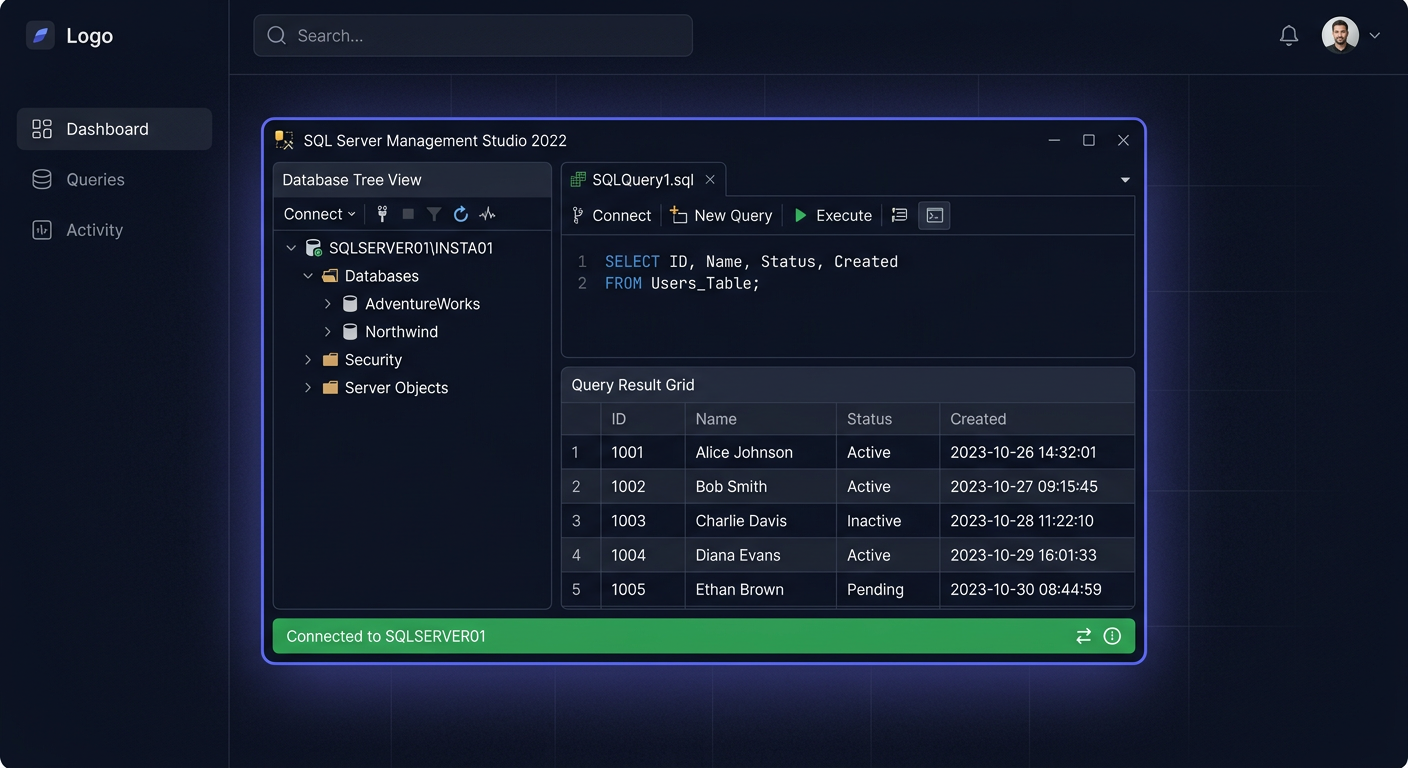
Na serwerze uruchom SQL Server Management Studio albo połącz się z instancją i sprawdź wersję. Produkt musi odpowiadać zakupionej edycji, czyli SQL Server 2016 Standard. Jeżeli zainstalowano inną edycję, najpierw trzeba uporządkować środowisko, zanim przejdziesz dalej. -
Wprowadź lub zweryfikuj klucz produktu dla serwera.
Podczas instalacji SQL Server 2016 Standard system może poprosić o podanie klucza. Jeśli instalacja została wykonana wcześniej, a edycja jest już poprawna, dodatkowa aktywacja CAL zwykle nie jest wymagana na poziomie technicznym. W modelu Server + CAL najważniejsze jest to, by serwer był prawidłowo licencjonowany, a liczba użytkowników miała pokrycie w zakupionych CAL. -
Przypisz licencje User CAL do konkretnych użytkowników.
Licencja User CAL przypisywana jest osobie, a nie komputerowi. Oznacza to, że jeden użytkownik może łączyć się z serwerem z kilku urządzeń, ale każdy kolejny użytkownik wymaga własnej licencji CAL. Wewnętrznie w firmie warto przygotować listę 50 użytkowników, którym przypisano uprawnienia. -
Zachowaj dokumentację licencyjną.
Przygotuj i przechowuj:
- fakturę lub dowód zakupu,
- numer licencji lub potwierdzenie z kanału dystrybucji,
- wewnętrzną ewidencję przypisania User CAL,
- informacje o serwerze, którego dotyczy licencjonowanie.
Jeżeli kupujesz licencję online i chcesz uporządkować dokumenty księgowe, sprawdź poradnik Jak otrzymać fakturę VAT za zakup klucza licencyjnego w KluczeSoft.
- Zweryfikuj zgodność dostępu.
Sprawdź, czy z serwera nie korzysta więcej niż 50 użytkowników objętych modelem User CAL. Jeżeli liczba użytkowników wzrośnie, konieczne będzie dokupienie kolejnych licencji dostępowych.
Sprawdzenie
Po wdrożeniu warto potwierdzić trzy rzeczy. Po pierwsze, instancja działa jako SQL Server 2016 Standard. Po drugie, organizacja posiada licencję serwerową odpowiadającą tej instalacji. Po trzecie, istnieje wewnętrzna lista użytkowników objętych pakietem 50 User CAL.
Dodatkowo dobrze jest sprawdzić, kto realnie korzysta z aplikacji i baz danych podłączonych do serwera. Jeżeli w praktyce dostęp mają również osoby spoza listy, środowisko może wymagać rozszerzenia licencjonowania. Sam SQL Server nie zawsze pokaże tego wprost jako „aktywowane CAL”, ponieważ CAL to uprawnienie licencyjne, a nie oddzielny komponent aktywowany w konsoli produktu.
Problemy
Najczęstszy problem polega na założeniu, że SQL Server 2016 CAL trzeba „wklepać” lub aktywować tak samo jak klucz produktu. W większości wdrożeń tak to nie działa. Technicznie aktywowany jest serwer lub instalowana właściwa edycja, natomiast CAL-e są potwierdzeniem prawa dostępu dla użytkowników. Jeśli podczas konfiguracji pojawiają się problemy z uprawnieniami systemowymi, pomocny może być opis błędu Blad 0x80070005.
Drugi częsty błąd to mylenie User CAL z Device CAL. Jeśli kupiono 50 User CAL, licencje dotyczą użytkowników, a nie stanowisk komputerowych. Nie należy prowadzić ewidencji wyłącznie według urządzeń.
Problemem bywa też brak dokumentacji. Nawet jeśli środowisko działa poprawnie, brak potwierdzenia zakupu i brak przypisania CAL do użytkowników może powodować trudności organizacyjne i licencyjne. Dlatego warto prowadzić prosty rejestr z imieniem, nazwiskiem, działem i datą przypisania licencji.
Jeżeli po instalacji okazuje się, że działa wersja inna niż Standard, albo system był instalowany z nośnika ewaluacyjnego, może być potrzebna zmiana edycji lub ponowna konfiguracja instalacji. W takiej sytuacji najlepiej najpierw ustalić dokładny stan środowiska i dopiero potem podejmować działania. Gdy liczba użytkowników rośnie i model CAL przestaje być optymalny, warto porównać także licencjonowanie per core, na przykład Microsoft SQL Server 2022 Standard 24 Core - zobacz w sklepie.
FAQ
Czy SQL Server 2016 Standard 50 User CAL aktywuje się osobnym kluczem?
Zwykle nie. Osobny klucz dotyczy najczęściej samej instalacji serwera, a User CAL stanowią prawo dostępu przypisane użytkownikom. Najważniejsze jest poprawne licencjonowanie serwera i prowadzenie ewidencji przypisanych CAL. Zobacz też FAQ: SQL Server 2016 Standard 50 User CAL.
Czy jeden użytkownik może korzystać z kilku komputerów?
Tak. W modelu User CAL licencja przypisana jest do osoby. Taki użytkownik może łączyć się z SQL Server z komputera biurowego, laptopa lub innego urządzenia, o ile pozostaje tym samym użytkownikiem.
Co zrobić, gdy z systemu korzysta więcej niż 50 osób?
Wtedy pakiet 50 User CAL przestaje być wystarczający. Trzeba dokupić kolejne licencje dostępowe albo przeanalizować, czy bardziej opłacalny nie będzie inny model licencjonowania.
Jeżeli potrzebujesz pomocy w doborze, weryfikacji lub uporządkowaniu licencji SQL Server 2016 CAL, możesz też Wyslij zgloszenie do wsparcia.
Jeśli chcesz szybko zamówić odpowiednią licencję dla firmy, przejdź do oferty Kup SQL Server 2016 Standard 50 User CAL w KluczeSoft.
Gdzie kupić oryginalny klucz
Potrzebujesz legalnego klucza? Sprawdź oferty w sklepie kluczesoft.pl:
Wszystkie klucze są fabrycznie nowe, dostarczane elektronicznie z fakturą VAT.
<!-- IL-V1 -->Powiązane artykuły
- Aktywacja SQL Server 2014 Standard 50 User CAL — Jak aktywowac SQL Server 2014 Standard 50 User CAL.
- Aktywacja SQL Server 2016 Standard 50 Device CAL — Jak aktywowac SQL Server 2016 Standard 50 Device CAL.
- Aktywacja SQL Server 2017 Standard 50 User CAL — Jak aktywowac SQL Server 2017 Standard 50 User CAL.
- Aktywacja SQL Server 2019 Standard 50 User CAL — Jak aktywowac SQL Server 2019 Standard 50 User CAL.
- Aktywacja SQL Server 2022 Standard 50 User CAL — Jak aktywowac SQL Server 2022 Standard 50 User CAL.