
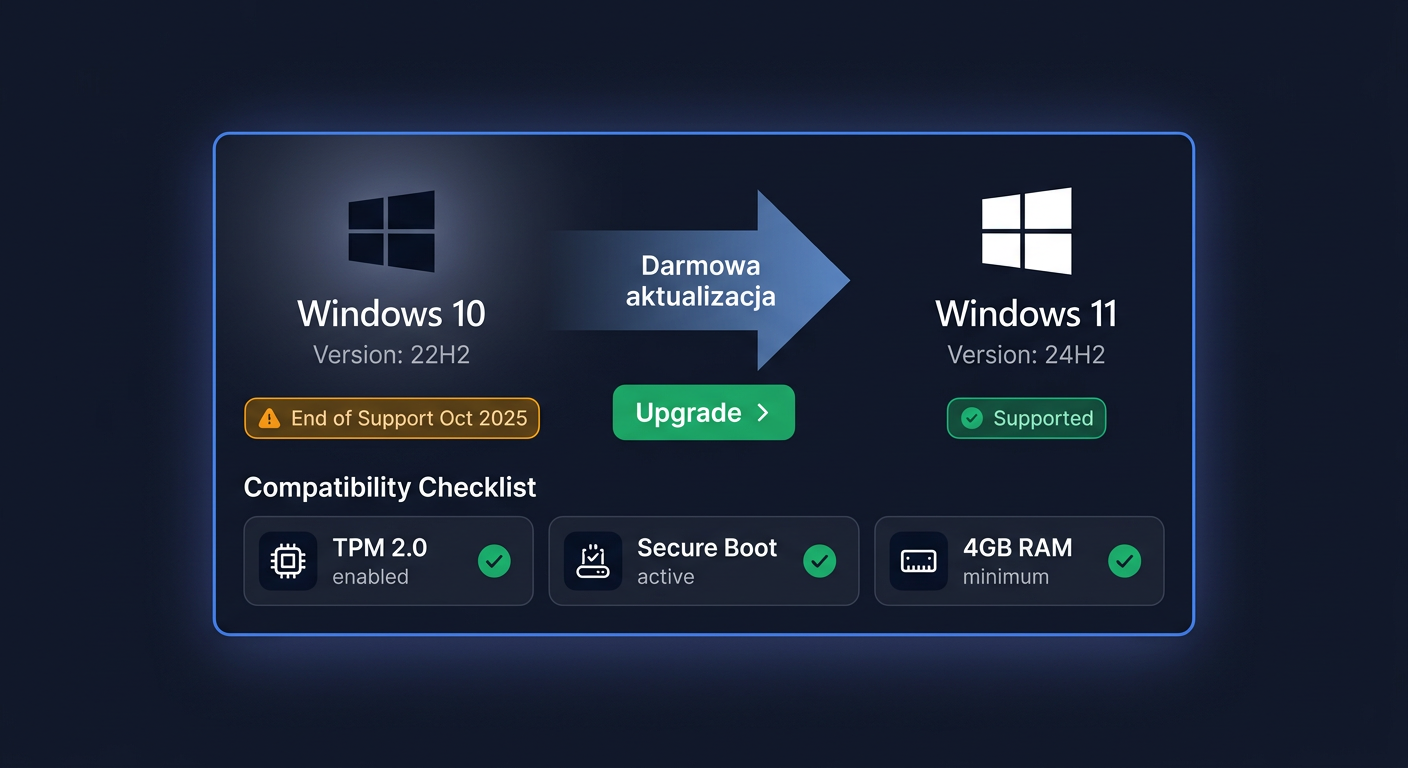
Aktywacja Windows 10 ESU Rok 1 — kompletny poradnik (2025–2026)
Program Windows 10 ESU Rok 1 pozwala przedłużyć otrzymywanie krytycznych aktualizacji zabezpieczeń po zakończeniu standardowego wsparcia systemu. ESU oznacza Extended Security Updates, czyli rozszerzone aktualizacje bezpieczeństwa. W praktyce oznacza to możliwość dalszego, legalnego korzystania z Windows 10 w środowisku firmowym lub specjalistycznym tam, gdzie migracja do nowszego systemu nie może zostać wykonana od razu. Jeśli potrzebujesz klucza do tego rozszerzenia, możesz od razu sprawdzić Kup Windows 10 ESU — Rok 1 (2025-2026) w KluczeSoft.
Aktywacja Windows 10 ESU Rok 1 zwykle odbywa się z użyciem poleceń slmgr /ipk oraz slmgr /ato. W wielu przypadkach wymagany jest również tzw. addon key, czyli dodatkowy klucz przeznaczony do aktywacji uprawnienia ESU. Poniżej znajduje się prosty przewodnik, który pokazuje, jak przeprowadzić ten proces krok po kroku. Jeśli chcesz najpierw zapoznać się z pełnym procesem wdrożenia, pomocna będzie instrukcja Jak aktywować Windows 10 ESU — Extended Security Updates (Rok 1).
Dlaczego ESU w 2026 roku? Kontekst rynkowy
Rok 2026 przynosi nową dynamikę na rynku systemów Microsoft. Windows 11 jest już dostępny w wydaniach 24H2 oraz zapowiadanym 25H2, a organizacje masowo planują migracje. Równolegle Microsoft wypuścił Office 2024 jako następcę Office 2021, a subskrypcje Microsoft 365 Copilot wprowadzają integrację AI do codziennej pracy biurowej. Dla działów IT oznacza to konieczność jednoczesnego zarządzania migracją systemu operacyjnego, pakietu biurowego oraz wdrożeniem funkcji AI.
Dodatkowo na horyzoncie pojawia się Exchange Server SE (Subscription Edition), który zmieni model licencjonowania poczty firmowej. W tym wielowarstwowym krajobrazie wiele firm — szczególnie średnich przedsiębiorstw produkcyjnych, placówek medycznych czy urzędów — nie jest w stanie przeprowadzić pełnej migracji w jednym cyklu. Właśnie dla takich organizacji powstał program ESU.
Obsługiwane edycje i porównanie kosztów
Windows 10 ESU Rok 1 obejmuje ściśle określone edycje systemu. Poniższa tabela zestawia obsługiwane warianty wraz z orientacyjnymi kosztami w polskich złotych (PLN). Wszystkie ceny podane są w kwotach netto — do każdej należy doliczyć 23% VAT (stawka obowiązująca w Polsce), a dokument zakupu powinien zawierać fakturę VAT zgodną z wymogami KSeF (Krajowego Systemu e-Faktur).
| Edycja Windows 10 | Obsługa ESU Rok 1 | Orientacyjna cena netto (PLN) | Uwagi |
|---|---|---|---|
| Windows 10 Pro | Tak | 120–180 zł | Najczęściej wybierana w firmach do 300 stanowisk |
| Windows 10 Enterprise | Tak | 180–260 zł | Wsparcie dla wdrożeń z Microsoft 365 E3/E5 |
| Windows 10 Enterprise LTSC 2019 | Tak | 200–300 zł | Specjalistyczne środowiska, np. urządzenia medyczne |
| Windows 10 Education | Tak | 80–130 zł | Placówki edukacyjne z umową Microsoft Enrollment |
| Windows 10 IoT Enterprise | Tak | 250–400 zł | Systemy wbudowane, bankomaty, kioski |
| Windows 10 Home | Nie | — | ESU niedostępne dla tej edycji |
Różnice w cenach wynikają z poziomu wsparcia oraz kanału licencjonowania. Dla firm rozliczających się w Polsce kluczowe znaczenie ma otrzymanie pełnej faktury VAT — umożliwia ona odliczenie podatku naliczonego i poprawne zaksięgowanie wydatku jako kosztu uzyskania przychodu.
Klucz ESU a licencja podstawowa — tabela wymagań
Program ESU nie zastępuje podstawowej licencji Windows. Jest to dodatkowe uprawnienie (add-on), które wymaga uprzedniego posiadania legalnej, aktywowanej kopii systemu. Poniższa tabela wyjaśnia relację między licencją bazową a rozszerzeniem ESU:
| Komponent | Opis | Gdzie uzyskać |
|---|---|---|
| Licencja bazowa Windows 10 | Legalna, aktywowana kopia Pro, Enterprise, Education lub IoT | Zakup z komputerem (OEM), Volume Licensing, Microsoft 365 |
| Klucz ESU (addon key) | 29-znakowy klucz aktywujący prawo do rozszerzonych aktualizacji | Program ESU, dostawcy licencji |
| Aktualizacja KB5017308 lub nowsza | Przygotowuje system do rozpoznania klucza ESU | Windows Update lub Microsoft Update Catalog |
| Połączenie z internetem | Wymagane do aktywacji online (slmgr /ato) | Dowolne łącze z dostępem do serwerów Microsoft |
Próba instalacji klucza ESU na edycji Home lub na systemie bez zainstalowanej aktualizacji przygotowawczej kończy się błędem — system nie rozpozna formatu addon key.
Krok po kroku
Przed rozpoczęciem upewnij się, że:
- system to obsługiwana edycja Windows 10,
- komputer ma zainstalowane wymagane aktualizacje przygotowujące system do ESU,
- posiadasz poprawny klucz ESU Rok 1 / addon key,
- masz dostęp do konta z uprawnieniami administratora,
- komputer ma połączenie z internetem, jeśli aktywacja będzie wykonywana online.
Przed samą aktywacją warto jeszcze sprawdzić Wymagania systemowe: Windows 10 ESU — Rok 1 (2025-2026), aby uniknąć problemów z kompatybilnością systemu lub brakującymi aktualizacjami przygotowującymi środowisko do ESU.
1. Uruchom Wiersz polecenia jako administrator
Kliknij menu Start, wpisz cmd, a następnie wybierz Uruchom jako administrator. To ważne, ponieważ bez uprawnień administracyjnych polecenia aktywacyjne mogą zakończyć się błędem.
2. Zainstaluj klucz ESU
W oknie Wiersza polecenia wpisz:
slmgr /ipk TWÓJ-KLUCZ-ESU
W miejsce TWÓJ-KLUCZ-ESU wstaw otrzymany addon key dla Windows 10 ESU Rok 1.
Po chwili system powinien wyświetlić komunikat potwierdzający poprawne zainstalowanie klucza. Jeśli pojawi się informacja o błędzie, sprawdź, czy klucz został wpisany bez literówek i czy odpowiada właściwej wersji systemu. W razie pytań pomocne mogą być także odpowiedzi z sekcji FAQ: Windows 10 ESU — Rok 1 (2025-2026).
3. Wykonaj aktywację online
Po dodaniu klucza uruchom aktywację:
slmgr /ato
Polecenie slmgr /ato wysyła żądanie aktywacji do serwerów Microsoft i próbuje przypisać licencję do systemu. Jeśli wszystko jest poprawnie przygotowane, pojawi się komunikat o pomyślnej aktywacji.
Jeśli jeszcze nie masz właściwego klucza, w tym miejscu możesz sprawdzić Wszystkie wersje Windows 10 ESU w sklepie, aby dobrać odpowiedni wariant licencji do swojego środowiska.
4. Uruchom ponownie komputer
Po aktywacji warto wykonać restart systemu. Nie zawsze jest to bezwzględnie konieczne, ale pomaga odświeżyć status licencji i przygotować system do pobierania aktualizacji ESU.
5. Sprawdź Windows Update
Po ponownym uruchomieniu przejdź do Ustawienia > Aktualizacja i zabezpieczenia > Windows Update i uruchom wyszukiwanie aktualizacji. Jeśli aktywacja przebiegła poprawnie, system powinien móc pobierać aktualizacje bezpieczeństwa objęte programem ESU.
Realne przykłady wdrożeń
Poniższe scenariusze pokazują, jak program ESU rozwiązuje konkretne problemy biznesowe w 2026 roku.
Przykład 1: Firma produkcyjna, 120 stanowisk. Zakład w Radomiu używa Windows 10 Pro na komputerach sterujących liniami produkcyjnymi. Oprogramowanie CNC i sterowniki PLC nie mają certyfikacji dla Windows 11 24H2, a producent maszyn zapowiedział aktualizację sterowników dopiero na Q2 2027. Dział IT wykupuje 120 licencji ESU Rok 1 dla Windows 10 Pro i zyskuje 12 miesięcy na zaplanowanie migracji bez ryzyka utraty wsparcia bezpieczeństwa. Całkowity koszt netto: około 14 400–21 600 PLN — ułamek kosztów przestoju linii produkcyjnej.
Przykład 2: Przychodnia medyczna, 40 stanowisk. Placówka korzysta z systemu gabinetowego certyfikowanego wyłącznie dla Windows 10 Enterprise LTSC 2019. Migracja do Windows 11 wymagałaby nie tylko wymiany sprzętu (brak modułu TPM 2.0 w starszych komputerach), ale również kosztownej walidacji oprogramowania medycznego przez producenta. Dział IT wybiera ESU dla Windows 10 Enterprise LTSC 2019, co zapewnia zgodność z wymogami RODO w zakresie aktualizacji bezpieczeństwa. Koszt 40 licencji ESU to około 8 000–12 000 PLN netto — rozwiązanie pomostowe na czas wdrożenia nowego systemu gabinetowego planowanego na 2027 rok.
Przykład 3: Firma księgowa, 15 stanowisk. Biuro rachunkowe używa Windows 10 Pro i przygotowuje się do obowiązkowego KSeF. Równocześnie wdraża Office 2024 i testuje integrację z Microsoft 365 Copilot. Pełna migracja systemu operacyjnego w środku sezonu rozliczeniowego to zbyt duże ryzyko. ESU Rok 1 dla 15 stanowisk Windows 10 Pro to wydatek rzędu 1 800–2 700 PLN netto — pozwala skupić się na wdrożeniu KSeF i nowego Office, a migrację Windows 11 przesuwa na okres posezonowy.
Sprawdzenie
Po zakończeniu aktywacji warto upewnić się, że klucz został przyjęty i system widzi licencję poprawnie.
Najprostsza metoda to użycie polecenia:
slmgr /dlv
To polecenie otwiera szczegółowe okno z informacjami o stanie licencji. Zwróć uwagę na:
- status licencjonowania,
- informacje o aktywacji,
- identyfikację zainstalowanego klucza.
Możesz także użyć:
slmgr /xpr
Polecenie pokazuje, czy system jest aktywowany oraz jaki jest status ważności licencji. Jeżeli aktywacja ESU została przeprowadzona prawidłowo, system powinien zgłaszać poprawny stan aktywacji.
Dodatkową weryfikacją jest możliwość pobrania bieżących aktualizacji zabezpieczeń przez Windows Update. To praktyczny sygnał, że środowisko zostało przygotowane prawidłowo.
Problemy
Najczęstsze problemy przy aktywacji Windows 10 ESU Rok 1 wynikają nie z samego klucza, ale z brakujących warunków wstępnych.
Klucz nie chce się zainstalować
Jeżeli slmgr /ipk zwraca błąd, sprawdź:
- czy wpisany został właściwy addon key,
- czy system jest zgodny z zakupioną licencją,
- czy wcześniejsze komponenty lub aktualizacje wymagane do ESU są zainstalowane,
- czy polecenie zostało uruchomione jako administrator.
Jeśli podczas instalacji lub aktywacji pojawia się problem z uprawnieniami, zobacz poradnik Błąd 0x80070005.
Aktywacja slmgr /ato kończy się niepowodzeniem
W takiej sytuacji najpierw sprawdź połączenie z internetem. Następnie upewnij się, że:
- system ma poprawnie ustawioną datę i godzinę,
- zapora sieciowa lub serwer proxy nie blokują połączenia,
- klucz został wcześniej poprawnie zainstalowany,
- komputer nie ma problemów z podstawową aktywacją Windows.
Jeżeli pojawia się komunikat związany z nieprawidłową nazwą lub formatem aktywacji, pomocny może być opis błędu Błąd 0x8007007B.
Problemy z aktywacją w sieci firmowej
W środowiskach korporacyjnych aktywacja slmgr /ato może być blokowana przez firmowy firewall, serwer proxy wymagający uwierzytelnienia lub restrykcyjne reguły grupy. W takim przypadku należy:
- upewnić się, że port 443 (HTTPS) jest otwarty dla komunikacji z serwerami Microsoft (
activation.sls.microsoft.comorazvalidation.sls.microsoft.com), - w przypadku serwera proxy skonfigurować zmienną systemową
HTTP_PROXYlub użyćnetsh winhttp set proxy, - sprawdzić, czy zasady AppLocker lub Windows Defender Application Control nie blokują procesu
slmgr.vbsi powiązanych komponentów licencjonowania, - zweryfikować, czy usługa Software Protection działa — polecenie
net start sppsvcuruchomi ją, jeśli została zatrzymana.
W przypadku trwałych problemów z aktywacją online można rozważyć aktywację telefoniczną, choć w przypadku kluczy ESU jest ona dostępna wyłącznie dla klientów Volume Licensing.
Windows Update nie pobiera aktualizacji po aktywacji ESU
Jeśli po pomyślnej aktywacji slmgr /ato system nadal nie pobiera aktualizacji zabezpieczeń, należy:
- sprawdzić, czy data systemowa jest zgodna z rzeczywistością (nawet kilkuminutowe odchylenie może blokować komunikację),
- zweryfikować konfigurację usługi Windows Update — polecenie
wuauclt /detectnow(lubUsoClient StartScanw nowszych buildach) wymusza natychmiastowe skanowanie, - upewnić się, że usługa Windows Update nie jest zarządzana przez firmowy WSUS, który może wymagać osobnej konfiguracji dla aktualizacji ESU,
- w skrajnych przypadkach zresetować komponenty Windows Update za pomocą sekwencji poleceń
net stop wuauserv,net stop bits, wyczyszczenia folderu%windir%\SoftwareDistribution, a następnienet start wuauservinet start bits.
ESU a środowisko Microsoft 365 i Azure — co musisz wiedzieć w 2026
Dla organizacji korzystających z chmury Microsoftu aktywacja ESU wiąże się z dodatkowymi zagadnieniami. Microsoft 365 Copilot, uruchomiony w 2024 roku, wprowadza do aplikacji biznesowych funkcje AI — asystenta pisania w Wordzie, analizę danych w Excelu czy podsumowania spotkań w Teams. Copilot działa poprawnie również na Windows 10 ESU, pod warunkiem posiadania odpowiedniej subskrypcji Microsoft 365 E3 lub E5. Nie ma technicznych przeszkód, aby równolegle używać Office 2024 (licencja wieczysta) na systemie z aktywnym ESU.
Z perspektywy Azure Active Directory (obecnie Microsoft Entra ID) komputery z Windows 10 ESU pozostają w pełni zarządzalne — zarówno przez lokalną domenę Active Directory, jak i przez chmurę. Polityki Intune, Microsoft Defender for Endpoint oraz Windows Update for Business działają bez zmian, co oznacza, że administratorzy nie muszą tworzyć osobnych reguł dla maszyn objętych programem ESU.
Warto jednak pamiętać o nadchodzącym Exchange Server SE, który zastąpi tradycyjny model licencjonowania Exchange dla serwerów lokalnych. Organizacje planujące migrację poczty powinny uwzględnić, że ESU daje im dodatkowy rok, ale nie rozwiązuje równoległych wyzwań związanych z Exchange — te wymagają osobnego harmonogramu.
Częste pytania
Czym dokładnie jest addon key dla Windows 10 ESU?
Addon key to 29-znakowy klucz produktu w formacie pięciu grup znaków (xxxxx-xxxxx-xxxxx-xxxxx-xxxxx), który nie zastępuje podstawowej licencji Windows, lecz dodaje do niej uprawnienie do otrzymywania rozszerzonych aktualizacji zabezpieczeń. Instaluje się go poleceniem slmgr /ipk obok istniejącej aktywacji systemu — oba klucze muszą być poprawne, aby mechanizm ESU działał.
Czy mogę użyć jednego klucza ESU na wielu komputerach?
Nie — każdy komputer wymaga osobnego klucza ESU. Microsoft powiązuje aktywację ESU z konkretną instalacją systemu i sprzętem. Próba użycia tego samego klucza na drugim stanowisku kończy się błędem aktywacji, a przy powtarzających się naruszeniach może skutkować zablokowaniem klucza.
Czy ESU Rok 1 obejmuje tylko aktualizacje bezpieczeństwa?
Tak, program ESU dostarcza wyłącznie krytyczne i ważne aktualizacje zabezpieczeń (oznaczone jako Security Updates w Windows Update). Nie obejmuje poprawek funkcjonalnych, nowych funkcji, sterowników ani wsparcia technicznego w zakresie rozwiązywania problemów niefunkcjonalnych. Jeśli potrzebujesz pełnego wsparcia, konieczna jest migracja do Windows 11.
Czy faktura VAT na ESU uprawnia do odliczenia podatku?
Tak, przy zakupie od polskiego dostawcy otrzymujesz fakturę VAT ze stawką 23%, która spełnia wymogi KSeF. Jako wydatek związany z prowadzoną działalnością gospodarczą podlega on odliczeniu VAT naliczonego oraz zaliczeniu do kosztów uzyskania przychodu na standardowych zasadach.
Czy mogę aktywować ESU offline?
Standardowa aktywacja ESU wymaga połączenia z internetem (polecenie slmgr /ato komunikuje się z serwerami Microsoft). Aktywacja telefoniczna jest dostępna wyłącznie dla klientów Volume Licensing i wymaga wcześniejszego uzgodnienia z dostawcą licencji. Dla mniejszych firm bez dostępu do Volume Licensing aktywacja online jest jedyną ścieżką.
Co się stanie, jeśli nie przedłużę ESU na Rok 2?
Po zakończeniu okresu ESU Rok 1 system przestaje otrzymywać aktualizacje zabezpieczeń. Komputer nadal działa, ale od pierwszej luki bezpieczeństwa odkrytej po wygaśnięciu ESU pozostaje niezałatany — co w środowiskach firmowych może skutkować niezgodnością z wymogami RODO lub regulacjami branżowymi. Dlatego kluczowe jest zaplanowanie migracji lub zakupu ESU Rok 2 przed upływem pierwszego roku.
Czy Windows 10 ESU działa z Office 2024 i Microsoft 365 Copilot?
Tak, wszystkie wymienione produkty współpracują z Windows 10 ESU. Office 2024 (zarówno wersja wieczysta, jak i subskrypcyjna) jest w pełni kompatybilny z Windows 10. Microsoft 365 Copilot wymaga aktywnej subskrypcji Microsoft 365 E3 lub E5 oraz połączenia z chmurą, ale nie ma ograniczeń co do systemu operacyjnego — działa identycznie na Windows 10 ESU, jak i na Windows 11.
Czy migracja z Windows 10 ESU do Windows 11 wymaga ponownej aktywacji?
Tak. Klucz ESU jest powiązany wyłącznie z Windows 10 i nie przenosi się na Windows 11. Migracja do Windows 11 (24H2 lub nowszego) wymaga albo nowej licencji na Windows 11, albo skorzystania z bezpłatnej ścieżki aktualizacji, jeśli sprzęt spełnia wymagania i posiada ważną licencję bazową Windows 10. Sam dodatek ESU staje się wtedy zbędny, ponieważ Windows 11 otrzymuje standardowe aktualizacje w ramach cyklu życia produktu.
Skąd mam wiedzieć, czy moja organizacja kwalifikuje się do ESU?
Program ESU jest dostępny dla wszystkich organizacji posiadających legalne licencje Windows 10 Pro, Enterprise, Education lub IoT Enterprise. Klienci indywidualni (konsumenci) mogą skorzystać z ESU wyłącznie w ramach osobnego programu Microsoftu, który różni się cenowo i proceduralnie. Najszybszym sposobem weryfikacji jest uruchomienie slmgr /dlv i sprawdzenie edycji systemu — jeśli widnieje tam "Pro", "Enterprise", "Education" lub "IoT", kwalifikujesz się do programu. Kompletny asortyment kluczy ESU dla wszystkich edycji znajdziesz w sklepie KluczeSoft — Windows 10.