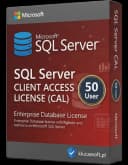
Aktywacja SQL Server 2014 Standard 50 User CAL – kompletny poradnik licencjonowania i zgodności w 2026 roku
Licencja SQL Server 2014 Standard 50 User CAL oznacza model dostępu, w którym serwer Microsoft SQL Server 2014 Standard jest używany razem z prawami dostępu dla 50 wskazanych użytkowników. W praktyce każda osoba, która łączy się z serwerem albo korzysta z danych przechowywanych w SQL Server, powinna mieć przypisaną odpowiednią licencję dostępową typu User CAL. Ten model jest najczęściej wybierany w środowiskach, w których pracownicy korzystają z różnych urządzeń — komputera stacjonarnego, laptopa, terminala, pulpitu zdalnego czy aplikacji mobilnej — ale dostęp mają konkretne, możliwe do wskazania osoby.
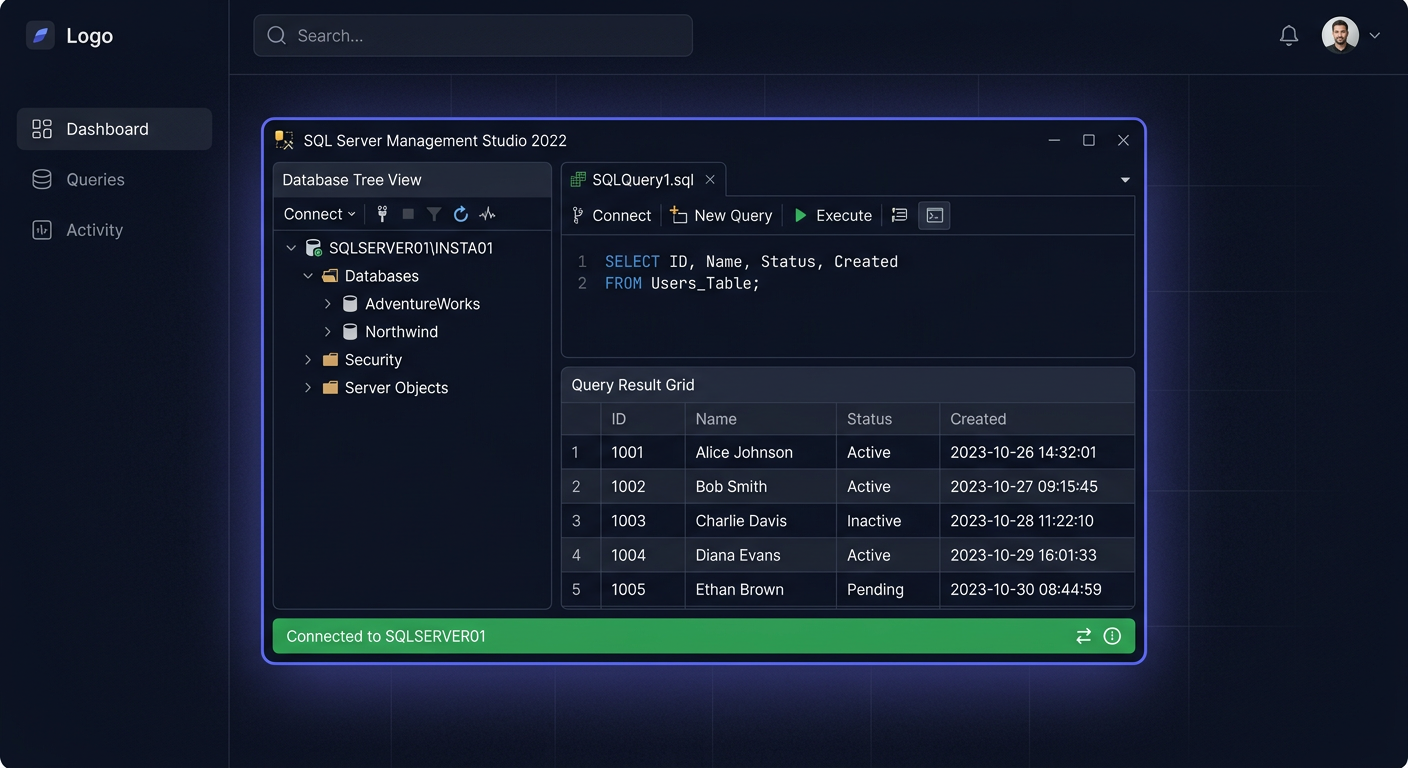
Najważniejsza zasada brzmi: licencje CAL nie są aktywowane w samym SQL Server tak jak klucz produktu systemu Windows, Office czy klasyczna licencja aplikacyjna. Nie ma osobnego okna, w którym wpisuje się 50 licencji CAL, nie ma kreatora „aktywacji CAL” w SQL Server Management Studio i nie ma mechanizmu, który automatycznie zablokuje pięćdziesiątego pierwszego użytkownika. W modelu Microsoft CAL aktywacja polega przede wszystkim na prawidłowym udokumentowaniu licencji, przypisaniu uprawnień do konkretnych użytkowników i zachowaniu dowodu zakupu.
Oznacza to, że poprawna aktywacja w ujęciu praktycznym to nie tylko instalacja SQL Server 2014 Standard, ale także uporządkowanie dokumentacji, prowadzenie rejestru użytkowników, kontrola dostępu aplikacji oraz gotowość do wykazania zgodności licencyjnej. W 2026 roku ma to szczególne znaczenie, ponieważ starsze systemy bazodanowe często nadal obsługują krytyczne procesy firmowe: ERP, CRM, programy magazynowe, aplikacje księgowe, systemy raportowe, integracje z KSeF czy rozwiązania współpracujące z Microsoft 365.
Czym jest SQL Server 2014 Standard 50 User CAL i kiedy ma sens
SQL Server 2014 Standard 50 User CAL składa się z dwóch warstw licencyjnych: licencji serwerowej dla edycji SQL Server 2014 Standard oraz licencji dostępowych Client Access License dla użytkowników. Wariant 50 User CAL oznacza, że do środowiska można przypisać prawa dostępu dla maksymalnie 50 konkretnych osób. Nie chodzi o 50 komputerów, 50 jednoczesnych połączeń ani 50 kont technicznych, lecz o 50 realnych użytkowników, którzy korzystają z danych obsługiwanych przez SQL Server.
Model User CAL sprawdza się szczególnie dobrze tam, gdzie liczba użytkowników jest przewidywalna, a jedna osoba korzysta z kilku urządzeń. Przykładowo pracownik działu sprzedaży może logować się z laptopa w biurze, komputera domowego przez VPN oraz telefonu z aplikacją mobilną. Jeżeli jest to ta sama osoba i ma przypisaną licencję User CAL, liczba urządzeń nie jest najważniejszym kryterium. Licencja obejmuje użytkownika, a nie sprzęt.
Inaczej wygląda sytuacja w modelu Device CAL, gdzie licencja przypisywana jest do urządzenia. To bywa korzystne w zakładach produkcyjnych, punktach obsługi klienta, magazynach lub recepcjach, gdzie wielu pracowników korzysta z tych samych stanowisk. Jeżeli jednak w organizacji z SQL Server korzystają konkretni pracownicy, a nie stale zmieniające się osoby przy wspólnych komputerach, model per użytkownik zwykle jest wygodniejszy administracyjnie.
| Cecha | User CAL | Device CAL |
|---|---|---|
| Licencja przypisana do | Konkretnego użytkownika | Konkretnego urządzenia |
| Najlepsze zastosowanie | Pracownicy korzystający z wielu urządzeń | Wspólne stanowiska pracy |
| Przykład | Handlowiec używa laptopa, telefonu i VPN | Trzy zmiany korzystają z jednego komputera w magazynie |
| Kontrola zgodności | Lista użytkowników | Lista urządzeń |
| Wariant ze źródła | SQL Server 2014 Standard 50 User CAL | SQL Server 2014 Standard 50 Device CAL |
W praktyce zakup pakietu 50 User CAL ma sens dla firm, które mają do 50 użytkowników korzystających z systemów opartych o SQL Server 2014 Standard. Może to być biuro rachunkowe, firma handlowa, hurtownia, mały zakład produkcyjny, placówka medyczna, software house utrzymujący wewnętrzny system lub organizacja, która ma stabilną liczbę pracowników administracyjnych.
Przykład: firma X ma 38 pracowników biurowych, 7 kierowników działów i 3 osoby z zarządu korzystające z raportów sprzedażowych. Dane znajdują się w SQL Server 2014 Standard, a użytkownicy logują się przez aplikację ERP. Łącznie daje to 48 osób. W takim przypadku SQL Server 2014 Standard 50 User CAL jest logicznym wyborem, ponieważ obejmuje wskazanych użytkowników i pozostawia niewielki zapas na dwie kolejne osoby.
Aktywacja CAL krok po kroku: co trzeba zrobić naprawdę
Proces aktywacji SQL Server 2014 Standard 50 User CAL warto rozumieć jako procedurę zgodności licencyjnej, a nie techniczne wpisanie klucza. Sam serwer SQL Server 2014 Standard instaluje się i działa niezależnie od technicznego „dodania” CAL-i do konsoli programu. Administrator musi jednak potwierdzić, że środowisko odpowiada zakupionemu modelowi.
Pierwszym krokiem jest weryfikacja, czy w firmie działa rzeczywiście SQL Server 2014 Standard. Model Server + CAL musi być zgodny z używaną edycją serwera. Jeżeli środowisko powstało kilka lat temu, mogło być modernizowane, migrowane albo rozbudowywane bez aktualizacji dokumentacji. Warto sprawdzić nazwę edycji, wersję instancji, rolę serwera i aplikacje, które się z nim łączą. Jeżeli organizacja używa innej edycji lub innego modelu licencjonowania, zakupione CAL-e należy porównać z realną konfiguracją.
Drugim krokiem jest potwierdzenie rodzaju licencji CAL. W analizowanym wariancie chodzi o 50 User CAL, czyli licencje przypisane do użytkowników, a nie do komputerów. Oznacza to, że jedna licencja obejmuje jedną wskazaną osobę, ta osoba może korzystać z wielu urządzeń, a liczba urządzeń nie ma znaczenia, jeżeli dostęp przysługuje tej samej osobie. Nie należy jednak traktować 50 User CAL jako puli dla dowolnie zmieniających się użytkowników bez ewidencji.
Trzecim krokiem jest przygotowanie dokumentów licencyjnych. Do poprawnej aktywacji formalnej potrzebne są:
- faktura lub potwierdzenie zakupu,
- dokument licencyjny od dostawcy,
- informacja o liczbie zakupionych CAL,
- dane identyfikujące środowisko lub klienta końcowego,
- wewnętrzny rejestr użytkowników,
- informacja o dacie przypisania licencji,
- potwierdzenie, kto administruje środowiskiem.
W polskich realiach szczególnie ważna jest faktura VAT 23%, ponieważ dla wielu firm stanowi podstawowy dokument księgowy i dowód legalnego nabycia licencji. W 2026 roku warto również przygotować organizację na procesy związane z KSeF, czyli Krajowym Systemem e-Faktur. Nawet jeżeli dokument zakupu został wystawiony wcześniej, dział księgowości powinien wiedzieć, gdzie znajduje się potwierdzenie transakcji, numer faktury, dane sprzedawcy, kwota w PLN oraz informacja o przedmiocie zakupu.
Czwartym krokiem jest przypisanie licencji do maksymalnie 50 użytkowników. Najlepiej przygotować prosty rejestr w arkuszu, systemie ITSM albo narzędziu do zarządzania zasobami. Rejestr powinien zawierać imię i nazwisko użytkownika, dział, datę przypisania, status aktywności oraz informację, z której aplikacji użytkownik korzysta. To bardzo ważne, ponieważ licencja User CAL powinna być przypisana do konkretnej osoby, a nie „ogólnie” do firmy.
| Element kontroli | Co sprawdzić | Dlaczego to ważne |
|---|---|---|
| Edycja serwera | Czy działa SQL Server 2014 Standard | CAL-e muszą odpowiadać używanemu środowisku |
| Liczba użytkowników | Czy dostęp ma maksymalnie 50 osób | Pakiet obejmuje 50 User CAL |
| Dokumenty | Faktura, potwierdzenie zakupu, dokument licencyjny | To podstawa zgodności przy kontroli |
| Rejestr przypisań | Kto ma przypisaną licencję i od kiedy | User CAL dotyczy konkretnych osób |
| Aplikacje | ERP, CRM, magazyn, raporty, integracje | Dostęp pośredni też wymaga uwzględnienia |
Piątym krokiem jest sprawdzenie dostępu po stronie aplikacji i usług. SQL Server często działa jako zaplecze dla programów magazynowych, ERP, CRM, aplikacji księgowych lub narzędzi raportowych. Użytkownik nie musi logować się bezpośrednio do SQL Server Management Studio, aby korzystać z danych SQL Server. Jeżeli aplikacja komunikuje się z bazą w jego imieniu, taki dostęp również należy przeanalizować pod kątem licencji CAL.
Szóstym krokiem jest archiwizacja. Po zakupie i przypisaniu CAL-i nie ma zazwyczaj dodatkowego kreatora aktywacji w SQL Server 2014. Zamknięcie procesu polega więc na zachowaniu dokumentów, zapisaniu listy użytkowników, potwierdzeniu zgodności liczby użytkowników z liczbą CAL oraz okresowej kontroli zmian kadrowych.
Sprawdzenie środowiska SQL Server 2014 Standard
Weryfikacja środowiska powinna zacząć się od potwierdzenia, że serwer działa na właściwej edycji, czyli SQL Server 2014 Standard. W firmach, które przez lata rozbudowywały infrastrukturę, zdarzają się sytuacje, w których dokumentacja mówi o jednej wersji, a rzeczywiste instancje działają na innej konfiguracji. Dlatego administrator powinien sprawdzić wersję instancji, nazwę edycji, liczbę baz, listę aplikacji i sposób dostępu użytkowników.
Należy też pamiętać, że sama obecność 50 CAL-i nie ogranicza technicznie systemu do 50 kont. SQL Server nie traktuje licencji CAL jak aktywnego limitera połączeń. Można mieć więcej loginów, kont aplikacyjnych lub połączeń technicznych niż wynikałoby z zakupionej liczby licencji, dlatego kontrola musi odbywać się po stronie organizacyjnej. Jeżeli realny dostęp do danych ma więcej niż 50 osób, zestaw 50 User CAL nie będzie wystarczający.
Warto rozróżnić kilka typów kont. Konto administratora technicznego służące do utrzymania środowiska nie jest tym samym co użytkownik biznesowy korzystający z aplikacji ERP. Konto serwisowe aplikacji może łączyć się z bazą w imieniu wielu osób. Konto raportowe może być wykorzystywane przez dział controllingu. Każdy taki przypadek trzeba przełożyć na rzeczywistych użytkowników korzystających z danych.
Przykład praktyczny: spółka handlowa ma 42 pracowników korzystających z programu sprzedażowego, 4 osoby z księgowości, 2 administratorów aplikacji oraz 6 menedżerów pobierających raporty. Na pierwszy rzut oka system ma tylko kilka kont technicznych do bazy, ale realnych użytkowników jest 54. W takiej sytuacji samo posiadanie 50 User CAL nie wystarcza, bo liczy się rzeczywisty dostęp użytkowników do danych, także przez aplikacje pośrednie.
Drugi przykład: firma produkcyjna ma 12 komputerów na hali, z których korzysta 60 pracowników zmianowych, ale tylko te konkretne stanowiska łączą się z aplikacją magazynową. W takim scenariuszu warto porównać model User CAL z Device CAL, ponieważ licencjonowanie urządzeń może być bardziej dopasowane do sposobu pracy. Nie oznacza to automatycznej zmiany produktu, lecz konieczność uczciwego policzenia, czy lepiej licencjonować osoby, czy sprzęt.
Trzeci przykład: biuro projektowe zatrudnia 31 osób. Każda osoba ma laptop służbowy, część pracuje zdalnie na Windows 11, a dane projektowe i finansowe trafiają do aplikacji opartej o SQL Server 2014 Standard. Ponieważ użytkownicy są znani i korzystają z wielu urządzeń, 50 User CAL daje prostą administrację oraz rezerwę na rozwój zespołu.
Dokumentacja, Faktura VAT 23%, KSeF i ceny w PLN
W przypadku licencji CAL dokumentacja jest równie istotna jak samo działanie serwera. Podczas audytu, kontroli wewnętrznej albo przeglądu zgodności nie wystarczy stwierdzenie, że „SQL Server działa od lat”. Trzeba wykazać, że organizacja posiada odpowiednią liczbę licencji, potrafi wskazać użytkowników i ma dokument zakupu.
W polskiej firmie podstawowym dokumentem będzie zwykle faktura VAT 23%. Powinna zawierać dane sprzedawcy, dane nabywcy, nazwę produktu, liczbę licencji, cenę w PLN oraz stawkę podatku. Jeżeli zakup był realizowany przez sklep internetowy lub dostawcę oprogramowania, warto zachować również potwierdzenie zamówienia, wiadomość e-mail z dokumentem licencyjnym oraz korespondencję dotyczącą realizacji.
W 2026 roku coraz większe znaczenie ma również porządek w dokumentach elektronicznych. Firmy przygotowujące się do pełnej obsługi faktur w KSeF powinny uwzględnić licencje oprogramowania w polityce archiwizacji dokumentów. Dotyczy to zarówno bieżących zakupów, jak i starszych licencji, które nadal są wykorzystywane operacyjnie. Jeżeli SQL Server 2014 Standard obsługuje system księgowy, magazynowy lub fakturowy, dokumentacja licencyjna powinna być łatwo dostępna dla IT, księgowości i osób odpowiedzialnych za zgodność.
Nie należy wymyślać ani dopisywać cen, których nie ma w dokumentach zakupu. Jeżeli organizacja chce porównać koszty, powinna operować rzeczywistą ceną z faktury lub aktualną ofertą dostawcy. W analizowanym modelu ważne jest zachowanie informacji, że chodzi o SQL Server 2014 Standard 50 User CAL, a kwoty księgowe powinny być prowadzone w PLN zgodnie z dokumentem sprzedaży.
| Dokument | Co powinien zawierać | Kto powinien mieć dostęp |
|---|---|---|
| Faktura VAT 23% | Dane nabywcy, produkt, cena w PLN, podatek | Księgowość, administracja |
| Potwierdzenie zakupu | Numer zamówienia, data, dostawca | IT, zakupy |
| Dokument licencyjny | Nazwa licencji, liczba CAL, warunki użycia | IT, compliance |
| Rejestr użytkowników | Lista osób, daty przypisań, status | Administrator, kierownik IT |
| Notatka środowiskowa | Serwer, aplikacje, właściciel systemu | IT, audyt wewnętrzny |
Dobrą praktyką jest utworzenie jednej teczki elektronicznej dla danego środowiska, na przykład „SQL Server 2014 Standard – licencje i CAL”. W środku powinny znaleźć się dokumenty zakupu, rejestr użytkowników, opis serwera, lista aplikacji i historia zmian. Jeżeli firma korzysta z systemu obiegu dokumentów, warto przypisać dokumenty licencyjne do kategorii „oprogramowanie” lub „aktywa IT”.
Subtelny, praktyczny krok zakupowy: jeżeli potrzebujesz szybko odtworzyć dokumentację albo uzupełnić brakujący zakup, sprawdź dostępność produktu w KluczeSoft: SQL Server 2014 Standard 50 User CAL.
SQL Server 2014 w środowisku 2026: Windows 11 24H2/25H2, Office 2024, Microsoft 365 Copilot i Exchange SE
W 2026 roku SQL Server 2014 Standard jest starszą, ale nadal spotykaną platformą bazodanową w firmach, które mają stabilne aplikacje biznesowe. Często nie jest to nowy projekt, lecz środowisko utrzymywane ze względu na kompatybilność z ERP, CRM, programem magazynowym lub dedykowaną aplikacją. Dlatego aktywacja i zgodność licencyjna CAL muszą być analizowane w kontekście nowoczesnych stacji roboczych oraz usług chmurowych.
Coraz więcej organizacji korzysta z Windows 11 24H2 i przygotowuje się do Windows 11 25H2. Użytkownik pracujący na takim systemie może nadal korzystać z aplikacji łączącej się z SQL Server 2014, na przykład przez klienta desktopowego, przeglądarkę, pulpit zdalny, VPN lub aplikację raportową. Licencja User CAL nie zależy od tego, czy użytkownik pracuje na Windows 10, Windows 11 24H2, Windows 11 25H2, laptopie czy stacji roboczej. Kluczowe jest to, czy dana osoba ma dostęp do danych SQL Server.
Podobnie wygląda sytuacja z Office 2024. Jeżeli użytkownik eksportuje dane z systemu ERP do Excela, odświeża raporty, korzysta z dodatków ODBC/OLE DB albo przetwarza zestawienia pochodzące z SQL Server, należy ocenić, czy dostęp do danych jest objęty licencją. Sam Office 2024 nie zastępuje licencji CAL. Jest narzędziem użytkownika końcowego, które może korzystać z danych udostępnianych przez aplikacje lub raporty.
Nowy kontekst tworzy również Microsoft 365 Copilot. Jeżeli firma korzysta z narzędzi AI do analizy dokumentów, podsumowań, raportów lub danych eksportowanych z systemów wewnętrznych, trzeba jasno określić, gdzie znajduje się źródło danych i kto ma do niego dostęp. Copilot nie jest licencją SQL Server CAL. Jeżeli użytkownik ma dostęp do danych pochodzących z SQL Server za pośrednictwem raportu, aplikacji, pliku lub konektora, organizacja powinna ocenić, czy dana osoba jest uwzględniona w rejestrze licencji.
W środowiskach pocztowych i komunikacyjnych pojawia się również Exchange SE. Jeżeli SQL Server 2014 Standard obsługuje aplikację, która wysyła powiadomienia e-mail, integruje się z pocztą, generuje raporty lub zasila procesy biznesowe, sama integracja z Exchange SE nie zmienia zasad CAL dla SQL Server. Liczy się dostęp użytkowników do danych przechowywanych i przetwarzanych przez SQL Server.
| Element środowiska 2026 | Związek z SQL Server 2014 | Wpływ na User CAL |
|---|---|---|
| Windows 11 24H2/25H2 | Stacje robocze użytkowników aplikacji | Licencjonowany jest użytkownik, nie wersja Windows |
| Office 2024 | Eksporty, raporty, analiza danych | Dostęp do danych może wymagać uwzględnienia użytkownika |
| Microsoft 365 Copilot | Analiza i podsumowania informacji | Nie zastępuje SQL Server CAL |
| Exchange SE | Powiadomienia, procesy, integracje | Nie zmienia modelu Server + CAL |
| KSeF | Faktury, obieg dokumentów, integracje księgowe | Wymaga porządku w dokumentacji i dostępie |
Najbezpieczniejsze podejście polega na mapowaniu procesów biznesowych. Jeżeli użytkownik końcowy widzi dane, raporty, faktury, stany magazynowe, dane klientów lub zestawienia pochodzące z SQL Server, należy ująć go w analizie licencyjnej. Nie wystarczy policzyć kont SQL ani serwerów aplikacyjnych.
Typowe scenariusze firmowe i wybór właściwego modelu
Pierwszy scenariusz to firma handlowa z 45 pracownikami. Dział sprzedaży, logistyka, księgowość i zarząd korzystają z jednego systemu ERP, który przechowuje dane w SQL Server 2014 Standard. Pracownicy używają komputerów w biurze, laptopów z Windows 11 24H2 oraz połączeń VPN. W tym przypadku SQL Server 2014 Standard 50 User CAL pasuje bardzo dobrze, ponieważ użytkownicy są znani, liczba osób mieści się w limicie 50, a jedna osoba może korzystać z wielu urządzeń.
Drugi scenariusz to magazyn z pracą zmianową. Firma ma 10 stanowisk komputerowych, ale 70 pracowników korzysta z nich rotacyjnie. Jeżeli wszyscy użytkownicy mają realny dostęp do aplikacji magazynowej opartej o SQL Server, model User CAL może wymagać dużej liczby licencji. W takim przypadku warto porównać wariant Device CAL, ponieważ licencjonowanie urządzeń może lepiej odpowiadać organizacji pracy.
Trzeci scenariusz to biuro rachunkowe obsługujące klientów w systemie finansowo-księgowym. Dostęp do aplikacji ma 28 księgowych, 4 osoby z administracji, 2 właścicieli oraz 3 pracowników IT. Łącznie to 37 osób, ale w okresie wdrożeń KSeF firma planuje zatrudnić 6 kolejnych specjalistów. Pakiet 50 User CAL daje wystarczający zapas i jest łatwy do udokumentowania, o ile rejestr użytkowników jest aktualizowany przy zmianach kadrowych.
Czwarty scenariusz to spółka, która wdraża Microsoft 365 Copilot i Office 2024, ale jej centralny system raportowy nadal działa na SQL Server 2014 Standard. Menedżerowie pobierają raporty do Excela, a część danych trafia do dokumentów i prezentacji. W tym układzie należy pamiętać, że nowe narzędzia produktywności nie znoszą obowiązku licencjonowania dostępu do danych SQL Server. Jeżeli menedżer korzysta z danych pochodzących z SQL Server, powinien być uwzględniony w analizie User CAL.
Piąty scenariusz to firma produkcyjna, która utrzymuje starszą aplikację tylko dla działu planowania. Dostęp ma 12 osób, a system działa stabilnie na SQL Server 2014 Standard. Jeżeli organizacja posiada 50 User CAL, ma duży zapas, ale nadal powinna prowadzić rejestr przypisań. Nadmiar licencji nie zwalnia z dokumentowania, kto faktycznie z nich korzysta.
W każdym scenariuszu warto odpowiedzieć na cztery pytania: kto korzysta z danych, z ilu urządzeń korzysta, czy dostęp odbywa się bezpośrednio czy przez aplikację oraz czy liczba użytkowników przekracza 50. Dopiero wtedy można ocenić, czy wariant SQL Server 2014 Standard 50 User CAL jest wystarczający.
Najczęstsze błędy przy aktywacji i kontroli CAL
Najczęstszy błąd polega na szukaniu miejsca, w którym „wpisuje się” licencje CAL do SQL Server. Administratorzy przyzwyczajeni do aktywacji Windows lub Office czasami oczekują podobnego kreatora. W przypadku SQL Server CAL proces jest formalny i organizacyjny: dokumenty, przypisania, rejestr, kontrola dostępu. Brak pola do wpisania CAL nie oznacza, że licencje nie są potrzebne.
Drugi błąd to liczenie urządzeń zamiast użytkowników. Jeżeli firma kupiła 50 User CAL, powinna policzyć osoby, a nie komputery. Jeden użytkownik może korzystać z kilku urządzeń, ale jedno urządzenie używane przez wielu użytkowników nie sprawia, że wszyscy są automatycznie objęci jedną licencją User CAL. To podstawowa różnica między User CAL i Device CAL.
Trzeci błąd to pomijanie dostępu pośredniego. Użytkownik nie musi znać hasła do SQL Server, aby korzystać z danych. Wystarczy, że loguje się do aplikacji, która komunikuje się z bazą w jego imieniu. Dotyczy to systemów ERP, CRM, programów magazynowych, paneli raportowych, integracji z Excelem, eksportów danych czy narzędzi analitycznych.
Czwarty błąd to brak aktualizacji rejestru po zmianach kadrowych. Jeżeli pracownik odchodzi z firmy, zmienia dział albo traci dostęp do aplikacji, rejestr powinien zostać zaktualizowany. Jeżeli nowa osoba otrzymuje dostęp do systemu, trzeba sprawdzić, czy mieści się w limicie 50 użytkowników. Taki proces najlepiej połączyć z onboardingiem i offboardingiem pracowników.
Piąty błąd to przechowywanie dokumentów wyłącznie w skrzynce e-mail jednej osoby. Jeżeli osoba odpowiedzialna za zakup odchodzi z firmy, dokumenty mogą być trudne do odnalezienia. Faktura VAT 23%, potwierdzenie zakupu i dokument licencyjny powinny trafić do uporządkowanego repozytorium dokumentów firmowych.
Szósty błąd to nieuwzględnienie środowisk testowych, raportowych i archiwalnych. Jeżeli te środowiska są używane przez użytkowników biznesowych, również mogą mieć znaczenie przy analizie dostępu. Nie chodzi tylko o produkcyjną bazę ERP, ale o cały łańcuch dostępu do danych.
Siódmy błąd to mylenie modernizacji stanowisk pracy z modernizacją licencjonowania serwera. Przejście na Windows 11 24H2, Windows 11 25H2, Office 2024 czy Microsoft 365 Copilot nie aktualizuje automatycznie licencji SQL Server. To osobne obszary licencyjne, które trzeba traktować niezależnie.
Lista kontrolna zgodności i dobre praktyki na przyszłość
Dobrą praktyką jest przeprowadzenie krótkiego przeglądu licencyjnego przynajmniej raz na kwartał albo przy każdej większej zmianie organizacyjnej. Nie musi to być skomplikowany audyt. Wystarczy uporządkowana lista kontrolna, która pozwala potwierdzić, że firma nadal mieści się w ramach posiadanych licencji.
Najpierw należy sprawdzić edycję serwera. Jeżeli używany jest SQL Server 2014 Standard, dokumentacja licencyjna powinna jednoznacznie wskazywać zgodny model. Następnie trzeba policzyć użytkowników mających dostęp do danych. Jeżeli jest ich więcej niż 50, pakiet 50 User CAL nie wystarczy i firma powinna przeanalizować dalsze kroki. Jeżeli użytkowników jest mniej, warto sprawdzić, czy rejestr jest aktualny.
Kolejnym krokiem jest weryfikacja aplikacji. Administrator powinien wskazać wszystkie systemy, które łączą się z SQL Server: ERP, CRM, magazyn, księgowość, raportowanie, integracje, narzędzia eksportu danych, aplikacje webowe i usługi wewnętrzne. Przy każdej aplikacji warto dopisać właściciela biznesowego i grupę użytkowników.
Następnie należy potwierdzić dokumenty: fakturę, potwierdzenie zakupu, dokument licencyjny, cenę w PLN, stawkę VAT 23% oraz miejsce archiwizacji. W kontekście KSeF warto ustalić, czy dokumenty zakupu są łatwe do powiązania z księgowością i ewidencją środków lub wartości niematerialnych, jeżeli firma prowadzi taką klasyfikację.
Praktyczna lista kontrolna może wyglądać następująco:
- potwierdź, że działa SQL Server 2014 Standard,
- sprawdź, czy posiadasz dokumenty dla 50 User CAL,
- policz rzeczywistych użytkowników korzystających z danych,
- uwzględnij dostęp przez aplikacje, raporty i integracje,
- przygotuj lub zaktualizuj rejestr przypisań,
- zachowaj fakturę VAT 23% i dokument licencyjny,
- wpisz cenę w PLN zgodnie z dokumentem zakupu,
- uwzględnij zmiany kadrowe i nowe projekty,
- sprawdź wpływ Windows 11 24H2/25H2, Office 2024, M365 Copilot i Exchange SE na sposób dostępu,
- powtórz kontrolę po każdej większej zmianie systemowej.
Najlepszym zabezpieczeniem jest prosty proces: żadna nowa osoba nie otrzymuje dostępu do aplikacji SQL bez sprawdzenia rejestru CAL. Dzięki temu licencjonowanie nie jest jednorazowym zadaniem po zakupie, ale stałym elementem zarządzania IT.
Częste pytania
Czy SQL Server 2014 Standard 50 User CAL trzeba aktywować w programie SQL Server?
Nie. Licencje CAL nie są aktywowane w samym SQL Server tak jak klucz produktu Windows lub Office. Aktywacja w praktyce oznacza posiadanie dokumentów zakupu, przypisanie licencji do użytkowników i utrzymywanie zgodności z modelem licencjonowania.
Czy 50 User CAL oznacza 50 jednoczesnych połączeń?
Nie. 50 User CAL oznacza prawa dostępu dla 50 wskazanych użytkowników, a nie limit 50 jednoczesnych sesji. SQL Server nie blokuje automatycznie kolejnego połączenia po przekroczeniu tej liczby, dlatego konieczna jest kontrola organizacyjna.
Czy jeden użytkownik może korzystać z kilku urządzeń?
Tak. W modelu User CAL licencja jest przypisana do konkretnej osoby. Ten sam użytkownik może korzystać z komputera biurowego, laptopa, połączenia VPN lub innego urządzenia, o ile nadal jest tą samą licencjonowaną osobą.
Kiedy lepszy będzie Device CAL?
Device CAL może być korzystniejszy, gdy wiele osób korzysta z niewielkiej liczby wspólnych stanowisk, na przykład w magazynie, recepcji lub produkcji zmianowej. W modelu User CAL liczy się liczba osób, więc przy dużej rotacji użytkowników warto porównać oba modele.
Czy dostęp przez aplikację ERP lub CRM też wymaga CAL?
Tak, należy go uwzględnić. Użytkownik nie musi logować się bezpośrednio do SQL Server, aby korzystać z danych. Jeżeli aplikacja ERP, CRM, magazynowa lub raportowa pobiera dane z SQL Server w jego imieniu, taka osoba powinna zostać przeanalizowana pod kątem User CAL.
Czy Windows 11 24H2 albo 25H2 zmienia zasady licencjonowania CAL?
Nie. Wersja systemu operacyjnego na komputerze użytkownika nie zmienia zasad licencjonowania SQL Server CAL. Liczy się to, czy dana osoba ma dostęp do danych przechowywanych lub obsługiwanych przez SQL Server.
Czy Office 2024 lub Microsoft 365 Copilot zastępuuje SQL Server CAL?
Nie. Office 2024 i Microsoft 365 Copilot są osobnymi produktami i nie zastępują licencji dostępowych SQL Server. Jeżeli użytkownik korzysta z raportów, eksportów lub danych pochodzących z SQL Server, należy uwzględnić go w analizie dostępu.
Jakie dokumenty trzeba zachować przy zakupie?
Należy zachować fakturę lub potwierdzenie zakupu, dokument licencyjny, informację o liczbie zakupionych CAL oraz wewnętrzny rejestr przypisania użytkowników. W Polsce ważna jest także faktura VAT 23%, cena w PLN i uporządkowane archiwum dokumentów, szczególnie w kontekście KSeF.
Co zrobić, jeśli użytkowników jest więcej niż 50?
Jeżeli rzeczywisty dostęp ma więcej niż 50 osób, pakiet SQL Server 2014 Standard 50 User CAL nie jest wystarczający dla całego środowiska. Trzeba przeanalizować liczbę użytkowników, sposób dostępu, ewentualny model Device CAL oraz możliwość uzupełnienia licencji zgodnie z potrzebami firmy.
Czy Exchange SE wpływa na licencje SQL Server 2014?
Sama integracja z Exchange SE nie zmienia zasad SQL Server CAL. Jeżeli jednak aplikacja oparta o SQL Server wysyła raporty, powiadomienia lub dane do użytkowników, należy sprawdzić, kto realnie korzysta z tych informacji i czy jest uwzględniony w rejestrze licencji.
<!-- IL-V1 -->Powiązane artykuły
- Aktywacja SQL Server 2014 Standard 50 Device CAL — Jak aktywowac SQL Server 2014 Standard 50 Device CAL.
- Aktywacja SQL Server 2016 Standard 50 User CAL — Jak aktywowac SQL Server 2016 Standard 50 User CAL.
- Aktywacja SQL Server 2017 Standard 50 User CAL — Jak aktywowac SQL Server 2017 Standard 50 User CAL.
- Aktywacja SQL Server 2019 Standard 50 User CAL — Jak aktywowac SQL Server 2019 Standard 50 User CAL.
- Aktywacja SQL Server 2022 Standard 50 User CAL — Jak aktywowac SQL Server 2022 Standard 50 User CAL.
Powiązane produkty
- Microsoft SQL Server 2014 Standard klucz licencyjny — sprawdź dostępność i cenę w naszym sklepie
- Zobacz wszystkie microsoft sql server 2014 — pełna oferta w kategorii