
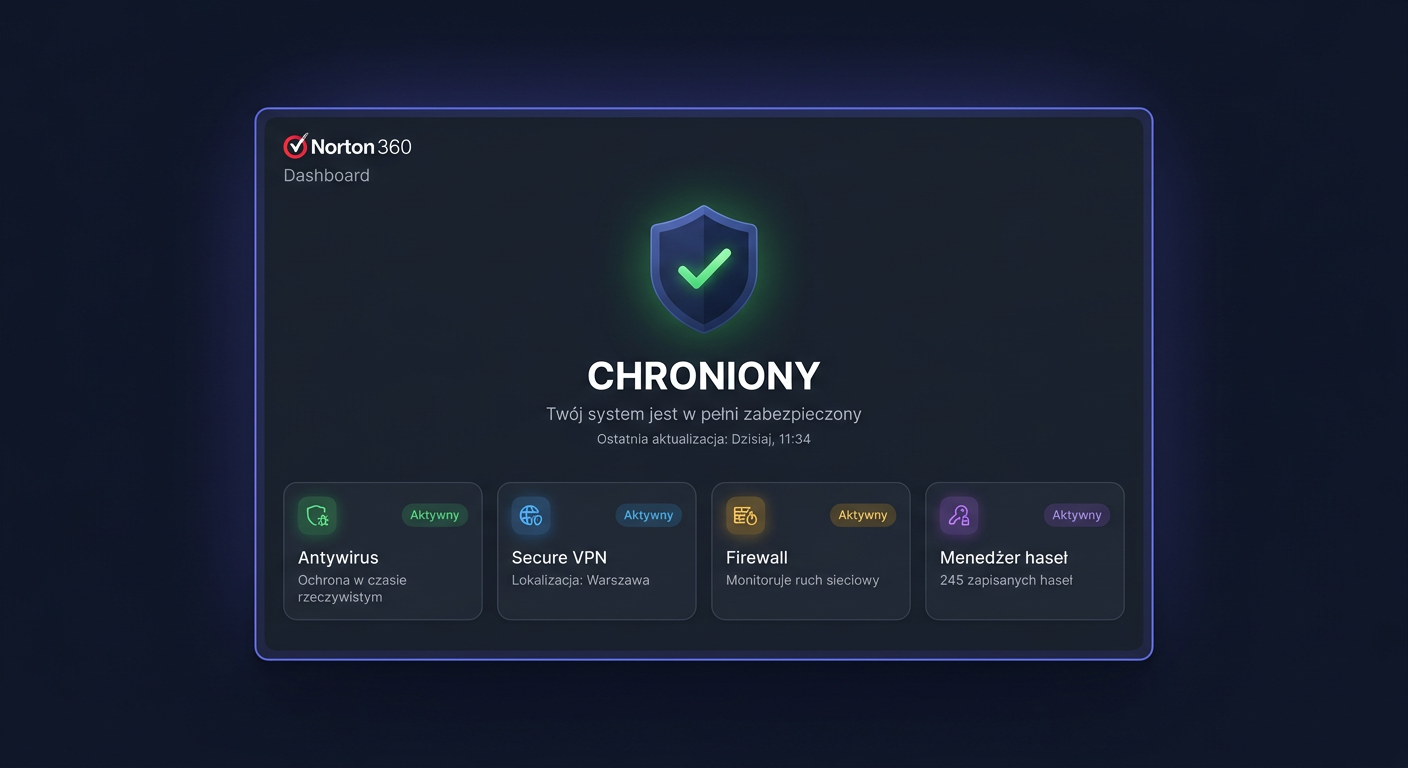
Activating Norton 360 Advanced 10 Devices
Norton 360 Advanced 10 devices is activated by assigning a valid product key to a Norton account and then linking the license to the device. This guide only covers activation, status verification, and troubleshooting activation issues. It does not describe the program installation.
Preparing for Activation
Before starting the activation, ensure you have:
- A 25-character Norton product key
- Access to a Norton account or the ability to create one
- A stable internet connection
- Administrator privileges in the system
- Correctly set system date and time
The
Norton 360 Advanced 10 deviceslicense is assigned to a Norton account. This means that later management of protection, transferring it to another device, and reactivation after hardware changes are done from the account level.
Activating with a Product Key
Method 1: Activation through the Norton Interface
This is the simplest and most commonly used method.
- Open the Norton application.
- Log in to your Norton account if the program prompts you to do so.
- Go to the activation or subscription section.
- Choose the option to add or enter a product key.
- Enter the key exactly as it was provided.
- Confirm the activation.
- Wait for the license to synchronize with your account.
After successful activation, the program should display the status of an active subscription and information about the remaining protection period.
Method 2: Activation through the my.norton.com Website
If you want to activate the license directly on your account, use the manufacturer's panel.
- Go to
my.norton.com. - Log in to your Norton account.
- Find the option to add a product key.
- Enter the key and confirm.
- After assigning the license to your account, go to device management.
- Select the device on which the license should be active.
This method is particularly useful when the local application does not accept the key or when you want to first verify the license validity at the account level.
Method 3: Activation Using the Command Line
Norton does not provide a standard, public equivalent of key activation using commands such as those for Windows or Office. In practice, product activation is done through the Norton application or the manufacturer's portal, i.e., my.norton.com.
If someone expects activation through CMD, it's worth distinguishing two stages:
- Local launch of the program with administrator privileges
- Actual license activation on the Norton account and manufacturer's servers
For antivirus products, activation is done through the manufacturer's website, similar to other solutions of this type, e.g., my.norton.com or central.bitdefender.com.
Method 4: Telephone Activation
If online activation fails, you can use Norton's telephone assistance.
00 800 121 1654
When contacting, prepare:
- The product key
- The email address of your Norton account
- The product name:
Norton 360 Advanced 10 devices - A description of the error or activation message
- Information on whether the license has been used before
Telephone activation usually ends with verification of the key, account, and assigned devices. In some cases, the consultant may recommend removing the old assignment and reactivating.
Activation Verification
The Norton activation status is best verified within the program itself and on the my.norton.com account.
Check:
- if the subscription is marked as active
- if the correct product name is visible
- if the device is listed among the protected devices
- if the number of available seats matches the purchased license
Unlike Microsoft systems, there are no universal, official commands like CMD to check the activation status of Norton products. For comparison, other products use the following verification commands:
cscript ospp.vbs /dstatus
slmgr.vbs /xpr
slmgr.vbs /dlv
The above commands are used to verify the activation of Office and Windows, but they are not commands for Norton. For Norton, the correct verification is to check the status in the application and on the manufacturer's account.
Resolving Activation Issues
Below are the most common, real activation issues that may occur during the activation of security software or during license validation.
1. The Key Has Already Been Used
Symptom: a message stating that the code is already assigned to another account or has been used before.
Possible causes:
- the key was activated on a different email address
- the seller provided an incorrect or used code
- the license was previously associated with another device
What to do:
- log in to all used Norton accounts and check subscriptions
- remove the old device from the account if the license is occupied
- contact support at
00 800 121 1654
2. Invalid Key Error
Typical symptom: the key is not recognized or the system rejects it immediately.
Check:
- if all characters were entered correctly
- if
0was not confused withOand1withI - if the key is for the exact product
Norton 360 Advanced 10 devices - if the license sales region matches the user's account
3. Activation Server Connection Error
Typical codes and equivalents of licensing problems encountered during online activation:
0x80072EE7– DNS problem or no access to the server0x80072EFD– no internet connection or firewall block0x80070005– lack of appropriate permissions0xC004F074– no contact with the activation service0xC004C008– key exceeded the activation limit0xC004F050– invalid or unsupported key
Although some of these codes come from the Microsoft activation ecosystem, they often correspond to real classes of problems encountered in the activation of security products: lack of connectivity, authorization denial, exceeded limit, incorrect key, or lack of permissions.
4. Activation Does Not Complete Despite a Valid Key
Possible causes:
- problem with Norton account synchronization
- damaged application profile
- conflict with a previous subscription
- delay on the license server side
What to do:
- log out and log back in to the application
- check activation directly on
my.norton.com - run the program as an administrator
- wait a few minutes and try again
5. License Active on Account, but Device Not Protected
This usually means that the subscription has been assigned to the account, but has not yet been properly linked to a specific device.
Solution:
- open
my.norton.comaccount - go to the device list
- remove the old assignment
- log in to the Norton application on this device again
- confirm activation on the correct workstation
What to Do When the Key Does Not Work
If the key does not work, perform the actions in this order:
- Check if you are entering the key for the correct product.
- Verify that the key has not been assigned to another account.
- Make sure there is no typo.
- Check the activation status on
my.norton.com. - Contact the seller and ask for confirmation of the license origin.
- If the problem persists, call
00 800 121 1654.
Most importantly: do not try to activate the same key multiple times on different accounts, as this may hinder later verification by support.
Reactivation after hardware change
After replacing a disk, motherboard, or the entire computer, activation may require reassigning the device.
Procedure:
- Log in to
my.norton.com. - Open the subscription and device management section.
- Remove the old device if it still occupies a license spot.
- Log in to the Norton application on the new or modified hardware.
- Reassign protection to this device.
If the system still treats the computer as a new, unauthorised device and blocks activation, contact Norton support at 00 800 121 1654.
Summary
Activation of Norton 360 Advanced 10 devices is primarily done through the Norton application or the my.norton.com account. Verification is performed in the programme panel and on the user's account, as Norton does not provide standard CMD commands to check activation, such as slmgr.vbs or ospp.vbs. If the key does not work, the license is occupied, or protection does not return automatically after a hardware change, the quickest way to resolve the issue is Norton's phone support: 00 800 121 1654.
Where to buy the original key
Need a legal key? Check the offers at kluczesoft.pl:
All keys are brand new, delivered electronically with a VAT invoice.