
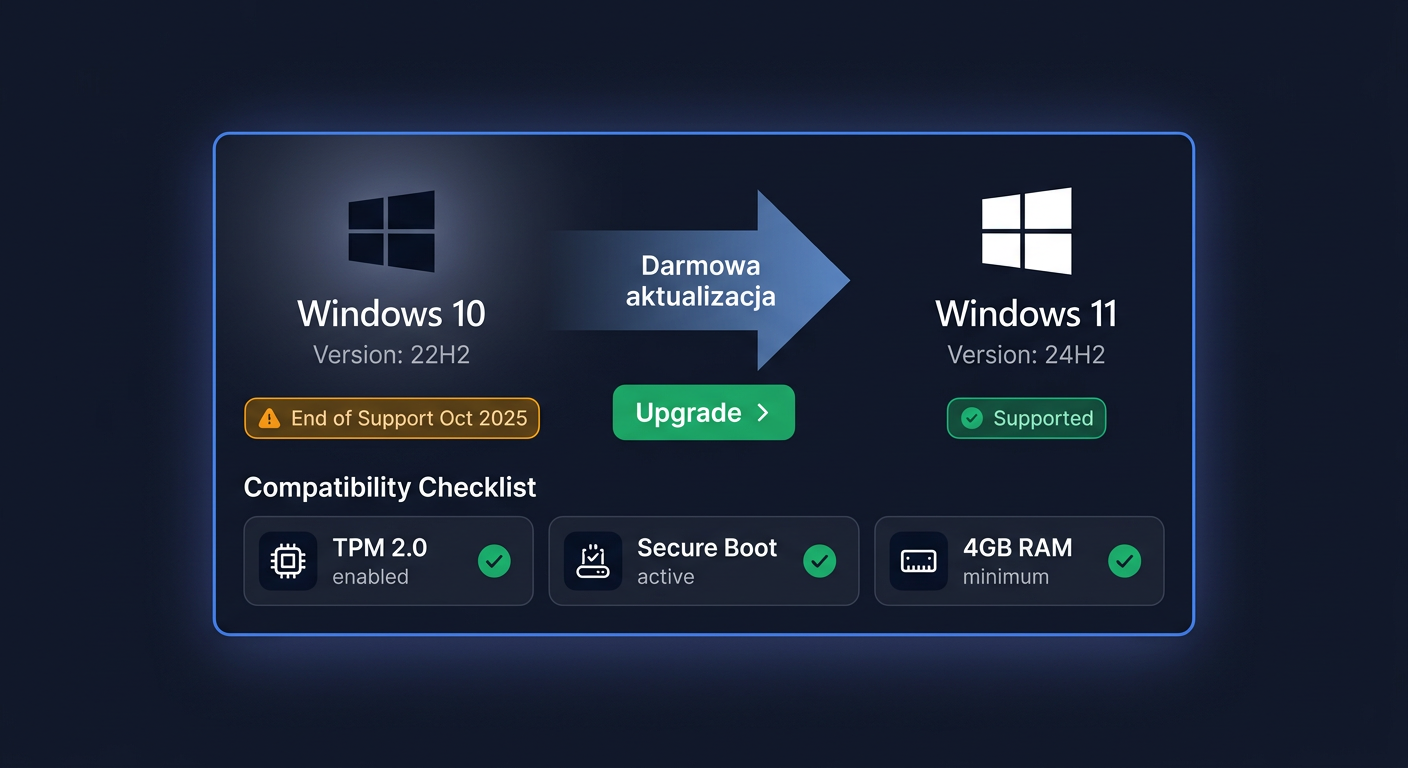
Activating Windows 10 Enterprise
Activating the Microsoft Windows 10 Enterprise system involves assigning a valid product key to the installed system and confirming the license on Microsoft servers. This guide is exclusively about activation, not system installation. Below, you will find all the most important methods: through the graphical interface, command line, phone, and ways to check the activation status and resolve the most common errors.
Activating with a Product Key in the Graphical Interface
This is the simplest method for most users.
- Open Start.
- Go to Settings.
- Proceed to Update and Security.
- Select Activation.
- Click Change product key.
- Enter the purchased key for Windows 10 Enterprise.
- Confirm and wait for the activation success message.
If the system has an internet connection, Windows will attempt to activate automatically. After successful completion, in the activation section, a message should appear stating that the Windows system has been activated.
Activating Windows 10 Enterprise via CMD
This method is useful when you want to perform activation manually or the graphical interface is not working properly.
Run Command Prompt as Administrator, and then enter the following commands:
slmgr.vbs /ipk XXXXX-XXXXX-XXXXX-XXXXX-XXXXX
slmgr.vbs /ato
Meaning of the commands:
slmgr.vbs /ipkinstalls a new product keyslmgr.vbs /atoforces an online activation attempt
After each command, the system will display a separate window with confirmation or an error code. If a successful activation message appears, the system has been activated correctly.
Telephone Activation
If online activation fails, you can use Microsoft's telephone activation.
Phone number: 00 800 121 1654
Typical process:
- Open the Run window with the shortcut
Win + R. - Enter:
slui 4
- Choose your country or region.
- Call 00 800 121 1654.
- Provide the installation ID displayed on the screen.
- Enter the received confirmation ID.
- Complete the activation process.
The telephone method is particularly useful after significant hardware changes or when the activation server rejects automatic online activation.
Verifying Activation
After activation, it's worth checking if the system has indeed been activated and what its licensing status is.
Use the exact commands:
slmgr.vbs /xpr
slmgr.vbs /dlv
What they show:
slmgr.vbs /xprinforms whether the system is permanently activated and if the activation expiresslmgr.vbs /dlvdisplays detailed license data, including the activation channel, partial product key, and licensing status
These are the basic and most important control commands for Windows 10 Enterprise. If you need further assistance, please contact us at kontakt@kluczesoft.pl or call 00 800 121 1654.
Troubleshooting Activation Issues
Below are real activation errors that most frequently occur in Windows.
Error 0xC004F050
Most often means that the entered product key is incorrect or does not match the system edition. Example: a key for a different version of Windows than Enterprise.
Error 0xC004C003
The activation server rejected the key. This may mean a blocked, revoked, or already misused key.
Error 0xC004F074
The system cannot contact the activation service. Often concerns corporate environments or network connection issues.
Error 0x803FA067
Usually occurs when you try to activate the wrong system edition or the system has not been properly switched to Windows 10 Enterprise.
Error 0xC004E016
The key does not work for this specific system version. The problem arises from license channel or edition inconsistency.
Error 0x8007232B
Windows cannot find the appropriate activation server. Often encountered in organizational configurations or after incorrect DNS configuration.
Error 0xC004FC03
Activation cannot be completed due to a network connection problem or firewall.
If any of these errors occur, start by checking:
- if the key is entered without typos
- if the system is indeed Windows 10 Enterprise
- if the computer has a stable internet connection
- if the system date and time are set correctly
- if there have been any significant hardware changes
What to Do When a Key Does Not Work
If the key does not activate the system:
- Check if it applies exactly to Windows 10 Enterprise.
- Enter it again through the GUI or with the command:
slmgr.vbs /ipk XXXXX-XXXXX-XXXXX-XXXXX-XXXXX
- Perform online activation:
slmgr.vbs /ato
- Verify the status:
slmgr.vbs /xpr
slmgr.vbs /dlv
- If activation still fails, use phone activation through
slui 4and the number 00 800 121 1654. - If the problem persists, contact the seller and prepare:
- the full error message
- the activation error code
- a screenshot of the activation window
- the result of the command
slmgr.vbs /dlv
Reactivation After Hardware Change
After replacing the motherboard, disk, or major computer upgrade, the system may consider the device new and request reactivation.
In such a situation:
- Try to reactivate the system online again.
- If it does not work, enter the key again:
slmgr.vbs /ipk XXXXX-XXXXX-XXXXX-XXXXX-XXXXX
slmgr.vbs /ato
- Check the status with the commands
slmgr.vbs /xprandslmgr.vbs /dlv. - If online activation is rejected, proceed to phone activation through:
slui 4
and call 00 800 121 1654.
Brief Clarification for Other Microsoft Products and Licenses
- Microsoft Office: activation usually occurs through
ospp.vbs /inpkey, thenospp.vbs /act, and verification throughospp.vbs /dstatus. - Windows Server: most often uses
slmgr.vbs /ipk, thenslmgr.vbs /ato. - Visual Studio: activation with a key goes through Help > Register Product > Unlock with Product Key.
- Antivirus programs: usually activated on the manufacturer's website, e.g.,
my.norton.comorcentral.bitdefender.com. - CAL: CAL licenses are not activated with a key. CAL is a licensing document confirming legal access rights.
For any further assistance, please contact us at kontakt@kluczesoft.pl or call 00 800 121 1654.
Summary
Activation of Windows 10 Enterprise should always be confirmed by the system and verified by the commands slmgr.vbs /xpr and slmgr.vbs /dlv. If online activation does not work, use phone activation via slui 4 and the number 00 800 121 1654. In case of problems, it is crucial to check the system edition compatibility, key correctness, and the exact error code.
Where to buy the original key
Need a legal key? Check the offers at kluczesoft.pl:
All keys are brand new, delivered electronically with a VAT invoice.