
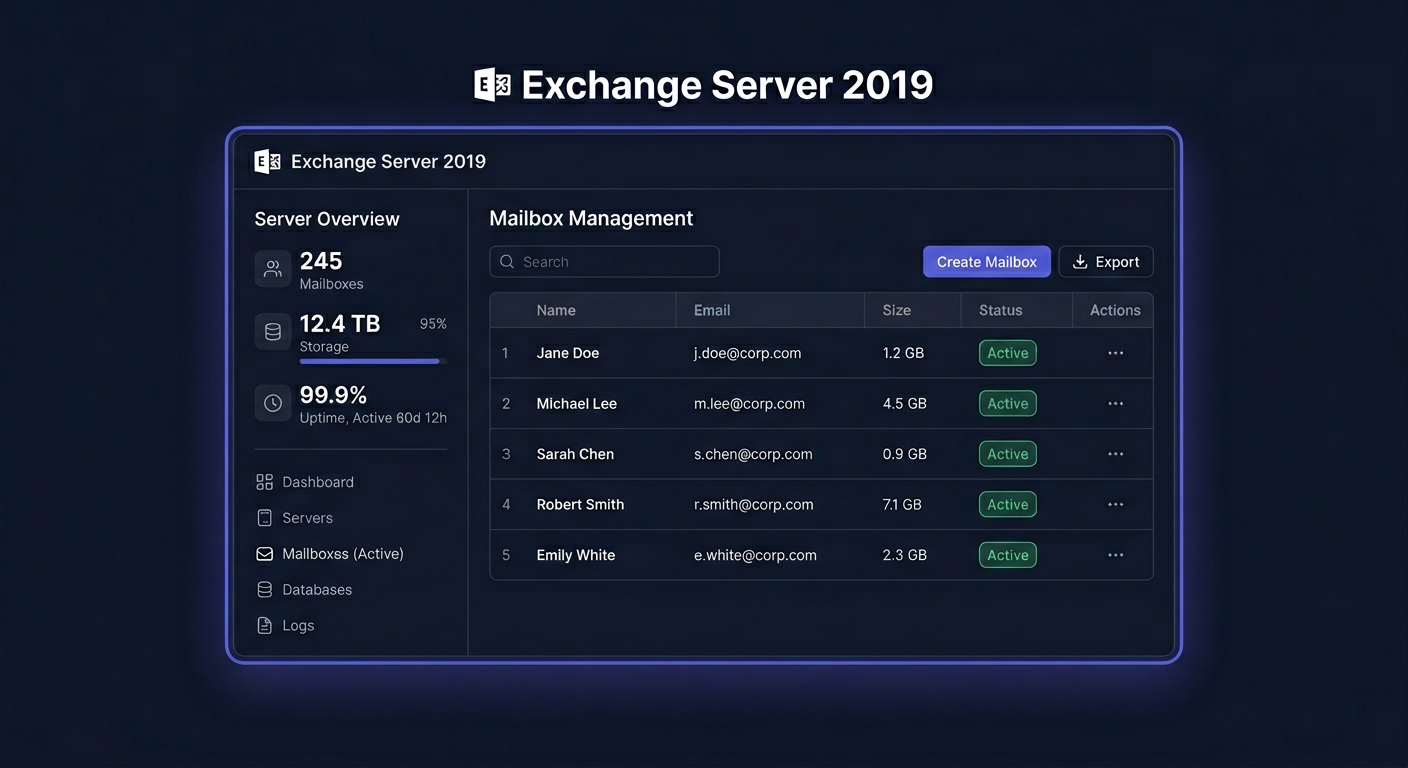
Activating Exchange Server 2019 Enterprise 1 Device CAL
To activate Exchange Server 2019 Enterprise 1 Device CAL, follow these steps:
- Ensure you have a valid licence key for Exchange Server 2019 Enterprise.
- Install Exchange Server 2019 Enterprise on your server.
- Open the Exchange Administration Center and navigate to the
licensingsection.
Note: You can also use the
Exchange Management Shellto activate the licence.
Set-ExchangeServer -Identity <ServerName> -ProductKey <licence_key>
Replace <ServerName> with the name of your server and <licence_key> with your actual licence key.
- Once the licence is activated, you can assign the 1 Device CAL to a device.
- For more information on activating and assigning Device CALs, refer to the Microsoft documentation.
If you encounter any issues during the activation process, please contact our support team at kontakt@kluczesoft.pl or call us on 00 800 121 1654. We will be happy to assist you with the activation of your Exchange Server 2019 Enterprise 1 Device CAL.
Activation of Exchange Server 2019 Enterprise 1 Device CAL
The Exchange Server 2019 Enterprise 1 Device CAL licence refers to access to the Exchange server features assigned to a specific device, not a user. This means that one designated device can use Exchange services in accordance with the scope of permissions resulting from the licence held. In practice, having a CAL does not mean installing a separate key on the workstation. The most important things are: proper licensing documentation, proper assignment of the method of use, and proper configuration of the environment, most often based on accounts and groups in Active Directory.
In the Exchange Server 2019 environment, CAL licences are settled organisationally and administratively. The administrator should ensure that the number of devices using the functions covered by the licence is consistent with the purchased number of Device CALs. In the case of the Enterprise CAL variant, it should also be remembered that it is a functional extension and, in practice, using Enterprise CAL permissions usually assumes a corresponding licensing basis consistent with Microsoft's rules for Exchange. From an operational perspective, CAL activation therefore mainly involves organising documentation, assigning devices to relevant internal policies, and preparing order in AD.
Step by Step
-
Verify licence documents
Prepare the invoice, purchase confirmation, product name, and the number of purchased licences. In internal documentation, it's worth recording the full name, e.g. Exchange Server 2019 Enterprise Device CAL, purchase date, supplier, and information on which organisation and environment the licence was assigned to. -
Determine which device will use the licence
Device CAL is assigned to a device, not a person. Good practice is to record the computer name, inventory number, hardware owner, location, and licence assignment date. This makes it easier to demonstrate compliance during an audit. -
Check the scope of Exchange usage
If the device is to use functions requiring the Enterprise CAL level, it's necessary to confirm that the planned usage actually requires this. An internal administrative note should describe why a given workstation or device was covered by this licensing scope. -
Add an object or auxiliary group in Active Directory
The CAL itself is not "installed" in AD, but in practice, it's worth reflecting the licence assignment in the directory structure. Most often, a security group is created, e.g.Exchange_Enterprise_Device_CAL, and computer accounts corresponding to licensed devices are maintained in it. This organises administration and facilitates reporting. -
Add the device to the appropriate group in AD
In the Active Directory Users and Computers console, find the computer account and add it to the prepared licensing group. If the organisation has change approval procedures, add the request number or a log entry. -
Update operational documentation
After assigning the licence, note: device name, date added to the group, administrator making the change, and licensing basis. It's worth storing these data in a licence register or ITSM system. -
Verify compliance with company policy
If a device is being replaced or withdrawn from use, the Device CAL assignment should be updated accordingly. Remove the old computer from the group and record the licence transfer in accordance with the organisation's rules and licensing conditions.
Verification
After making changes, check if the computer account is actually in the appropriate AD group. This can be verified in Active Directory Users and Computers, in the object membership tab, or using a PowerShell command, e.g. by reading group membership and computer lists.
It's also worth comparing three elements:
- the number of purchased Device CALs,
- the number of devices entered into the licence register,
- the number of computers in the AD group corresponding to the licence.
If these values are consistent, the administrative part of activation has been performed correctly. Additionally, it's a good idea to store a copy of purchase documents in one place, accessible to administrators and persons responsible for licence compliance.
Problems
The most common problem is the confusion between Device CAL and User CAL. If multiple people use a shared device to access email, a Device CAL may be the right choice. However, if one user accesses email from multiple devices, the User CAL model often works better.
Another common mistake is assuming that a CAL is activated with a key in the Exchange Server itself. In practice, CAL access licenses are not usually activated as a separate installation component on the client computer. What is crucial is the legal acquisition of licenses and proper assignment and documentation of their use.
Disorganisation in AD can also be a problem. Adding computer accounts to a dedicated group is not a formal "activation mechanism" from Microsoft, but it is a very good administrative practice. Without this, it can be difficult to later demonstrate which devices have been licensed.
In audit-organised environments, it is worth implementing a periodic review of licensing groups. This allows for the detection of inactive computers, devices withdrawn from use, or discrepancies between the actual state and the records in the license register.
FAQ
Does Exchange Server 2019 Enterprise 1 Device CAL install on a computer?
No, not in the classical sense. This is a device access license assigned to a device. The most important things are the purchase document, assignment to specific hardware, and internal records.
Do I need to add the license to Active Directory?
No, as a separate Microsoft license object. However, as an administrative practice, it is worth creating a group in AD and adding computer accounts covered by the license to it, in order to maintain order and be able to easily demonstrate assignment.
What to do when replacing a computer?
You should update the records, remove the old device from the AD group, and assign the license to the new hardware in accordance with the organisation's rules and the licensing conditions applicable to the specific purchase.
If you need to prepare a procedure for a specific environment, describe it for an audit, or get support for organising Exchange licenses, please contact us: kontakt@kluczesoft.pl. You can also call us at 00 800 121 1654.
Where to buy the original key
Need a legal key? Check the offers at kluczesoft.pl:
All keys are brand new, delivered electronically with a VAT invoice.