
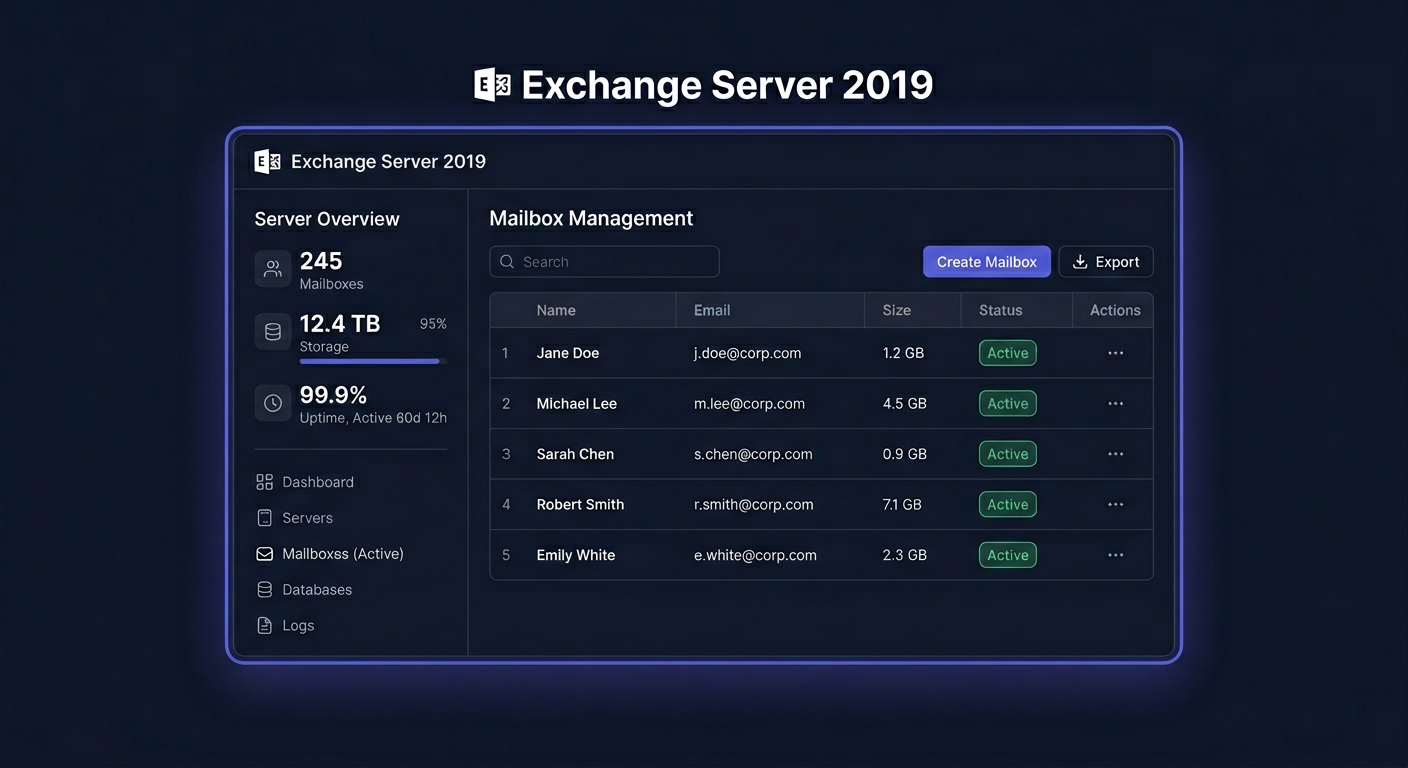
Activating Exchange Server 2019 Standard 1 User CAL
To activate Exchange Server 2019 Standard 1 User CAL, follow these steps:
- Ensure you have a valid licence key for Exchange Server 2019 Standard.
- Install Exchange Server 2019 Standard on your server.
- Once the installation is complete, open the Exchange Management Shell.
Set-ClientAccessServer -Identity <ServerName> -ClientAccessServerEnabled $true
Replace <ServerName> with the name of your server.
Note: Make sure your server is properly configured and connected to the internet to activate the product.
- To activate the product, run the following command in the Exchange Management Shell:
Install-ExchangeCertificate -Services SMTP -KeySize 2048 -DomainName <DomainName> -FriendlyName <FriendlyName> -PrivateKeyExportable $true
Replace <DomainName> with your domain name and <FriendlyName> with a friendly name for the certificate.
- After installing the certificate, you can activate the 1 User CAL.
- If you encounter any issues during activation, contact our support team at
kontakt@kluczesoft.plor call us at00 800 121 1654for assistance.
Remember to always use genuine Microsoft products and follow the activation guidelines to avoid any issues with your licence.
Activating Exchange Server 2019 Standard 1 User CAL
Activating Exchange Server 2019 Standard 1 User CAL is a crucial step in properly licensing your company's email environment. In practice, the CAL Standard per user license is not installed as a separate component in the Exchange console, but rather represents a licensing entitlement assigned to a specific user using the server. This means that on the technical side, you configure and launch the Exchange Server 2019 Standard itself, and then ensure that each person using the server's services has the appropriate User CAL license.
The per user model is particularly useful when one person uses company email on multiple devices, such as a computer, laptop, and phone. One CAL license assigned to the user then covers access from multiple devices. This solution is convenient organisationally and often more cost-effective than licensing per device.
Step by Step
1. Verify what has been purchased
Before starting, make sure you have:
- a Exchange Server 2019 Standard license for the server,
- the appropriate number of Exchange Server 2019 Standard User CAL licenses,
- purchase data or a document confirming licensing.
It's worth remembering that CAL does not replace the server license. The Exchange server must be licensed separately, and CAL licenses cover the users who use it.
2. Install and activate the Exchange 2019 server
First, install Windows Server, the required components, and Exchange Server 2019 Standard itself. During deployment, activation primarily concerns the server product. CAL licenses do not require a separate "key entry" for each user in the Exchange panel.
If the server has already been deployed, check if it's working correctly:
- Exchange services are running,
- users can log in to their mailboxes,
- email works internally and externally according to the configuration.
3. Assign the CAL license to the user
In the 1 User CAL model, the license is assigned to a specific person, not to a workstation or device. This means that:
- one employee = one CAL license,
- the same employee can use multiple devices,
- multiple employees using one computer require separate CAL licenses for each of them.
The assignment has an organisational and licensing character, so it's necessary to keep an internal record of who uses the server and who has been assigned a license.
4. Document the assignment
Good practice is to prepare a simple register that includes:
- the user's first and last name,
- email address or login,
- the date of license assignment,
- the type of license: Exchange Server 2019 Standard User CAL,
- the purchase document or order number.
Such documentation is very helpful during audits, environment expansion, or personnel changes.
5. Verify the scope of Standard CAL features
Standard CAL provides access to basic Exchange features, such as:
- email support,
- calendars,
- contacts,
- Outlook on the Web,
- shared basic Exchange communication features.
If the environment is to use features that require a higher level of licensing, it's necessary to check if an additional Enterprise CAL license will be needed. In a typical office scenario, however, Standard User CAL is sufficient.
Checking
From a technical standpoint, you will not usually see a separate screen confirming the "activation" of a specific CAL license for one person. Instead, you should check three areas.
First, the Exchange 2019 server should be properly installed and active. Second, the user should have a created mailbox and be able to use the mail services. Third, the licensing documentation should clearly indicate that the person has a assigned Standard User CAL.
The simplest check looks like this:
- the user logs in to the mailbox without problems,
- the mail works correctly,
- in the license records, the user is marked as covered by the CAL license.
Problems
The most common error is assuming that the CAL is technically activated with a separate key. In most cases, this is not true. The CAL license is a user access right that must be properly assigned and documented.
Another problem is confusing the User CAL model with the Device CAL. If the license was purchased per user, it covers one person using multiple devices. It should not be treated as a license for a computer.
Another difficulty is having too few CALs compared to the number of users. If more people use Exchange than the number of licenses owned, the environment may work technically, but it will not be properly licensed.
Problems also arise with personnel changes. When an employee leaves and a new one takes over their duties, it's worth noting in the documentation the moment of termination of assignment and re-assignment of the license, in accordance with the company's policy and licensing terms.
If you need help with selecting or verifying licenses, write to kontakt@kluczesoft.pl.
FAQ
Does Exchange Server 2019 Standard 1 User CAL install on the server?
No, not as a separate module for a specific user. Technically, you install and activate the Exchange server, and assign the CAL license to the user in the licensing documentation.
Does one User CAL license cover multiple devices?
Yes. If it's a CAL per user, one person can use Exchange on multiple devices, such as a computer, laptop, and phone.
Can a user use Exchange without CAL?
Technically, the environment may work, but from a licensing point of view, every user using Exchange should have a corresponding CAL license. Lack of CAL means incorrect licensing.
In case of doubts regarding the activation and assignment of Exchange Server 2019 Standard 1 User CAL licenses, please contact us: kontakt@kluczesoft.pl or call 00 800 121 1654.
Where to buy the original key
Need a legal key? Check the offers at kluczesoft.pl:
All keys are brand new, delivered electronically with a VAT invoice.