
Activating SQL Server 2019 Standard 10 Device CAL
To activate SQL Server 2019 Standard 10 Device CAL, follow these steps:
- Ensure you have a valid licence key for SQL Server 2019 Standard.
- Install SQL Server 2019 Standard on your server.
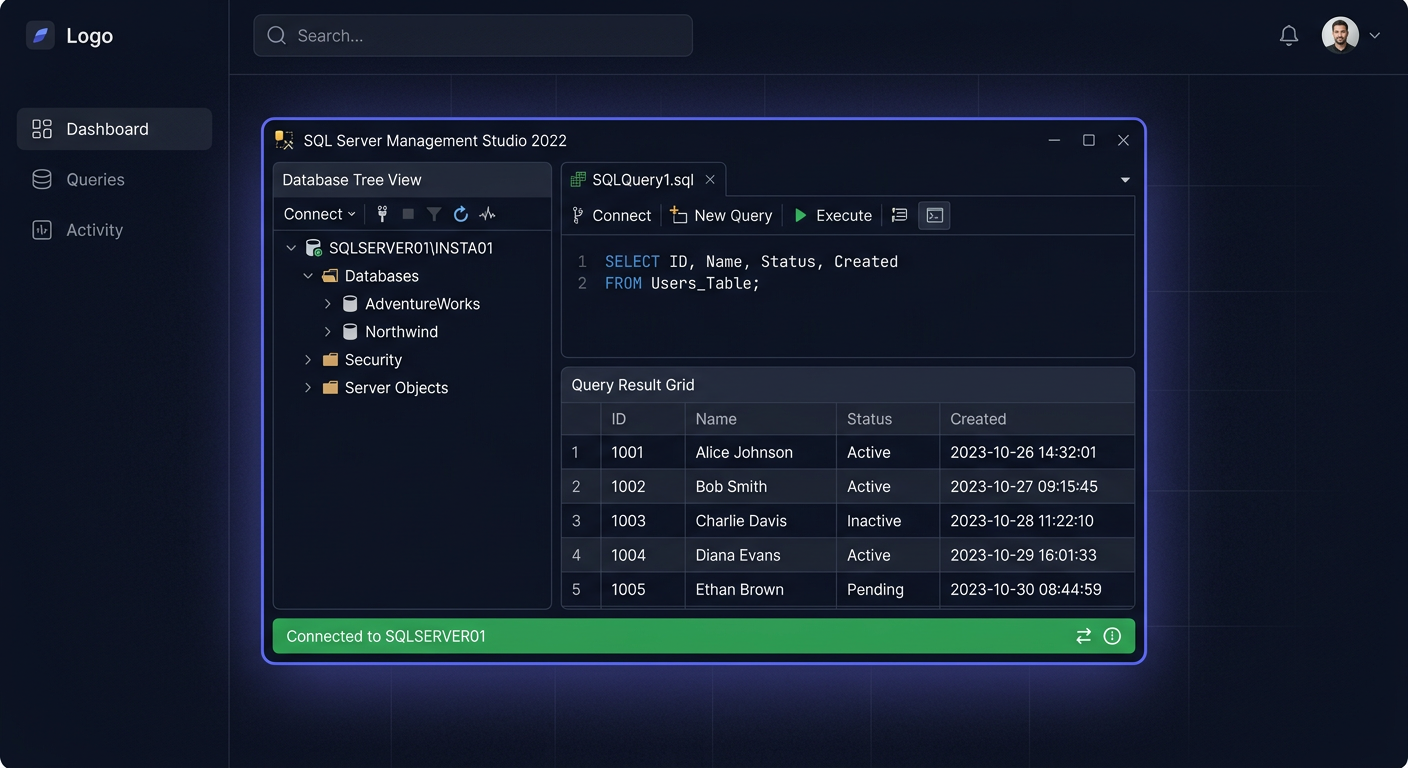
- Once the installation is complete, open the SQL Server Management Studio.
You can find SQL Server Management Studio in the Start menu, or by searching for it in Windows.
Activation Steps
- Launch Command Prompt as an administrator.
- Navigate to the directory where SQL Server is installed, typically
C:\Program Files\Microsoft SQL Server\110\Tools\Binn. - Run the following command to activate SQL Server:
sqlservr -m -T5099
- Open a new Command Prompt window and navigate to the same directory.
- Run the following command to specify the licence key:
sqlservr -m -T5099 -k <licence_key>
Replace <licence_key> with your actual SQL Server 2019 Standard licence key.
Troubleshooting
If you encounter any issues during activation, ensure that:
- Your Windows and Office installations are genuine and up-to-date.
- You have the latest updates for SQL Server 2019 Standard installed.
- Your system meets the minimum requirements for SQL Server 2019 Standard.
Contact Support
For further assistance or to report any issues, please contact our support team at kontakt@kluczesoft.pl or call us on 00 800 121 1654. Our team will be happy to help you with the activation process or any other queries you may have regarding KluczeSoft products.
Activation of SQL Server 2019 Standard 10 Device CAL
SQL Server 2019 Standard in the Server + CAL licensing model requires not only a server licence, but also an appropriate number of CAL access licences. In the case of the 10 Device CAL variant, permissions are assigned to 10 specific devices, from which users can connect to the SQL Server. This solution works well where several people use one computer, for example in offices, sales points, warehouses, or shift environments.
In practice, the activation and deployment of SQL Server 2019 Standard with the 10 Device CAL package involves the correct installation of the server, activation of the software itself in accordance with the provided key, and maintaining licence order on the part of devices that will be accessing the database. It is worth remembering that CAL licences are not usually "introduced" into the SQL Server console in the form of a separate technical activation. Their significance concerns primarily licence compliance and access rights.
Step by Step
1. Prepare Licensing Data and Installation Media
Before starting the installation, prepare:
- the product key for SQL Server 2019 Standard,
- the ISO file or installer,
- the server data on which the system is to be run,
- a list of devices that are to use access in the 10 Device CAL model.
If the software was purchased in an electronic version, keep the message with the key and the purchase confirmation document. This is important for later license verification.
2. Run the SQL Server 2019 Installer
Log in to the server with an administrator account and run the SQL Server 2019 installer. Then select:
- New SQL Server stand-alone installation or the appropriate new installation option,
- the Standard edition,
- enter the product key if the installer asks for it.
In the next steps, accept the license terms and go through the standard process of installing components.
3. Select Components and Configure the Instance
During installation, indicate the functions that are actually needed. Most often these are:
- Database Engine Services,
- possibly administrative tools if the environment requires them.
Then configure:
- the instance name,
- service accounts,
- authentication mode,
- the
saaccount password if you are using mixed mode.
At this stage, do not activate the 10 Device CAL package separately in the SQL Server interface. CAL licenses are an element of the right to use the server by specific devices.
4. Complete the Installation and Run Services
After completing the installation, check if the SQL Server service has been started correctly. If necessary, restart the server or the SQL services themselves. Then connect to the instance using SQL Server Management Studio and make sure the database responds correctly.
5. Assign Licenses to Devices
In the Device CAL model, the license is assigned to the device, not to a specific user. This means that:
- one licensed device can be used by multiple people,
- each device connecting to SQL Server must be covered by a CAL license,
- the 10 Device CAL package covers a maximum of 10 devices.
Good practice is to keep an internal record that includes:
- device name,
- user or department,
- assignment date,
- information about the purchased license.
6. Keep Documentation
After deployment, store:
- the product key,
- the invoice or proof of purchase,
- version confirmation,
- a list of 10 devices covered by the CAL license.
In the event of a license audit, this documentation confirms the correct use of the SQL Server 2019 CAL 10 devices package.
Verification
After completing the installation, it's worth performing a brief check:
- check in SQL Server Management Studio if the server is working and accepting connections,
- confirm that licensed devices can connect to the instance,
- ensure that the counted number of devices does not exceed 10,
- verify that the installed edition is SQL Server 2019 Standard,
- organize license documents and CAL assignment to devices.
If you want to check the server version, you can execute a query:
SELECT @@VERSION;
This will confirm that the environment is running on the correct version of SQL Server 2019.
If you have any questions or concerns, please contact us at kontakt@kluczesoft.pl or call 00 800 121 1654.
Problems
The most common problem is the incorrect understanding of CAL licenses. Many administrators look for a place in the system where they can "add" 10 Device CALs. In the case of SQL Server, there is usually no separate activation screen for CAL, as these are organisational access licenses, not technical ones.
Another common mistake is confusing User CAL and Device CAL models. If licenses were purchased as Device CAL, they are assigned to devices. They should not be treated as user licenses.
Problems can also arise from incorrect product editing. If a different edition than the one purchased was installed on the server, it is necessary to verify the key, installation media, and deployment scenario. It is also worth checking if all devices using the database have been included in the internal inventory.
If you have any doubts regarding license compliance or activation of SQL Server 2019 Standard, please contact us: kontakt@kluczesoft.pl or call 00 800 121 1654.
FAQ
Do I need to activate SQL Server 2019 CAL 10 devices separately?
There is usually no separate technical activation for CAL in the SQL Server panel. The server edition itself is subject to activation, while Device CAL licenses confirm the right of access for the specified devices.
What is the difference between Device CAL and User CAL?
Device CAL is assigned to a device, which can be used by multiple people. User CAL is assigned to a specific user, who can connect from different devices. In the 10 Device CAL package, you license a maximum of 10 devices.
What to do if the number of devices exceeds 10?
In such a situation, you should purchase additional CAL licenses so that each device with access to SQL Server is covered by the correct license. Exceeding the limit of 10 devices means a lack of full license compliance.
Where to buy the original key
Need a legal key? Check the offers at kluczesoft.pl:
All keys are brand new, delivered electronically with a VAT invoice.