
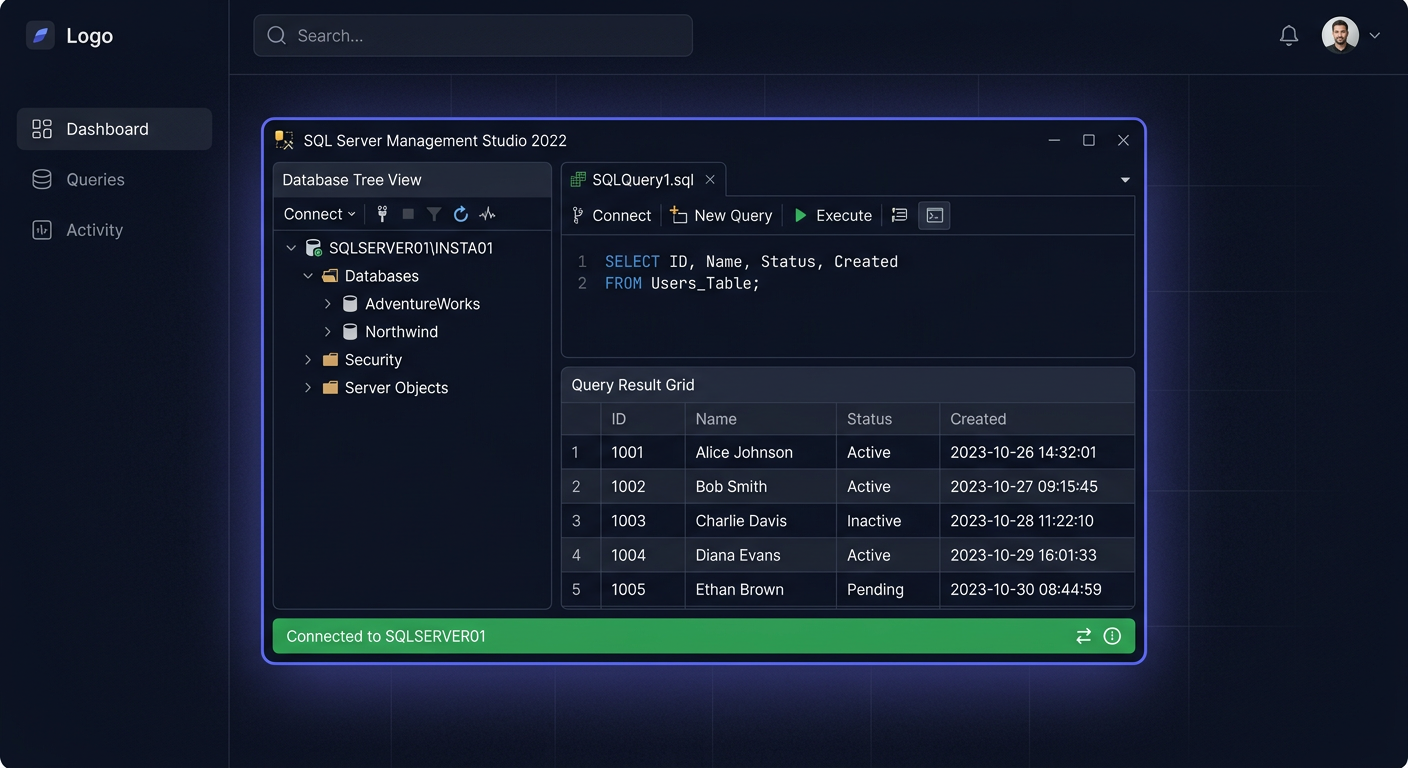
Activating SQL Server 2019 Standard 10 User CAL
To activate SQL Server 2019 Standard 10 User CAL, follow these steps:
- Ensure you have a valid licence key for SQL Server 2019 Standard 10 User CAL.
- Install SQL Server 2019 Standard on your server.
- Once the installation is complete, open the SQL Server Management Studio.
You can find the SQL Server Management Studio in the Start menu, or by searching for it in Windows.
Activation Process
To activate SQL Server 2019 Standard 10 User CAL, you will need to enter your licence key. You can do this by running the following command in the Command Prompt:
cscript.exe "C:\Program Files\Microsoft SQL Server\110\Tools\Binn\sqllspl.dll" /action=edition /productkey=<your_license_key> /noprompt
Replace <your_license_key> with your actual licence key.
Troubleshooting
If you encounter any issues during the activation process, you can contact KluczeSoft for assistance:
- Email:
kontakt@kluczesoft.pl - Phone:
00 800 121 1654
Additional Information
For more information on SQL Server 2019 Standard 10 User CAL, please refer to the Microsoft documentation.
Activation of SQL Server 2019 Standard 10 User CAL
The activation of SQL Server 2019 Standard 10 User CAL is a process that should be carried out calmly and in accordance with Microsoft's licensing rules. In practice, such a purchase means that the company uses the SQL Server 2019 Standard server, and access to it is granted to 10 named users in the User CAL model. This solution works well when specific individuals connect to the server from different devices, such as an office computer, laptop, and remote workstation.
It is worth distinguishing between two issues from the outset: the installation or activation of the server itself and the licensing compliance of CAL. In the case of SQL Server 2019, CAL licenses are not usually "entered" separately in the installation wizard, just like the product key for the server itself. Most often, the SQL Server Standard instance requires activation, while User CAL access licenses form the legal basis for using the service by a specified number of users. Therefore, proper deployment includes both server configuration and licensing documentation.
Step by Step
1. Verify what has been purchased
First, make sure you have the correct license variant, i.e.:
- SQL Server 2019 Standard
- 10 User CAL
The User CAL model means that 10 specific users are authorized, regardless of the number of devices they use. If the same individuals constantly access SQL in the environment, this is usually a more beneficial variant than Device CAL.
2. Prepare installation data and documents
Before starting the activation, it's worth gathering:
- the product key for SQL Server 2019 Standard, if provided,
- the installation media or ISO image,
- proof of license purchase,
- documentation assigning 10 users to CAL licenses.
This is important because, in the event of an audit, you must demonstrate not only that the server is operating legally but also that the number of users accessing it corresponds to the number of CALs purchased.
3. Install or activate SQL Server 2019 Standard
During the SQL Server installation, select the Standard edition and enter the product key if the installer requires it. If the server was previously installed in test or evaluation mode, it may be necessary to switch to the proper licensing edition.
At this stage, you are activating the server product itself. 10 User CAL licenses do not usually require separate "technical" activation on the server, but they must be properly purchased and organizationally assigned to users.
4. Configure user access
After installation, create or verify the user accounts that will be using the database. It's best to keep a list of authorized individuals. In the case of the 10 User CAL model, it's a good idea to have an internal summary that indicates:
- user's first and last name,
- department or position,
- date of access grant,
- system or application using SQL Server.
This is not a technical requirement of the installer, but very good administrative and licensing practice.
5. Keep license confirmations
After activation and configuration, store in a safe place:
- the purchase invoice,
- license information,
- product key,
- any correspondence confirming the purchase terms,
- the list of 10 users covered by access.
In case of support for license verification or selection of the correct variant, you can contact us: kontakt@kluczesoft.pl or call 00 800 121 1654.
Checking
After completing the deployment, it's worth checking a few elements.
Firstly, make sure that the SQL Server 2019 Standard is actually running on the server, and not a trial version or a different edition. This can be confirmed in the SQL Server administrative tools or by querying the instance, which returns information about the version and edition.
Secondly, check if the number of people with real access to the environment does not exceed 10 users. In the User CAL model, it's not about the number of simultaneous connections, but about the number of people authorized to use the server.
Thirdly, verify the documentation. If the company has assigned more than 10 users to applications using SQL Server, it may be necessary to purchase additional CALs or change the licensing model.
Problems
The most common problem is the incorrect assumption that CAL is activated with a separate key in the system. In most cases, this is not how it works. The key usually applies to the SQL Server itself, while CALs are access licenses that need to be owned and properly assigned.
Another common problem is confusing User CAL with Device CAL. If licenses are purchased for users, you should count specific people with access to the server, not computers.
The third issue is exceeding the limit of 10 users. It happens that a company initially deploys a solution for a small team, and over time, more people gain access. Then, you need to update the license status to maintain compliance.
Another problem is installing a trial version instead of the full Standard edition. In such a situation, you need to check if the instance has been properly switched to a licensed production version.
FAQ
Does SQL Server 2019 CAL 10 users mean 10 simultaneous connections?
No. 10 User CAL means authorization for 10 named users, not a limit of 10 sessions at the same time. One user can use different devices, as long as they are covered by the license.
Do I need to enter a separate key for CAL?
Mostly no. A separate key in the installer usually applies to the SQL Server 2019 Standard server. CAL licenses are the licensing basis for user access and should be documented by purchase and assignment to specific individuals.
What to do if more than 10 people use the server?
In such a situation, you need to purchase additional User CAL licenses or analyze whether a different licensing model would be more suitable. If you need help choosing the right option, write to kontakt@kluczesoft.pl or call 00 800 121 1654.
Where to buy the original key
Need a legal key? Check the offers at kluczesoft.pl:
All keys are brand new, delivered electronically with a VAT invoice.