
Activating Microsoft [Windows 11 Home](https://kluczesoft.pl/klucz-windows-11/microsoft-windows-11-home)
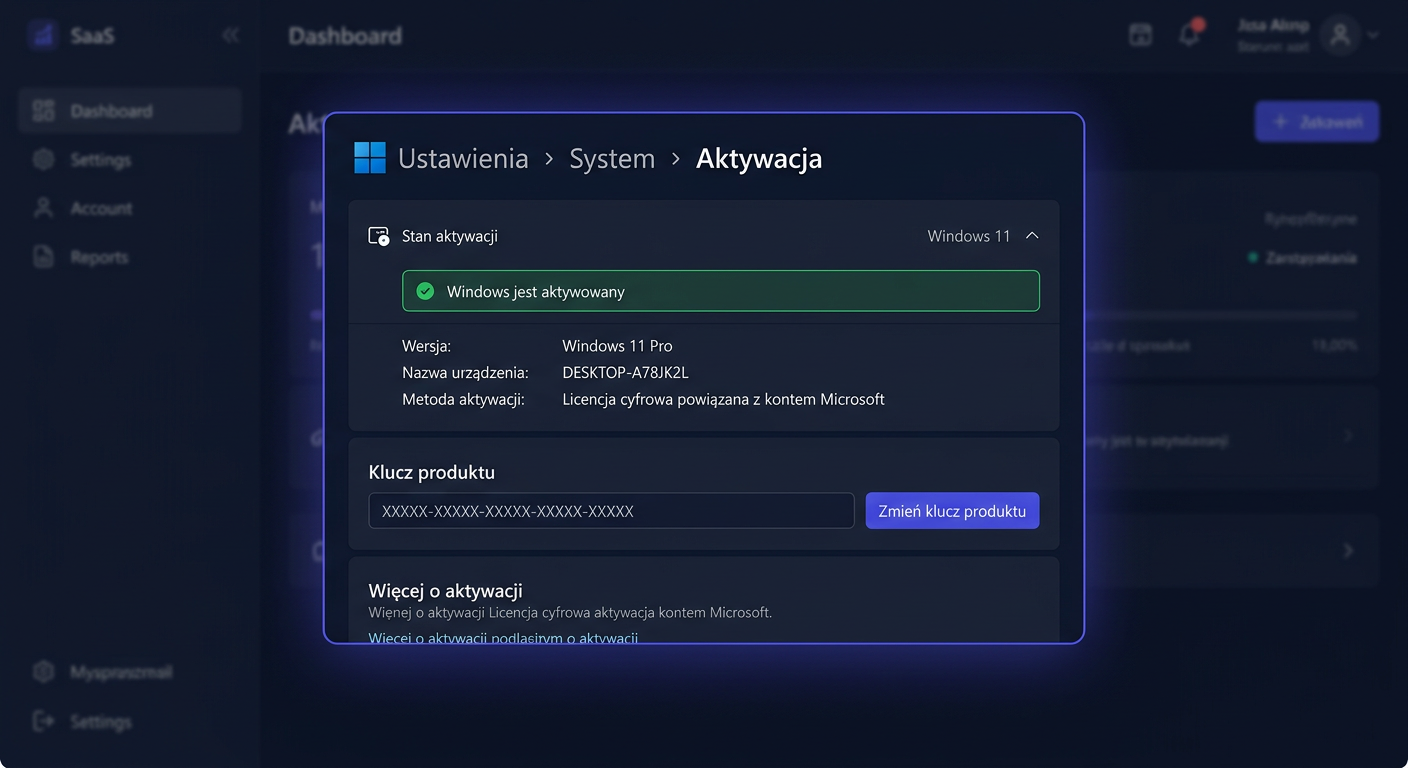
To activate Microsoft Windows 11 Home, follow these steps:
- Ensure your computer is connected to the internet.
- Click on
Startand then selectSettings. - In the Settings window, click on
Systemand then selectActivation. - If your copy of Windows 11 Home is not activated, you will see an option to activate it. Click on
Activate.
If you have a product key, enter it in the required field and follow the prompts to complete the activation process.
- If you are having trouble activating Windows 11 Home, ensure that your internet connection is stable and that you are using the correct product key.
- For further assistance with activating Microsoft Windows 11 Home, you can contact KluczeSoft at
kontakt@kluczesoft.plor call00 800 121 1654.
Troubleshooting Activation Issues
If you encounter any issues during the activation process, try the following:
- Restart your computer and try activating Windows 11 Home again.
- Ensure that your computer's date and time settings are correct.
- Run the command
slmgr /atoin the Command Prompt as an administrator to attempt to activate Windows 11 Home using the product key. - If none of the above steps resolve the issue, you may need to contact Microsoft support for further assistance.
Additional Information
For more information on activating Microsoft Windows 11 Home, you can visit the Microsoft website or contact KluczeSoft directly. Remember to always use genuine product keys to avoid any activation issues.
Activating Microsoft Windows 11 Home
Activating Microsoft Windows 11 Home is the final, yet very important step after installing the system or replacing hardware. This process confirms that the Windows copy in use is original and has been correctly assigned to the device or Microsoft account. For the user, this means full access to personalisation features, no messages about an unactivated system, and the assurance that the system is operating in accordance with the licence.
In Windows 11 Home, activation can be performed in two straightforward ways: through Settings > System > Activation or from the command line using the slmgr tool. Both methods serve to legally activate the system using a valid product key or digital licence. Below, you will find a practical step-by-step guide, how to check the activation status, common issues, and answers to the most frequently asked questions.
Step by Step
If you have a new product key for Windows 11 Home or the system did not activate automatically after installation, start with the simplest method, which is activation in system settings.
- Click Start, then open Settings.
- Go to the System section.
- In the menu on the right, select Activation.
- Check the current system status. If the system is not activated, you will see a corresponding message.
- Click on the Change product key option.
- Enter your 25-character Windows 11 Home product key.
- Select Next and confirm the activation.
If the key is valid and the device has an internet connection, the system usually activates within a few seconds. In many cases, no additional actions are required.
The second method is useful when you want to perform activation manually from the console or check if the system has correctly accepted the key. To do this, use the Command Prompt run as an administrator.
- Click Start and type
cmd. - Right-click Command Prompt and select Run as administrator.
- To enter the product key, use the command:
slmgr /ipk YOUR-PRODUCT-KEY
- After a moment, a message confirming the installation of the key should appear.
- Then, run the activation with the command:
slmgr /ato
- If everything went correctly, the system will display information about successful activation.
The slmgr method is particularly helpful when you want to perform activation in a more technical way or when the settings interface does not work properly. However, for most users, using the path Settings > System > Activation will be simpler.
It's worth remembering that Windows 11 Home can also be activated automatically if the device had a digital licence assigned previously. This often happens after reinstalling the system on the same computer. In such a case, after connecting to the internet, activation may occur without manually entering the key.
For any further assistance or questions, please contact us at kontakt@kluczesoft.pl or call 00 800 121 1654.
Checking Activation
After completing the activation, it's a good idea to immediately check if the system has been activated correctly. The easiest way to do this is again in the system settings.
Go to Settings > System > Activation. In this place, you will see one of the messages, for example:
- The Windows system is activated
- The Windows system is activated using a digital license
- The Windows system is not activated
If you want to check the status via CMD, run Command Prompt as administrator and type:
slmgr /xpr
This command shows whether the system is permanently activated. You can also use:
slmgr /dlv
This command displays more detailed information about the license, system version, and activation status. It is useful when you are trying to determine if the problem is with the key itself, the system version, or the connection to the Microsoft activation service.
If after checking you see an active status, the system is ready for normal use. If not, proceed to the next section.
Troubleshooting
The most common problem occurs when the entered key does not match the installed system edition. A key for Windows 11 Home will not activate the Pro edition and vice versa. Therefore, first, make sure that Windows 11 Home is actually installed on the computer.
The second most common cause is the lack of an internet connection. Online activation requires contact with Microsoft servers, so an unstable network can stop the entire process. In such a case, it's worth trying again after a few minutes or after changing the connection.
It also happens that the system was previously activated on different hardware, and after changing the motherboard or major computer modernization, the activation stops working. If the license was associated with a Microsoft account, it may be helpful to log in to the same account and use the troubleshooting tool available in the activation section.
If you are using slmgr commands, pay attention to the correctness of the entered key. One incorrect character is enough to prevent activation from succeeding. It's best to copy the key exactly as it was provided.
It's also worth running the system with administrator privileges. Without them, some activation commands may not be executed correctly. This applies especially to slmgr /ipk and slmgr /ato.
If activation still fails, perform these steps:
- Check if you have the correct edition installed: Windows 11 Home.
- Verify the correctness of the product key.
- Connect the computer to the internet.
- Try activation through Settings > System > Activation.
- If that doesn't help, run CMD as administrator and use
slmgr /ipkandslmgr /ato. - After that, check the status with the command
slmgr /xpr.
If the problem still occurs despite this, it's best to contact technical support. In case of questions about purchasing, key correctness, or the activation process, you can write to: kontakt@kluczesoft.pl. You can also call 00 800 121 1654 for assistance.
FAQ
1. Where to check if Windows 11 Home is activated?
The easiest way is to go to Settings > System > Activation. The activation status will be visible immediately after opening this section. Alternatively, you can use the slmgr /xpr command in CMD run as administrator.
2. Can I activate Windows 11 Home via CMD?
Yes. The slmgr tool is used for this purpose. First, enter the key with the command slmgr /ipk YOUR-KEY, and then start the activation with the command slmgr /ato. This is the official method for managing activation in the Windows system.
3. What to do if the key does not work?
First, check if the key is for the Windows 11 Home edition and if it has been entered without errors. Then, make sure the computer has an internet connection. If the problem persists, contact support at kontakt@kluczesoft.pl.
Where to buy the original key
Need a legal key? Check the offers at kluczesoft.pl:
All keys are brand new, delivered electronically with a VAT invoice.