
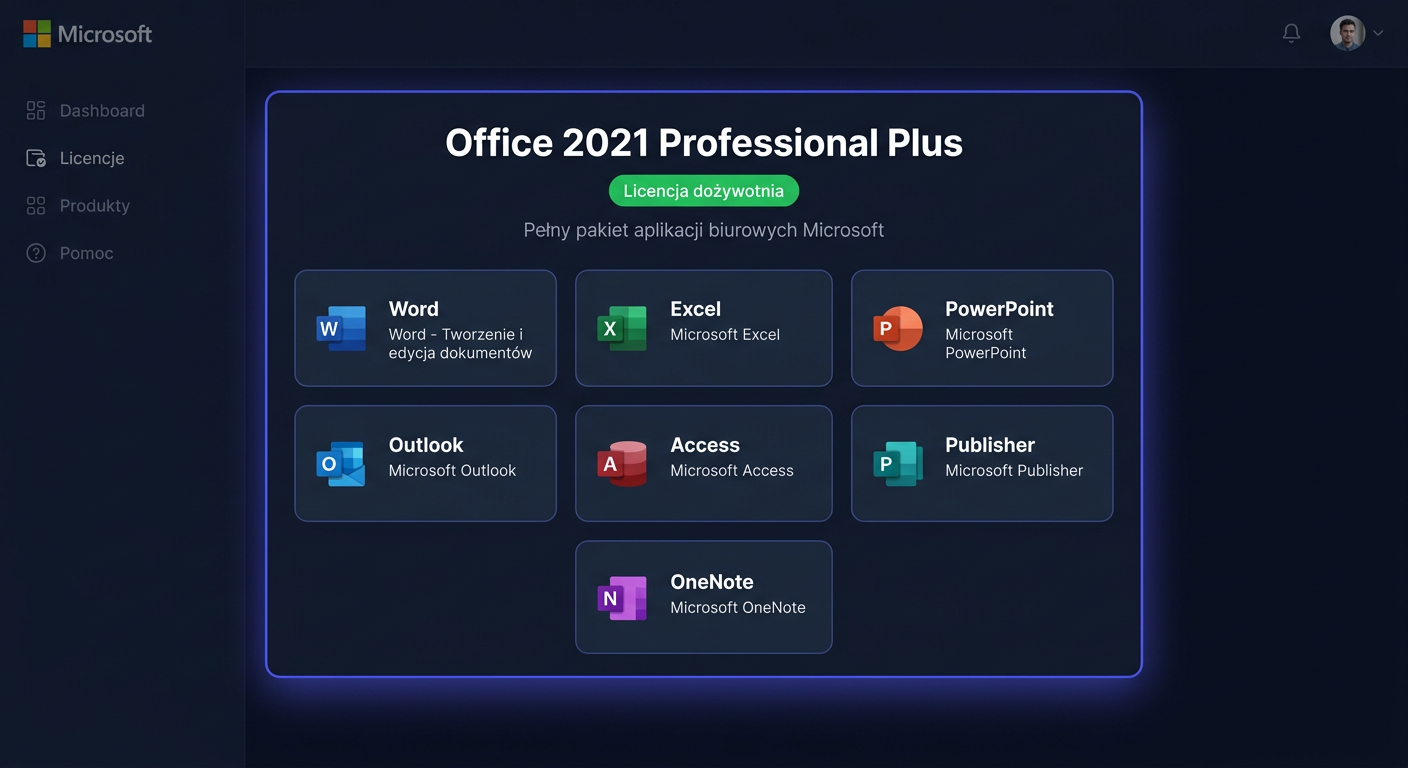
Activation of [Windows 10 Pro](https://kluczesoft.pl/klucz-windows-10/microsoft-windows-10-professional) + Office 2021 Professional Plus Bundle
To activate your Windows 10 Pro + Office 2021 Professional Plus bundle, follow these steps:
- Ensure you have a valid product key for the bundle.
- Install Windows 10 Pro and Office 2021 Professional Plus on your computer.
- Activate Windows 10 Pro using the product key provided. You can do this by going to
Settings>Update & Security>Activation, then clicking onChange product keyand entering your key. - For Office 2021 Professional Plus, open any Office application (like Word or Excel), and you will be prompted to activate the product. Click on
Activateand enter your product key.
Troubleshooting Activation Issues
If you encounter any issues during activation, ensure your internet connection is stable, as activation requires connecting to Microsoft's servers. If problems persist, consider contacting KluczeSoft support for assistance.
Contacting Support
For any questions or issues related to your Windows 10 Pro + Office 2021 Professional Plus bundle, including activation problems, you can reach out to KluczeSoft support:
- Email:
kontakt@kluczesoft.pl - Phone:
00 800 121 1654
Additional Tips
- Always ensure you are downloading Windows 10 Pro and Office 2021 Professional Plus from official sources or authorized resellers like KluczeSoft to avoid counterfeit products.
- Keep your product keys safe, as losing them might require purchasing the software again.
- Regularly update your Windows 10 Pro and Office 2021 Professional Plus to have the latest security patches and features.
By following these guidelines, you should be able to successfully activate and enjoy using your Windows 10 Pro + Office 2021 Professional Plus bundle.
Activation of Windows 10 Pro + Office 2021 Professional Plus
Purchasing the Windows 10 Pro + Office 2021 Professional Plus bundle means you receive two separate product keys: one for activating Windows 10 Pro and another for activating Office 2021 Professional Plus. Each of these products is activated independently, so it's best to go through the process step by step.
In this guide, we describe the activation of both components separately, step by step. The instructions have been prepared for users of the pomoc.kluczesoft.pl service and are designed to help you go through the entire process as simply and smoothly as possible, without unnecessary complications. For activation, you will use standard system tools: for Windows, the slmgr command, and for Office 2021, the ospp.vbs script.
What to prepare before starting
Before you begin the activation, make sure you have:
- a product key for Windows 10 Pro
- a separate product key for Office 2021 Professional Plus
- an internet connection
- administrator privileges on the computer
- Windows 10 Pro installed
- Office 2021 Professional Plus installed
It's very important not to mix up the keys. The key for the Windows system will not work in Office and vice versa. If the bundle was delivered by email, it's best to copy each key separately into a notepad to avoid errors during entry.
Activation of Windows 10 Pro step by step
The activation of Windows 10 Pro is performed using the slmgr tool, which is built into the system. Commands should be run in Command Prompt as administrator.
Step 1. Run Command Prompt as administrator
Click the Start menu and type:
cmd
Then, right-click on Command Prompt and select:
Run as administrator
If a User Account Control question appears, confirm with the Yes button.
Step 2. Enter the Windows 10 Pro product key
In the open window, type the following command, replacing the string XXXXX-XXXXX-XXXXX-XXXXX-XXXXX with your key:
slmgr /ipk XXXXX-XXXXX-XXXXX-XXXXX-XXXXX
After confirming with the Enter key, the system should display a message stating that the product key has been installed successfully.
If an error appears, check:
- if the key was entered correctly
- if the installed edition of the system is indeed Windows 10 Pro
- if there are no unnecessary spaces before or after the key
Step 3. Run online activation
After adding the key, type the next command:
slmgr /ato
This command initiates an attempt to activate the system over the internet. If everything goes correctly, you will receive a message about successful activation.
Step 4. Check the activation status of Windows
To check if the system has been activated, you can use one of the following commands:
slmgr /dli
or:
slmgr /xpr
The slmgr /dli command shows basic license information, while slmgr /xpr informs you if the system is permanently activated.
Additionally, you can check the status from the system settings:
- Open Settings
- Go to Update and Security
- Select Activation
At this point, a message should appear stating that the Windows system is activated.
Most Common Issues with Activating Windows 10 Pro
If activation does not succeed immediately, the most common causes are:
- incorrectly entered key
- lack of internet connection
- key incompatibility with the system edition
- previous incorrect activation configurations in the system
In such a situation, it's worth:
- restarting the computer
- re-entering the key with the command
slmgr /ipk - re-initiating activation with
slmgr /ato - ensuring that the device has Windows 10 Pro installed, and not Home or another edition
Activating Office 2021 Professional Plus Step by Step
The Office 2021 Professional Plus package is activated separately using the ospp.vbs script. This is the official license management mechanism for locally installed Office versions.
Unlike Windows, here you need to go to the appropriate Office installation folder first, and then execute the activation commands.
Step 1. Close All Office Programs
Before starting the activation, close all Office package applications, such as:
- Word
- Excel
- PowerPoint
- Outlook
This is important because open programs can hinder the proper saving of license changes.
Step 2. Run the Command Prompt as Administrator
Just like with Windows activation, run the Command Prompt as administrator.
Step 3. Go to the Office Installation Folder
In most cases, Office 2021 is located in one of the following directories.
For a 64-bit system and 64-bit Office, it is most often:
cd /d "C:\Program Files\Microsoft Office\Office16"
If you are using a 32-bit version of Office on a 64-bit system, the correct path may be:
cd /d "C:\Program Files (x86)\Microsoft Office\Office16"
The Office16 folder is correct for Office 2021 as well, because Microsoft retained this installation directory designation.
If you are unsure which path is correct, check both. The command will only work if the folder exists.
Step 4. Install the Office 2021 Product Key
After going to the correct directory, enter the command:
cscript ospp.vbs /inpkey:XXXXX-XXXXX-XXXXX-XXXXX-XXXXX
Replace the example string with your Office 2021 Professional Plus key.
If the operation is successful, the script will return a message confirming the addition of the key.
Step 5. Activate the Office Package
Next, run the activation with the command:
cscript ospp.vbs /act
After a moment, you should receive a message informing you that the activation was successful.
Step 6. Check the Office Activation Status
To check the license status, enter:
cscript ospp.vbs /dstatus
In response, you will see information about the activated Office version, the installed key, and the license status. If the activation was successful, the status should indicate an active license.
Additionally, you can run any Office package program, such as Word or Excel, and then go to:
File > Account
In the product information section, you should see a message confirming the activation.
For any further assistance, please contact us at kontakt@kluczesoft.pl or call 00 800 121 1654.
Most Common Issues with Activating Office 2021 Professional Plus
When it comes to Office, the most common difficulties arise from several reasons:
- running commands in the wrong folder
- using the wrong key
- lack of administrator privileges
- conflict with a previous version of Office or remnants of an old license
If activation does not work, first check:
- whether the command was executed in the
Office16directory - whether the key is intended for Office 2021 Professional Plus
- whether you are using the
cscript ospp.vbscommand, rather than the file itself without an interpreter - whether the computer has an active internet connection
In some cases, it is helpful to restart the computer and repeat the commands.
Important Difference: Two Separate Keys, Two Separate Activations
In the Windows 10 Pro + Office 2021 Professional Plus bundle, each product is licensed independently. This means that:
- you can activate Windows first, and Office later
- you can also activate both products one after the other during a single session
- problems with activating one product do not automatically mean a problem with the other
The most important thing is not to mix up the procedures. You activate Windows through slmgr, while you activate Office 2021 through ospp.vbs.
Summary
Activating the Windows 10 Pro + Office 2021 Professional Plus bundle is not complicated if you do it step by step and use the correct key for the correct product. You activate the Windows system with the slmgr /ipk and slmgr /ato commands, and the Office 2021 package using cscript ospp.vbs /inpkey and cscript ospp.vbs /act.
If problems occur during activation, first check the correctness of the key, the compatibility of the product version, and running the command line as an administrator. In the vast majority of cases, this is enough to complete the entire process successfully.
If you have any questions or problems with activation, please contact us: kontakt@kluczesoft.pl or call 00 800 121 1654.
Where to buy the original key
Need a legal key? Check the offers at kluczesoft.pl:
All keys are brand new, delivered electronically with a VAT invoice.