
Before you start
Microsoft Windows 11 Enterprise is a business edition of the Windows 11 system designed for large organisations, domain environments, IT departments, and companies that require extended security, central management, and compliance with organisational policies. In practice, this is a version for companies that need more than the standard features available in the Home or Pro edition.
Windows 11 Enterprise includes, among others, advanced identity protection mechanisms, extended group policies, network deployments, application control, and easier management of multiple devices. This is a good choice for organisations using Microsoft Entra ID, Active Directory, Intune, BitLocker, AppLocker, or Windows Defender for Endpoint.
It's worth remembering that Windows 11 is developed in a version update model. Enterprise and Education editions typically have 36 months of support for a given functional version. Currently, the end-of-support dates for selected releases are as follows: 23H2 until 10 November 2026, 24H2 until 12 October 2027, 25H2 until 10 October 2028, and 26H1 until 13 March 2029. This means that for corporate deployments, it's worth planning updates in advance.
When purchasing a licence from KluczeSoft.pl, you receive the product key in electronic form, activation instructions, and fast delivery via email. This allows you to immediately proceed with the installation or activation of an existing system.
System requirements
| Component | Minimum requirements |
|---|---|
| Processor | 1 GHz or faster, 2 cores, 64-bit, compatible processor or SoC |
| RAM | 4 GB |
| Disk | 64 GB of free space |
| Firmware | UEFI |
| Secure Boot | Required |
| TPM | TPM 2.0 |
| Graphics card | Compatible with DirectX 12 or later, WDDM 2.0 driver |
| Screen | Minimum 9", resolution 1280 × 720 |
| Internet | Required for downloading updates and online activation |
In corporate environments, we recommend more than the minimum: at least 8 GB of RAM, an SSD disk, and an up-to-date BIOS/UEFI with active TPM 2.0 and Secure Boot.
Downloading the installer
The Windows 11 Enterprise installer is best downloaded from official Microsoft sources. The three most commonly used methods are: ISO image, Media Creation Tool, or installer from the Microsoft licensing centre in your organisation.
Before downloading, prepare:
- a USB drive with a minimum capacity of 8 GB,
- a stable internet connection,
- a backup of your data,
- the product key from KluczeSoft.
If you're installing the system from scratch, it's most convenient to download the ISO image and create a bootable medium. If you're updating a computer locally, you can use the installation tool that runs directly in the operating system.
Installation step by step
Clean installation from a USB drive
- Download the Windows 11 ISO image.
- Create a bootable USB drive.
- Start the computer from the USB drive and select the language, keyboard layout, and time format.
- Click
Install now. - When prompted for the key, you can enter it immediately or choose to skip it and activate the system later.
- Select the correct edition of the system, compatible with the purchased license.
- Accept the license terms.
- Select
Custom: Install Windows only. - Indicate the target partition, format it if it's a new installation, and start copying files.
- After restarting, configure your account, network, device name, and basic privacy settings.
Updating an existing system
If the computer is already running a compatible version of Windows, you can run the installer from within the system and choose to update while keeping files and applications. In companies, this method is useful for migrating from [Windows 10 Pro](https://kluczesoft.pl/klucz-windows-10/microsoft-windows-10-professional) or Enterprise, but before deployment, it's worth verifying the compatibility of business applications.
Activation
Activation through the graphical interface
- Open
Settings. - Go to
System > Activation. - Click
Change product key. - Enter the received Windows 11 Enterprise key.
- Confirm and wait for online activation.
Activation through CMD
Run Command Prompt as an administrator and enter the following commands:
slmgr.vbs /ipk XXXXX-XXXXX-XXXXX-XXXXX-XXXXX
slmgr.vbs /ato
The first command installs the product key, and the second forces online activation on Microsoft servers.
Telephone activation
If online activation fails, you can use Microsoft's telephone activation by calling 00 800 121 1654. In this case, the system will display an installation ID, which you should provide to the consultant or the automated system, and then enter the received confirmation ID.
Verification of activation
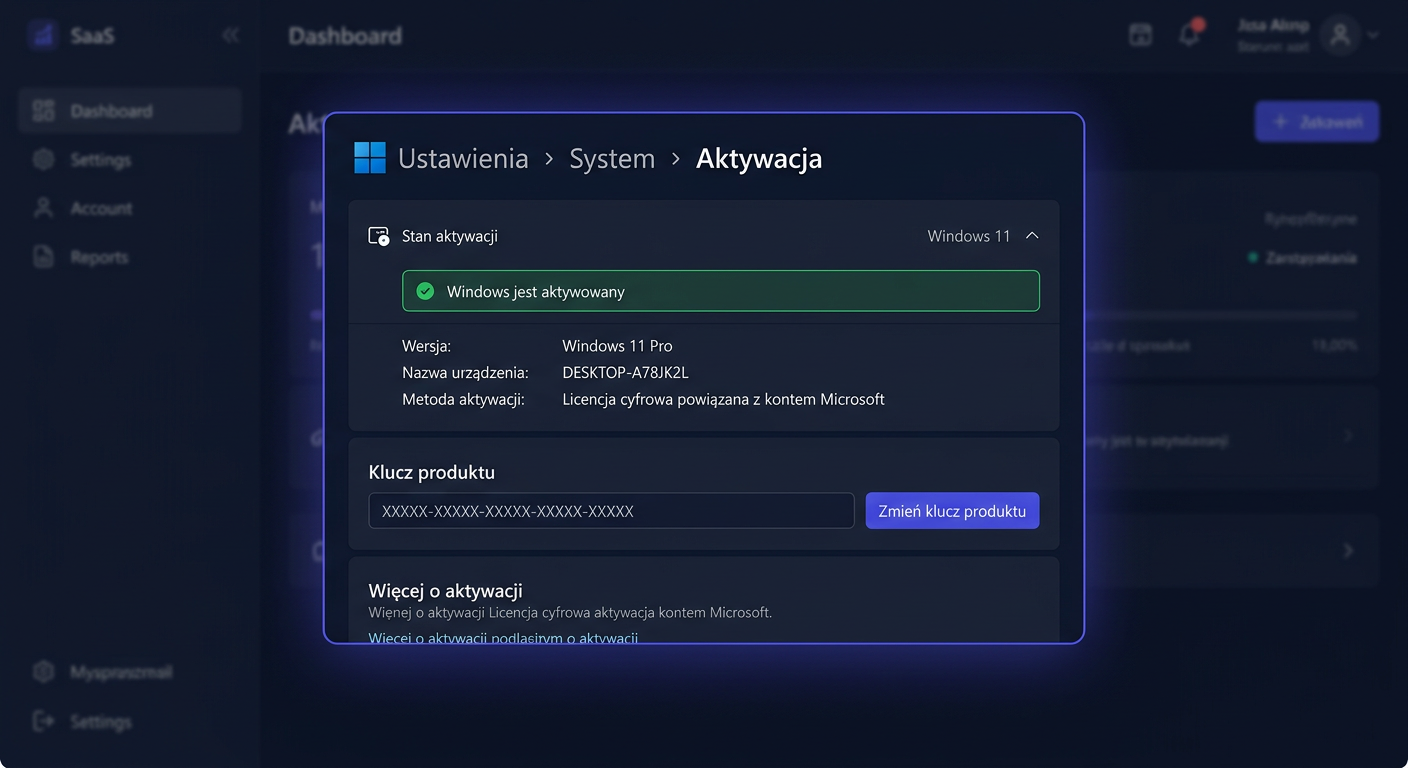
You can check the activation status in two ways. The first is Settings > System > Activation, where a message about the active system should appear.
The second way is to use commands in CMD run as an administrator:
slmgr.vbs /dli
slmgr.vbs /xpr
/dli displays basic license information, and /xpr informs you whether the system is permanently activated. If you need further assistance, please contact kontakt@kluczesoft.pl or call 00 800 121 1654 for support.
Troubleshooting
Error 0xC004F050
Most often indicates an incorrect key or an attempt to activate the wrong edition of the system. Check if Windows 11 Enterprise is installed exactly, and not, for example, Pro.
Error 0xC004C003
The system rejects the key as blocked or incorrect for the given configuration. It's worth re-entering the key, restarting the computer, and trying phone activation.
Error 0x803FA067
Often appears when changing the edition or after an incomplete system update. Updating the system to the latest version and reusing the commands slmgr.vbs /ipk and slmgr.vbs /ato can help.
Message Cannot connect to the activation server
The cause may be a firewall, proxy server, lack of internet, or a temporary problem on the Microsoft services side. Check your network connection, system date and time, and try again later.
Error 0x8007232B
Usually concerns network configuration or environments where the computer is looking for KMS activation, even though an individual key should be used. In such a situation, enter the correct key and perform manual activation.
The key was accepted, but activation does not complete successfully
First, make sure the system has installed updates and the correct edition. In many cases, restarting the computer, re-running CMD as an administrator, and entering the activation commands from the beginning can help.
Problem after replacing the main board
Significant hardware changes can cause the loss of activation binding to the device. In such a situation, phone activation or contacting technical support is the best solution.
Version Comparison
| Version | For whom | Most important features | Price at KluczeSoft |
|---|---|---|---|
| Windows 11 Home | Home users | Basic features, new interface, multimedia | 239,90 zł |
| Windows 11 Pro | Companies and professionals | BitLocker, Remote Desktop, Hyper-V, domain joining | 239,90 zł |
| Windows 11 Enterprise | Large organizations | AppLocker, Credential Guard, advanced management and security | 599,00 zł |
Windows 11 Enterprise will be the best choice where security policies, central deployments, organizational compliance, and administration of a larger number of workstations are essential.
Summary
Microsoft Windows 11 Enterprise is a system designed for large organizations that expect a high level of security, control, and scalability. If you need a stable edition for business use, fleet management, and compliance with IT department requirements, this is the right choice.
When purchasing a license at KluczeSoft.pl, you get quick access to the key, instructions, and support during activation. If difficulties arise during installation or activation, you can use Microsoft's phone activation at 00 800 121 1654. If you have any further questions or need assistance, please contact us at kontakt@kluczesoft.pl.
Where to buy the original key
Need a legal key? Check the offers at kluczesoft.pl:
All keys are brand new, delivered electronically with a VAT invoice.