
Before You Begin
SQL Server 2016 Standard 50 User CAL is a licensing solution designed for companies that want to implement an efficient and secure Microsoft SQL Server 2016 Standard database, allowing access to it for up to 50 users. The User CAL (Client Access License) model allows each user to use the server from any number of devices — desktop computers, laptops, tablets, or smartphones. This is an ideal solution for organisations where employees use multiple devices or work remotely.
As part of your purchase from KluczeSoft, you will receive:
- The original SQL Server 2016 Standard (50 User CAL) licence key
- Access to installation files
- Installation and activation instructions
- Technical support in Polish
- A VAT invoice
Important: SQL Server 2016 Standard with 50 User CAL allows for legal access to the server by 50 named users. Each user can use any number of devices. The licence does not limit the number of devices, but the number of users.
Technical Support Terms
| Product Version | End of Mainstream Support | End of Extended Support |
|---|---|---|
| SQL Server 2016 Standard | 13 July 2021 | 14 July 2026 |
After 14 July 2026, Microsoft will no longer release security patches or updates for SQL Server 2016.
What Does KluczeSoft Provide?
- A legal SQL Server 2016 Standard 50 User CAL product key
- Access to ISO files from Microsoft's official distribution
- Detailed installation and activation instructions
- Telephone and email support
- A guarantee of legality and support during audits
System Requirements
To properly install SQL Server 2016 Standard, you must meet the following hardware and software requirements in accordance with Microsoft's documentation:
| Component | Minimum Requirements |
|---|---|
| Processor | x64, min. 1.4 GHz (recommended 2.0 GHz or faster), SSE2 instruction support |
| RAM | Min. 2 GB (recommended 4 GB or more) |
| Disk Space | Min. 6 GB for basic installation, more for large databases and components |
| Operating System | Windows Server 2012/2012 R2, Windows Server 2016, Windows 8/8.1/10 (x64) |
| Network Card | Required for network operation |
| Display | Min. 800x600 (recommended 1024x768 or higher) |
| .NET Framework | Version 4.6 or later |
| Privileges | Local administrator account |
Note: SQL Server 2016 Standard is only available in 64-bit version.
Step 1: Downloading Installation Files
- Log in to the KluczeSoft portal and download the SQL Server 2016 Standard ISO file.
- Mount the ISO file as a virtual drive or burn it to a DVD/USB.
- Ensure you have the product key and a list of users who will be using the server.
For any questions or concerns, please contact us at kontakt@kluczesoft.pl or call 00 800 121 1654.
Step 2: Running the SQL Server 2016 Installer
- Open the mounted drive with the ISO file.
- Run the
setup.exefile as an administrator. - After running, the "SQL Server Installation Center" welcome screen will appear.
Step 3: Choosing the Installation Type
- In the menu on the left, select "Installation".
- Click "New SQL Server stand-alone installation or add features to an existing installation".
- The installer will perform a preliminary check of requirements (Setup Support Rules). Ensure that all tests complete with a "Passed" status.
Step 4: Entering the Product Key
- On the "Product Key" screen, select "Enter the product key" and enter the key received from KluczeSoft.
- Click "Next".
Step 5: Accepting the License Terms
- Read the license agreement.
- Check "I accept the license terms".
- Click "Next".
Step 6: Selecting Features to Install
- On the "Feature Selection" screen, select the required components (recommended: Database Engine Services, SQL Server Replication, Full-Text and Semantic Extractions for Search).
- Click "Next".
Step 7: Configuring the Instance
- Choose "Default instance" or "Named instance" (e.g., SQL2016).
- Click "Next".
Step 8: Configuring SQL Server Services
- On the "Server Configuration" screen, set the service accounts (recommended: default).
- Set the startup mode to "Automatic".
- Click "Next".
Step 9: Configuring Authentication Mode
- In the "Database Engine Configuration" section, select "Mixed Mode (SQL Server authentication and Windows authentication)".
- Set the password for the "sa" account.
- Add administrators (Add Current User).
- Click "Next".
Step 10: Summary and Installation
- Review the summary of selected options.
- Click "Install".
- Wait for the installation to complete. After completion, click "Close".
Activating with a Product Key
For SQL Server 2016 Standard, activation occurs during installation by entering the product key. However, for certainty of legality and license compliance, it is recommended:
Method 1: Activation during Installation (GUI)
- Enter the product key at the "Product Key" stage in the installer.
- After installation, the server is activated.
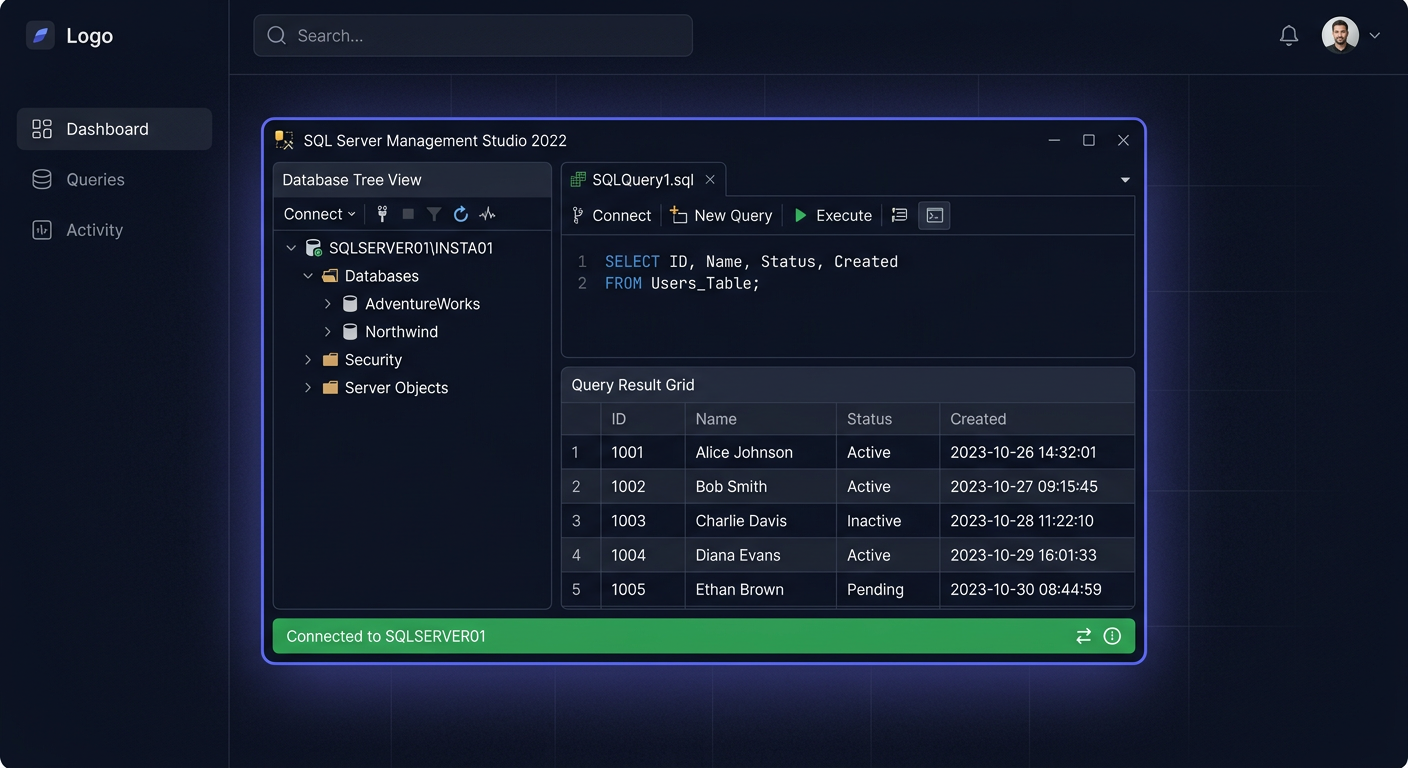
Method 2: Verifying Activation from SQL Server Management Studio (SSMS)
- Open SSMS.
- Connect to the SQL Server instance.
- Execute the query:
SELECT SERVERPROPERTY('Edition'), SERVERPROPERTY('ProductVersion'), SERVERPROPERTY('LicenseType');
- You will receive information about the edition, version, and license type.
Method 3: Verifying the License File (cmd)
- SQL Server does not have an activation tool like Windows (slmgr.vbs), but you can check the license status with the command:
cd "C:\Program Files\Microsoft SQL Server\130\Setup Bootstrap\Log"
dir
- Check the installation log files for entries "Product Key" and "LicenseType".
Verifying Activation
To ensure that SQL Server 2016 Standard has been correctly installed and activated:
- Open SQL Server Management Studio.
- Connect to the server instance.
- Execute the query:
SELECT SERVERPROPERTY('Edition'), SERVERPROPERTY('ProductVersion'), SERVERPROPERTY('LicenseType');
- Check if the result is "Standard Edition", version 13.x.xxxx, and "Server + CAL".
If you have any further questions or concerns, please do not hesitate to contact us at kontakt@kluczesoft.pl or call us at 00 800 121 1654.
Configuration after installation
After completing the installation and activation, it is recommended to perform the following actions:
1. SQL Server update
- Download and install the latest Service Pack (SP3) and cumulative updates.
- Go to the Microsoft Update website or use the SQL Server Management Studio tool to check for updates.
2. Backup configuration
- Configure a schedule for automatic database backups.
- Determine the backup storage location (e.g. separate disk, NAS server).
3. Creating users and access groups
- Create user accounts in Active Directory or locally.
- Assign permissions in accordance with the security policy.
4. Firewall configuration
- Open TCP port 1433 (default SQL Server port) and other required ports.
- Add an exception in the Windows system firewall.
5. Monitoring and auditing
- Configure event logging and server access auditing.
- Regularly review security logs.
Troubleshooting
Below, we present the most common problems and their solutions:
1. Error: "SQL Server setup has failed"
- Cause: Lack of administrator privileges or damaged installation files.
- Solution: Run the installer as an administrator, download the ISO files again.
2. Error: "A required .NET Framework component is missing"
- Cause: Lack of required .NET Framework 4.6 or later.
- Solution: Install the latest version of .NET Framework before installing SQL Server.
3. Error: "SQL Server service failed to start"
- Cause: Port conflict or lack of permissions to start the service.
- Solution: Check ports in the firewall, restart the server, check service account permissions.
4. Error: "Login failed for user"
- Cause: Incorrect authentication mode configuration or incorrect password.
- Solution: Set Mixed Mode, reset the "sa" account password, check user permissions.
5. Error: "Insufficient User CALs" (insufficient number of CAL licenses)
- Cause: Too many users trying to access without the required number of User CAL.
- Solution: Purchase additional User CAL or limit the number of users with access.
6. Error: "Multiplexing does not reduce CAL requirements"
- Cause: Attempt to use intermediate applications (e.g. web server) without the required number of CAL.
- Solution: Ensure that each end-user has their own User CAL.
Comparison of versions and prices at KluczeSoft
| SQL Server version | Licensing | Number of users | Net price (zł) | Product link |
|---|---|---|---|---|
| Standard 2016 50 User CAL | Server + 50 User CAL | 50 | 1399 | /sql-server-2016 |
| Standard 2016 10 User CAL | Server + 10 User CAL | 10 | 699 | /sql-server-2016-10 |
| Standard 2019 50 User CAL | Server + 50 User CAL | 50 | 1999 | /sql-server-2019 |
| Enterprise 2016 50 User CAL | Server + 50 User CAL | 50 | 3499 | /sql-server-2016-ent |
Note: User CAL versions are dedicated to environments where the number of users is known and limited. For large environments, consider core licensing. If you have any further questions or concerns, please do not hesitate to contact us at kontakt@kluczesoft.pl or call us at 00 800 121 1654.
Summary
SQL Server 2016 Standard 50 User CAL is an economical and flexible solution for companies that want to provide access to a high-performance database for up to 50 users. Installation and activation are straightforward, and User CAL licence management allows for full control over access. Remember to perform regular audits and comply with licensing rules.
If you have any questions or issues, please contact our technical support department on phone 00 800 121 1654 or visit the KluczeSoft SQL Server 2016 page.
Where to buy the original key
Need a legal key? Check the offers at kluczesoft.pl:
All keys are brand new, delivered electronically with a VAT invoice.