
Before You Begin
SQL Server 2019 Standard is an advanced database environment from Microsoft, designed for medium and large organisations that require high performance, security, and scalability. The Standard edition offers a wide range of analytical, reporting, and data integration features, while remaining a cost-effective alternative to the Enterprise edition. The Server + CAL (Client Access License) licensing model allows for flexible management of access to the SQL server in environments where the number of devices or users is easy to determine.
The 10 Device CAL package enables legal access to the SQL Server 2019 Standard instance from ten specific devices. This is an optimal solution for companies where one computer is used by multiple employees (e.g., in a shift system, in laboratories, or on production stations). Each device covered by the Device CAL can be used by any number of users; however, the licence is assigned to the hardware, not the person.
Important: The Device CAL is not installed on the server or device. It is documentation that authorises access – you must keep a record of the CAL assignment to devices.
What You Receive from KluczeSoft?
- The original SQL Server 2019 Standard 10 Device CAL licence package (499 zł for 10 CALs)
- A VAT invoice and licensing documentation
- Technical support for installation and activation
- Access to security updates until January 2030
- The possibility to download the SQL Server 2019 Standard installer
Technical Support Periods
| Product | Release Date | End of Mainstream Support | End of Extended Support |
|---|---|---|---|
| SQL Server 2019 Standard | 4 Nov 2019 | 7 Jan 2025 | 8 Jan 2030 |
| SQL Server 2019 Device CAL | 4 Nov 2019 | 7 Jan 2025 | 8 Jan 2030 |
More information: Microsoft SQL Server 2019 Official Website
System Requirements
To install SQL Server 2019 Standard, your server or computer must meet the minimum hardware and software requirements compatible with Microsoft documentation. It is recommended to use the latest operating system updates.
| Component | Minimum Requirements |
|---|---|
| Processor | x64, min. 1.4 GHz (recommended 2.0 GHz or more); SSE2 instruction support |
| RAM | Min. 2 GB (recommended 4 GB or more) |
| Disk Space | Min. 6 GB for database installation; more for large environments |
| Operating System | Windows Server 2016, 2019, 2022; Windows 10/11 Pro/Enterprise (x64) |
| Network | 1 Gb/s network card (recommended) |
| .NET Framework | Version 4.6 or later |
| Display | Min. 800x600 (recommended 1024x768 or more) |
| Permissions | Local administrator account |
Note: SQL Server 2019 is not available in a 32-bit version. All components must be installed on a 64-bit system.
Step 1: Downloading the SQL Server 2019 Standard Installer
- Log in to the Microsoft SQL Server Downloads page.
- In the "SQL Server 2019 Standard" section, click "Download now" or download the installer from the link provided by KluczeSoft.
- Save the installation file (e.g.,
SQLServer2019-Standard-x64-ENU.iso) to your local disk.
Step 2: Preparing the Installation Environment
- Ensure you have administrator permissions on the server or computer.
- Close all unnecessary applications.
- Install the latest Windows updates.
- Mount the ISO installer image:
- Right-click on the ISO file and select "Mount".
- Open the new drive in "This PC" (e.g.,
D:\).
Step 3: Running the SQL Server 2019 Installer
- Go to the mounted installation drive.
- Run the
setup.exefile as an administrator (right-click > "Run as administrator"). - In the main installer window, select "New SQL Server stand-alone installation or add features to an existing installation".
Step 4: Installation Process – Detailed Guide
Screen: Product Key
- Enter the SQL Server 2019 Standard product key (received from KluczeSoft).
- Click "Next".
Screen: License Terms
- Read and accept the license terms.
- Check "I accept the license terms".
- Click "Next".
Screen: Global Rules
- The installer will check the prerequisites. If warnings appear, click "Show details" and resolve the issues.
- Click "Next".
Screen: Microsoft Update
- Choose whether to use Microsoft Update to update SQL Server.
- Recommended: check "Use Microsoft Update to check for updates".
- Click "Next".
Screen: Install Rules
- The installer will check additional requirements (e.g., ports, permissions).
- Resolve any errors that occur.
- Click "Next".
Screen: Feature Selection
- Select the required components (recommended: Database Engine Services, SQL Server Replication, Full-Text and Semantic Extractions for Search).
- Click "Next".
Screen: Instance Configuration
- Choose "Default instance" or "Named instance" (e.g.,
SQL2019STD). - Click "Next".
Screen: Server Configuration
- Configure the service accounts (recommended: default settings).
- Set the service startup mode to "Automatic".
- Click "Next".
Screen: Database Engine Configuration
- Choose the authentication mode: "Windows authentication mode" or "Mixed Mode".
- Add SQL Server administrators (e.g., your account).
- Click "Next".
Screen: Ready to Install
- Review the configuration summary.
- Click "Install".
Screen: Installation Progress
- Wait for the installation to complete. This may take several minutes.
Screen: Complete
- After the installation is complete, click "Close".
Step 5: Activation with Product Key
Graphical Method (GUI)
- Open "SQL Server Installation Center".
- Go to "Maintenance" > "Edition Upgrade".
- Enter the product key and follow the instructions.
Command Line Method (cmd)
- Open the Command Prompt as an administrator.
- Go to the SQL Server tools directory, e.g.:
cd "C:\Program Files\Microsoft SQL Server\150\Setup Bootstrap\SQLServer2019" - Enter the activation command:
Replacesetup.exe /q /ACTION=ActivateEdition /Edition=Standard /PID=XXXXX-XXXXX-XXXXX-XXXXX-XXXXXXXXXX-XXXXX-XXXXX-XXXXX-XXXXXwith your product key.
Note: SQL Server does not have an activation command like Windows or Office (slmgr, ospp). The product key is verified during installation or edition update.
Activation Verification
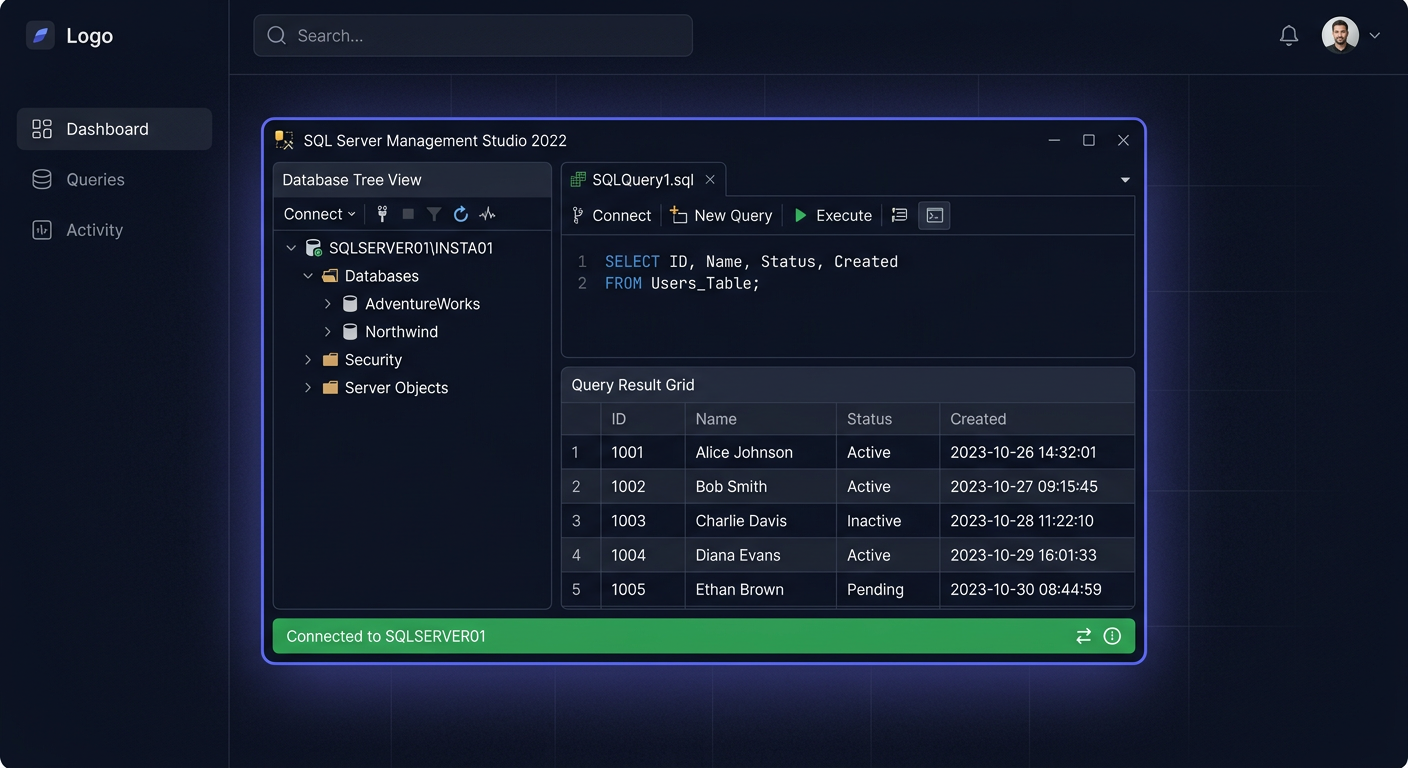
- Open SQL Server Management Studio (SSMS).
- Connect to the SQL Server instance.
- Execute the query:
SELECT SERVERPROPERTY('Edition'), SERVERPROPERTY('ProductVersion'), SERVERPROPERTY('LicenseType'), SERVERPROPERTY('NumLicenses'); - Check if it displays "Standard Edition" and the correct version number. If you need help, please contact us at kontakt@kluczesoft.pl or call 00 800 121 1654.
Step 6: Post-Installation Configuration
After completing the installation and activation of SQL Server 2019 Standard, it is recommended to perform the following steps:
-
SQL Server Update
- Download and install the latest Service Pack and cumulative updates (CU) from Microsoft Update.
-
Backup Creation
- Configure a schedule for automatic database backups.
-
Security Configuration
- Set strong passwords for SQL accounts.
- Configure the network firewall (default port: 1433 TCP).
-
Adding Device CAL to the Register
- Assign each Device CAL to a specific device (keep a record).
- Example register:
Device Name Serial Number Assignment Date PC-KASA-01 SN123456 2024-06-01
-
Connection Test
- From each device with an assigned CAL, check the connection to SQL Server using SSMS or a client application.
Step 7: Troubleshooting
Below are descriptions of common issues and their solutions:
1. Error: "SQL Server setup failed to validate the product key"
- Cause: Incorrect or improperly entered product key.
- Solution: Check the key's correctness. Copy the key without spaces, ensure it matches the installer version (Standard 2019).
2. Error: "Rule 'SQL Server Edition Operating System Compatibility' failed"
- Cause: Attempt to install on an unsupported operating system.
- Solution: Ensure the system is Windows Server 2016/2019/2022 or Windows 10/11 Pro/Enterprise (x64).
3. Error: "Port 1433 is blocked"
- Cause: Port TCP 1433 blocked by the system firewall.
- Solution: Open port 1433 in the Windows firewall:
- Control Panel > System and Security > Windows Defender Firewall > Advanced Settings > Inbound Rules > New Rule > Port > 1433 TCP.
4. Error: "Cannot connect to SQL Server"
- Cause: SQL Server service not running or incorrect network configuration.
- Solution:
- Check the service status: Control Panel > Administrative Tools > Services > SQL Server (MSSQLSERVER) > Start.
- Verify the network configuration in SQL Server Configuration Manager.
5. Error: "Login failed for user"
- Cause: Incorrect login details or lack of permissions.
- Solution:
- Check if the user account has database permissions.
- If using Mixed Mode, check the correctness of the SQL account password.
6. Error: "Device CAL compliance audit failed"
- Cause: Lack of Device CAL assignment register.
- Solution: Complete the CAL assignment register. Store documentation according to company policy.
If you need further assistance, please contact us at kontakt@kluczesoft.pl or call 00 800 121 1654.
Step 8: Comparing versions and prices in KluczeSoft
| Edition / License | Main features | Price (zł) | Number of devices / users |
|---|---|---|---|
| SQL Server 2019 Standard | Database, replication, reporting | 2 199 | 1 server |
| SQL Server 2019 Standard 10 CAL | Access for 10 devices (Device CAL) | 499 | 10 devices |
| SQL Server 2019 Standard 10 User CAL | Access for 10 users (User CAL) | 499 | 10 users |
| SQL Server 2019 Enterprise | Advanced features, unlimited RAM | 14 999 | 1 server |
More information: /sql-server-cals-
Summary
SQL Server 2019 Standard with a 10 Device CAL package is a flexible and cost-effective solution for companies that want to legally and efficiently manage access to the database from multiple devices. Remember that Device CAL is a licensing document – it does not require installation, but it requires maintaining a record of device assignment. If you have any questions or technical issues, please contact our support department at 00 800 121 1654 or visit our knowledge base at pomoc.kluczesoft.pl.
Tip: Regularly update SQL Server and keep a licence record to avoid problems during audits. You can also contact us at kontakt@kluczesoft.pl for more information.
Where to buy the original key
Need a legal key? Check the offers at kluczesoft.pl:
All keys are brand new, delivered electronically with a VAT invoice.