
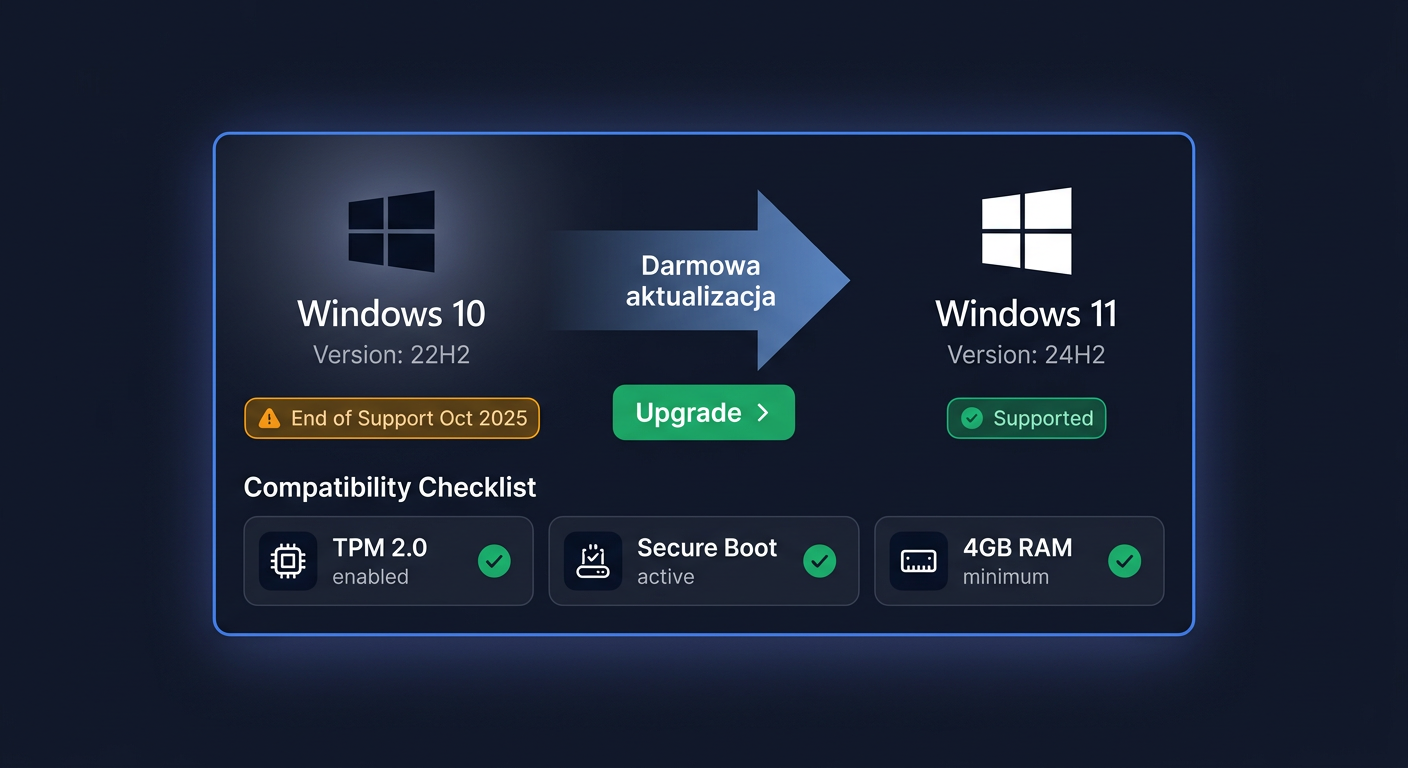
Windows 10 ESU Year 1 (2025–2026) — Extended Security Updates
Windows 10 ESU Year 1 is a paid security support extension for the Windows 10 system after the end of its standard lifecycle. This product is intended for companies and users who must maintain a Windows 10 environment for a limited time but still want to receive exclusive security patches. ESU does not extend full technical support and does not add new system features.
Migration note: ESU is a transitional solution. It should not be treated as a long-term alternative to migrating to a newer system. We recommend planning a transition to a supported platform in parallel.
What the product includes
By purchasing Windows 10 ESU Year 1 (2025–2026), the customer receives:
- a ESU Year 1 add-on key to activate extended security updates,
- the possibility of downloading qualifying security patches for Windows 10 during the period covered by the product,
- installation and activation instructions,
- informational support regarding the activation process.
The product does not include:
- functional updates,
- system upgrade to Windows 11,
- new versions of Office components, server, or applications,
- full technical support from the manufacturer for the entire system.
If the product is part of a package, please note that each product receives a separate key. Keys can be installed on different computers, in accordance with the licensing terms of the given product. Such a package purchase usually means real savings compared to buying each item separately.
Requirements and compatibility
Windows 10 ESU Year 1 is intended for compatible Windows 10 editions that qualify for the Extended Security Updates program. Before purchasing and activating, make sure that:
- the system is a supported edition of Windows 10,
- the system has the required updates installed to prepare for ESU,
- the computer has internet access for online activation or the user will use phone activation,
- the system date and time are set correctly,
- the installation is performed from an account with administrator privileges.
In practice, ESU makes sense mainly where there are applications dependent on Windows 10, older hardware, or transitional environments that cannot be migrated immediately.
Installation and activation
Activation can be performed graphically or from the command line. In administrative environments, the method via slmgr.vbs is most often chosen.
GUI method
- Open Settings or the system activation panel.
- Go to the section related to product activation.
- Enter the received ESU add-on key.
- Confirm and wait for the activation message.
- Run the update search in Windows Update.
CMD method
Run Command Prompt as administrator, and then use:
slmgr.vbs /ipk XXXXX-XXXXX-XXXXX-XXXXX-XXXXX
slmgr.vbs /ato
Where you should enter the received ESU key instead of XXXXX-XXXXX-XXXXX-XXXXX-XXXXX.
If online activation fails, you can use phone activation. To do this, prepare the installation ID and call:
00 800 121 1654
During the conversation or in the automated system, follow the instructions for confirming activation. If you need further assistance, please contact us at kontakt@kluczesoft.pl.
Activation Verification
After completing the activation, it's worth checking the license status and the system's readiness to download security patches. The most commonly used steps:
- restarting the computer,
- checking activation in system settings,
- running Windows Update and searching for updates,
- verifying license messages in the system.
You can also use system tools to read the activation status. If the system accepts the key and activation is successful, the device should qualify for receiving scheduled security updates as part of ESU Year 1.
Troubleshooting
Below are the most common problems encountered during ESU activation:
1. Key Not Accepted
Possible causes:
- typo in the key,
- attempting to use a key for the wrong product,
- lack of required preliminary updates,
- unsupported edition of Windows 10.
What to do:
- enter the key again,
- check system edition compatibility,
- install missing preparatory updates,
- restart the computer and repeat
slmgr.vbs /ipkandslmgr.vbs /ato.
2. Online Activation Error
Symptoms:
- no activation after
slmgr.vbs /ato, - message about unavailability of the activation service,
- network connection or firewall problem.
What to do:
- check internet connection,
- temporarily exclude proxy or firewall blocking,
- repeat activation after a few minutes,
- use phone activation: 00 800 121 1654.
3. System Not Downloading Updates Despite Activation
Possible causes:
- incomplete environment configuration,
- damaged Windows Update components,
- incorrect license status or lack of restart after activation.
What to do:
- restart the computer,
- perform a new update search,
- check if the system is actually compatible with ESU,
- verify that activation was successful.
4. Confusion of Product Type with Another Key
This is a common problem in mixed orders. For reminder:
- for Windows use
slmgr.vbs /ipkandslmgr.vbs /ato, - for Office use
ospp.vbs /inpkeyandospp.vbs /act, - for antiviruses activation usually takes place on the manufacturer's website,
- CAL is a legal document/license, not classic software to install.
Comparison with Alternatives
ESU vs Migration to Windows 11
Migration to a newer system is a target solution. ESU is cheaper and faster to start, but only postpones the change. If the hardware meets the requirements and applications are ready, migration usually makes more strategic sense.
ESU vs Purchasing New Hardware
A new computer with a newer system means a higher initial cost, but often reduces compatibility risk and shortens the maintenance time of older infrastructure. ESU works when hardware replacement needs to be spread over time.
ESU vs Inaction
Staying on an unsupported system without ESU increases security and organizational compatibility risk. This is an option that seems cheapest, but usually the most risky.
For any further assistance, please contact us at kontakt@kluczesoft.pl or visit the KluczeSoft website for more information.
Summary
Windows 10 ESU Year 1 (2025–2026) is a solution for those who need to maintain Windows 10 for a specified period and continue to receive only security fixes. The product does not replace migration, but helps to safely transition through the transition period. Activation is usually done via slmgr.vbs, and in case of problems, you can use phone activation by calling 00 800 121 1654.
If you want to select the correct ESU version, check compatibility, or confirm the activation method before purchasing, please contact us. For phone activation issues, also use the number 00 800 121 1654.
Where to buy the original key
Need a legal key? Check the offers at kluczesoft.pl:
All keys are brand new, delivered electronically with a VAT invoice.