
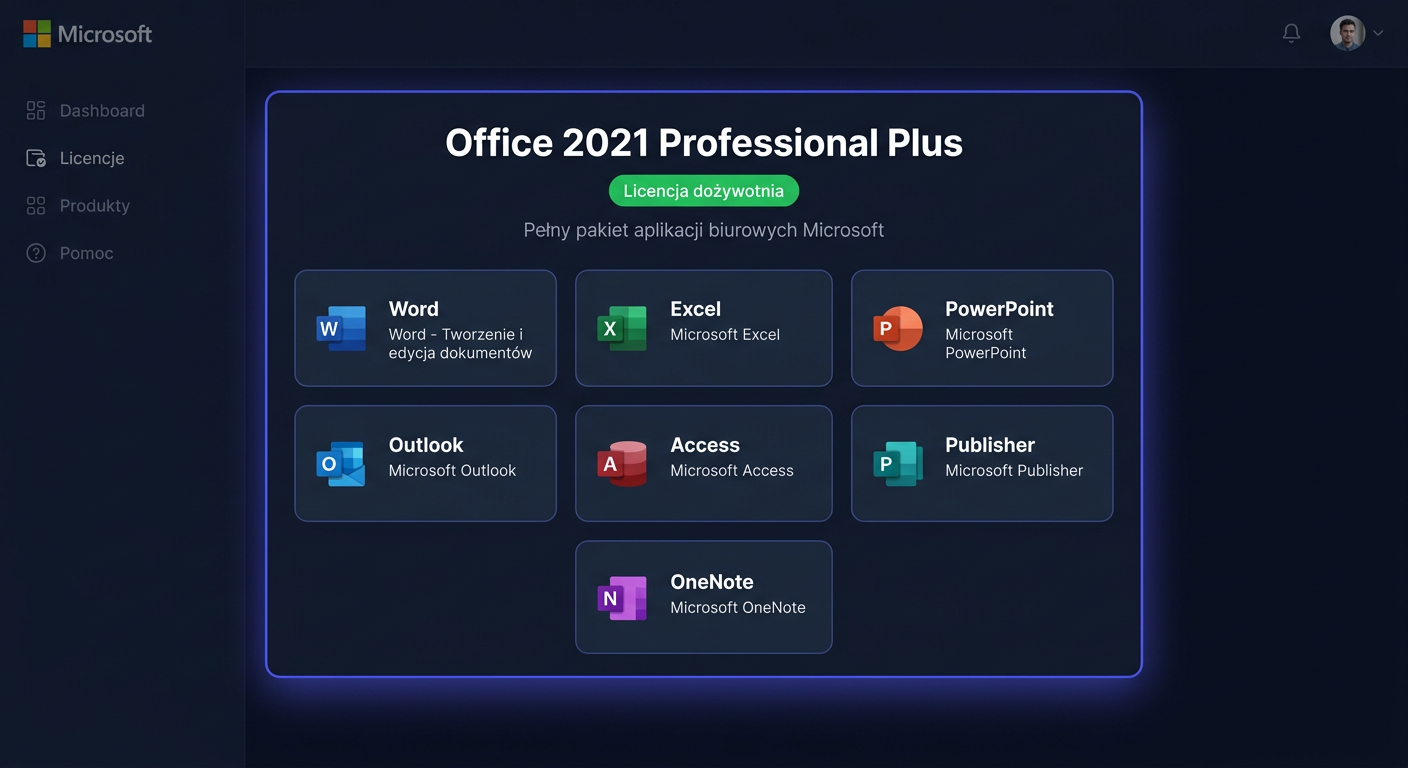
Office 2013 Professional Plus — LEGACY
Uwaga: Office 2013 Professional Plus to produkt legacy. Rozszerzone wsparcie Microsoft dla pakietu Office 2013 zakończyło się w kwietniu 2023 r. Oznacza to brak poprawek bezpieczeństwa, brak poprawek błędów i rosnące ryzyko problemów ze zgodnością. Dla nowych stanowisk oraz środowisk firmowych zalecana jest migracja do Office 2021 lub Office 2024.
Co zawiera
Office 2013 Professional Plus w KluczeSoft to rozbudowany pakiet biurowy przeznaczony głównie dla użytkowników biznesowych, biur, księgowości, administracji oraz osób, które potrzebują klasycznych aplikacji desktopowych bez abonamentu.
W skład pakietu wchodzą najczęściej:
- Word 2013
- Excel 2013
- PowerPoint 2013
- Outlook 2013
- OneNote 2013
- Publisher 2013
- Access 2013
- Lync 2013 / komponenty komunikacyjne zależnie od nośnika i wersji instalacyjnej
Klient otrzymuje:
- klucz licencyjny do aktywacji Office 2013 Professional Plus
- instrukcję instalacji i aktywacji
- informację o metodzie aktywacji online lub telefonicznej
- wsparcie techniczne sprzedawcy w zakresie uruchomienia produktu
Co ważne przy zestawach i bundle
Jeżeli oferta obejmuje pakiet kilku produktów, obowiązuje zasada:
- każdy produkt posiada osobny klucz
- każdy klucz można zainstalować na innym komputerze, zgodnie z warunkami danej licencji
- zakup w zestawie zwykle oznacza realną oszczędność względem kupowania każdego produktu osobno
Przykład praktyczny: jeżeli zamawiasz Office i Windows w jednym bundle, otrzymujesz oddzielny klucz do Windows oraz oddzielny klucz do Office. Dzięki temu możesz aktywować je niezależnie, także na różnych urządzeniach, jeśli licencja na to pozwala.
Wymagania i kompatybilność
Office 2013 jest rozwiązaniem starszego typu, dlatego przed zakupem warto sprawdzić kompatybilność ze stanowiskiem pracy. Szczegółowe informacje znajdziesz w poradniku wymagania systemowe Office 2013 Professional Plus.
Minimalnie należy uwzględnić:
- komputer z procesorem zgodnym z wymaganiami Office 2013
- system Windows zgodny z instalatorem Office 2013
- odpowiednią ilość pamięci RAM i wolnego miejsca na dysku
- uprawnienia administratora do instalacji
- połączenie z internetem do aktywacji online lub dostęp do aktywacji telefonicznej
W praktyce należy pamiętać o kilku ograniczeniach:
- Office 2013 najlepiej sprawdza się na starszych i utrzymywanych środowiskach
- na nowoczesnych komputerach i aktualnych systemach mogą wystąpić problemy ze zgodnością
- część integracji z usługami Microsoft 365 może działać ograniczenie lub wcale
- pakiet nie jest zalecany do nowych wdrożeń
Jeśli zależy Ci na bezpieczeństwie, zgodności i dłuższym cyklu życia produktu, lepszym wyborem będzie Office 2021 albo Office 2024.
Instalacja i aktywacja
Instalacja przez interfejs graficzny
- Pobierz lub uruchom nośnik instalacyjny Office 2013 Professional Plus.
- Uruchom instalator jako administrator.
- Wybierz architekturę zgodną z systemem i potrzebami środowiska.
- Zakończ instalację zgodnie z instrukcjami na ekranie.
- Otwórz dowolną aplikację pakietu, na przykład Word lub Excel.
- Wprowadź otrzymany klucz produktu i uruchom aktywację.
Jeśli potrzebujesz pełnej instrukcji krok po kroku, zobacz poradnik aktywacja Office 2013 Professional Plus.
Aktywacja z wiersza poleceń
Dla Office aktywacja odbywa się skryptem ospp.vbs. Najczęściej należy uruchomić Wiersz polecenia jako administrator, a następnie przejść do katalogu instalacyjnego Office.
Przykład dla wersji 64-bit:
cd /d "C:\Program Files\Microsoft Office\Office15"
cscript ospp.vbs /inpkey:XXXXX-XXXXX-XXXXX-XXXXX-XXXXX
cscript ospp.vbs /act
Przykład dla wersji 32-bit na systemie 64-bit:
cd /d "C:\Program Files (x86)\Microsoft Office\Office15"
cscript ospp.vbs /inpkey:XXXXX-XXXXX-XXXXX-XXXXX-XXXXX
cscript ospp.vbs /act
Jeżeli aktywujesz system Windows z zestawu, używa się osobnych poleceń:
slmgr.vbs /ipk XXXXX-XXXXX-XXXXX-XXXXX-XXXXX
slmgr.vbs /ato
Aktywacja telefoniczna
Jeżeli aktywacja online nie powiedzie się, można skorzystać z aktywacji telefonicznej Microsoft.
Numer telefonu:
00 800 121 1654
Podczas rozmowy lub w systemie automatycznym przygotuj:
- identyfikator instalacji
- wersję produktu
- klucz produktu
- dostęp do komputera, na którym wykonywana jest aktywacja
W razie wątpliwości dotyczących licencji, klucza lub typu aktywacji pomocny będzie również artykuł FAQ Office 2013 Professional Plus - licencja i klucz.
Weryfikacja aktywacji
Po aktywacji warto sprawdzić status licencji.
Dla Office:
cscript ospp.vbs /dstatus
Prawidłowa aktywacja zwykle pokazuje status licencjonowania jako aktywny oraz końcówkę zainstalowanego klucza.
Dla Windows, jeśli produkt pochodzi z bundle:
slmgr.vbs /dlv
Dodatkowo można zweryfikować aktywację bezpośrednio w aplikacji Office, przechodząc do sekcji Konto lub Pomoc, zależnie od programu.
Rozwiązywanie problemów
1. Błąd: nieprawidłowy klucz produktu
Możliwe przyczyny:
- literówka przy wpisywaniu klucza
- użycie klucza od innego produktu
- próba aktywacji Office kluczem od Windows lub odwrotnie
Rozwiązanie:
- sprawdź dokładnie zapis klucza
- upewnij się, że używasz klucza przypisanego do właściwego produktu
- w bundle pamiętaj, że Office i Windows mają osobne klucze
2. Błąd: brak uprawnień administratora
Objawy:
- polecenia
ospp.vbslubslmgr.vbsnie wykonują się poprawnie - system odrzuca zapis klucza lub aktywację
Rozwiązanie:
- uruchom
Wiersz poleceniajako administrator - wyłącz ograniczenia konta użytkownika tylko wtedy, gdy jest to konieczne i zgodne z polityką firmy
- powtórz komendy po przejściu do właściwego katalogu Office
Przy błędach uprawnień warto sprawdzić także poradnik dotyczący błędu 0x80070005.
3. Błąd: aktywacja online nie działa
Możliwe przyczyny:
- brak połączenia z internetem
- zapora sieciowa lub antywirus blokuje komunikację
- ograniczenia po stronie starszego produktu legacy
Rozwiązanie:
- sprawdź połączenie internetowe
- tymczasowo zweryfikuj ustawienia zapory
- użyj aktywacji telefonicznej:
00 800 121 1654
4. Błąd: nie odnaleziono ospp.vbs
Możliwe przyczyny:
- wejście do niewłaściwego katalogu
- inna architektura instalacji niż zakładana
Rozwiązanie:
- sprawdź folder
Office15 - zweryfikuj obie ścieżki:
C:\Program Files\Microsoft Office\Office15C:\Program Files (x86)\Microsoft Office\Office15
Jeżeli problem dotyczy błędów aktywacji związanych z kluczem lub komunikacją z usługą, sprawdź również opis błędu 0x8007007B.
W przypadku produktów antywirusowych aktywacja zwykle odbywa się przez stronę producenta, a nie przez
slmgr.vbslubospp.vbs.
W przypadku CAL klient otrzymuje dokument licencyjny, ponieważ CAL nie jest oprogramowaniem instalowanym jak klasyczny program.
Porównanie z alternatywami
Office 2013 Professional Plus
Zalety:
- klasyczny interfejs i znane aplikacje
- dobre rozwiązanie dla starszych środowisk
- jednorazowa licencja bez abonamentu
Wady:
- wsparcie zakończone w IV 2023
- brak aktualizacji bezpieczeństwa
- gorsza zgodność z nowoczesnymi środowiskami i usługami
Office 2021
To rozsądny wybór dla firm, które chcą pozostać przy licencji wieczystej, ale potrzebują nowszego i bezpieczniejszego pakietu.
Office 2024
Najlepsza opcja dla użytkowników oczekujących możliwie najdłuższego cyklu życia produktu, lepszej zgodności i nowocześniejszego środowiska pracy bez przechodzenia na abonament.
Podsumowanie
Office 2013 Professional Plus to rozwiązanie dla osób, które potrzebują starszego pakietu biurowego do istniejącego środowiska i świadomie wybierają produkt legacy. Trzeba jednak jasno podkreślić, że wsparcie zakończyło się w kwietniu 2023 r., dlatego zakup powinien dotyczyć głównie utrzymania starszych stanowisk, a nie nowych wdrożeń.
Jeżeli szukasz sprawdzonego źródła zakupu, przejdź do oferty kup Office 2013 Professional Plus w KluczeSoft. Po zakupie możesz też sprawdzić jak otrzymać fakturę VAT za zakup klucza licencyjnego w KluczeSoft, a w razie problemów technicznych od razu wysłać zgłoszenie.
Jeżeli zależy Ci na bezpieczeństwie, kompatybilności i dłuższym wsparciu, rekomendowana jest migracja do Office 2021 lub Office 2024. W razie problemów z aktywacją online skorzystaj z aktywacji telefonicznej Microsoft pod numerem 00 800 121 1654.
Gdzie kupić oryginalny klucz
Potrzebujesz legalnego klucza? Sprawdź oferty w sklepie kluczesoft.pl:
Wszystkie klucze są fabrycznie nowe, dostarczane elektronicznie z fakturą VAT.
<!-- IL-V1 -->Powiązane artykuły
- Aktywacja Office 2013 Professional Plus — Jak aktywowac Office 2013 Professional Plus.
- Windows 7 Professional / Windows 8.1 Pro — instalacja i aktywacja (legacy) — Windows 8.1 Pro — produkt legacy bez wsparcia od 2023.
- Aktywacja office-2013-professional-plus — Office 2013 Professional Plus można aktywować na kilka sposobów.
- Jak aktywować Microsoft Office 2024 Professional Plus — instrukcja aktywacji — Aktywacja Microsoft Office 2024 Professional Plus kluczem produktu.
- Jak zainstalować Microsoft SQL Server 2014 Standard — instrukcja (legacy) — SQL Server 2014 — wsparcie ZAKOŃCZONE lipiec 2024.