
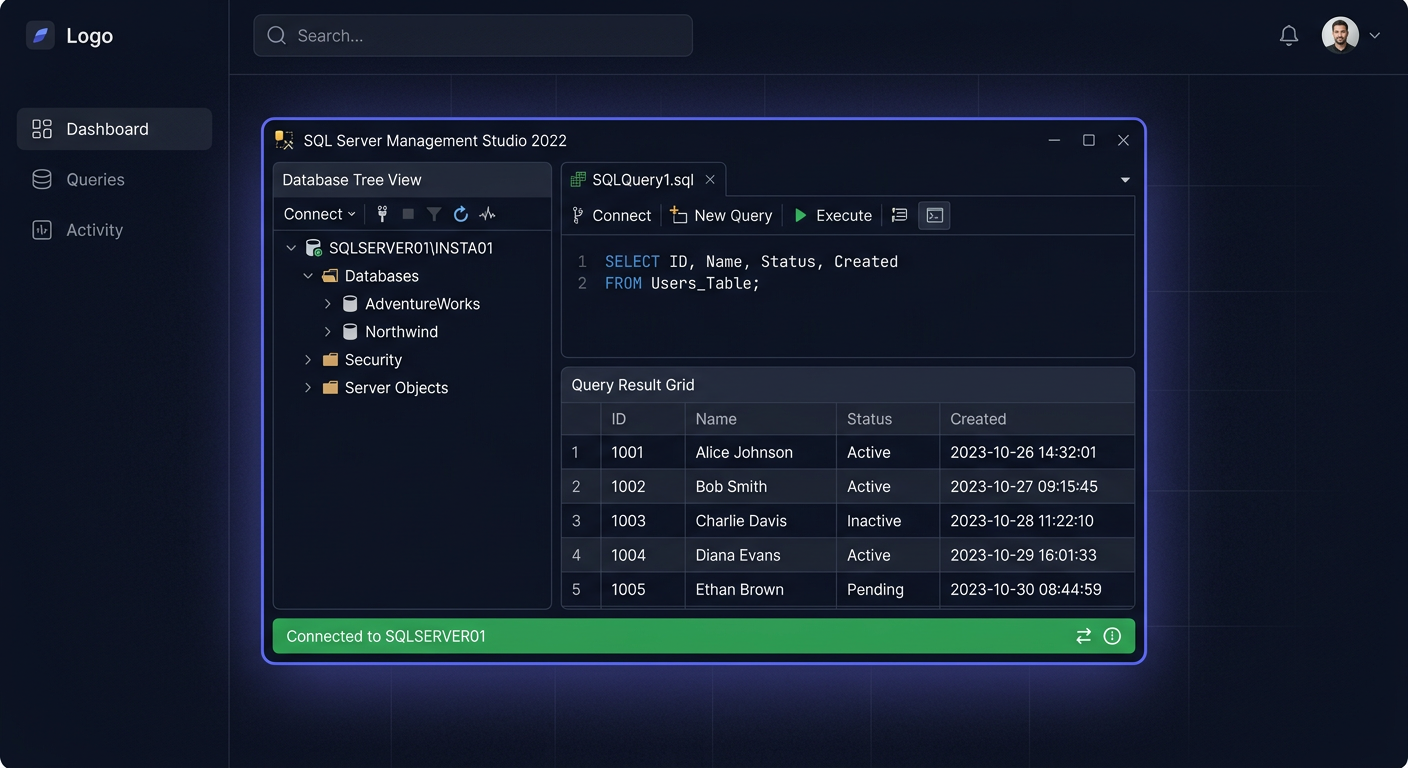
Zanim zaczniesz
Microsoft SQL Server 2022 to najnowsza wersja flagowej bazy danych Microsoftu, wydana 16 listopada 2022. Edycja Standard z licencją na 24 rdzenie to najczęściej wybierana konfiguracja dla firm średniej wielkości. Jeśli od razu planujesz zakup, sprawdź Microsoft SQL Server 2022 Standard 24 Core w KluczeSoft — to wariant wystarczający do obsługi tysięcy użytkowników i baz danych o rozmiarze do 524 PB.
Cykl wsparcia
| Etap | Data |
|---|---|
| Data wydania | 16 listopada 2022 |
| Koniec wsparcia głównego | 11 stycznia 2028 |
| Koniec wsparcia rozszerzonego | 11 stycznia 2033 |
SQL Server 2022 będzie wspierany poprawkami bezpieczeństwa do 2033 roku — najdłuższy horyzont wsparcia ze wszystkich aktualnych edycji SQL Server.
Wymagania systemowe
| Komponent | Minimum | Zalecane |
|---|---|---|
| System operacyjny | Windows Server 2016, Windows 10 (1607+) | Windows Server 2022 |
| Procesor | x64, 1.4 GHz | 2.0 GHz+, wielordzeniowy |
| Pamięć RAM | 1 GB (4 GB zalecane) | 16-64 GB (Standard max: 128 GB) |
| Dysk | 6 GB wolnego (instalacja) | SSD, RAID 10 dla baz produkcyjnych |
| .NET Framework | 4.7.2+ | 4.8 |
Ważne: SQL Server 2022 działa również na Linux (Ubuntu, RHEL, SUSE) i w kontenerach Docker. Ta instrukcja dotyczy instalacji na Windows. Przed wdrożeniem warto też sprawdzić wymagania systemowe Microsoft SQL Server 2022 Standard 24 Core.
Standard vs Enterprise — kiedy która edycja?
| Cecha | Standard | Enterprise |
|---|---|---|
| Maksymalna RAM | 128 GB | Maksimum OS |
| Maksymalna liczba rdzeni | 24 rdzenie | Bez limitu |
| Rozmiar bazy danych | 524 PB | 524 PB |
| Grupy dostępności (AG) | Podstawowe (2 repliki) | Zaawansowane (wiele replik) |
| Partycjonowanie tabel | ✗ | ✓ |
| Kompresja danych | Ograniczona | Pełna (row + page + columnstore) |
| In-Memory OLTP | Do 32 GB | Bez limitu |
| Transparent Data Encryption | ✓ | ✓ |
| Always Encrypted | ✓ | ✓ |
| Cena w KluczeSoft (24 Core) | 2999 zł | Na zapytanie |
Dla większości firm: Standard z 24 rdzeniami obsługuje tysiące użytkowników, bazy do 128 GB RAM i podstawowe grupy dostępności. Enterprise potrzebny przy: partycjonowaniu dużych tabel, pełnej kompresji columnstore, zaawansowanym AG z wieloma replikami.
Krok 1: Pobierz instalator SQL Server 2022
- Wejdź na stronę Microsoft Evaluation Center → SQL Server 2022
- Wybierz ISO (plik offline, ~1.5 GB) lub Media download
- Alternatywnie: pobierz z Volume Licensing Service Center (VLSC) jeśli masz licencję wolumenową
Uwaga: Możesz zainstalować wersję Evaluation (180 dni trial) i później aktywować kluczem Standard. Nie musisz reinstalować. Jeśli chcesz od razu przygotować się do aktywacji, zobacz poradnik Aktywacja SQL Server 2022.
Krok 2: Zainstaluj prerekvizity
Na Windows Server 2022/2019:
- Zainstaluj wszystkie aktualizacje Windows Update
- Zainstaluj .NET Framework 4.8 (zazwyczaj już wbudowany w Windows Server 2022)
- Upewnij się, że masz Windows PowerShell 5.1 lub nowszy
- Wyłącz antywirus na czas instalacji (lub dodaj wyjątek dla katalogu SQL Server)
Dla SQL Server z pełnym tekstem (Full-Text Search):
- Zainstaluj Oracle Java SE lub OpenJDK (wymagane dla PolyBase)
Krok 3: Uruchom instalator
- Zamontuj pobrany plik ISO
- Uruchom setup.exe jako Administrator
- Wybierz Installation → New SQL Server stand-alone installation
- Na ekranie Product Key:
- Wpisz 25-znakowy klucz z KluczeSoft
- Lub wybierz Evaluation (aktywujesz później)
- Zaakceptuj warunki licencji
- Na ekranie Feature Selection wybierz:
- ✓ Database Engine Services (obowiązkowe)
- ✓ SQL Server Replication (zalecane)
- ✓ Full-Text and Semantic Extractions for Search (opcjonalne)
- ✓ Management Tools — SSMS instaluje się osobno (patrz Krok 5)
- Instance Configuration: Named Instance lub Default Instance
- Server Configuration: ustaw konta usług (Service Accounts)
- Zalecane: dedykowane konta domenowe lub NT Service\MSSQLSERVER
- Database Engine Configuration:
- Authentication Mode: Mixed Mode (Windows + SQL Authentication)
- Ustaw hasło sa (silne hasło!)
- Dodaj bieżącego użytkownika jako SQL Server Administrator
- Zakładka Data Directories: ustaw lokalizacje plików danych, logów i TempDB na osobnych dyskach (wydajność!)
- Kliknij Install — instalacja trwa 15-30 minut
Krok 4: Aktywacja kluczem produktu
Jeśli wpisałeś klucz podczas instalacji
Gotowe — SQL Server jest już aktywowany. Zweryfikuj w SSMS (patrz niżej).
Jeśli zainstalowałeś Evaluation i chcesz aktywować teraz
Metoda A: SQL Server Management Studio (SSMS)
- Otwórz SQL Server Management Studio (SSMS)
- Połącz się z instancją SQL Server
- Kliknij prawym na serwer → Properties → General
- Kliknij Change obok "Product" → wpisz klucz
- Zrestartuj usługę SQL Server
Metoda B: Setup.exe (Edition Upgrade)
- Uruchom ponownie setup.exe z ISO
- Wybierz Maintenance → Edition Upgrade
- Wpisz klucz produktu Standard
- Przejdź przez kreatora — upgrade trwa kilka minut
- Restart usługi SQL Server
Metoda C: Wiersz poleceń
Uruchom z katalogu instalacyjnego SQL Server:
setup.exe /q /ACTION=EditionUpgrade /INSTANCENAME=MSSQLSERVER /PID=XXXXX-XXXXX-XXXXX-XXXXX-XXXXX /IACCEPTSQLSERVERLICENSETERMS
Weryfikacja aktywacji
W SSMS wykonaj zapytanie:
SELECT SERVERPROPERTY('Edition') AS Edition,
       SERVERPROPERTY('ProductVersion') AS Version,
       SERVERPROPERTY('ProductLevel') AS Level;
Wynik powinien zawierać: Edition = Standard Edition (64-bit).
Alternatywnie w PowerShell:
Get-Service MSSQLSERVER | Select-Object Name, Status
Jeśli chcesz upewnić się, że wszystko przebiegnie bez błędów, sprawdź też FAQ: Microsoft SQL Server 2022 Standard 24 Core.
Krok 5: Zainstaluj SQL Server Management Studio (SSMS)
SSMS nie jest już dołączany do instalatora SQL Server — musisz pobrać go osobno:
- Wejdź na learn.microsoft.com → szukaj "Download SSMS"
- Pobierz najnowszą wersję SSMS 20.x (darmowa)
- Zainstaluj — SSMS działa na Windows 10/11 i Windows Server
- Po instalacji: Połącz → Server name:
localhostlub.\INSTANCJA→ Authentication: Windows
Krok 6: Konfiguracja po instalacji
Ustaw limity pamięci
SQL Server domyślnie konsumuje całą dostępną RAM. Ogranicz to:
EXEC sp_configure 'max server memory', 102400; -- 100 GB (zostaw 28 GB dla OS)
RECONFIGURE;
Zasada kciuka: zostaw minimum 4 GB dla systemu operacyjnego, resztę przydziel SQL Server.
Włącz zdalny dostęp (jeśli potrzebny)
- SQL Server Configuration Manager → SQL Server Network Configuration → Protocols
- Włącz TCP/IP (domyślnie wyłączony!)
- Properties → IP Addresses → IPAll → TCP Port: 1433
- Zrestartuj usługę SQL Server
- Otwórz port 1433 w Windows Firewall
Skonfiguruj backup
-- Pełny backup bazy danych
BACKUP DATABASE [MojaBaza] TO DISK = 'D:\Backups\MojaBaza_full.bak'
WITH COMPRESSION, CHECKSUM;
Ustaw SQL Server Agent do automatycznych backupów (Maintenance Plan lub skrypt T-SQL w Agent Job).
Włącz Query Store (zalecane)
ALTER DATABASE [MojaBaza] SET QUERY_STORE = ON;
ALTER DATABASE [MojaBaza] SET QUERY_STORE (OPERATION_MODE = READ_WRITE);
Query Store zbiera statystyki zapytań — niezbędne do optymalizacji wydajności.
Gdzie kupić licencję SQL Server?
Jeżeli po testach chcesz od razu przejść na pełną wersję, sprawdź wszystkie wersje SQL Server w sklepie KluczeSoft. To dobry punkt wyjścia, jeśli porównujesz edycje 2019, 2022 albo modele licencjonowania Core i CAL.
Nowości SQL Server 2022
| Funkcja | Opis |
|---|---|
| Ledger | Niezmienialny dziennik transakcji — kryptograficzna weryfikacja integralności danych |
| Azure Synapse Link | Replikacja danych do Azure Synapse Analytics w czasie rzeczywistym |
| Query Store improvements | Hints, plan forcing, plan regression detection |
| Intelligent Query Processing | Parameter Sensitive Plan, DOP feedback, Cardinality Estimation feedback |
| JSON enhancements | JSON_OBJECT, JSON_ARRAY, ISJSON z typami |
| T-SQL enhancements | WINDOW clause, GREATEST/LEAST, STRING_SPLIT z ordinal |
| Contained Availability Groups | AG z własnymi metadanymi (logins, jobs) — łatwiejszy failover |
| S3-compatible object storage | Backup bezpośrednio do magazynu S3-compatible |
Licencjonowanie SQL Server 2022
Model Core-Based (zalecany)
Licencjonowanie per-core — kupujesz licencje na rdzenie fizyczne procesora:
- Minimum: 4 rdzenie na procesor
- Minimum procesorów: wymagane pokrycie wszystkich rdzeni na serwerze
- Licencja 24 Core pokrywa serwer z 1-2 procesorami po 12 rdzeni
| Licencja | Cena w KluczeSoft |
|---|---|
| SQL Server 2022 Standard 24 Core | 2999 zł |
Model Server + CAL (alternatywny)
Dla mniejszych środowisk z ograniczoną liczbą użytkowników:
| Licencja | Cena |
|---|---|
| SQL Server 2022 Standard 50 User CAL | 1690 zł |
| SQL Server 2022 Standard 50 Device CAL | 1690 zł |
Przykład: firma z serwerem bazy danych (2x Xeon 12-core)
- 1× SQL Server 2022 Standard 24 Core: 2999 zł (pokrywa 24 rdzenie)
- Brak dodatkowych kosztów per-user (core-based = unlimited users)
- Jednorazowy koszt, licencja bezterminowa
Porównanie z Azure SQL: Azure SQL Database w porównywalnej konfiguracji (8 vCores, Business Critical) kosztuje ~5000 zł/miesiąc. Własny SQL Server zwraca się po 3 tygodniach.
Rozwiązywanie problemów
Instalator nie uruchamia się
- Sprawdź czy masz uprawnienia Administratora
- Wyłącz antywirus na czas instalacji
- Sprawdź logi:
C:\Program Files\Microsoft SQL Server\160\Setup Bootstrap\Log\Summary.txt
Klucz produktu nie jest akceptowany
- Klucz Standard nie zadziała na Enterprise i odwrotnie
- Klucz SQL Server 2019 nie zadziała na 2022
- Format: XXXXX-XXXXX-XXXXX-XXXXX-XXXXX (25 znaków)
Nie mogę połączyć się zdalnie
- Sprawdź czy TCP/IP jest włączony w SQL Server Configuration Manager
- Sprawdź czy port 1433 jest otwarty w firewallu
- Sprawdź czy usługa SQL Server Browser jest uruchomiona (dla named instances)
SQL Server zużywa całą RAM
- To normalne zachowanie — SQL Server celowo używa maksymalnie dostępnej pamięci
- Ogranicz:
sp_configure 'max server memory'(patrz Krok 6)
Jak sprawdzić wersję SQL Server?
W SSMS: SELECT @@VERSION — wyświetli pełną informację o wersji, CU i build number.
Jeżeli podczas aktywacji lub instalacji pojawią się problemy z uprawnieniami, przydatny może być też poradnik Błąd 0x80070005. W przypadku nietypowych problemów możesz również od razu wysłać zgłoszenie.
Porównanie wersji SQL Server
| Cecha | SQL 2016 | SQL 2017 | SQL 2019 | SQL 2022 |
|---|---|---|---|---|
| Cena 24 Core | 989 zł | 1349 zł | 2149 zł | 2999 zł |
| Wsparcie do | 2026 | 2027 | 2030 | 2033 |
| Ledger | ✗ | ✗ | ✗ | ✓ |
| Query Store | Basic | ✓ | ✓ | Zaawansowany |
| JSON natywny | Ograniczony | ✓ | ✓ | Rozszerzony |
| Linux | ✗ | ✓ | ✓ | ✓ |
| Konteneryzacja | ✗ | ✓ | ✓ | ✓ |
| S3 backup | ✗ | ✗ | ✗ | ✓ |
Jeśli szukasz tańszej opcji, sprawdź także Microsoft SQL Server 2019 Standard 24 Core - kup w KluczeSoft z wsparciem do 2030 roku. To solidna alternatywa dla firm, które nie potrzebują wszystkich nowości z wydania 2022.
Podsumowanie
SQL Server 2022 Standard 24 Core za 2999 zł to jednorazowa inwestycja z wsparciem do 2033 roku. Obsługuje nieograniczoną liczbę użytkowników (model core-based), bazy danych do 524 PB i do 128 GB RAM. Klucz produktu otrzymasz natychmiast na e-mail — możesz aktywować podczas instalacji lub później przez SSMS.
Jeśli chcesz od razu kupić właściwą licencję, przejdź do oferty Kup Microsoft SQL Server 2022 Standard 24 Core w KluczeSoft. Przed zakupem możesz też sprawdzić FAQ: Microsoft SQL Server 2022 Standard 24 Core oraz jak otrzymać fakturę VAT za zakup klucza licencyjnego w KluczeSoft.
Pomoc techniczna Microsoft Polska: 00 800 121 1654 (bezpłatna linia w języku polskim)
Gdzie kupić oryginalny klucz
Potrzebujesz legalnego klucza? Sprawdź oferty w sklepie kluczesoft.pl:
Wszystkie klucze są fabrycznie nowe, dostarczane elektronicznie z fakturą VAT.
<!-- IL-V1 -->Powiązane artykuły
- Jak zainstalować i aktywować Microsoft SQL Server 2016 Standard — kompletna instrukcja — Najtańszy SQL Server: 989 zł.
- Jak zainstalować i aktywować Microsoft SQL Server 2017 Standard — kompletna instrukcja — Jak zainstalować SQL Server 2017 Standard.
- Jak zainstalować i aktywować Microsoft SQL Server 2019 Standard — kompletna instrukcja — Jak zainstalować SQL Server 2019 Standard 24 Core.
- Jak zainstalować i aktywować Microsoft Exchange Server 2016 Standard — kompletna instrukcja — Jak zainstalować Exchange Server 2016 Standard.
- Jak zainstalować i aktywować Microsoft Exchange Server 2019 Standard — kompletna instrukcja — Jak zainstalować Exchange Server 2019 Standard.