Aktywacja Norton 360 Standard 1 urządzenie — kompletny poradnik 2026
Ten poradnik dotyczy wyłącznie aktywacji licencji Norton 360 Standard na 1 urządzenie. Nie opisuje pełnej instalacji programu od zera, konfiguracji wszystkich modułów ochrony ani migracji z innego antywirusa. Zakładamy, że aplikacja Norton jest już uruchomiona na komputerze albo masz dostęp do konta Norton, na którym chcesz przypisać subskrypcję.
Norton 360 Standard 1 urządzenie to licencja przeznaczona dla jednego stanowiska: najczęściej laptopa lub komputera stacjonarnego z systemem Windows, ewentualnie innego obsługiwanego urządzenia zgodnie z warunkami producenta. W praktyce najważniejsze jest to, że klucz nie działa jak lokalny „kod odblokowujący” wpisany raz w programie i zapomniany. Subskrypcja jest zwykle wiązywana z kontem Norton, dlatego prawidłowy adres e-mail ma duże znaczenie przy późniejszym odzyskiwaniu dostępu, reinstalacji systemu lub przenoszeniu ochrony na nowe urządzenie.
W 2026 roku aktywacja Nortona nadal jest procesem opartym głównie na koncie producenta i połączeniu z internetem. Ma to znaczenie szczególnie przy nowych środowiskach: Windows 11 24H2, nadchodzących wdrożeniach Windows 11 25H2, komputerach firmowych z Microsoft 365, Office 2024, M365 Copilot oraz infrastrukturze pocztowej Exchange SE. Sam Norton 360 Standard nie aktywuje systemu Windows, pakietu Office ani usług Microsoft, ale chroni urządzenie, na którym te narzędzia są używane — dlatego poprawna aktywacja antywirusa jest elementem szerszego bezpieczeństwa stanowiska pracy.
Co warto wiedzieć przed aktywacją Norton 360 Standard
Przed wpisaniem klucza warto uporządkować trzy rzeczy: jaki produkt aktywujesz, na jakim koncie Norton chcesz go przypisać oraz czy urządzenie spełnia wymagania techniczne. Ten etap często pozwala uniknąć błędów typu „Invalid Product Key” albo sytuacji, w której licencja zostaje przypisana do prywatnego konta pracownika zamiast do konta firmowego.
Klucz Norton ma zwykle format 25 znaków w układzie:
XXXXX-XXXXX-XXXXX-XXXXX-XXXXX
Znaki należy przepisać dokładnie tak, jak zostały dostarczone. Warto zwrócić uwagę na podobne znaki, szczególnie 0/O oraz 1/I/l. Jeżeli klucz został skopiowany z wiadomości e-mail, należy upewnić się, że nie ma na początku lub końcu spacji. Jeżeli pochodzi z wersji pudełkowej albo od sklepu partnerskiego, aktywacja może dodatkowo wymagać poprawnego powiązania subskrypcji z kontem my.norton.com.
Najważniejsze założenia dla tej instrukcji:
| Obszar | Co sprawdzić przed aktywacją | Dlaczego to ważne |
|---|---|---|
| Produkt | Norton 360 Standard 1 urządzenie | Klucz musi pasować do właściwej edycji i planu |
| Liczba stanowisk | 1 urządzenie | Ta licencja nie jest przeznaczona do wielu komputerów jednocześnie |
| Konto | Właściwy adres e-mail konta Norton | Subskrypcja jest najczęściej wiązana z kontem |
| Klucz | 25 znaków w formacie XXXXX-XXXXX-XXXXX-XXXXX-XXXXX | Błędny format powoduje odrzucenie kodu |
| Internet | Stabilne połączenie | Program musi połączyć się z serwerami aktywacji |
| System | Zgodność z wymaganiami producenta | Problemy systemowe mogą wyglądać jak problem z aktywacją |
W środowisku domowym sprawa jest prosta: najczęściej aktywujesz licencję na swoim głównym laptopie. W małej firmie trzeba przemyśleć, które urządzenie ma być chronione tą konkretną licencją. Jeżeli firma ma pięć komputerów, a kupiono jedną licencję Norton 360 Standard 1 urządzenie, nie należy zakładać, że ta sama subskrypcja obejmie wszystkie stanowiska. Ten poradnik dotyczy wyłącznie aktywacji jednej licencji na jedno urządzenie.
W polskich realiach zakup licencji może być też elementem dokumentacji księgowej. Jeżeli kupujesz oprogramowanie na firmę, zwróć uwagę na poprawne dane do faktury, stawkę VAT 23%, walutę PLN oraz zgodność dokumentu z procedurami księgowymi. Wraz z rozwojem KSeF firmy coraz częściej porządkują proces zakupu oprogramowania tak samo jak zakup sprzętu: nabywca, numer NIP, opis produktu, dowód zakupu i przypisanie licencji do konkretnego stanowiska powinny być łatwe do odtworzenia.
Aktywacja kluczem produktu w aplikacji Norton
Najprostsza i zalecana metoda aktywacji polega na wpisaniu klucza bezpośrednio w aplikacji Norton. To dobry wybór, jeżeli program jest już zainstalowany, uruchamia się poprawnie i masz dostęp do internetu. W tej metodzie aplikacja łączy się z kontem Norton i serwerami producenta, a następnie przypisuje aktywną subskrypcję.
Kroki aktywacji:
- Otwórz Norton 360.
- Jeśli pojawi się widok My Norton, kliknij Open przy Device Security.
- Kliknij Activate Now, Subscribe albo Enter a Key.
- Zaloguj się do konta Norton.
- Wybierz Enter a Key / Enter Product Key.
- Wpisz klucz produktu dokładnie tak, jak został dostarczony.
- Zatwierdź i poczekaj na przypisanie licencji do konta.
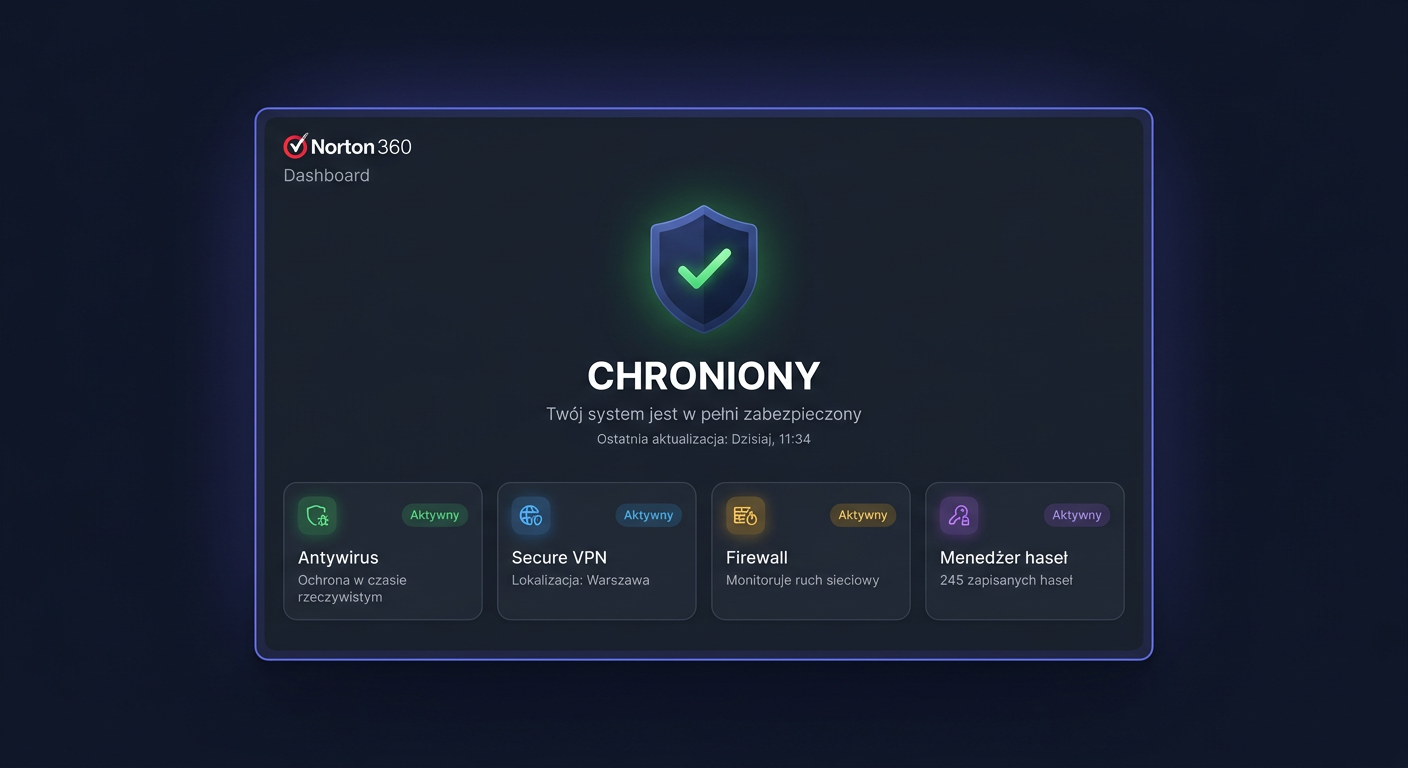
Po udanej aktywacji program powinien pokazać aktywną ochronę oraz informację o planie. W zależności od wersji interfejsu komunikaty mogą być po angielsku lub po polsku. Najważniejsze jest, aby status ochrony wskazywał Protected / Chroniony, a subskrypcja była widoczna jako aktywna.
Jeżeli klucz pochodzi z wersji pudełkowej lub sklepu partnerskiego, aktywacja może jednocześnie przypisać subskrypcję do konta my.norton.com. Oznacza to, że przy kolejnej reinstalacji systemu albo zmianie urządzenia nie wystarczy pamiętać samego kodu — trzeba znać także konto, na którym został wykorzystany. Właśnie dlatego nie warto aktywować licencji firmowej na przypadkowym prywatnym adresie e-mail.
Praktyczny przykład: jednoosobowa działalność gospodarcza kupuje laptop z Windows 11 24H2, Office 2024 i używa go do obsługi faktur, bankowości oraz korespondencji z biurem rachunkowym. Właściciel potrzebuje ochrony jednego urządzenia, nie całej floty komputerów. W takim przypadku Norton 360 Standard 1 urządzenie jest logicznym wyborem, a aktywację najlepiej wykonać z konta Norton przypisanego do firmowego adresu e-mail. Jeśli chcesz mieć solidną ochronę bez osobnej subskrypcji antywirusa, sprawdź Windows 11 Pro z wbudowanym Microsoft Defender w KluczeSoft.
Warto też od razu zapisać podstawowe informacje: datę zakupu, adres e-mail konta Norton, nazwę produktu Norton 360 Standard 1 urządzenie, numer faktury oraz miejsce przechowywania klucza. Nie trzeba drukować kodu i przyklejać go do laptopa; lepiej przechowywać go w firmowym menedżerze haseł lub bezpiecznym repozytorium dokumentów.
Aktywacja przez stronę producenta i konto my.norton.com
Druga metoda polega na przypisaniu klucza przez stronę producenta. Jest przydatna, gdy aplikacja nie przyjmuje klucza, nie pokazuje pola aktywacji, działa niestabilnie albo chcesz najpierw upewnić się, że subskrypcja trafi na właściwe konto.
Kroki aktywacji przez konto:
- Wejdź na
https://my.norton.comlubhttps://norton.com/setup. - Zaloguj się na właściwe konto Norton.
- Wybierz sekcję My Subscriptions lub pole dodania nowego klucza.
- Wpisz klucz produktu.
- Po przypisaniu klucza wróć do aplikacji Norton i zaloguj się na to samo konto.
- Program powinien pobrać aktywną subskrypcję automatycznie.
To ważne: w Norton licencja jest najczęściej wiązywana z kontem, nie tylko z lokalną aplikacją. Jeżeli aktywujesz klucz na koncie A, a w aplikacji logujesz się na konto B, program może nie widzieć subskrypcji. Taka sytuacja często wygląda jak błąd aktywacji, choć w rzeczywistości problemem jest użycie niewłaściwego adresu e-mail.
Porównanie metod aktywacji:
| Metoda | Kiedy wybrać | Zalety | Ograniczenia |
|---|---|---|---|
| Aplikacja Norton | Program działa i pokazuje opcję aktywacji | Najszybsza ścieżka, od razu widać status ochrony | Wymaga działającej aplikacji i logowania |
my.norton.com | Chcesz przypisać klucz do konta przed użyciem w aplikacji | Dobra kontrola nad kontem i subskrypcją | Po aktywacji trzeba zalogować aplikację na to samo konto |
norton.com/setup | Aktywujesz nowy klucz lub klucz z kanału detalicznego | Przejrzysty proces dodania kodu | Nadal wymaga konta Norton |
| Telefon | Klucz jest odrzucany mimo poprawnego formatu | Możliwość wyjaśnienia blokady, zwrotu lub powiązania z kontem | Wymaga kontaktu z pomocą i dowodu zakupu |
W środowisku firmowym metoda przez konto jest często bezpieczniejsza organizacyjnie. Przykład: firma księgowa ma jeden laptop służbowy używany do kontaktu z klientami i obsługi dokumentów. Komputer działa na Windows 11 24H2, pracownik korzysta z Microsoft 365, a w najbliższych miesiącach firma przygotowuje procesy pod KSeF. Właściciel chce mieć pewność, że licencja nie zostanie przypisana do prywatnego e-maila pracownika. Najpierw tworzy lub wybiera firmowe konto Norton, aktywuje klucz przez my.norton.com, a dopiero potem loguje aplikację Norton na laptopie.
W kontekście 2026 roku coraz częściej na jednym stanowisku działają równolegle narzędzia lokalne i chmurowe: Office 2024, Microsoft 365, M365 Copilot, przeglądarki z zapisanymi sesjami, aplikacje bankowe, systemy ERP i poczta firmowa. Aktywowany Norton nie zastępuje kontroli dostępu w tych usługach, ale stanowi warstwę ochronną na urządzeniu końcowym. Jeżeli urządzenie nie jest chronione, ryzyko przejęcia sesji, kradzieży plików lub infekcji z załącznika pocztowego rośnie niezależnie od tego, czy organizacja używa Exchange Online, lokalnego Exchange, czy nowszego Exchange SE.
Aktywacja przez telefon i przypadki wymagające pomocy Norton
Jeżeli klucz odrzuca się mimo poprawnego formatu, jest już powiązany z innym kontem albo pochodzi z kanału detalicznego i nie został prawidłowo aktywowany przy sprzedaży, skontaktuj się z pomocą Norton pod numerem:
numer podany na oficjalnej stronie producenta
Przed rozmową przygotuj:
- klucz produktu,
- adres e-mail użyty do konta Norton,
- dowód zakupu,
- nazwę produktu: Norton 360 Standard 1 urządzenie,
- komunikat błędu widoczny na ekranie.
Telefoniczny kontakt z pomocą techniczną ma sens wtedy, gdy problem nie wynika z literówki ani z chwilowej awarii połączenia internetowego. Przykładem jest komunikat informujący, że klucz został już aktywowany lub przypisany do innego konta. Jeżeli kupujący ma dowód zakupu, pomoc może wyjaśnić, czy klucz jest powiązany z konkretnym kontem, anulowany, zablokowany, zwrócony albo nieprawidłowo obsłużony w kanale sprzedaży.
W firmie warto ustalić, kto kontaktuje się z pomocą producenta. Najlepiej, aby była to osoba mająca dostęp do skrzynki e-mail konta Norton oraz dokumentów zakupowych. W polskich warunkach takim dokumentem może być faktura VAT 23% wystawiona w PLN. Przy wdrożeniach księgowych i KSeF rośnie znaczenie spójności danych: nazwa nabywcy, NIP, opis produktu i data zakupu powinny pozwalać szybko potwierdzić legalność licencji.
Przykład praktyczny: spółka kupiła komputer dla handlowca i licencję Norton 360 Standard 1 urządzenie. Handlowiec aktywował klucz na swoim prywatnym adresie e-mail, po czym odszedł z firmy. Nowy użytkownik próbuje aktywować ten sam kod i widzi komunikat, że klucz jest już powiązany z innym kontem. Rozwiązaniem nie jest szukanie „komend aktywacyjnych”, lecz wyjaśnienie sprawy przez konto Norton, dokument zakupu i ewentualny kontakt z pomocą Norton przez oficjalną stronę producenta.
Metoda CMD, diagnostyka i weryfikacja aktywacji
Dla Norton 360 Standard nie istnieje oficjalna metoda aktywacji klucza z CMD, analogiczna do slmgr.vbs albo ospp.vbs. Norton aktywuje się przez GUI lub przez konto producenta. Jeżeli ktoś podaje „komendy aktywacyjne” do Nortona, zwykle chodzi o nieoficjalne obejścia albo zwykłe polecenia diagnostyczne, a nie o prawidłową aktywację licencji.
To rozróżnienie jest szczególnie ważne dla administratorów Windows. W przypadku systemu Windows można spotkać narzędzia licencyjne typu slmgr.vbs, a w starszych scenariuszach Office narzędzia w rodzaju ospp.vbs. Norton 360 Standard nie działa w ten sposób. Nie ma oficjalnego polecenia, które przyjmie 25-znakowy klucz i aktywuje subskrypcję z poziomu wiersza polecenia.
Można natomiast użyć CMD do diagnostyki usług i instalacji. Te komendy nie potwierdzają ważności licencji, ale pomagają odróżnić problem aktywacji od problemu z usługą lub uszkodzoną instalacją.
Sprawdzenie usług związanych z Norton:
sc query type= service state= all | findstr /I Norton
Sprawdzenie usług przez WMIC:
wmic service where "name like 'Norton%'" get Name,State,StartMode
Sprawdzenie produktu i wersji widocznej w systemie:
wmic product where "Name like 'Norton%'" get Name,Version
Interpretacja wyników:
| Wynik diagnostyki | Co może oznaczać | Co zrobić dalej |
|---|---|---|
| Usługi Norton są widoczne i działają | Program jest zainstalowany, problem może dotyczyć konta lub klucza | Sprawdź status w aplikacji i na my.norton.com |
| Brak usług Norton | Aplikacja może nie być zainstalowana poprawnie | Napraw instalację lub zainstaluj program ponownie |
| Usługi są zatrzymane | Możliwy problem z uruchamianiem programu | Uruchom ponownie system i sprawdź aplikację |
| Produkt widoczny, ale brak aktywnej subskrypcji | Instalacja istnieje, licencja nie została przypisana lub pobrana | Zaloguj się na właściwe konto Norton |
| Komendy nie pokazują jednoznacznego wyniku | Nazwy usług mogą różnić się między wersjami | Weryfikuj aktywację w aplikacji i na koncie |
Najpewniejsza weryfikacja aktywacji odbywa się w aplikacji i na koncie Norton. W aplikacji sprawdź, czy widzisz:
- status ochrony typu Protected / Chroniony,
- aktywną subskrypcję,
- datę wygaśnięcia lub informację o aktywnym planie.
Na koncie Norton:
- Zaloguj się do
my.norton.com. - Otwórz My Subscriptions.
- Sprawdź, czy plan Norton 360 Standard jest aktywny i przypisany do bieżącego urządzenia.
W 2026 roku diagnostyka może być utrudniona przez dodatkowe warstwy zabezpieczeń systemu Windows 11 24H2/25H2, polityki firmowe, kontrolę aplikacji, rozwiązania EDR lub ustawienia konta Microsoft. Jeżeli komputer jest zarządzany przez organizację, użytkownik może nie mieć pełnych uprawnień do naprawy usług lub ponownej instalacji. W takim przypadku aktywację powinien przeprowadzić administrator albo osoba mająca uprawnienia lokalne i dostęp do konta Norton.
Rozwiązywanie problemów aktywacji i najczęstsze komunikaty
Błędy aktywacji mogą mieć kilka przyczyn: literówka w kluczu, niewłaściwa edycja produktu, przypisanie do innego konta, wygaśnięcie, anulowanie, blokada, problem z internetem albo chwilowa niedostępność usługi. Poniżej znajdują się najczęstsze realne błędy i komunikaty związane z aktywacją.
Error 111 – Miscellaneous activation error
Zwykle oznacza ogólny błąd aktywacji. Zamknij Norton, uruchom system ponownie, zaloguj się jeszcze raz do my.norton.com i spróbuj aktywacji ponownie. Jeżeli błąd wraca, sprawdź połączenie internetowe, datę i godzinę systemową oraz to, czy logujesz się na właściwe konto.
Invalid Product Key
Klucz jest wpisany błędnie, dotyczy innego produktu albo ma zły format. Sprawdź mylące znaki: 0/O, 1/I/l. Najlepiej skopiować kod bez dodatkowych spacji lub przepisać go ponownie z oryginalnego źródła.
The product key you entered has already been activated / associated with another account
Klucz jest już przypisany do innego konta Norton. Zaloguj się na właściwe konto albo skontaktuj się z pomocą Norton przez oficjalną stronę producenta. W firmie sprawdź, czy klucz nie został wcześniej aktywowany przez innego pracownika.
This product key has expired and cannot be used to activate this product
Klucz wygasł. Nie da się go reaktywować lokalnie; potrzebna jest odnowiona lub nowa licencja. Warto sprawdzić datę zakupu oraz warunki subskrypcji.
Your product key has been canceled and is no longer valid
Klucz został anulowany, np. po zgłoszeniu nadużycia, zwrocie lub unieważnieniu przez sprzedawcę. W takiej sytuacji lokalne ponawianie aktywacji nie rozwiąże problemu.
This product key has been refunded and is no longer valid
Klucz pochodzi z transakcji zwróconej. Wymagany jest nowy, ważny klucz. Jeżeli uważasz, że zwrot nie miał miejsca, przygotuj dowód zakupu i skontaktuj się ze sprzedawcą.
This product key has been disabled
Klucz został zablokowany. Najczęściej wymaga kontaktu z pomocą lub ze sprzedawcą. Przygotuj klucz produktu, adres e-mail konta Norton, dowód zakupu i komunikat błędu.
Typowa kolejność działania przy problemach:
| Krok | Działanie | Po co |
|---|---|---|
| 1 | Sprawdź format klucza i podobne znaki | Wyklucza najprostsze literówki |
| 2 | Upewnij się, że produkt to Norton 360 Standard 1 urządzenie | Klucz musi pasować do edycji |
| 3 | Zaloguj się na właściwe konto Norton | Subskrypcja może być przypisana do konta |
| 4 | Spróbuj aktywacji przez my.norton.com lub norton.com/setup | Omija problemy interfejsu aplikacji |
| 5 | Uruchom ponownie komputer i aplikację | Czyści część błędów sesji i usług |
| 6 | Sprawdź status usług poleceniami diagnostycznymi | Pozwala wykryć problem instalacji |
| 7 | Skontaktuj się z pomocą Norton | Konieczne przy blokadzie, zwrocie lub powiązaniu z innym kontem |
Warto nie wykonywać chaotycznie wielu prób aktywacji na różnych kontach. Jeżeli klucz zostanie przypisany do niewłaściwego adresu e-mail, problem może być bardziej uciążliwy niż pierwotna literówka. Najpierw ustal konto, potem aktywuj.
Scenariusze użycia w domu, firmie i środowisku Microsoft 2026
Norton 360 Standard 1 urządzenie najlepiej pasuje do scenariuszy, w których trzeba chronić jedno konkretne stanowisko. Nie jest to plan wielostanowiskowy dla całego biura, lecz rozwiązanie dla pojedynczego laptopa, komputera domowego albo urządzenia używanego do pracy zdalnej.
Przykład 1: freelancer i laptop z Windows 11 24H2
Grafik prowadzi jednoosobową działalność, wystawia faktury w PLN, korzysta z bankowości internetowej, poczty i narzędzi chmurowych. Ma jeden laptop z Windows 11 24H2 i Office 2024. Potrzebuje ochrony tego jednego urządzenia, więc wybiera Norton 360 Standard 1 urządzenie. Aktywuje klucz na firmowym koncie Norton, zachowuje fakturę VAT 23% i zapisuje datę wygaśnięcia subskrypcji.
Przykład 2: mała spółka i stanowisko księgowe
Firma przygotowuje procesy pod KSeF i ma jedno wydzielone stanowisko do obsługi dokumentów oraz kontaktu z biurem rachunkowym. Komputer korzysta z Microsoft 365, poczty i aplikacji księgowej. Właściciel decyduje, że licencja Norton 360 Standard 1 urządzenie zostanie przypisana do tego konkretnego komputera. Aktywacja odbywa się przez my.norton.com na koncie firmowym, a dane zakupu trafiają do dokumentacji IT.
Przykład 3: użytkownik domowy z Microsoft 365 i M365 Copilot
Użytkownik ma komputer z Windows 11 25H2, korzysta z Microsoft 365, a w pracy testuje M365 Copilot. Na urządzeniu znajdują się prywatne pliki, dokumenty służbowe i zapisane sesje w przeglądarce. Norton 360 Standard 1 urządzenie chroni to konkretne stanowisko, ale użytkownik nadal powinien stosować silne hasła, MFA i aktualizacje systemowe.
Przykład 4: organizacja z Exchange SE
Firma korzysta z lokalnej infrastruktury pocztowej Exchange SE i ma kilka komputerów, ale tylko jedno stanowisko wymaga osobnej ochrony Norton 360 Standard 1 urządzenie. Administrator aktywuje licencję na wybranym komputerze, lecz nie traktuje jej jako zabezpieczenia całej poczty. Ochrona endpointa jest tylko jedną z warstw: obok aktualizacji serwera, filtrowania poczty, MFA, kopii zapasowych i zasad dostępu.
W każdym z tych przypadków kluczowe są trzy zasady. Po pierwsze, licencję aktywuje się na właściwym koncie. Po drugie, jeden plan obejmuje jedno urządzenie. Po trzecie, antywirus nie zastępuje higieny bezpieczeństwa: aktualizacji Windows, ostrożności przy załącznikach, ochrony kont Microsoft i regularnych kopii zapasowych.
Dobre praktyki po aktywacji
Po aktywacji nie kończy się odpowiedzialność za bezpieczeństwo urządzenia. Warto wykonać kilka prostych czynności, które zmniejszają ryzyko problemów w przyszłości.
Najpierw sprawdź status ochrony w aplikacji. Jeżeli widzisz Protected / Chroniony, aktywną subskrypcję i datę wygaśnięcia, podstawowy cel został osiągnięty. Następnie zaloguj się na my.norton.com i sprawdź, czy plan Norton 360 Standard jest widoczny w My Subscriptions oraz przypisany do bieżącego urządzenia.
W firmie przygotuj krótką notatkę licencyjną. Powinna zawierać nazwę produktu, datę zakupu, konto Norton, numer faktury, informację o VAT 23%, kwotę w PLN zgodną z dokumentem zakupu oraz nazwę urządzenia lub użytkownika. Taka dokumentacja ułatwia późniejszy audyt, rozliczenie kosztu, obsługę KSeF i reakcję w przypadku wymiany sprzętu.
Dobrą praktyką jest także wykonanie pierwszego pełnego skanowania po aktywacji. Jeżeli urządzenie było wcześniej używane bez aktualnej ochrony, pełne skanowanie pozwala wykryć zagrożenia, które mogły już znajdować się w systemie. Następnie sprawdź, czy aktualizacje programu i definicji zabezpieczeń pobierają się automatycznie.
Na komputerach z Windows 11 24H2/25H2 należy dbać również o Windows Update. Aktualny antywirus nie kompensuje braków w poprawkach systemowych. Dotyczy to także środowisk z Office 2024, Microsoft 365, M365 Copilot i pocztą Exchange SE — luki w aplikacjach biurowych, przeglądarkach lub klientach poczty mogą być wykorzystywane niezależnie od statusu licencji antywirusowej.
Jeżeli planujesz zmianę komputera, nie czekaj do ostatniej chwili. Sprawdź na koncie Norton, czy można zarządzać przypisanym urządzeniem i jak wygląda przeniesienie ochrony zgodnie z zasadami producenta. Ponieważ ten poradnik dotyczy aktywacji licencji na 1 urządzenie, równoczesne używanie tej samej subskrypcji na wielu stanowiskach nie jest właściwym scenariuszem.
Częste pytania
Czy Norton 360 Standard 1 urządzenie można aktywować z CMD?
Nie. Dla Norton 360 Standard nie istnieje oficjalna metoda aktywacji klucza z CMD, analogiczna do slmgr.vbs albo ospp.vbs. Aktywacja odbywa się przez aplikację Norton albo konto producenta.
Jaki format ma klucz Norton?
Klucz Norton ma zwykle 25 znaków w układzie XXXXX-XXXXX-XXXXX-XXXXX-XXXXX. Przy wpisywaniu trzeba uważać na podobne znaki, takie jak 0/O oraz 1/I/l. Dodatkowe spacje skopiowane z wiadomości e-mail mogą spowodować błąd.
Co oznacza komunikat „Invalid Product Key”?
Najczęściej oznacza błędnie wpisany klucz, klucz do innego produktu albo nieprawidłowy format. Sprawdź, czy aktywujesz dokładnie Norton 360 Standard 1 urządzenie i czy kod został przepisany bez pomyłek. Jeśli problem nie znika, spróbuj aktywacji przez my.norton.com.
Co zrobić, gdy klucz jest przypisany do innego konta?
Zaloguj się na konto Norton, na którym klucz mógł zostać pierwotnie aktywowany. Jeżeli nie masz do niego dostępu albo sytuacja dotyczy firmy, przygotuj dowód zakupu i skontaktuj się z pomocą Norton przez oficjalną stronę producenta.
Czy Norton 360 Standard aktywuje Windows 11 lub Office 2024?
Nie. Norton 360 Standard aktywuje wyłącznie subskrypcję ochrony Norton, a nie system Windows, Office 2024 ani Microsoft 365. Windows i Office mają własne mechanizmy licencjonowania oraz aktywacji.
Czy licencja Norton 360 Standard 1 urządzenie wystarczy dla całej firmy?
Nie, jeżeli firma ma więcej niż jedno stanowisko wymagające ochrony. Ta licencja dotyczy jednego urządzenia. Dla kilku komputerów trzeba dobrać licencjonowanie zgodne z rzeczywistą liczbą stanowisk i warunkami producenta.
Czy faktura VAT 23% jest ważna przy aktywacji?
Sama aktywacja techniczna nie wymaga wpisywania danych z faktury, ale dowód zakupu jest ważny przy problemach z kluczem, reklamacjach i dokumentacji firmowej. W Polsce warto zachować fakturę VAT 23% w PLN oraz powiązać ją z właściwą licencją i urządzeniem.
Co oznacza Error 111 – Miscellaneous activation error?
To ogólny błąd aktywacji. Zamknij Norton, uruchom komputer ponownie, zaloguj się jeszcze raz do my.norton.com i ponów próbę. Jeżeli błąd wraca, sprawdź konto, internet, datę systemową i ewentualnie skontaktuj się z pomocą.
Czy aktywacja przez my.norton.com różni się od aktywacji w aplikacji?
Cel jest ten sam: przypisanie subskrypcji do konta Norton i urządzenia. Aktywacja przez stronę jest wygodna, gdy aplikacja nie przyjmuje klucza albo chcesz najpierw upewnić się, że licencja trafi na właściwe konto. Po przypisaniu klucza trzeba zalogować aplikację Norton na to samo konto.
Czy Norton 360 Standard chroni środowiska z M365 Copilot lub Exchange SE?
Chroni urządzenie końcowe, na którym jest aktywowany, ale nie zastępuje zabezpieczeń Microsoft 365, M365 Copilot ani Exchange SE. Nadal potrzebne są aktualizacje, MFA, dobre hasła, polityki dostępu i kopie zapasowe. Norton jest jedną z warstw ochrony, nie pełnym systemem bezpieczeństwa całej organizacji.
<!-- IL-V1 -->Powiązane artykuły
- Aktywacja Office 2024 Standard — Microsoft Office 2024 Standard po zainstalowaniu wymaga aktywacji, czyli przypisania ważnego klucza produktu do konkretnej kopii pakietu.
- Aktywacja Norton Advanced — Norton 360 Advanced 10 urządzeń aktywuje się przez przypisanie ważnego klucza produktu do konta Norton, a następnie powiązanie licencji z urządzeniem.
- Aktywacja Norton Premium — Norton 360 Premium 10 urządzeń aktywuje się kluczem produktu, a nie przez samą instalację aplikacji.
- Aktywacja Office 2016 Standard — Microsoft Office 2016 Standard po zainstalowaniu wymaga aktywacji legalnym kluczem produktu.
- Aktywacja Office 2019 Standard — Microsoft Office 2019 Standard po instalacji wymaga aktywacji licencji, aby pakiet działał w pełnym zakresie i był prawidłowo przypisany do zakupionego klucza produktu.
Powiązane produkty
- Windows 11 Pro z wbudowanym Microsoft Defender — sprawdź dostępność i cenę w naszym sklepie