Jak zainstalować Microsoft PowerPoint 2024 — kompletna instrukcja
Aktualizacja 26.09.2026: Microsoft wyłączył automatyczną aktywację telefoniczną 3 grudnia 2025 r. (także w Polsce). Jeśli aktywacja online nie działa, użyj Portalu aktywacji produktu Microsoft (aka.ms/aoh): identyfikator instalacji z
slmgr /dti(Windows) lubcscript ospp.vbs /dinstid(Office) wprowadź w portalu, a otrzymany identyfikator potwierdzenia wpisz poleceniemslmgr /atp <ID>lubcscript ospp.vbs /actcid:<ID>.
Microsoft PowerPoint 2024 — samodzielna aplikacja prezentacji
Microsoft PowerPoint 2024 to samodzielna, bezterminowa aplikacja do tworzenia i odtwarzania prezentacji multimedialnych. To dobry wybór dla osób, które potrzebują wyłącznie PowerPointa, bez zakupu pełnego pakietu Office. Program sprawdza się w firmach, szkołach, na uczelniach i w pracy zdalnej: pozwala przygotowywać prezentacje biznesowe, materiały szkoleniowe, oferty handlowe, pokazy z animacjami, prezentacje sprzedażowe, webinary oraz materiały dla zarządu.
W praktyce jest to klasyczna licencja jednorazowa, bez abonamentu Microsoft 365. Oznacza to, że kupujesz prawo do korzystania z PowerPointa 2024, a nie miesięczną lub roczną subskrypcję. Dla wielu użytkowników to najważniejsza różnica: program działa lokalnie na komputerze, a po aktywacji nie wymaga stałego opłacania usługi. Internet jest potrzebny do pobrania instalatora i aktywacji MAK, ale sama praca nad prezentacjami może odbywać się lokalnie.
Po zakupie w KluczeSoft klient otrzymuje cyfrową dostawę na e-mail: klucz aktywacyjny, instrukcję instalacji, plik lub źródło pobrania instalatora oraz fakturę VAT. To oznacza, że cały proces można przejść zdalnie, bez oczekiwania na przesyłkę fizyczną. W polskich realiach ma to znaczenie szczególnie dla firm, które potrzebują szybkiego zakupu z dokumentem księgowym: faktura VAT 23% pozwala ująć zakup w kosztach zgodnie z procedurami obowiązującymi w przedsiębiorstwie, a dane z faktury mogą być później wykorzystywane w obiegu księgowym, również w kontekście przygotowania firm do KSeF.
PowerPoint 2024 należy do linii Office 2024 i korzysta z nowoczesnego modelu instalacji Click-to-Run. Oficjalny cykl życia produktu rozpoczął się 1 października 2024 r., a koniec wsparcia przewidziano na 9 października 2029 r. W tym okresie Microsoft udostępnia poprawki bezpieczeństwa i aktualizacje jakościowe, ale nie jest to subskrypcja z ciągłym dopływem nowych funkcji jak w Microsoft 365.
W 2026 roku warto spojrzeć na PowerPointa 2024 także w szerszym kontekście środowiska Microsoft. Firmy coraz częściej pracują na Windows 11 24H2 lub przygotowują się do Windows 11 25H2, część organizacji wdraża Microsoft 365 Copilot, a działy IT planują modernizację usług serwerowych, w tym przejście na Exchange Server Subscription Edition, czyli Exchange SE. PowerPoint 2024 pozostaje jednak produktem lokalnym i bezterminowym — dobrym dla tych stanowisk, na których potrzebna jest stabilna aplikacja do prezentacji, ale niekoniecznie pełna subskrypcja Microsoft 365.
Jeżeli chcesz kupić legalną licencję z dostawą cyfrową i dokumentem sprzedaży, możesz sprawdzić aktualną cenę w PLN na stronie KluczeSoft — klucze Microsoft PowerPoint 2024.
Dla kogo PowerPoint 2024 będzie najlepszym wyborem
PowerPoint 2024 jest przeznaczony dla użytkowników, którzy wiedzą, że potrzebują przede wszystkim programu do prezentacji. Nie każdy komputer w firmie musi mieć cały pakiet biurowy. W praktyce często wystarczy, aby księgowość pracowała na Excelu, administracja na Wordzie, a dział sprzedaży lub trenerzy wewnętrzni mieli dostęp do PowerPointa. Samodzielna aplikacja pozwala ograniczyć zakres zakupu do realnej potrzeby.
Najważniejszą cechą PowerPointa 2024 jest bezterminowy charakter licencji. Nie jest to Microsoft 365, więc nie otrzymujesz stałego strumienia nowych funkcji chmurowych, ale dostajesz stabilną wersję programu z określonym cyklem wsparcia. Dla firm z przewidywalnym budżetem IT to istotna zaleta: koszt zakupu jest jednorazowy, a licencja nie generuje kolejnej pozycji abonamentowej co miesiąc.
Warto odróżnić trzy typowe scenariusze: samodzielny PowerPoint 2024, pełny pakiet Office 2024 oraz Microsoft 365. Każdy z nich odpowiada na inną potrzebę. Samodzielny PowerPoint jest dobry wtedy, gdy użytkownik tworzy głównie prezentacje. Office 2024 ma sens, gdy potrzebne są także inne aplikacje klasyczne. Microsoft 365 sprawdzi się tam, gdzie kluczowe są usługi chmurowe, praca zespołowa, częste aktualizacje funkcji i integracje z rozwiązaniami takimi jak M365 Copilot.
| Scenariusz | Najlepszy wybór | Dlaczego |
|---|---|---|
| Pracownik działu sprzedaży tworzy oferty i prezentacje produktowe, ale nie potrzebuje pełnego pakietu | Microsoft PowerPoint 2024 | Jednorazowa licencja na konkretną aplikację do prezentacji |
| Firma chce klasyczne aplikacje Office bez abonamentu | Office 2024 | Szerszy zestaw programów w modelu bezterminowym |
| Zespół pracuje intensywnie w chmurze, korzysta z Teams, SharePoint i automatyzacji AI | Microsoft 365 | Subskrypcja, usługi online, funkcje chmurowe i możliwość użycia M365 Copilot |
| Sala szkoleniowa ma komputery używane wyłącznie do odtwarzania i edycji prezentacji | Microsoft PowerPoint 2024 | Proste wdrożenie, brak potrzeby pełnego pakietu |
| Organizacja wymaga przewidywalnego kosztu i lokalnej aplikacji | Microsoft PowerPoint 2024 lub Office 2024 | Brak miesięcznego abonamentu |
Przykład: mała firma szkoleniowa z Poznania prowadzi kursy BHP i szkolenia sprzedażowe. Na pięciu laptopach trenerzy potrzebują głównie prezentacji z animacjami, wykresami i materiałami dla uczestników. Nie edytują zaawansowanych arkuszy kalkulacyjnych ani nie pracują codziennie w Wordzie. W takim przypadku samodzielny PowerPoint 2024 może być bardziej racjonalny niż zakup pełnego pakietu dla każdego stanowiska.
Inny przykład: spółka usługowa z Warszawy ma dział marketingu, który tworzy prezentacje dla klientów, ale jednocześnie korzysta z firmowego środowiska Microsoft 365, Teams i SharePoint. Jeżeli zespół potrzebuje wspólnej pracy w czasie rzeczywistym, integracji z usługami chmurowymi i funkcji AI dostępnych w ekosystemie Microsoft 365 Copilot, subskrypcja może być lepszym wyborem dla tego działu. Natomiast pojedyncze stanowiska pomocnicze, na których liczy się tylko edycja prezentacji, nadal mogą korzystać z PowerPointa 2024.
W polskich firmach istotny jest również aspekt dokumentów zakupowych. Zakup licencji z fakturą VAT 23% ułatwia rozliczenie i archiwizację. Wraz z upowszechnieniem KSeF przedsiębiorstwa coraz częściej porządkują dane kontrahentów, numery NIP, adresy i proces zatwierdzania kosztów. Dlatego przed zakupem warto przygotować poprawne dane firmowe, aby dokument sprzedaży był zgodny z wymaganiami księgowości.
Wymagania systemowe i przygotowanie komputera
Przed instalacją należy sprawdzić, czy komputer spełnia wymagania systemowe oraz czy nie ma na nim starszych, kolidujących wersji Office, Visio lub Project, szczególnie instalowanych inną technologią. Najczęstsze problemy z aktywacją i instalacją wynikają z konfliktu architektury 32/64-bit albo z pozostałości po wcześniejszych wydaniach. Jeżeli na komputerze działa już część aplikacji Office, najlepiej zachować tę samą architekturę instalacji: 32-bit do 32-bit albo 64-bit do 64-bit.
| Składnik | Wymaganie minimalne |
|---|---|
| System operacyjny | Windows 11, Windows 11 LTSC 2024, Windows 10 LTSC 2021, Windows 10 LTSC 2019, Windows Server 2025, Windows Server 2022 |
| Procesor | 1,1 GHz, 2 rdzenie |
| Pamięć RAM | 4 GB |
| Miejsce na dysku | 4 GB wolnej przestrzeni |
| Ekran | 1280 × 768 |
| Internet | Wymagany do pobrania i aktywacji MAK |
| Architektura | 32-bit lub 64-bit, przy ekranach 4K zalecane 64-bit |
Jeżeli używasz urządzenia ARM, minimalnie wymagany jest Windows 11. W 2026 roku oznacza to przede wszystkim nowoczesne urządzenia z Windows 11 24H2 lub nowszymi wydaniami, w tym Windows 11 25H2, jeśli producent sprzętu i organizacja zdecydowali się na aktualizację. Na komputerach ARM warto szczególnie uważać na zgodność sterowników, dodatków i starszych wtyczek do Office, ponieważ sama aplikacja może działać poprawnie, ale problem może wywołać zewnętrzny dodatek.
Najbezpieczniejszym wyborem dla nowych komputerów jest instalacja 64-bitowa. Jest zalecana zwłaszcza przy ekranach 4K, dużych prezentacjach, wielu osadzonych grafikach, filmach, modelach 3D i rozbudowanych szablonach firmowych. Wersja 32-bitowa bywa nadal potrzebna tam, gdzie organizacja korzysta ze starszych dodatków, makr lub integracji zgodnych wyłącznie z 32-bitowym Office.
| Decyzja | Wybierz 64-bit | Wybierz 32-bit |
|---|---|---|
| Nowy komputer z Windows 11 24H2/25H2 | Tak, domyślnie najlepszy wybór | Tylko przy konkretnym wymaganiu zgodności |
| Prezentacje z dużą liczbą filmów i grafik | Tak | Raczej nie |
| Ekrany 4K lub wiele monitorów | Tak, zalecane | Tylko jeśli wymusza to środowisko |
| Starsze dodatki firmowe do Office | Zależy od zgodności dodatku | Często bezpieczniejszy wybór |
| Komputer ma już Office 32-bit | Nie mieszać architektur | Tak, zachować spójność |
Przed instalacją wykonaj kilka prostych czynności. Zamknij wszystkie aplikacje Office, w tym Word, Excel, Outlook, Visio i Project. Sprawdź w ustawieniach systemu, czy nie ma zainstalowanych starszych wersji Office MSI. Upewnij się, że konto użytkownika ma uprawnienia administratora albo że administrator IT może zatwierdzić instalację. Zweryfikuj połączenie z internetem, ponieważ instalator Click-to-Run pobiera pliki z sieci, a aktywacja MAK wymaga komunikacji online lub użycia procedury offline.
W środowiskach firmowych warto przygotować także listę stanowisk, na których PowerPoint ma zostać zainstalowany. Dla każdego komputera dobrze jest zanotować nazwę urządzenia, użytkownika, wersję Windows, architekturę Office oraz status aktywacji po wdrożeniu. Taka ewidencja ułatwia późniejsze audyty licencyjne i kontakt z pomocą techniczną.
Pobieranie instalatora i konfiguracja Office Deployment Tool
PowerPoint 2024 w wariancie licencji trwałej najczęściej instaluje się przez Office Deployment Tool. To oficjalne narzędzie Microsoft do pobierania i wdrażania aplikacji Office 2024. ODT jest szczególnie wygodne, gdy chcesz mieć kontrolę nad językiem, architekturą, kanałem aktualizacji i zakresem instalowanych produktów.
Najprostszy scenariusz wygląda tak:
- Pobierz Office Deployment Tool z oficjalnego centrum pobierania Microsoft.
- Rozpakuj narzędzie do osobnego folderu.
- Przygotuj plik
configuration.xmldla PowerPoint 2024. - Uruchom pobieranie lub instalację bezpośrednio z CDN Microsoft.
Przykładowa konfiguracja dla PowerPoint 2024 64-bit:
<Configuration>
  <Add OfficeClientEdition="64" Channel="PerpetualVL2024">
    <Product ID="PowerPoint2024Volume">
      <Language ID="pl-pl" />
    </Product>
  </Add>
  <Display Level="Full" AcceptEULA="TRUE" />
  <RemoveMSI />
</Configuration>
W tej konfiguracji OfficeClientEdition="64" oznacza instalację 64-bitową, Channel="PerpetualVL2024" wskazuje kanał dla wersji bezterminowej Office 2024, a Product ID="PowerPoint2024Volume" określa samodzielną aplikację PowerPoint 2024. Language ID="pl-pl" instaluje polski język interfejsu. Parametr Display Level="Full" pokazuje użytkownikowi okno instalacji, a AcceptEULA="TRUE" akceptuje warunki licencyjne w procesie wdrożenia. RemoveMSI pomaga usunąć starsze instalacje MSI, które mogłyby kolidować z Click-to-Run.
Jeżeli środowisko wymaga instalacji 32-bitowej, należy zmienić wartość OfficeClientEdition na 32. Nie należy jednak robić tego przypadkowo. Mieszanie architektur jest jedną z najczęstszych przyczyn problemów — jeśli na komputerze działa już Office 64-bit, instaluj PowerPointa 64-bit; jeśli działa Office 32-bit, trzymaj się wersji 32-bit.
Dla administratora IT ODT ma jeszcze jedną zaletę: ten sam plik XML można wykorzystać na wielu komputerach, o ile scenariusz instalacji jest taki sam. W małej firmie wystarczy prosty folder C:\ODT, natomiast w większej organizacji pliki można udostępnić przez zasób sieciowy, narzędzie do zarządzania urządzeniami lub skrypt logowania.
W 2026 roku warto również pamiętać o środowiskach hybrydowych. Komputery mogą być dołączone do domeny lokalnej, Microsoft Entra ID albo działać w modelu mieszanym. PowerPoint 2024 jako aplikacja klasyczna nie wymaga sam w sobie pełnego wdrożenia Microsoft 365, ale sposób dystrybucji, aktualizacji i kontroli uprawnień zależy od polityk organizacji. Jeśli firma równolegle używa Exchange SE, Microsoft 365, Intune lub narzędzi RMM, instalację PowerPointa warto wpisać w istniejący proces zarządzania oprogramowaniem.
Instalacja PowerPoint 2024 krok po kroku
Najpierw przygotuj folder roboczy, na przykład C:\ODT. Rozpakuj do niego Office Deployment Tool i zapisz w tym samym miejscu plik configuration.xml. Następnie uruchom Wiersz polecenia jako administrator. To ważne, ponieważ instalacja aplikacji Office wymaga uprawnień administracyjnych, a brak takich uprawnień może zakończyć się błędem lub niepełną instalacją.
Przejdź do folderu z narzędziem:
cd /d C:\ODT
Aby pobrać pliki instalacyjne lokalnie, wpisz:
setup.exe /download configuration.xml
Ten etap może potrwać od kilku do kilkunastu minut, zależnie od szybkości łącza internetowego i obciążenia sieci. W firmie warto wykonać pobieranie poza godzinami największego ruchu, szczególnie jeśli instalator ma być używany na wielu stanowiskach. Jeżeli pobieranie kończy się zbyt szybko i nie tworzy plików, sprawdź nazwę pliku XML, poprawność składni oraz to, czy polecenie zostało uruchomione w katalogu z setup.exe.
Aby rozpocząć instalację, wpisz:
setup.exe /configure configuration.xml
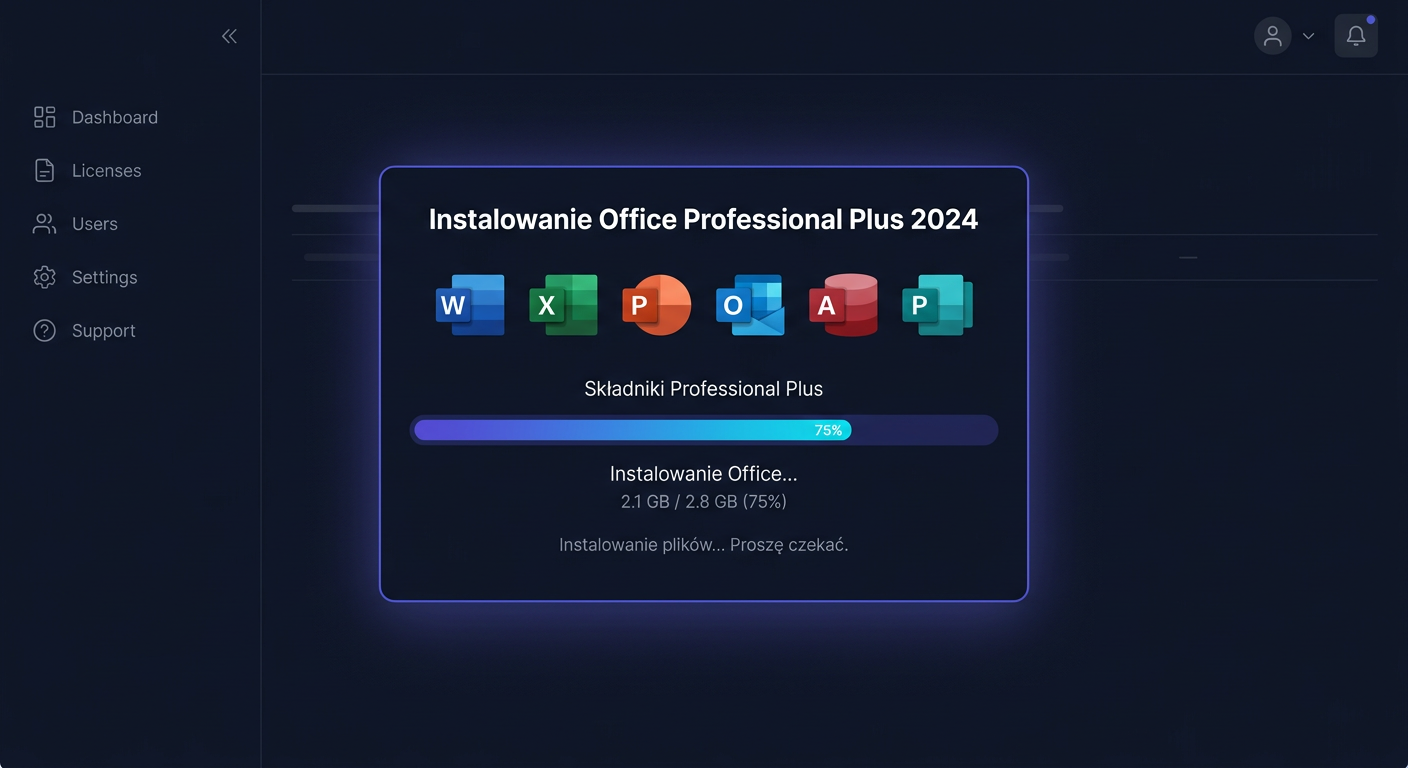
Po uruchomieniu instalatora poczekaj na zakończenie procesu i nie wyłączaj komputera. W trakcie instalacji najlepiej nie otwierać innych aplikacji Office. Po zakończeniu uruchom PowerPoint z menu Start i przejdź do aktywacji.
W prostym scenariuszu instalacja wygląda następująco:
| Etap | Co robisz | Na co uważać |
|---|---|---|
| Przygotowanie | Tworzysz folder C:\ODT i zapisujesz pliki | Nazwy plików muszą być poprawne |
| Konfiguracja | Tworzysz configuration.xml | Architektura musi pasować do istniejącego Office |
| Pobieranie | Uruchamiasz setup.exe /download configuration.xml | Wymagane stabilne połączenie internetowe |
| Instalacja | Uruchamiasz setup.exe /configure configuration.xml | Wiersz polecenia jako administrator |
| Uruchomienie | Otwierasz PowerPoint 2024 | Zamknij inne aplikacje Office |
| Aktywacja | Wpisujesz klucz produktu | Internet lub aktywacja offline przez Portal aktywacji produktu |
Przykład praktyczny: biuro projektowe ma trzy komputery z Windows 11 24H2 i jeden starszy komputer z Windows 10 LTSC 2021. Na nowych stanowiskach administrator wybiera PowerPoint 2024 64-bit, ponieważ prezentacje zawierają duże grafiki i wizualizacje. Na starszym komputerze najpierw sprawdza, czy nie ma Office 32-bit. Jeśli jest, zachowuje tę samą architekturę albo planuje pełne czyszczenie środowiska Office przed zmianą na 64-bit.
Drugi przykład: szkoła językowa przygotowuje salę szkoleniową z sześcioma laptopami. Każdy laptop ma służyć do odtwarzania prezentacji, edycji materiałów i pracy offline podczas zajęć. PowerPoint 2024 jest w takim przypadku prostym rozwiązaniem, ponieważ nie wymaga wykupywania pełnego pakietu ani subskrypcji dla każdego stanowiska, a instalację można powtórzyć według jednego wzorca.
Jeżeli instalujesz PowerPointa na komputerze używanym przez kilka osób, pamiętaj, że sama aplikacja jest instalowana systemowo, ale aktywacja i konto widoczne w interfejsie mogą zależeć od profilu użytkownika. Po wdrożeniu warto sprawdzić program na tym koncie, z którego użytkownik będzie faktycznie korzystał.
Aktywacja przez GUI, CMD i Portal aktywacji produktu
Po instalacji PowerPoint 2024 trzeba aktywować. Najprostsza metoda to aktywacja z poziomu interfejsu programu. Otwórz Microsoft PowerPoint 2024, przejdź do Plik > Konto, wybierz opcję aktywacji lub zmiany klucza produktu, wpisz otrzymany klucz licencyjny i zatwierdź aktywację online. Jeżeli wszystko przebiegnie poprawnie, w sekcji konta pojawi się informacja o aktywowanym produkcie.
Aktywacja internetowa jest najszybsza, ale wymaga połączenia z siecią i poprawnej komunikacji z serwerami aktywacyjnymi Microsoft. W firmach ruch może być blokowany przez zaporę, filtr DNS, serwer proxy lub restrykcyjną politykę bezpieczeństwa. Jeśli aktywacja nie działa na komputerze w sieci firmowej, sprawdź, czy problem występuje również na innym łączu lub po czasowym dopuszczeniu wymaganej komunikacji przez administratora.
Jeśli aktywacja online nie działa, użyj Portalu aktywacji produktu Microsoft: w wierszu poleceń uruchomionym jako administrator wpisz slmgr /dti (Windows) lub cscript ospp.vbs /dinstid (Office), wyświetlony identyfikator instalacji wprowadź na stronie aka.ms/aoh (na dowolnym urządzeniu z internetem), a otrzymany identyfikator potwierdzenia wpisz poleceniem slmgr /atp <ID> lub cscript ospp.vbs /actcid:<ID> — aktywację telefoniczną Microsoft wyłączył 3 grudnia 2025 r. W takim scenariuszu przygotuj identyfikator instalacji wyświetlany przez kreator aktywacji i postępuj zgodnie z instrukcjami.
Dla produktów Office używamy ospp.vbs, a nie slmgr.vbs. To ważne: slmgr.vbs dotyczy Windows i Windows Server, nie Office. Jeśli aktywujesz PowerPointa z poziomu Wiersza polecenia, uruchom CMD jako administrator i przejdź do odpowiedniego katalogu.
Dla instalacji 64-bit:
cd /d "%ProgramFiles%\Microsoft Office\Office16"
cscript ospp.vbs /inpkey:XXXXX-XXXXX-XXXXX-XXXXX-XXXXX
cscript ospp.vbs /act
Dla instalacji 32-bit na systemie 64-bit:
cd /d "%ProgramFiles(x86)%\Microsoft Office\Office16"
cscript ospp.vbs /inpkey:XXXXX-XXXXX-XXXXX-XXXXX-XXXXX
cscript ospp.vbs /act
Polecenie /inpkey wprowadza klucz produktu, a /act uruchamia aktywację. Znaki XXXXX-XXXXX-XXXXX-XXXXX-XXXXX należy zastąpić rzeczywistym kluczem licencyjnym. Nie zapisuj klucza w publicznych dokumentach, zgłoszeniach helpdesk ani nieudostępnionych skryptach. W środowisku firmowym najlepiej przechowywać klucze w bezpiecznym systemie zarządzania licencjami lub w dokumentacji dostępnej tylko dla uprawnionych osób.
Status aktywacji można sprawdzić w samym programie przez Plik > Konto i komunikat o aktywowanym produkcie. Możesz też potwierdzić to poleceniem:
cscript ospp.vbs /dstatus
To polecenie pokazuje szczegóły licencji i stan aktywacji. Przydatne jest szczególnie po wdrożeniu na wielu komputerach, ponieważ administrator może szybko potwierdzić, czy dany egzemplarz został aktywowany poprawnie. Jeśli wynik wskazuje brak aktywacji, wróć do wprowadzenia klucza i sprawdź połączenie z internetem albo skorzystaj z aktywacji offline przez Portal aktywacji produktu.
Najczęstsze problemy instalacyjne i jak je rozwiązać
Najczęstszy problem to konflikt z wcześniejszymi wersjami Office, Visio lub Project. Dotyczy to zwłaszcza sytuacji, gdy na komputerze była wcześniej instalacja MSI, wersja próbna Microsoft 365 albo inna architektura Office. W konfiguracji XML warto pozostawić RemoveMSI, ale w trudniejszych przypadkach konieczne może być ręczne odinstalowanie starych składników z ustawień systemowych lub użycie oficjalnych narzędzi Microsoft do czyszczenia instalacji Office.
Drugi częsty problem to pomylenie wersji 32-bit i 64-bit. Jeśli instalator informuje, że nie można zainstalować wybranej architektury, sprawdź, czy na komputerze nie ma już innej aplikacji Office w przeciwnej architekturze. PowerPoint 2024 powinien być zgodny z istniejącą instalacją Office. Zmiana architektury najczęściej wymaga odinstalowania wszystkich aplikacji Office i ponownego zainstalowania ich w jednym wariancie.
Trzeci problem to brak uprawnień administratora. Samo pobranie plików może się udać, ale instalacja zakończy się błędem albo zatrzyma bez jasnego komunikatu. Dlatego Wiersz polecenia należy uruchamiać jako administrator. W firmach z kontrolą kont użytkowników instalację powinien wykonać administrator lokalny, dział IT albo narzędzie do zdalnego zarządzania.
Czwarty problem to błędny plik configuration.xml. Jeden brakujący znak, zły identyfikator produktu, niepoprawny kanał lub literówka w języku mogą spowodować, że instalator nie pobierze plików. Jeśli polecenie /download nie działa, sprawdź XML w edytorze tekstu, upewnij się, że używasz PowerPoint2024Volume, PerpetualVL2024 i pl-pl, jeśli chcesz zainstalować polską wersję językową.
Piąty problem dotyczy sieci. Office Deployment Tool pobiera pliki z CDN Microsoft, więc potrzebuje stabilnego dostępu do internetu. W firmach ruch może blokować firewall, proxy, filtr antywirusowy lub polityka sieciowa. Jeśli instalacja działa w domu, ale nie działa w biurze, przyczyną prawdopodobnie jest konfiguracja sieci firmowej.
Szósty problem to aktywacja. Jeśli PowerPoint nie przyjmuje klucza, upewnij się, że wpisujesz go bez spacji i literówek, a używany klucz odpowiada właściwemu produktowi. Do aktywacji Office używaj ospp.vbs; nie używaj slmgr.vbs, ponieważ to narzędzie jest przeznaczone dla Windows i Windows Server. Jeśli aktywacja online nie działa, użyj Portalu aktywacji produktu Microsoft: w wierszu poleceń uruchomionym jako administrator wpisz slmgr /dti (Windows) lub cscript ospp.vbs /dinstid (Office), wyświetlony identyfikator instalacji wprowadź na stronie aka.ms/aoh (na dowolnym urządzeniu z internetem), a otrzymany identyfikator potwierdzenia wpisz poleceniem slmgr /atp <ID> lub cscript ospp.vbs /actcid:<ID> — aktywację telefoniczną Microsoft wyłączył 3 grudnia 2025 r.
Warto też zwrócić uwagę na aktualizacje Windows. PowerPoint 2024 jest wspierany na Windows 11, Windows 11 LTSC 2024, Windows 10 LTSC 2021, Windows 10 LTSC 2019, Windows Server 2025 i Windows Server 2022. W 2026 roku komputery z Windows 11 24H2 i 25H2 powinny mieć aktualne poprawki jakościowe, sterowniki graficzne i komponenty systemowe. Nieaktualny system może powodować problemy z wydajnością, wyświetlaniem prezentacji lub działaniem multimediów.
Jeżeli instalujesz PowerPointa w organizacji, prowadź prosty dziennik wdrożenia. Zapisuj datę instalacji, nazwę komputera, wersję systemu, architekturę, użyty wariant konfiguracji i wynik aktywacji. Taka dokumentacja skraca diagnozę przy kolejnych stanowiskach i ułatwia rozmowę z pomocą techniczną lub działem księgowości, jeśli trzeba powiązać licencję z fakturą VAT 23%.
PowerPoint 2024 w firmie: licencje, faktura VAT, KSeF i kontekst 2026
Wdrożenie PowerPointa 2024 w firmie to nie tylko instalacja techniczna. Trzeba uwzględnić zakup, dokument księgowy, ewidencję licencji, zgodność stanowisk i plan utrzymania. W polskich warunkach szczególnie ważna jest faktura VAT 23%, dane nabywcy, NIP oraz prawidłowe opisanie kosztu w dokumentacji firmowej. Jeżeli organizacja przygotowuje się do KSeF, warto już teraz dbać o poprawność danych kontrahenta i spójny obieg dokumentów.
Ceny licencji powinny być weryfikowane w aktualnej ofercie sprzedawcy i rozliczane w PLN. Nie należy opierać decyzji zakupowej na archiwalnych zrzutach ekranu, starych cennikach ani cenach netto/brutto wyrwanych z kontekstu. Dla działu zakupów najważniejsze jest, czy cena podana jest jako netto czy brutto, czy obejmuje VAT 23%, jaki jest termin dostawy cyfrowej oraz czy faktura zostanie wystawiona na poprawne dane firmy.
Przykład: spółka z Wrocławia kupuje licencje dla działu handlowego. Przed zakupem księgowość prosi o cenę w PLN, informację o VAT 23% i fakturę wystawioną na pełne dane spółki. Dział IT sprawdza, że wszystkie komputery działają na Windows 11 24H2 i mają Office 64-bit. W takiej sytuacji można przygotować jeden plik configuration.xml dla PowerPointa 2024 64-bit i wdrożyć aplikację na wszystkich zgodnych stanowiskach.
Drugi przykład: urządzenie w sali konferencyjnej jest używane wyłącznie do prowadzenia prezentacji zarządu i spotkań z klientami. Nie ma potrzeby instalowania pełnego pakietu Office ani subskrypcji Microsoft 365. PowerPoint 2024 daje lokalną aplikację do odtwarzania i edycji prezentacji, a bezterminowa licencja ułatwia przewidywanie kosztów.
Trzeci przykład: organizacja korzysta już z Microsoft 365 Copilot dla kadry zarządzającej i działu analitycznego, ale nie chce obejmować subskrypcją wszystkich stanowisk. Część komputerów może pozostać przy klasycznych licencjach Office 2024 lub samodzielnym PowerPoint 2024, jeśli ich użytkownicy nie potrzebują funkcji AI i pracy chmurowej. Taki model mieszany wymaga jednak dobrej ewidencji, aby użytkownicy wiedzieli, które funkcje są dostępne na którym stanowisku.
W 2026 roku administratorzy IT coraz częściej muszą łączyć lokalne aplikacje, usługi chmurowe i infrastrukturę serwerową. Exchange SE, Microsoft 365, Windows 11 25H2 i klasyczne Office 2024 mogą funkcjonować w jednej organizacji, ale nie są tym samym typem produktu. PowerPoint 2024 nie zastępuje usług Microsoft 365, a Microsoft 365 Copilot nie jest elementem bezterminowej licencji PowerPoint 2024. To rozróżnienie pomaga uniknąć błędnych oczekiwań po zakupie.
Po zakończeniu wdrożenia warto przygotować krótką instrukcję dla użytkowników: jak uruchomić PowerPointa, gdzie sprawdzić aktywację, gdzie zapisywać firmowe szablony i do kogo zgłaszać problemy. W większych organizacjach dobrze sprawdza się też centralny folder z szablonami prezentacji, grafikami, stopkami prawnymi i aktualnymi slajdami o firmie. Dzięki temu PowerPoint 2024 staje się nie tylko programem, ale częścią spójnego standardu komunikacji wizualnej.
Częste pytania
Czy Microsoft PowerPoint 2024 jest subskrypcją?
Nie. Microsoft PowerPoint 2024 to samodzielna, bezterminowa aplikacja, a nie abonament Microsoft 365. Po zakupie i aktywacji korzystasz z programu lokalnie, z poprawkami bezpieczeństwa i aktualizacjami jakościowymi w okresie wsparcia.
Do kiedy Microsoft wspiera PowerPoint 2024?
Oficjalny cykl życia produktu rozpoczął się 1 października 2024 r., a koniec wsparcia przewidziano na 9 października 2029 r. W tym czasie Microsoft udostępnia poprawki bezpieczeństwa i aktualizacje jakościowe. Nie oznacza to jednak ciągłego dodawania nowych funkcji jak w Microsoft 365.
Czy PowerPoint 2024 działa na Windows 11 24H2 i 25H2?
PowerPoint 2024 jest przeznaczony dla Windows 11 oraz zgodnych wydań systemu, w tym środowisk aktualnych w 2026 roku. Przy Windows 11 24H2 i 25H2 warto dbać o aktualne poprawki systemowe, sterowniki graficzne i zgodność dodatków. Na urządzeniach ARM minimalnie wymagany jest Windows 11.
Czy mogę zainstalować PowerPoint 2024 obok starszego Office?
To zależy od wersji i technologii instalacji. Największe ryzyko dotyczy konfliktów między Click-to-Run, starszymi instalacjami MSI oraz różnymi architekturami 32/64-bit. Przed instalacją najlepiej usunąć kolidujące wersje albo zachować tę samą architekturę, która jest już obecna na komputerze.
Czy wybrać wersję 32-bit czy 64-bit?
Dla nowych komputerów najczęściej najlepsza jest wersja 64-bit, szczególnie przy ekranach 4K i dużych prezentacjach z multimediami. Wersja 32-bit ma sens wtedy, gdy firma korzysta ze starszych dodatków lub istniejący Office jest już zainstalowany w architekturze 32-bit. Najważniejsze jest, aby nie mieszać architektur Office na jednym komputerze.
Czy do instalacji potrzebny jest internet?
Tak, internet jest wymagany do pobrania instalatora oraz aktywacji MAK. Po aktywacji wiele zadań można wykonywać lokalnie, bez stałego połączenia z siecią. Jeśli aktywacja online nie działa, użyj Portalu aktywacji produktu Microsoft: w wierszu poleceń uruchomionym jako administrator wpisz slmgr /dti (Windows) lub cscript ospp.vbs /dinstid (Office), wyświetlony identyfikator instalacji wprowadź na stronie aka.ms/aoh (na dowolnym urządzeniu z internetem), a otrzymany identyfikator potwierdzenia wpisz poleceniem slmgr /atp <ID> lub cscript ospp.vbs /actcid:<ID> — aktywację telefoniczną Microsoft wyłączył 3 grudnia 2025 r.
Czym różni się PowerPoint 2024 od Microsoft 365 z Copilotem?
PowerPoint 2024 to klasyczna aplikacja w licencji bezterminowej, natomiast Microsoft 365 to subskrypcja z usługami chmurowymi i ciągłym rozwojem funkcji. M365 Copilot należy do ekosystemu Microsoft 365 i nie jest częścią samodzielnej licencji PowerPoint 2024. Jeśli firma potrzebuje funkcji AI i pracy zespołowej w chmurze, powinna ocenić Microsoft 365 osobno.
Czy otrzymam fakturę VAT za zakup licencji?
Przy zakupie w modelu firmowym ważne jest podanie poprawnych danych do faktury, w tym NIP i adresu. Faktura VAT 23% pozwala rozliczyć zakup zgodnie z polskimi procedurami księgowymi. W kontekście KSeF warto szczególnie zadbać o poprawność danych nabywcy.
Jak sprawdzić, czy PowerPoint 2024 jest aktywowany?
Najprościej otworzyć PowerPointa i przejść do Plik > Konto, gdzie powinien być widoczny komunikat o aktywowanym produkcie. Administrator może też użyć polecenia cscript ospp.vbs /dstatus w odpowiednim katalogu Office. To przydatne po instalacji na wielu stanowiskach.
Czy slmgr.vbs służy do aktywacji PowerPointa?
Nie. Do produktów Office używa się ospp.vbs, a slmgr.vbs dotyczy Windows i Windows Server. Jeśli aktywujesz PowerPointa z CMD, przejdź do katalogu Office16 i użyj poleceń cscript ospp.vbs /inpkey:... oraz cscript ospp.vbs /act.
Powiązane artykuły
- Jak zainstalować Microsoft PowerPoint 2019 — kompletna instrukcja — PowerPoint 2019 — Morph, Zoom, 3D, 4K.
- Jak zainstalować Microsoft Access 2024 — kompletna instrukcja — Access 2024 samodzielny — bazy danych, formularze, raporty.
- Jak zainstalować Microsoft Excel 2024 — kompletna instrukcja — Excel 2024 samodzielny — IMAGE, TEXTSPLIT, VSTACK, dynamiczne wykresy.
- Jak zainstalować Microsoft Office 2024 Standard — kompletna instrukcja — Jak zainstalować Microsoft Office 2024 Standard?.
- Jak zainstalować Microsoft Outlook 2024 — kompletna instrukcja — Outlook 2024 samodzielny — Focus View, Gmail, Exchange, IMAP.
Powiązane produkty
- Microsoft PowerPoint 2024 klucz licencyjny — sprawdź dostępność i cenę w naszym sklepie
- Zobacz wszystkie microsoft powerpoint — pełna oferta w kategorii