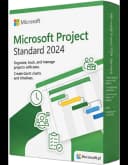
Microsoft Project 2024 Standard — kompletny przewodnik instalacji, aktywacji i wyboru licencji
Aktualizacja 26.09.2026: Microsoft wyłączył automatyczną aktywację telefoniczną 3 grudnia 2025 r. (także w Polsce). Jeśli aktywacja online nie działa, użyj Portalu aktywacji produktu Microsoft (aka.ms/aoh): identyfikator instalacji z
slmgr /dti(Windows) lubcscript ospp.vbs /dinstid(Office) wprowadź w portalu, a otrzymany identyfikator potwierdzenia wpisz poleceniemslmgr /atp <ID>lubcscript ospp.vbs /actcid:<ID>.
Zanim zaczniesz: czym jest Microsoft Project 2024 Standard
Microsoft Project 2024 Standard to klasyczna, jednorazowa licencja desktopowa do podstawowego i średnio zaawansowanego zarządzania projektami. Program jest przeznaczony dla użytkowników, którzy chcą planować harmonogramy, budować wykresy Gantta, ustalać zależności między zadaniami, kontrolować terminy, koszty oraz obciążenie zasobów, ale nie potrzebują funkcji współpracy serwerowej znanych z edycji Professional.
To ważne rozróżnienie. Project Standard 2024 jest aplikacją instalowaną lokalnie na komputerze z Windows. Sprawdza się wtedy, gdy jedna osoba, kierownik projektu, koordynator, właściciel firmy albo specjalista operacyjny tworzy i aktualizuje plan projektu na swoim stanowisku pracy. Nie wymaga wdrażania Project Online, Project Server ani rozbudowanej infrastruktury chmurowej.
W praktyce Microsoft Project 2024 Standard pozwala szybko przygotować plan projektu, ustawić kamienie milowe, zdefiniować relacje między zadaniami, sprawdzić ścieżkę krytyczną oraz generować raporty postępu. Dzięki temu program dobrze pasuje do firm, które prowadzą projekty budowlane, wdrożeniowe, produkcyjne, serwisowe, marketingowe, szkoleniowe lub administracyjne, ale nie chcą przechodzić na model abonamentowy.
Wsparcie dla Project 2024 kończy się 9 października 2029 r.. To istotna informacja dla firm planujących zakupy w perspektywie kilku lat. Wersja 2024 ma przewidywalny cykl życia, dlatego często wybierają ją organizacje, które wolą zakup jednorazowy zamiast miesięcznej lub rocznej subskrypcji.
W 2026 roku Project 2024 Standard pozostaje sensownym wyborem szczególnie tam, gdzie firma korzysta z komputerów z Windows 10 lub Windows 11, pracuje lokalnie na plikach projektu i chce zachować prosty model licencjonowania. W środowiskach opartych na Windows 11 24H2 oraz Windows 11 25H2 należy zwrócić uwagę przede wszystkim na aktualność systemu, zgodność architektury 32/64-bit oraz spójność instalacji z pakietem Office.
Po zakupie w legalnym źródle zwykle otrzymujesz:
- klucz licencyjny wysłany na e-mail,
- instrukcję instalacji i aktywacji,
- plik lub link do pobrania,
- fakturę VAT i dokument potwierdzający legalność licencji.
Jeżeli chcesz kupić licencję w polskim sklepie, z fakturą VAT i instrukcją aktywacji, możesz sprawdzić Microsoft Project 2024 Standard w KluczeSoft.
Project Standard, Professional i środowisko Microsoft w 2026 roku
Najczęstsze pytanie przed instalacją brzmi: czy Project 2024 Standard wystarczy, czy potrzebna jest edycja Professional? Odpowiedź zależy od sposobu pracy. Standard jest dobrym wyborem dla osób planujących projekty lokalnie. Professional jest właściwy wtedy, gdy potrzebne są bardziej zaawansowane funkcje współpracy, integracji i pracy zespołowej.
Project 2024 Standard nie jest następcą Microsoft 365 Copilot ani narzędzi typu Planner, Teams czy Loop. To osobna aplikacja desktopowa zorientowana na harmonogram, strukturę zadań i kontrolę projektu. W 2026 roku wiele firm łączy różne narzędzia: Project do planu głównego, Teams do komunikacji, Excel do analiz pomocniczych, Outlook lub Exchange do kalendarzy i poczty, a Microsoft 365 Copilot do wsparcia w tworzeniu treści, podsumowań i pracy biurowej. Project Standard pozostaje jednak samodzielną aplikacją, a nie funkcją Copilota.
Warto też pamiętać o Office 2024. Project należy do rodziny produktów Office pod względem technologii instalacji i aktywacji, dlatego zgodność z zainstalowanym pakietem Office ma duże znaczenie. Jeśli na komputerze działa Office 2024, Microsoft 365 Apps albo starszy Office w technologii Click-to-Run, instalator Projecta powinien być dobrany tak, aby pasował do tej samej architektury i sposobu instalacji.
W środowiskach firmowych w 2026 roku można spotkać również Exchange Server Subscription Edition, często określany jako Exchange SE. Nie oznacza to jednak, że Project Standard wymaga Exchange SE. Project 2024 Standard działa lokalnie i nie potrzebuje serwera pocztowego do podstawowej pracy. Exchange, Microsoft 365, Outlook i Teams mogą wspierać komunikację w projekcie, ale nie zastępują samego planowania w Project.
| Obszar | Project 2024 Standard | Project 2024 Professional | Microsoft 365 / Copilot |
|---|---|---|---|
| Model pracy | Lokalna aplikacja desktopowa | Lokalna aplikacja desktopowa z funkcjami bardziej firmowymi | Usługi chmurowe i aplikacje subskrypcyjne |
| Najlepsze zastosowanie | Harmonogramy, Gantt, zadania, zasoby, koszty | Projekty z większą potrzebą współpracy i integracji | Komunikacja, dokumenty, automatyzacja, wsparcie AI |
| Licencja | Jednorazowa licencja desktopowa | Jednorazowa licencja desktopowa | Najczęściej subskrypcja |
| Dla kogo | Jedna osoba, mały zespół, lokalne planowanie | Organizacje z bardziej złożonym środowiskiem | Firmy korzystające z chmury Microsoft |
| Wymaga Project Server | Nie | Nie do podstawowej pracy, ale lepiej pasuje do scenariuszy współpracy | Nie dotyczy |
Przykład praktyczny: mała firma instalacyjna prowadzi jednocześnie pięć projektów montażowych. Kierownik chce widzieć terminy dostaw, dostępność ekip, kamienie milowe i zależności między pracami. Nie potrzebuje portalu projektowego ani pracy wielu planistów na jednym repozytorium. W takim przypadku Project 2024 Standard jest rozsądnym wyborem.
Drugi przykład: spółka wdrożeniowa ma kilkunastu kierowników projektów, raportowanie do zarządu i potrzebę centralnego zarządzania zasobami. W takim scenariuszu sama edycja Standard może być za mała, a firma powinna rozważyć bardziej zaawansowane narzędzia projektowe lub edycję Professional w odpowiedniej architekturze środowiska.
Trzeci przykład: biuro rachunkowe przygotowuje harmonogram przejścia klientów na obowiązki związane z KSeF. Potrzebuje listy etapów, terminów, osób odpowiedzialnych i raportów postępu. Jeżeli plan aktualizuje jedna osoba, a komunikacja odbywa się przez Outlook lub Teams, Project Standard 2024 może w zupełności wystarczyć.
Wymagania systemowe i zgodność z Windows 11 24H2/25H2
Przed instalacją warto sprawdzić wymagania sprzętowe i programowe. Project 2024 Standard jest aplikacją desktopową dla Windows. Nie jest przeznaczony do instalacji na macOS jako natywna aplikacja Windows, chyba że używasz środowiska wirtualizacji lub zdalnego pulpitu z systemem Windows, co wymaga osobnej konfiguracji i licencjonowania.
Podstawowe wymagania są następujące:
| Składnik | Minimalne wymagania |
|---|---|
| System operacyjny | Windows 10 lub Windows 11 |
| Architektura | 64-bit zalecane |
| Procesor | 1,6 GHz, 2 rdzenie lub szybszy |
| Pamięć RAM | 4 GB |
| Miejsce na dysku | minimum 4 GB wolnego miejsca |
| Ekran | 1280 × 768 |
| Internet | wymagany do pobrania i aktywacji |
| Inne | konto Microsoft, zgodność architektury z zainstalowanym pakietem Office |
W 2026 roku szczególnie często spotykane są komputery z Windows 11 24H2 oraz Windows 11 25H2. Project 2024 Standard powinien być instalowany na aktualnym, wspieranym systemie Windows z bieżącymi poprawkami. Jeżeli komputer firmowy jest zarządzany przez dział IT, przed instalacją warto upewnić się, że polityki zabezpieczeń, kontrola aplikacji, Microsoft Defender, zapora lub rozwiązanie EDR nie blokują pobierania komponentów Office.
Najważniejsza uwaga dotyczy zgodności z pakietem Office. Jeśli masz już zainstalowany Microsoft Office, Project musi mieć tę samą architekturę i ten sam sposób instalacji. Najczęstszy problem to próba instalacji Project 64-bit obok Office 32-bit. Drugi częsty problem to mieszanie instalacji MSI ze współczesną technologią Click-to-Run. W praktyce większość aktualnych instalacji Office 2024 i Microsoft 365 Apps korzysta z Click-to-Run.
Architektura 64-bit jest obecnie zalecana, zwłaszcza na nowych komputerach z Windows 11. Pozwala wygodniej pracować z większymi plikami, raportami i projektami zawierającymi wiele zadań. Jeżeli jednak w firmie nadal działa Office 32-bit z powodu starszych dodatków, makr lub integracji, Project również powinien być 32-bit, aby uniknąć konfliktu.
| Sytuacja na komputerze | Co zrobić przed instalacją Project 2024 Standard |
|---|---|
| Brak pakietu Office | Zainstaluj Project w zalecanej wersji 64-bit |
| Office 2024 64-bit | Użyj Project 64-bit w zgodnej technologii instalacji |
| Office 2024 32-bit | Użyj Project 32-bit albo rozważ migrację całego Office do 64-bit |
| Microsoft 365 Apps 64-bit | Dopasuj Project do architektury i technologii Click-to-Run |
| Starszy Office MSI | Sprawdź zgodność; może być konieczne odinstalowanie starej wersji |
| Zainstalowany Visio | Upewnij się, że Visio ma zgodną architekturę i metodę instalacji |
W polskich firmach dochodzi jeszcze aspekt dokumentacji zakupu. Przy zakupie licencji do firmy zwróć uwagę, czy otrzymasz fakturę VAT, standardowo z polską stawką 23%, o ile sprzedaż podlega krajowym zasadom VAT. Jeżeli Twoja organizacja przygotowuje się do pełnej obsługi KSeF, uporządkowane dokumenty zakupowe, NIP, dane nabywcy i potwierdzenie legalności licencji są równie ważne jak sam klucz produktu.
Przygotowanie do instalacji i pobieranie instalatora
Najbezpieczniej pobrać instalator z panelu klienta KluczeSoft (https://kluczesoft.pl/pomoc/pobieranie — logowanie numerem zamówienia i adresem e-mail). Dzięki temu ograniczasz ryzyko pobrania niewłaściwego pliku, niezgodnej edycji albo instalatora pochodzącego z niepewnego źródła. Project 2024 Standard powinien być pobierany z zaufanego źródła wskazanego w instrukcji licencyjnej.
Standardowa ścieżka wygląda następująco:
- Wejdź na stronę aktywacyjną Microsoft i zaloguj się na konto, do którego chcesz przypisać licencję.
- Wpisz 25-znakowy klucz produktu.
- Po powiązaniu licencji przejdź do sekcji usług i subskrypcji.
- Pobierz instalator Project 2024 Standard.
- Uruchom instalator dopiero po zamknięciu wszystkich aplikacji Office.
Przed pobraniem instalatora przygotuj konto Microsoft. Najlepiej użyć konta, które faktycznie będzie zarządzać licencją. W jednoosobowej działalności może to być konto właściciela. W spółce lepiej ustalić wewnętrznie, czy licencje przypisywane są do konta technicznego, konta użytkownika czy konta zarządzanego przez dział IT. Decyzja ta ma znaczenie przy późniejszej reinstalacji, wymianie komputera lub audycie.
Nie należy wpisywać klucza produktu na przypadkowych stronach znalezionych w wyszukiwarce. Klucz licencyjny jest dokumentem wartościowym. Po jego ujawnieniu osobie trzeciej możesz utracić kontrolę nad aktywacją. Jeżeli kupujesz licencję do firmy, zachowaj e-mail z kluczem, fakturę VAT, potwierdzenie legalności i instrukcję instalacji w jednym miejscu, najlepiej w firmowym repozytorium dokumentów lub systemie księgowym.
Przed instalacją wykonaj krótką checklistę:
- zapisz wszystkie otwarte dokumenty Word, Excel, PowerPoint, Outlook i Project,
- zamknij Teams oraz inne aplikacje Microsoft,
- sprawdź, czy komputer ma stabilne połączenie z internetem,
- upewnij się, że masz uprawnienia administratora,
- sprawdź, czy system Windows ma aktualne poprawki,
- zweryfikuj architekturę zainstalowanego Office,
- usuń stare, testowe lub konfliktowe wersje Project i Visio,
- przygotuj 25-znakowy klucz produktu.
W firmach z większą liczbą stanowisk warto przygotować prostą procedurę wewnętrzną: kto kupuje licencję, kto otrzymuje fakturę, kto przechowuje klucz produktu, kto wykonuje instalację i gdzie zapisywane są dokumenty. Taki porządek ułatwia późniejsze kontrole legalności oprogramowania i rozliczenia kosztów w PLN.
Jeżeli cena licencji jest podawana w złotych, porównuj oferty brutto i netto. Dla firm istotna jest faktura VAT 23%, możliwość ujęcia zakupu w kosztach oraz zgodność danych nabywcy z systemem księgowym. Nie warto kierować się wyłącznie najniższą ceną, jeśli oferta nie zawiera jasnej informacji o pochodzeniu licencji, instrukcji aktywacji i dokumencie zakupu.
Instalacja Microsoft Project 2024 Standard krok po kroku
Instalacja graficzna jest najprostsza i wystarcza w większości przypadków. Jeżeli instalujesz Project na jednym komputerze, nie potrzebujesz zaawansowanego wdrożenia. Wystarczy poprawny instalator, konto Microsoft, klucz produktu i uprawnienia administratora.
Kroki instalacji graficznej:
- Zamknij Word, Excel, Outlook, Teams i pozostałe aplikacje Microsoft.
- Sprawdź, czy na komputerze nie ma starej, konfliktowej wersji Project lub Visio.
- Uruchom pobrany instalator jako administrator.
- Poczekaj, aż instalator pobierze składniki i zakończy konfigurację.
- Po zakończeniu uruchom Microsoft Project z menu Start.
- Jeśli program poprosi o zalogowanie na konto Microsoft, możesz to pominąć — licencję aktywujesz kluczem produktu.
Podczas instalacji nie przerywaj procesu, nawet jeśli przez kilka minut pasek postępu wygląda tak, jakby się zatrzymał. Instalator Office potrafi pobierać pakiety w tle, sprawdzać zgodność architektury i przygotowywać środowisko. Przerwanie instalacji może doprowadzić do stanu pośredniego, w którym konieczne będzie użycie narzędzia naprawy Office albo ponowne uruchomienie komputera.
Jeżeli instalacja kończy się błędem zgodności, najpierw sprawdź:
- czy Office jest w wersji 32-bit czy 64-bit,
- czy Project ma tę samą architekturę,
- czy obie instalacje są w technologii Click-to-Run.
Aby sprawdzić architekturę Office, otwórz dowolną aplikację Office, na przykład Word lub Excel, a następnie przejdź do sekcji informacji o koncie i produktu. W zależności od wersji pakietu zobaczysz informację o kanale aktualizacji, wersji oraz architekturze 32-bit lub 64-bit. Ta informacja powinna być zgodna z instalowanym Projectem.
Jeśli na komputerze działa starszy Project, na przykład wersja testowa, wersja Professional albo wcześniejsza edycja z innego źródła, rozważ jej odinstalowanie przed instalacją Project 2024 Standard. Pozostawienie wielu edycji może prowadzić do konfliktów aktywacji, błędnych skojarzeń plików lub komunikatów o niezgodności.
W środowiskach firmowych instalacja może być blokowana przez polityki bezpieczeństwa. Dział IT może ograniczać uruchamianie instalatorów z katalogu Pobrane, wymagać instalacji z konta administratora lokalnego albo stosować białą listę aplikacji. W takim przypadku nie próbuj obchodzić zabezpieczeń. Poproś administratora o instalację z właściwego źródła i przekaż mu dokument licencyjny.
Po zakończeniu instalacji uruchom Project z menu Start. Program może poprosić o zaakceptowanie postanowień licencyjnych, zalogowanie się na konto Microsoft lub aktywację. Jeżeli aplikacja otwiera się poprawnie, utwórz testowy plik projektu: dodaj kilka zadań, ustaw daty, przypisz zależności i zapisz plik lokalnie. To szybki sposób, aby upewnić się, że aplikacja działa nie tylko formalnie, ale także praktycznie.
Przykład zastosowania: firma remontowa planuje modernizację biura klienta. W Project Standard tworzy zadania „demontaż”, „instalacje elektryczne”, „gładzie”, „malowanie”, „odbiór”, ustawia zależności i terminy. Po kilku minutach widzi, że opóźnienie prac elektrycznych przesuwa malowanie i odbiór. Taka widoczność jest główną wartością Projecta.
Inny przykład: dział HR planuje cykl szkoleń z nowych procedur KSeF. W Project tworzy harmonogram przygotowania materiałów, rezerwacji sal, komunikacji do pracowników, przeprowadzenia szkoleń i zebrania potwierdzeń. Project Standard pozwala osobie koordynującej kontrolować terminy bez budowania rozbudowanego systemu projektowego.
Aktywacja: konto Microsoft, klucz produktu, CMD i Portal aktywacji produktu
Po instalacji należy aktywować Microsoft Project 2024 Standard. Aktywacja potwierdza legalność licencji i umożliwia normalne korzystanie z programu. Najwygodniejsza jest aktywacja online w interfejsie programu, ale w razie potrzeby można użyć również wiersza polecenia lub aktywacji offline przez Portal aktywacji produktu.
Aktywacja w interfejsie programu:
- Otwórz Microsoft Project.
- Wejdź w
Plik > Konto. - Kliknij
Zmień klucz produktu, jeśli program nie aktywował się automatycznie. - Wpisz klucz i zatwierdź.
- Połącz program z internetem i poczekaj na zakończenie aktywacji.
Klucz wolumenowy Project 2024 Standard nie jest przypisywany do konta Microsoft, więc program nie wykryje licencji po zalogowaniu. Aktywujesz go, wpisując klucz w Plik → Konto → Zmień klucz produktu.
Project należy do rodziny Office, więc aktywacja w CMD odbywa się przez ospp.vbs, a nie przez slmgr.vbs.
Dla typowej instalacji 64-bit użyj:
cd /d "C:\Program Files\Microsoft Office\Office16"
cscript ospp.vbs /inpkey:XXXXX-XXXXX-XXXXX-XXXXX-XXXXX
cscript ospp.vbs /act
cscript ospp.vbs /dstatus
Jeżeli masz Office 32-bit na systemie 64-bit, użyj tej ścieżki:
cd /d "C:\Program Files (x86)\Microsoft Office\Office16"
cscript ospp.vbs /inpkey:XXXXX-XXXXX-XXXXX-XXXXX-XXXXX
cscript ospp.vbs /act
cscript ospp.vbs /dstatus
Polecenie /inpkey wprowadza klucz produktu, /act uruchamia aktywację, a /dstatus pokazuje status licencji. Wiersz polecenia uruchom jako administrator. Jeżeli katalog Office16 nie istnieje w podanej lokalizacji, sprawdź, gdzie zainstalowany jest Office. Współczesne produkty Office nadal mogą korzystać z katalogu Office16, dlatego sama nazwa folderu nie oznacza, że masz starą wersję programu.
Jeśli aktywacja online nie działa, użyj Portalu aktywacji produktu Microsoft: w wierszu poleceń uruchomionym jako administrator (w folderze Office) wpisz cscript ospp.vbs /dinstid, wyświetlony identyfikator instalacji wprowadź na stronie aka.ms/aoh (na dowolnym urządzeniu z internetem), a otrzymany identyfikator potwierdzenia wpisz poleceniem cscript ospp.vbs /actcid:<ID> — aktywację telefoniczną Microsoft wyłączył 3 grudnia 2025 r.
- klucz produktu,
- identyfikator instalacji wyświetlany przez kreator,
- Jeśli aktywacja online nie działa, użyj Portalu aktywacji produktu Microsoft: w wierszu poleceń uruchomionym jako administrator (w folderze Office) wpisz
cscript ospp.vbs /dinstid, wyświetlony identyfikator instalacji wprowadź na stronie aka.ms/aoh (na dowolnym urządzeniu z internetem), a otrzymany identyfikator potwierdzenia wpisz poleceniemcscript ospp.vbs /actcid:<ID>— aktywację telefoniczną Microsoft wyłączył 3 grudnia 2025 r.
Aktywacja offline przez Portal aktywacji produktu bywa potrzebna po wymianie sprzętu, ponownej instalacji systemu, problemach z połączeniem internetowym albo nietypowej konfiguracji firmowej. Nie jest to nic nadzwyczajnego, ale wymaga dokładnego przepisania identyfikatorów. Warto wykonywać ją spokojnie, bez pośpiechu, najlepiej przy komputerze, na którym Project jest zainstalowany.
Krótka uwaga o innych produktach: ospp.vbs stosujemy do produktów z rodziny Office, takich jak Project czy Visio. Dla Windows używa się slmgr.vbs /ipk i slmgr.vbs /ato, dla Visual Studio: Help > Register Product > Unlock with Product Key, a produkty CAL nie są oprogramowaniem, tylko dokumentem licencyjnym. Programy antywirusowe Norton, Bitdefender, ESET, McAfee i Avast aktywuje się przez konto producenta lub dedykowany panel licencyjny, a nie przez narzędzia Office.
| Produkt | Typowa metoda aktywacji | Czego nie używać |
|---|---|---|
| Microsoft Project 2024 Standard | Konto Microsoft, interfejs programu, ospp.vbs | slmgr.vbs |
| Microsoft Visio | Konto Microsoft, interfejs programu, ospp.vbs | slmgr.vbs |
| Windows | Ustawienia systemu, slmgr.vbs /ipk, slmgr.vbs /ato | ospp.vbs |
| Visual Studio | Help > Register Product > Unlock with Product Key | Narzędzi aktywacji Office |
| CAL | Dokument licencyjny | Instalatora aplikacji |
| Antywirusy | Konto producenta lub panel subskrypcji | Narzędzi Microsoft Office |
Najczęstsze problemy po instalacji i sposoby rozwiązania
Najczęstszy problem to niezgodność architektury. Użytkownik ma zainstalowany Office 32-bit, pobiera Project 64-bit i instalator zatrzymuje się z komunikatem o braku zgodności. Rozwiązanie jest proste: Project i Office muszą mieć tę samą architekturę. Jeśli firma chce przejść na 64-bit, należy zaplanować migrację całego pakietu Office, a nie tylko Projecta.
Drugi problem to logowanie na niewłaściwe konto Microsoft. Licencja może być poprawna, ale aplikacja jej nie widzi, ponieważ użytkownik jest zalogowany na inne konto. W takiej sytuacji sprawdź konto przypisane do klucza, wyloguj się z aplikacji Office i zaloguj ponownie na właściwy profil.
Trzeci problem dotyczy pozostałości po wcześniejszych instalacjach. Jeżeli na komputerze była wersja próbna, starsza edycja lub inny wariant Project, system może przechowywać stare dane aktywacyjne. Pomaga odinstalowanie niepotrzebnych wersji, restart komputera, naprawa pakietu Office albo ponowna instalacja właściwej edycji.
Czwarty problem występuje w firmach z restrykcyjnymi zabezpieczeniami. Instalator nie może pobrać komponentów, aktywacja nie łączy się z serwerami Microsoft albo skrypty aktywacyjne są blokowane. W takim przypadku sprawdź zaporę, proxy, VPN, polityki endpoint security i uprawnienia administratora. Dział IT powinien dopuścić legalne źródła Microsoft i umożliwić aktywację.
Piąty problem to brak jasnej dokumentacji licencyjnej. Program może działać, ale firma nie ma faktury, potwierdzenia zakupu albo informacji, do jakiego konta przypisano klucz. To ryzykowne przy audycie, zmianie pracownika lub wymianie komputera. Dlatego od początku przechowuj klucz, fakturę VAT 23%, dane zakupu i instrukcję w uporządkowany sposób.
W kontekście Windows 11 24H2 i 25H2 warto też sprawdzić aktualizacje. Nieaktualny system, uszkodzone komponenty Office albo przerwany poprzedni proces instalacji mogą powodować błędy, które nie wynikają z samej licencji. Przed ponowną próbą instalacji uruchom ponownie komputer i upewnij się, że Windows Update nie czeka na dokończenie instalacji poprawek.
Jeżeli Project uruchamia się, ale działa wolno, sprawdź wielkość pliku projektu, liczbę zadań, dodatki Office, lokalizację pliku i oprogramowanie zabezpieczające. Pliki zapisane w synchronizowanych katalogach chmurowych mogą być blokowane podczas zapisu, szczególnie gdy jednocześnie działają kopie zapasowe lub skanowanie antywirusowe.
W codziennej pracy dobrze jest zapisywać pliki projektu w uporządkowanej strukturze folderów, na przykład według klienta, roku i numeru projektu. Dla firm działających w Polsce praktyczne jest powiązanie projektu z numerem umowy, zamówienia, faktury lub zadania w systemie ERP. Ułatwia to późniejsze rozliczenie kosztów, kontrolę terminów i przygotowanie dokumentów księgowych.
Przykłady wyboru licencji i praktyczne scenariusze firmowe
Project 2024 Standard najlepiej oceniać przez konkretne sytuacje. Sam opis funkcji nie zawsze wystarcza, bo różne firmy mają inne potrzeby, budżety i standardy pracy.
Przykład 1: jednoosobowa działalność projektowa. Jeśli aktywacja online nie działa, użyj Portalu aktywacji produktu Microsoft: w wierszu poleceń uruchomionym jako administrator (w folderze Office) wpisz cscript ospp.vbs /dinstid, wyświetlony identyfikator instalacji wprowadź na stronie aka.ms/aoh (na dowolnym urządzeniu z internetem), a otrzymany identyfikator potwierdzenia wpisz poleceniem cscript ospp.vbs /actcid:<ID> — aktywację telefoniczną Microsoft wyłączył 3 grudnia 2025 r. Nie potrzebuje centralnego serwera projektowego. Wybór: Project 2024 Standard, bo jedna osoba zarządza harmonogramem lokalnie, a koszt jest jednorazowy.
Przykład 2: mała firma budowlana. Właściciel koordynuje kilka ekip, zamówienia materiałów i odbiory etapów. Do komunikacji używa telefonu, Outlooka i Teams, ale harmonogram chce widzieć w formie wykresu Gantta. Wybór: Project 2024 Standard, ponieważ kluczowe są zależności, terminy i kamienie milowe, a nie rozbudowana współpraca serwerowa.
Przykład 3: dział finansowy przygotowujący procesy pod KSeF. Firma musi zaplanować analizę systemów, testy integracji, szkolenia, komunikację z kontrahentami i zmianę procedur obiegu faktur. Jedna osoba odpowiada za plan, a zadania są omawiane na cyklicznych spotkaniach. Wybór: Project 2024 Standard, bo wystarczy lokalny harmonogram i raporty postępu.
Przykład 4: przedsiębiorstwo produkcyjne z wieloma kierownikami projektów. Kilka osób równolegle zarządza zasobami, raportuje do PMO i potrzebuje jednolitego widoku portfela. Wybór: sama edycja Standard może nie wystarczyć. Należy rozważyć bardziej zaawansowany model pracy, integracje lub narzędzia przeznaczone do współpracy zespołowej.
Przykład 5: firma z Microsoft 365 Copilot. Pracownicy używają Copilota do podsumowań spotkań, redagowania dokumentów i analizy korespondencji, ale harmonogram wdrożenia nadal musi być utrzymywany w klasycznym planie z zależnościami. Wybór: Project 2024 Standard może pełnić rolę narzędzia harmonogramowego, a Copilot wspierać komunikację i dokumentację wokół projektu.
Przykład 6: organizacja z Exchange SE. Firma utrzymuje własną infrastrukturę pocztową i kalendarzową, ale planowanie projektów realizuje lokalnie. Wybór: Project Standard może działać niezależnie od Exchange SE, ponieważ do podstawowego planowania nie wymaga serwera pocztowego.
Przy zakupie do firmy porównuj nie tylko cenę w PLN, ale też kompletność oferty. Ważne są: legalne pochodzenie licencji, faktura VAT, jasna instrukcja instalacji, zgodność edycji, informacja o aktywacji i realne wsparcie po zakupie. Najtańsza oferta bez dokumentów może być droższa w praktyce, jeśli pojawi się problem z aktywacją lub audytem.
Częste pytania
Czy Microsoft Project 2024 Standard działa na Windows 11 24H2 i 25H2?
Project 2024 Standard jest przeznaczony dla Windows 10 lub Windows 11, więc może być używany na aktualnych wydaniach Windows 11, takich jak 24H2 i 25H2. Przed instalacją warto zainstalować bieżące poprawki systemowe i upewnić się, że firmowe zabezpieczenia nie blokują instalatora ani aktywacji.
Czy Project 2024 Standard wymaga Microsoft 365?
Nie, Project 2024 Standard jest klasyczną aplikacją desktopową z jednorazową licencją. Do pobrania instalatora i aktywacji online potrzebne jest połączenie z internetem (konto Microsoft nie jest wymagane), ale sam program nie jest tym samym co subskrypcja Microsoft 365.
Czy mogę zainstalować Project 64-bit obok Office 32-bit?
Nie jest to zalecane i zwykle prowadzi do błędu zgodności. Project musi mieć tę samą architekturę co zainstalowany pakiet Office, czyli 32-bit z 32-bit albo 64-bit z 64-bit.
Czym różni się Project Standard od Project Professional?
Project Standard służy głównie do lokalnego planowania harmonogramów, zadań, kosztów, zasobów i wykresów Gantta. Project Professional jest lepszym wyborem w bardziej rozbudowanych środowiskach, gdzie potrzebne są funkcje współpracy i integracji typowe dla większych organizacji.
Czy Project 2024 Standard obsługuje M365 Copilot?
Project 2024 Standard nie jest funkcją Microsoft 365 Copilot i nie należy traktować go jako narzędzia AI. Można jednak używać go równolegle z Microsoft 365, Teams, Outlookiem i Copilotem, na przykład do tworzenia dokumentacji, podsumowań spotkań lub komunikacji wokół projektu.
Jak aktywować Project 2024 Standard z wiersza polecenia?
Do aktywacji Project używa się ospp.vbs, ponieważ Project należy do rodziny Office. Typowe polecenia to cscript ospp.vbs /inpkey:XXXXX-XXXXX-XXXXX-XXXXX-XXXXX, następnie cscript ospp.vbs /act i cscript ospp.vbs /dstatus.
Czy do aktywacji Project używa się slmgr.vbs?
Nie. slmgr.vbs służy do aktywacji Windows, na przykład przez slmgr.vbs /ipk i slmgr.vbs /ato. Dla Project i Visio stosuje się ospp.vbs.
Co zrobić, jeśli aktywacja online nie działa?
Najpierw sprawdź połączenie z internetem i poprawność klucza. Jeśli aktywacja online nie działa, użyj Portalu aktywacji produktu Microsoft: w wierszu poleceń uruchomionym jako administrator (w folderze Office) wpisz cscript ospp.vbs /dinstid, wyświetlony identyfikator instalacji wprowadź na stronie aka.ms/aoh (na dowolnym urządzeniu z internetem), a otrzymany identyfikator potwierdzenia wpisz poleceniem cscript ospp.vbs /actcid:<ID> — aktywację telefoniczną Microsoft wyłączył 3 grudnia 2025 r.
Czy zakup Project 2024 Standard do firmy powinien mieć fakturę VAT?
Tak, przy zakupie firmowym warto zadbać o fakturę VAT, zwykle ze stawką 23% przy krajowej sprzedaży w Polsce, oraz dokument potwierdzający legalność licencji. To ważne dla księgowości, kontroli kosztów, KSeF i ewentualnego audytu oprogramowania.
Do kiedy wspierany jest Microsoft Project 2024 Standard?
Wsparcie dla Project 2024 kończy się 9 października 2029 r.. To jeden z powodów, dla których wersja 2024 jest wybierana przez firmy szukające przewidywalnej, jednorazowej licencji desktopowej bez abonamentu.
<!-- IL-V1 -->Powiązane artykuły
- Microsoft Project 2021 Standard — Przewodnik po Microsoft Project 2021 Standard — ODT, Click-to-Run, Gantt, aktywacja GUI/CMD/offline, porównanie z Professional.
- Aktywacja Project 2024 Standard — Microsoft Project 2024 Standard aktywuje się jak aplikacja z rodziny Office, czyli przez 25-znakowy klucz produktu wpisywany na komputerze, bez konta Microsoft.
- Aktywacja Project 2019 Standard — Microsoft Project 2019 Standard nie wymaga osobnego procesu instalacji w tym poradniku.
- Aktywacja Project 2021 Standard — Microsoft Project 2021 Standard po instalacji wymaga aktywacji, czyli przypisania ważnego klucza produktu do zainstalowanej kopii programu.
- FAQ: Microsoft Project 2024 Standard — FAQ: Microsoft Project 2024 Standard - cena, dostawa, aktywacja, legalność, wsparcie.
Powiązane produkty
- Microsoft Project 2024 Professional klucz licencyjny — sprawdź dostępność i cenę w naszym sklepie
- Zobacz wszystkie microsoft project 2024 — pełna oferta w kategorii