Zanim zaczniesz
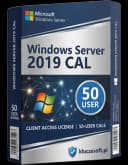
Microsoft Windows Server 2019 to zaawansowany system operacyjny serwerowy opracowany przez firmę Microsoft, oferujący różnorodne funkcje i możliwości dostosowane do środowisk korporacyjnych. Jeśli planujesz wdrożenie lub rozbudowę środowiska serwerowego, sprawdź od razu wszystkie wersje Windows Server 2019 w sklepie, aby dobrać odpowiednią edycję i licencjonowanie do potrzeb firmy. Niniejszy artykuł szczegółowo opisuje licencjonowanie pakietu 50 User Client Access Licenses (CALs) dla Windows Server 2019 oraz cykl wsparcia tego systemu.
Licencjonowanie Windows Server 2019 User CAL 50 Pack
Licencja Client Access License (CAL) jest wymagana dla każdego użytkownika lub urządzenia, które uzyskuje dostęp do oprogramowania Windows Server. Istnieją dwa główne typy CALs: User CALs i Device CALs.
-
User CALs: Te licencje są przypisane do indywidualnych użytkowników, co pozwala im na dostęp do serwera z wielu urządzeń. Jest to korzystne dla organizacji, w których pracownicy muszą uzyskiwać dostęp do serwera z różnych urządzeń, takich jak komputery stacjonarne, laptopy czy urządzenia mobilne.
-
Device CALs: Te licencje są przypisane do określonych urządzeń, umożliwiając wielu użytkownikom dostęp do serwera z tego konkretnego urządzenia. Ten model jest korzystny w scenariuszach, w których wielu pracowników korzysta z tego samego stanowiska pracy.
Przy zakupie pakietu 50 User CALs dla Windows Server 2019, licencjonujesz 50 indywidualnych użytkowników do uzyskiwania dostępu do serwera. Ważne jest, aby pamiętać, że CALs są specyficzne dla wersji; dlatego CALs dla Windows Server 2019 są ważne do uzyskiwania dostępu do Windows Server 2019 i wcześniejszych wersji, ale nie do nowszych wersji. Dodatkowo, CALs są zazwyczaj sprzedawane w różnych rozmiarach pakietów, w tym 1, 5, 10 i 50, aby sprostać różnym potrzebom organizacyjnym. Jeśli chcesz od razu zamówić odpowiedni pakiet dostępowy, zobacz Microsoft Windows Server 2019 50 User CAL w KluczeSoft.
CALs nie wymagają aktywacji ani instalacji na serwerze. Zamiast tego działają na zasadzie systemu honorowego, gdzie organizacje są odpowiedzialne za zapewnienie, że mają odpowiednią liczbę CALs dla swoich użytkowników lub urządzeń. Kluczowe jest utrzymanie dokładnych zapisów zakupów CALs, aby wykazać zgodność podczas audytów. W praktyce warto też zapoznać się z poradnikiem aktywacja Windows Server 2019 50 User CAL oraz odpowiedziami z sekcji FAQ: Microsoft Windows Server 2019 50 User CAL.
W przypadku scenariuszy zdalnego dostępu, takich jak korzystanie z Remote Desktop Services (RDS), wymagane są dodatkowe RDS CALs. Są one oddzielne od standardowych User lub Device CALs i są niezbędne dla każdego użytkownika lub urządzenia, które łączy się z serwerem zdalnie.
Cykl wsparcia Windows Server 2019
Windows Server 2019 podlega polityce stałego cyklu życia firmy Microsoft, która obejmuje dwie główne fazy: wsparcie podstawowe i wsparcie rozszerzone.
-
Wsparcie podstawowe: Ta faza rozpoczęła się 13 listopada 2018 roku i zakończyła się 9 stycznia 2024 roku. W tym okresie Microsoft dostarczał regularne aktualizacje, ulepszenia funkcji i poprawki bezpieczeństwa.
-
Wsparcie rozszerzone: Ta faza rozpoczęła się 10 stycznia 2024 roku i jest zaplanowana na zakończenie 9 stycznia 2029 roku. W tym okresie Microsoft nadal oferuje aktualizacje bezpieczeństwa i poprawki błędów, ale nie wprowadza nowych funkcji ani zmian projektowych.
Po zakończeniu wsparcia rozszerzonego 9 stycznia 2029 roku, Windows Server 2019 nie będzie już otrzymywał aktualizacji bezpieczeństwa ani wsparcia technicznego. Organizacje są zachęcane do planowania migracji do nowszych wersji lub alternatywnych rozwiązań przed tą datą, aby zapewnić ciągłość bezpieczeństwa i wsparcia.
Wymagania systemowe
Poniżej przedstawiamy szczegółowe wymagania sprzętowe i programowe dla Windows Server 2019.
| Komponent | Minimalne wymagania |
|---|---|
| Procesor | 1.4 GHz 64-bitowy procesor zgodny z architekturą x64 |
| RAM | 512 MB (2 GB dla opcji instalacji Server with Desktop Experience) |
| Miejsce na dysku | Minimum 32 GB |
| Karta sieciowa | Karta Ethernet zgodna z PCI Express |
| Monitor | Monitor o rozdzielczości VGA (1024 x 768) lub wyższej |
Krok 1-N: Instalacja krok po kroku
Krok 1: Przygotowanie nośnika instalacyjnego
Aby rozpocząć instalację Windows Server 2019, należy przygotować nośnik instalacyjny, taki jak bootowalny pendrive USB lub płytę DVD z obrazem ISO systemu.
- Pobierz obraz ISO Windows Server 2019 z oficjalnego źródła lub użyj nośnika dostarczonego przez KluczeSoft.
- Użyj narzędzia, takiego jak Rufus, aby utworzyć bootowalny pendrive USB. Wybierz obraz ISO i docelowy napęd USB, a następnie kliknij "Start".
Krok 2: Rozpoczęcie instalacji
- Włóż przygotowany nośnik instalacyjny do serwera i uruchom go ponownie.
- Ustaw BIOS/UEFI, aby uruchomić system z nośnika instalacyjnego.
- Po załadowaniu instalatora wybierz język, format czasu i waluty oraz układ klawiatury, a następnie kliknij "Dalej".
Krok 3: Instalacja systemu
- Kliknij "Zainstaluj teraz".
- Wprowadź klucz produktu, jeśli jest wymagany, lub wybierz opcję "Nie mam klucza produktu", aby kontynuować instalację w trybie testowym.
- Wybierz wersję systemu Windows Server 2019 do zainstalowania, na przykład Standard lub Datacenter, i kliknij "Dalej". Jeżeli szukasz kompletnej licencji serwerowej dla tej edycji, sprawdź Microsoft Windows Server 2019 Standard 16 Core - kup w KluczeSoft.
- Zaakceptuj warunki licencyjne i kliknij "Dalej".
- Wybierz typ instalacji "Niestandardowa: zainstaluj tylko system Windows (zaawansowane)".
- Wybierz partycję, na której chcesz zainstalować system, lub utwórz nową partycję, jeśli to konieczne, a następnie kliknij "Dalej".
Krok 4: Konfiguracja po instalacji
- Po zakończeniu instalacji system uruchomi się ponownie. Skonfiguruj ustawienia początkowe, takie jak hasło administratora.
- Zaloguj się do systemu jako administrator i skonfiguruj podstawowe ustawienia sieciowe.
- Zainstaluj najnowsze aktualizacje systemu za pomocą Windows Update.
Aktywacja kluczem produktu
Metoda GUI
- Otwórz "Panel sterowania" i przejdź do "System i zabezpieczenia" > "System".
- Kliknij "Zmień klucz produktu" i wprowadź swój klucz produktu.
- Postępuj zgodnie z instrukcjami na ekranie, aby zakończyć proces aktywacji.
Jeśli po aktywacji pojawią się problemy z uprawnieniami lub komunikaty systemowe, pomocne mogą być poradniki Błąd 0x80070005 oraz Błąd 0x8007007B.
Metoda wiersza poleceń
Windows/Server
- Otwórz wiersz poleceń jako administrator.
- Wprowadź następujące polecenie, aby zainstalować klucz produktu:
slmgr.vbs /ipk XXXXX-XXXXX-XXXXX-XXXXX-XXXXX - Następnie aktywuj system za pomocą polecenia:
slmgr.vbs /ato
Office
- Otwórz wiersz poleceń jako administrator.
- Przejdź do katalogu z plikiem ospp.vbs, np.:
cd "C:\Program Files\Microsoft Office\Office16" - Wprowadź klucz produktu za pomocą polecenia:
cscript ospp.vbs /inpkey:XXXXX-XXXXX-XXXXX-XXXXX-XXXXX - Aktywuj Office za pomocą polecenia:
cscript ospp.vbs /act
Weryfikacja aktywacji
Windows/Server
- Otwórz wiersz poleceń jako administrator.
- Wprowadź polecenie:
Sprawdź, czy system jest aktywowany.slmgr.vbs /xpr
Office
- Otwórz wiersz poleceń jako administrator.
- Przejdź do katalogu z plikiem ospp.vbs, np.:
cd "C:\Program Files\Microsoft Office\Office16" - Wprowadź polecenie:
Sprawdź stan aktywacji Office.cscript ospp.vbs /dstatus
Konfiguracja po instalacji
Po pomyślnej instalacji i aktywacji systemu Windows Server 2019, wykonaj następujące kroki, aby skonfigurować serwer do użytku:
- Konfiguracja ról i funkcji: Użyj Menedżera serwera, aby dodać role i funkcje, które są niezbędne dla twojego środowiska, takie jak Active Directory, DNS, DHCP itp.
- Konfiguracja sieci: Ustaw statyczny adres IP dla serwera, skonfiguruj DNS i bramę domyślną.
- Zarządzanie użytkownikami i grupami: Skonfiguruj konta użytkowników i grupy, przypisując odpowiednie uprawnienia i role.
- Zabezpieczenia: Skonfiguruj zasady zabezpieczeń, w tym zaporę ogniową Windows i zasady grupy (GPO).
- Kopie zapasowe: Skonfiguruj regularne kopie zapasowe systemu i danych, aby zapewnić odzyskiwanie w razie awarii.
Jeżeli poza serwerem zarządzasz też stanowiskami roboczymi w firmie, przydatne mogą być poradniki jak przenieść licencję Windows na nowy komputer oraz jak otrzymać fakturę VAT za zakup klucza licencyjnego w KluczeSoft.
Rozwiązywanie problemów
Problem 1: Błąd aktywacji 0xC004F074
- Rozwiązanie: Upewnij się, że serwer ma prawidłowe połączenie z Internetem i że usługa KMS jest dostępna. Sprawdź ustawienia DNS i spróbuj ponownie aktywować system.
Problem 2: Nie można zainstalować aktualizacji
- Rozwiązanie: Sprawdź, czy usługa Windows Update jest włączona i działa. Spróbuj uruchomić narzędzie do rozwiązywania problemów z Windows Update.
Problem 3: Problemy z połączeniem sieciowym
- Rozwiązanie: Sprawdź konfigurację sieci, upewnij się, że kable są prawidłowo podłączone i że karta sieciowa działa poprawnie. Sprawdź ustawienia zapory ogniowej.
Problem 4: Błąd podczas dodawania ról
- Rozwiązanie: Upewnij się, że masz odpowiednie uprawnienia administracyjne. Sprawdź dzienniki zdarzeń systemowych, aby uzyskać więcej informacji o błędzie.
Problem 5: Serwer nie uruchamia się
- Rozwiązanie: Sprawdź, czy wszystkie urządzenia peryferyjne są prawidłowo podłączone. W razie potrzeby uruchom serwer w trybie awaryjnym i sprawdź dzienniki zdarzeń.
Porównanie wersji i ceny w KluczeSoft
| Wersja | Wsparcie do |
|---|---|
| Windows Server 2016 50 User CALs | 2027 |
| Windows Server 2019 50 User CALs | 2029 |
| Windows Server 2022 50 User CALs | 2031 |
Podsumowanie
Windows Server 2019 z pakietem 50 User CALs to doskonałe rozwiązanie dla organizacji potrzebujących elastycznego i wydajnego systemu serwerowego. Jeśli chcesz szybko dobrać właściwą licencję, zamówić CAL-e lub porównać dostępne edycje, przejdź do Microsoft Windows Server 2019 50 User CAL w KluczeSoft albo sprawdź wszystkie wersje Windows Server 2019 w sklepie. W przypadku pytań technicznych lub problemów z zamówieniem możesz też wysłać zgłoszenie.
Gdzie kupić oryginalny klucz
Potrzebujesz legalnego klucza? Sprawdź oferty w sklepie kluczesoft.pl:
Wszystkie klucze są fabrycznie nowe, dostarczane elektronicznie z fakturą VAT.
<!-- IL-V1 -->Powiązane artykuły
- Instalacja i konfiguracja Windows Server 2019 50 Device CAL — Przewodnik po instalacji i konfiguracji Windows Server 2019 z 50 Device CAL, w tym aktywacja i rozwiązywanie problemów.
- Microsoft Windows Server 2016 RDS 50 User CAL: Instalacja i Konfiguracja — Przewodnik po instalacji i konfiguracji Microsoft Windows Server 2016 RDS 50 User CAL, w tym aktywacja i rozwiązywanie problemów.
- Aktywacja Windows Server 2019 50 User CAL — Jak aktywowac Windows Server 2019 50 User CAL.
- FAQ: Microsoft Windows Server 2019 50 User CAL — FAQ: Microsoft Windows Server 2019 50 User CAL - cena, dostawa, aktywacja, legalność, wsparcie.
- Microsoft Windows Server 2016 50 User CAL - Przewodnik — Przewodnik po instalacji i konfiguracji Windows Server 2016 z 50 User CALs.
Powiązane produkty
- Microsoft SQL Server 2019 Standard 10 CAL Użytkownika klucz licencyjny — sprawdź dostępność i cenę w naszym sklepie